
You need an Acadeva account to save your books, notes, and schedule. It is the same account on every device, so you sign in once on your phone and once on your computer, and your work follows you.
Already using Acadeva somewhere else? Sign in with the same method you used the first time. A Google account and an email account with the same address count as two separate logins.
What you need
- A Google account, or any email address you can receive mail at.
- About two minutes. New accounts go straight into a short profile setup after this.
Create your account
Open Acadeva and tap Get started, then Let’s dive in to reach the sign-in screen.
Choose how to sign in. Continue with Google is fastest. Continue with Email works with any address and lets you set your own password.
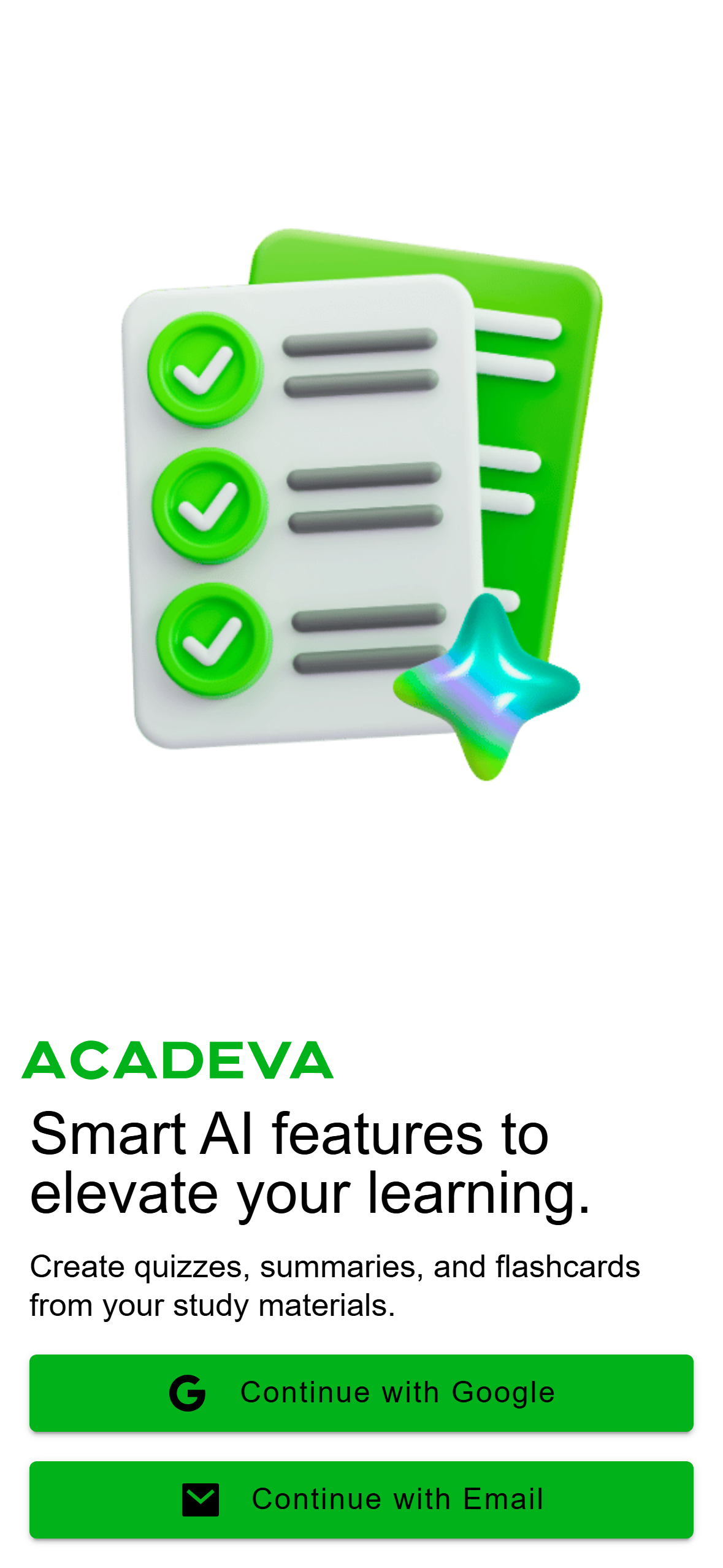
- Google signs you in with one tap. Email lets you set a password.
Mobile: The sign-in screen on the phone app. If you picked email, type your address and tap Next.
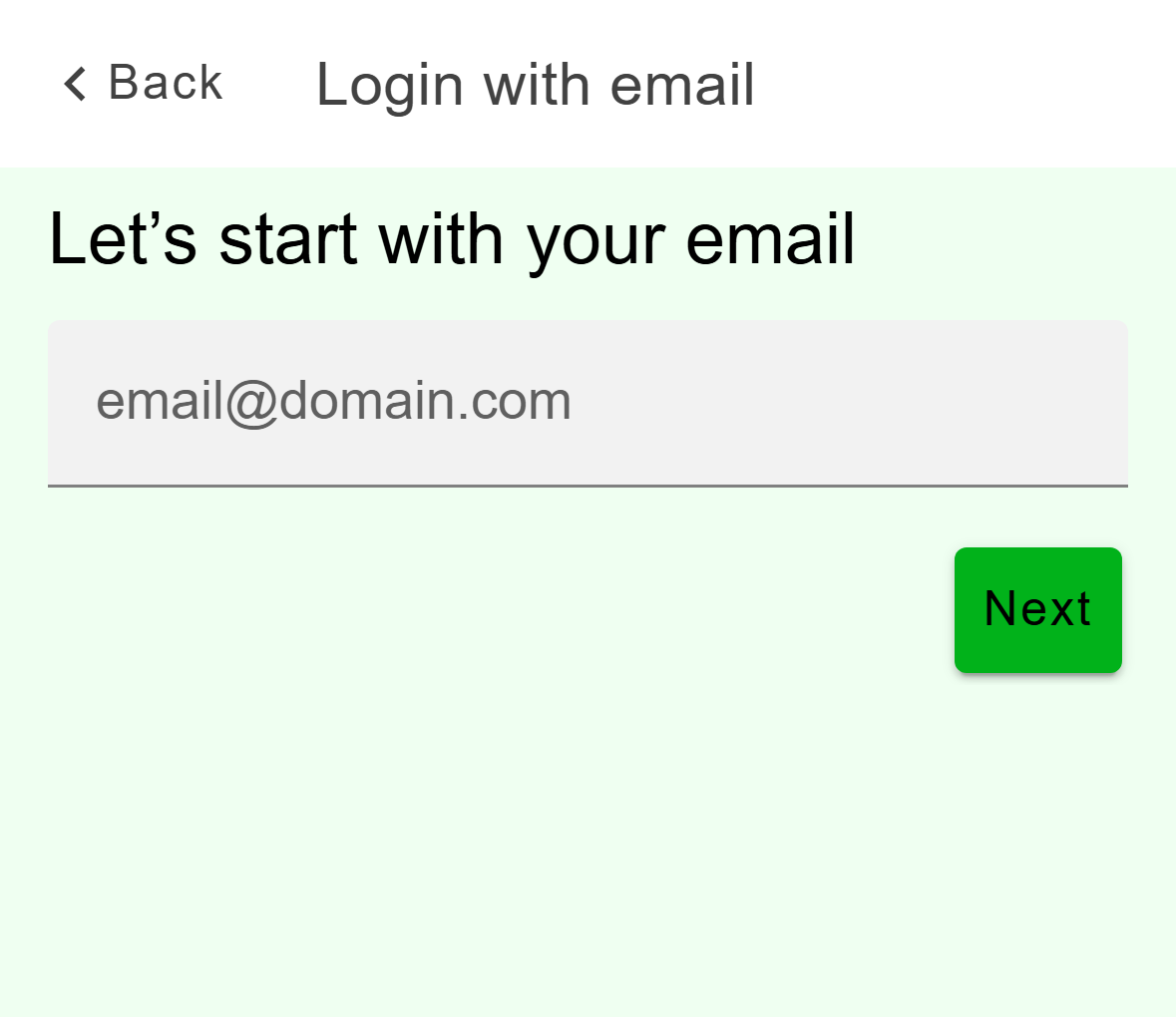
Mobile: Enter the address you want on the account. For a new address, set a password and tap Finish. For an address that already has an account, enter your password instead.
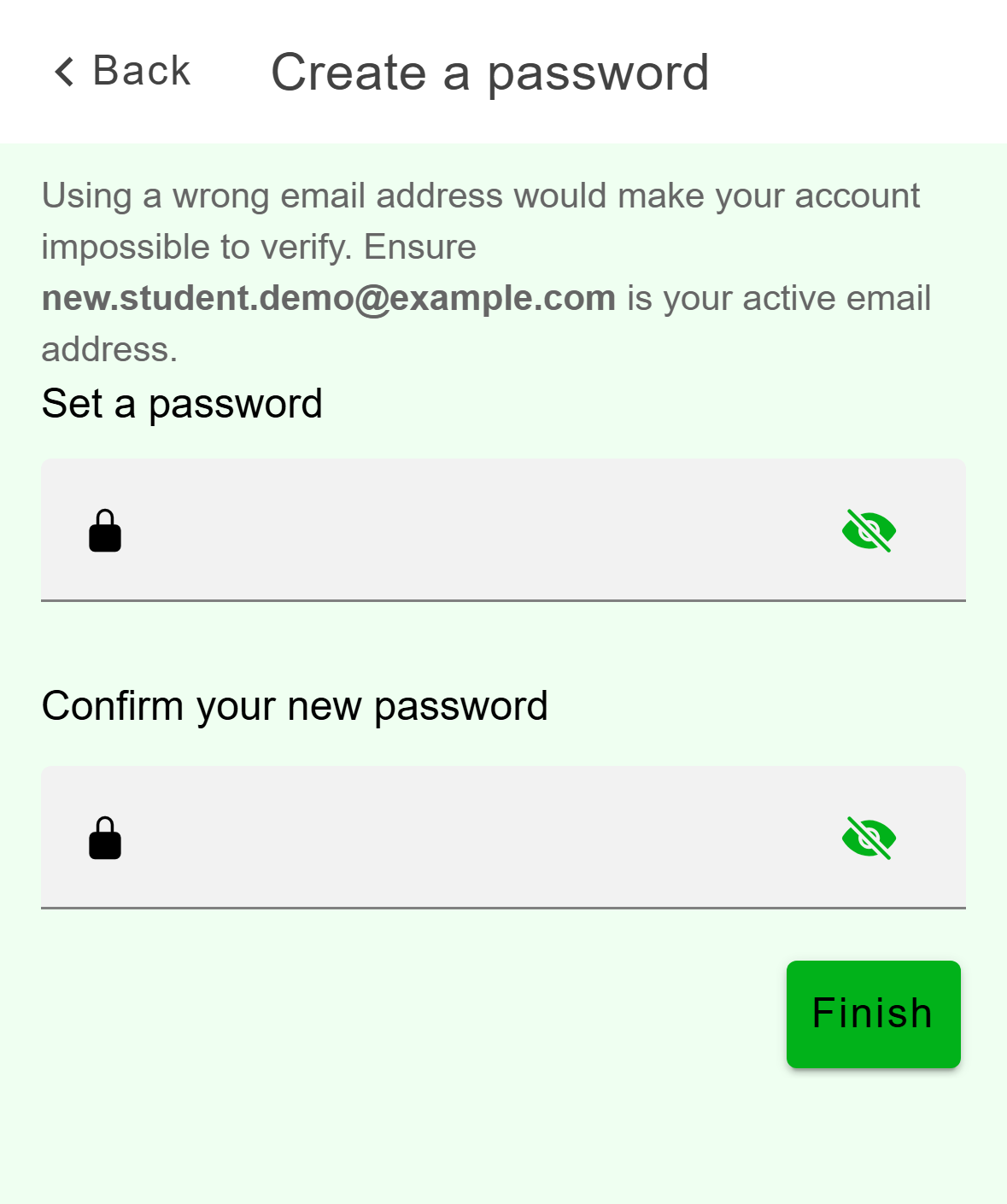
Mobile: New accounts set a password here.
Open the Acadeva desktop app. The sign-in screen is the first thing you see.
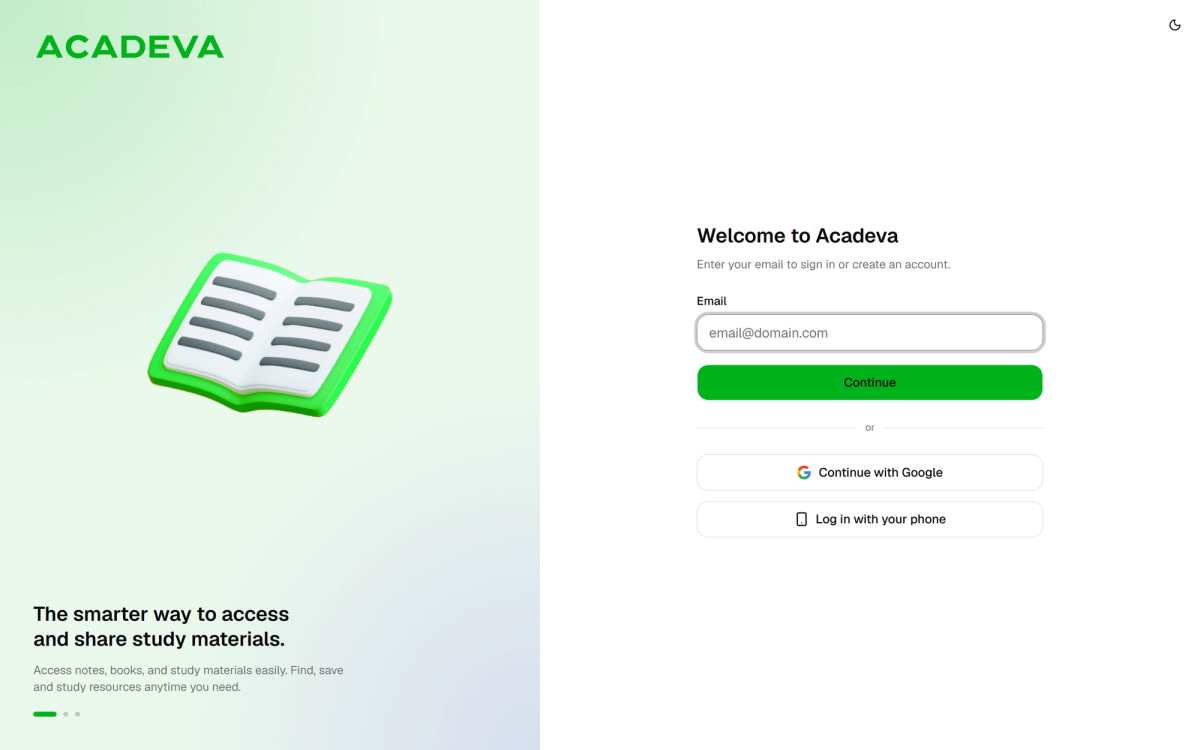
- Desktop only: sign in from the phone app instead of typing here.
Desktop: The desktop sign-in screen. Everything is on one page. Type your email and click Continue, or click Continue with Google.
For a new address, set a password and click Create account.
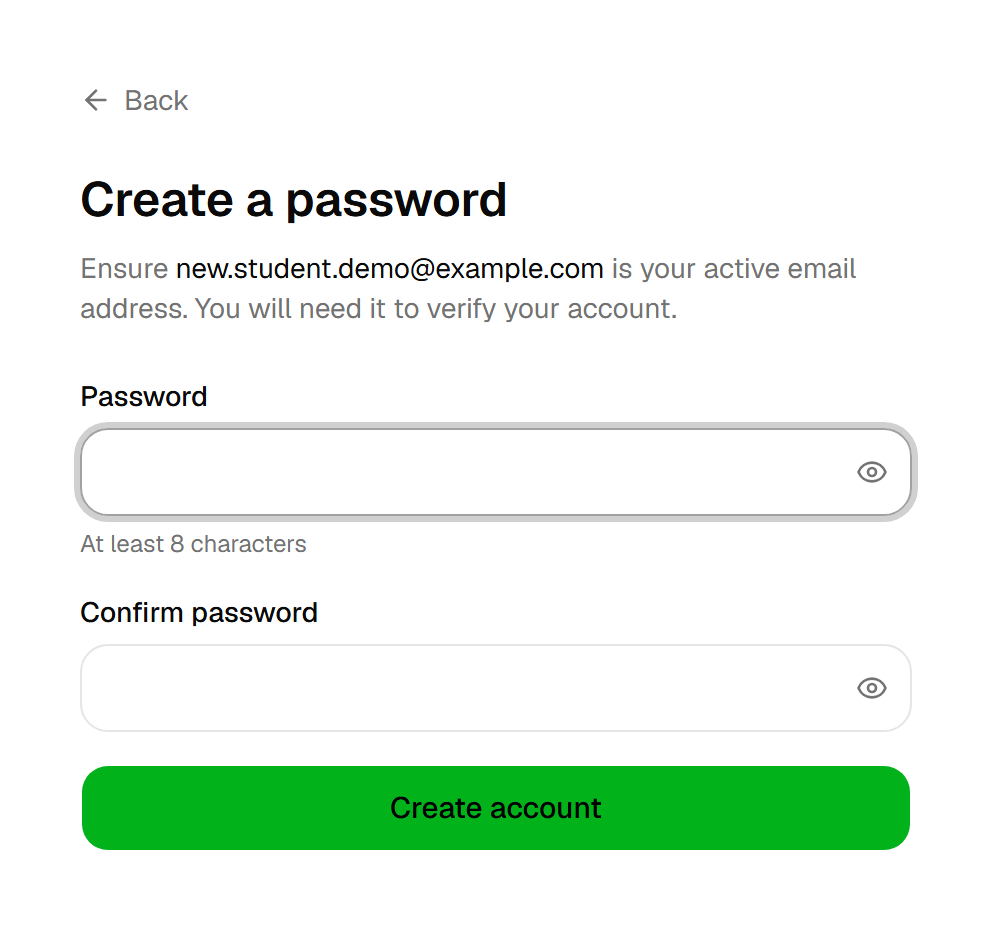
Desktop: New accounts set a password here.
Sign in on a computer by pairing your phone
This is a desktop feature. On your phone you sign in directly, so there is nothing to pair.
If you already use Acadeva on your phone, you can sign in on your computer without typing anything.
On the desktop sign-in screen, click Log in with your phone.
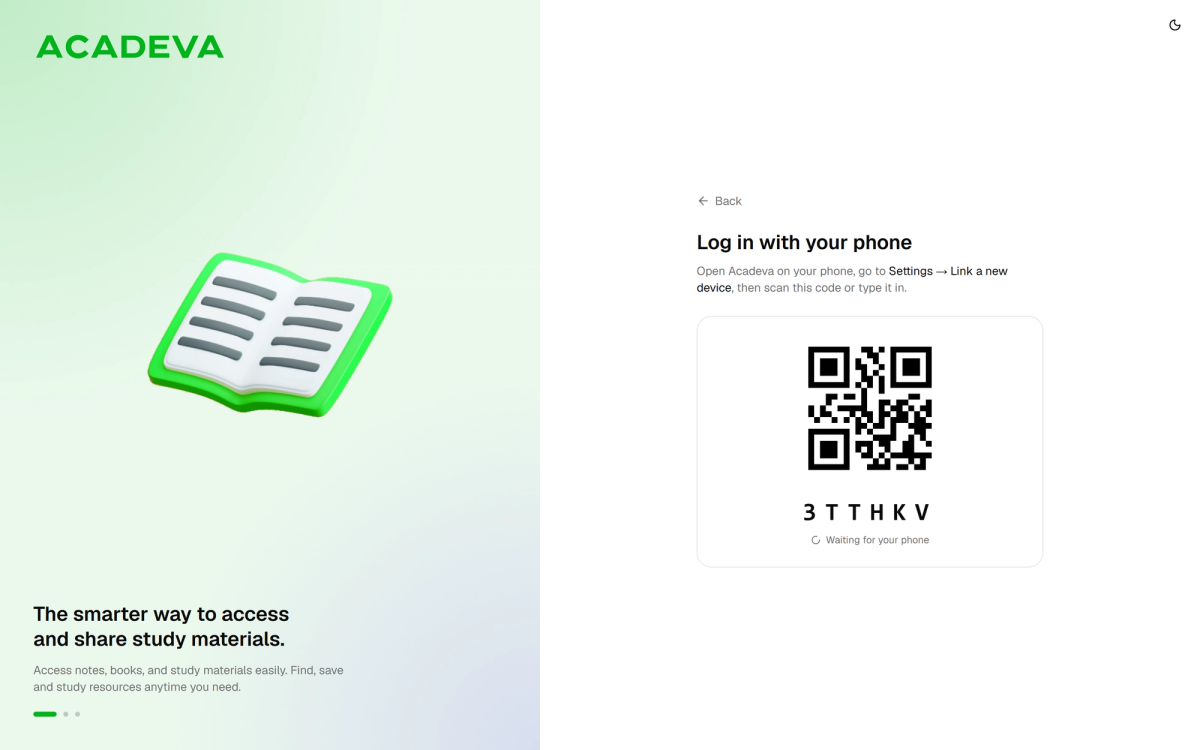
- Type this six-character code into the phone app, or scan the QR code.
Desktop: The desktop app shows a QR code and a six-character code. On your phone, open the You tab, tap Linked devices, then Add a New Device.
Type the six-character code from your computer. The desktop app signs in on its own once your phone confirms.
Signed up with Apple? Apple sign-in is not available on desktop. Sign in on the phone app first, then pair your computer using the steps above.
After you sign in
The first time, Acadeva asks for your school, department, and level. Set up your profile covers that step. After that, opening the app takes you straight to your Home screen.
If sign-in fails, check that you are online and that you are using the same method you signed up with. If it still will not work, see I can’t sign in.