
Updates fix bugs and add features. If something you read in the help center is missing from your app, or the app is acting oddly, check that you are on the latest version first. How you update depends on which app you use.
Check which version you have
Open the You tab, scroll to the bottom and tap About. The Version row shows your version number, with the build number in brackets. Tap the row to copy it, which is handy if you contact support.
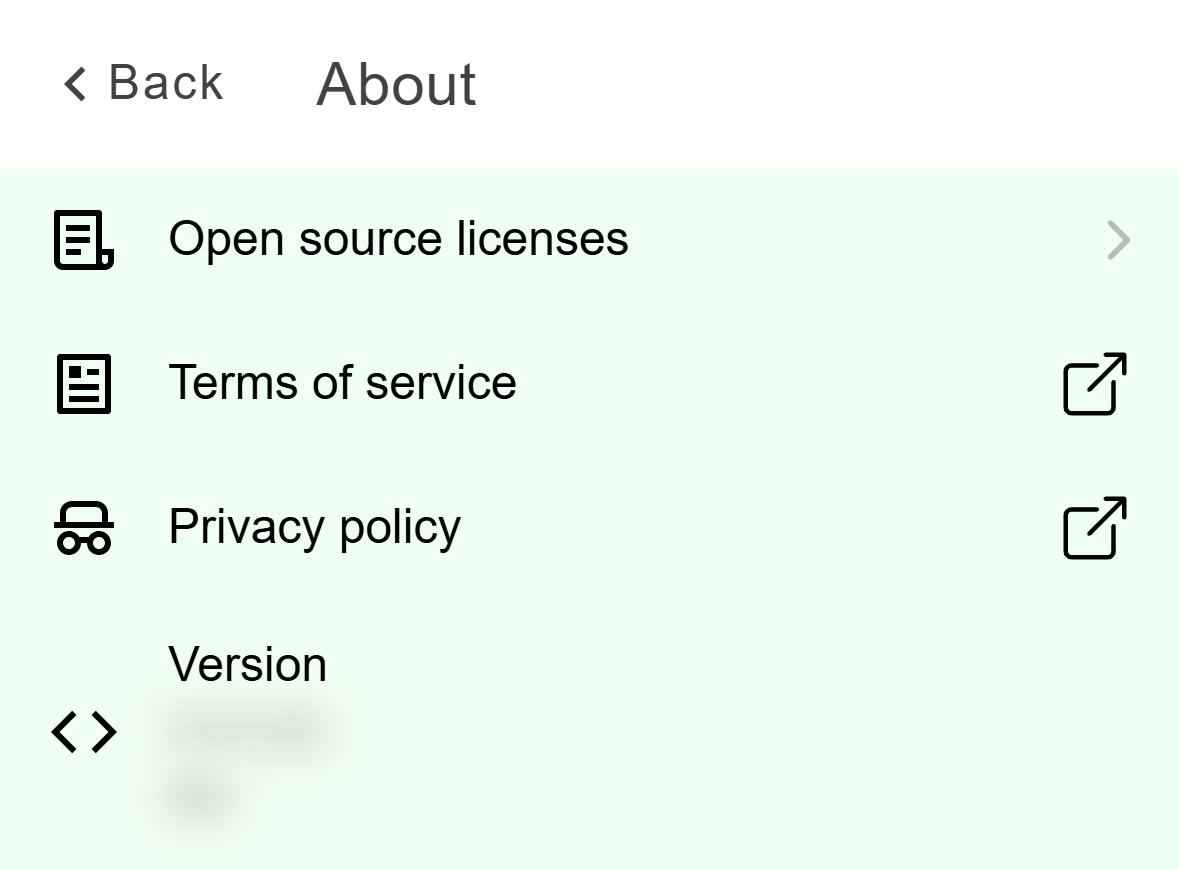
- Your version and build number.
Click your name at the bottom of the left rail, choose Settings, then About. Version shows your version number. Click it to copy it.
Update the app
iPhone and iPad
The app does not prompt you to update on iOS. Open the App Store, search for Acadeva, and tap Update. If the button says Open instead, you already have the latest version.
Android
Each time you open Acadeva, it asks Google Play whether a newer version exists. If one does, Google Play downloads it in the background. When the download finishes, Acadeva shows Update downloaded. Restarting now and restarts on the new version.
To update by hand, open the Play Store, find Acadeva and tap Update.
Both stores can install app updates automatically. Turn that on in the store's own settings and you will rarely need this article.
The Windows and Linux downloads, and the Microsoft Store version, check for updates themselves. Nothing is installed until you click Install now.
Open Acadeva. It checks once each time it starts. If there is an update, a message appears for a few seconds saying Acadeva [version] is available, with a View update button.
If you missed it, an Update available button sits on the left rail, just above your account. Click it, or the message's View update.
The Update available window shows the new version, the version you are on, and notes about what changed if the release has any. Click Install now, or Later to keep working.
Wait while it downloads. The window shows a percentage and cannot be closed until the download ends.
On Windows, Acadeva closes and reopens by itself on the new version. On Linux, the window says Update installed. Click Restart now, or Later and then Restart to update on the rail when you are ready.
On Windows the app closes on its own to finish installing. Save your work first.
Check by hand
Open Settings, then About, and click Check for updates. The label beside it reads Up to date, Update available, Installing..., Ready to restart or Check failed. If there is nothing newer, a message says Acadeva is up to date.
On a Mac
If you installed Acadeva from the Mac App Store, it updates there. Settings has no Check for updates row in that version. Open the App Store and update Acadeva from it.
If it doesn't work
- On the desktop, Couldn't check for updates. usually means no internet connection. Reconnect and click Check for updates again.
- If you see The update could not be installed., try again. If it keeps failing, download the newest installer from acadeva.xyz/download.
- On a phone, if the store shows Open instead of Update, you already have the newest version.
Still stuck? See Report a problem or contact support, and include your version number.