
The desktop app is Acadeva on a bigger screen. It uses the same account as your phone, so your books, notes, schedule, streak and points match in both. Only the layout changes: it is built for a wide window, a mouse and a keyboard.
What you need
- A computer with Windows, macOS or Linux. The Windows and Linux installers are for 64-bit Intel or AMD computers. The Mac version runs on Apple silicon and Intel.
- Room for a window at least 1100 pixels wide and 700 tall. The app will not shrink below that.
- An internet connection to sign in, and your phone if you want to sign in by pairing.
Install the desktop app
Open acadeva.xyz/download in a browser and find the Desktop app column.
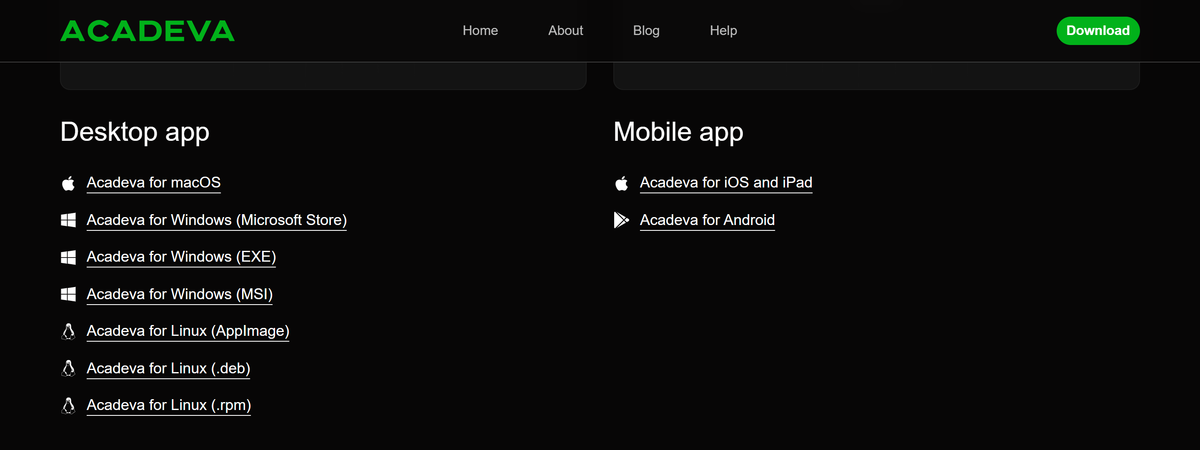
- Pick the version for your computer.
Desktop: The download page lists every desktop version, and the phone apps beside them. Click the link for your system. The list below says which is which.
Run the installer (on a Mac, let the App Store install it), then open Acadeva.
- Acadeva for macOS opens the Mac App Store.
- Acadeva for Windows (Microsoft Store) installs from the Microsoft Store. The EXE and MSI links download an installer file instead.
- Acadeva for Linux comes as an AppImage, a .deb or an .rpm.
Windows may warn you when you run the EXE, because the installer is not signed with a certificate Microsoft trusts. The Microsoft Store link avoids that.
Sign in on your computer
The sign-in screen offers three ways in:
- Type your email and click Continue. Acadeva then asks for your password, or lets you create one if the address is new.
- Continue with Google opens Google in your browser. On a Mac, the button reads Continue with Apple instead.
- Log in with your phone pairs the computer with the phone app. If your account uses Apple sign-in and you are not on a Mac, this is the way in.
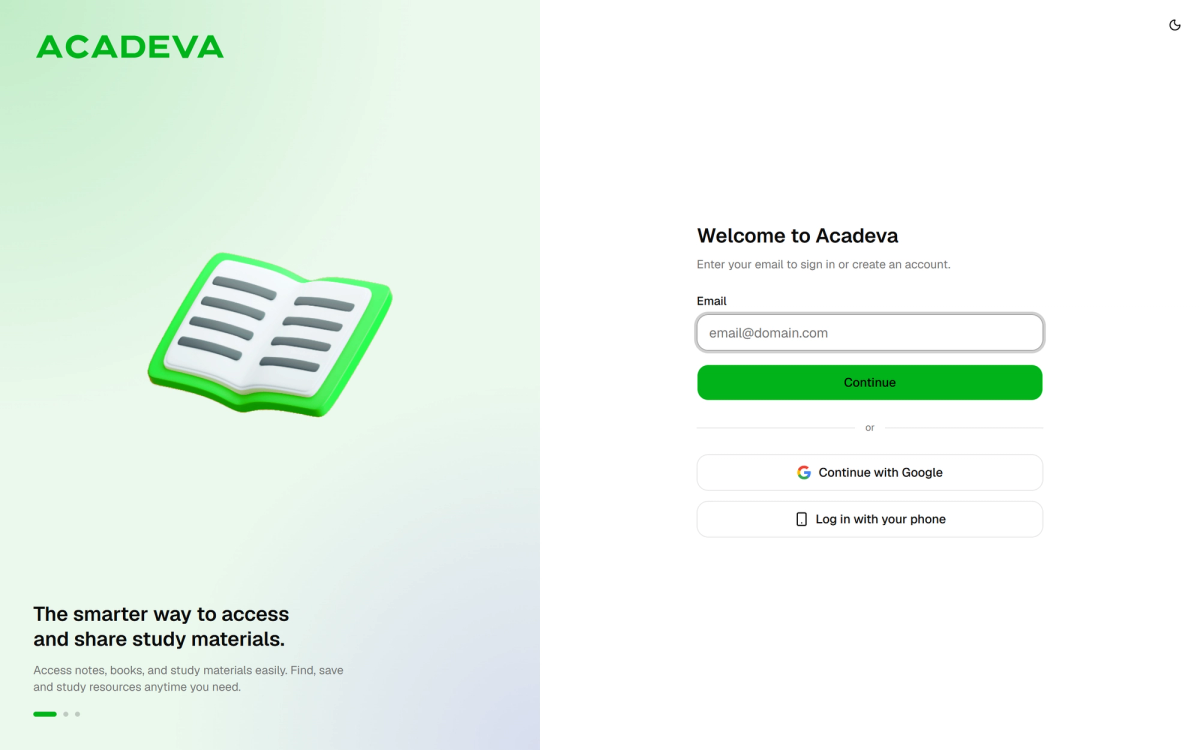
- Sign in from your phone instead of typing.
New accounts go through a short profile setup first. Set up your profile: school, department, and level covers it.
Pair with your phone
On the computer, click Log in with your phone. You see a QR code and a six-character code, with Waiting for your phone under it.
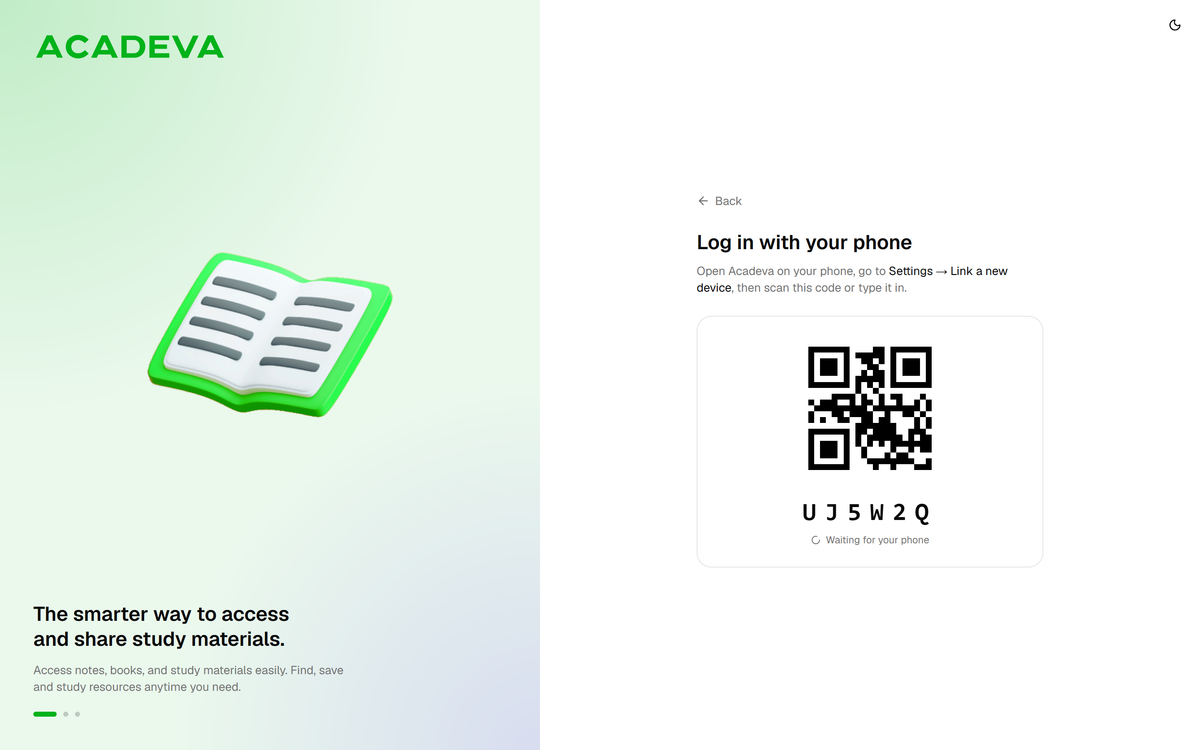
- Type this code into the phone app.
Desktop: The computer shows a code and waits for your phone. On your phone, open Acadeva and tap the You tab, then Linked devices, then Add a New Device.
On the Link New Device screen, type the six characters into Device Code and tap Link Device.
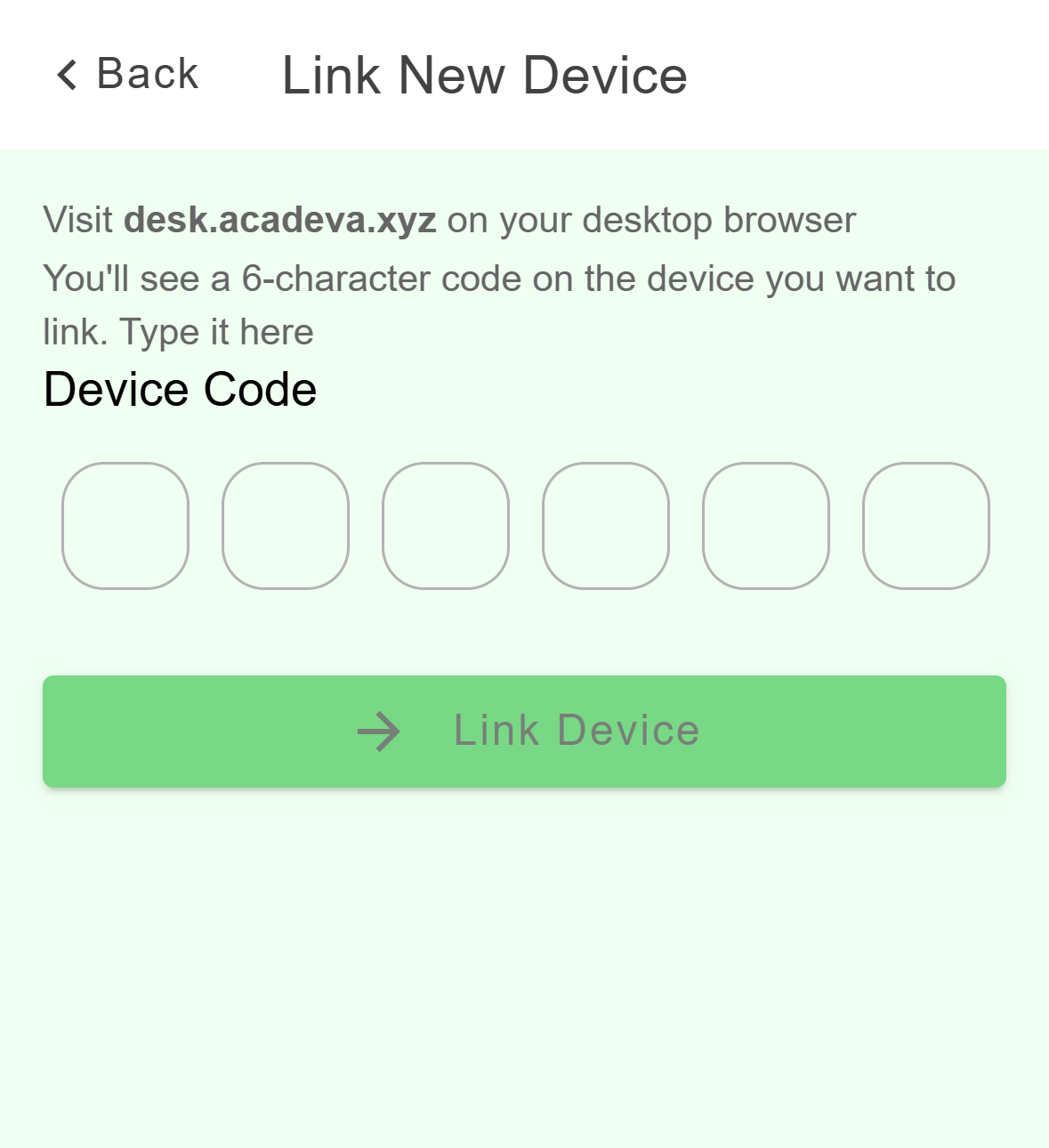
- Type the code from your computer here.
- Then tap Link Device.
The Link New Device screen on the phone. The phone says Device linked. Tap Continue. The computer signs in by itself.
The hint on the computer screen says Settings, then Link a new device. On the phone, the path is the You tab, then Linked devices. The Link New Device screen also mentions desk.acadeva.xyz in a desktop browser. A code from the desktop app goes in the same box.
A code lasts about two minutes and works once. The computer swaps in a fresh one by itself, so type the one you can see right now.
How the desktop app is different
A left rail instead of tabs
The tabs along the bottom of the phone app become a rail down the left side of the window. It lists Study, Library, Notes, AI Hub, Schedule, Study Groups, People and Profile. Upload a book and your account sit at the bottom. Click your name for Settings, Add account and Log out.
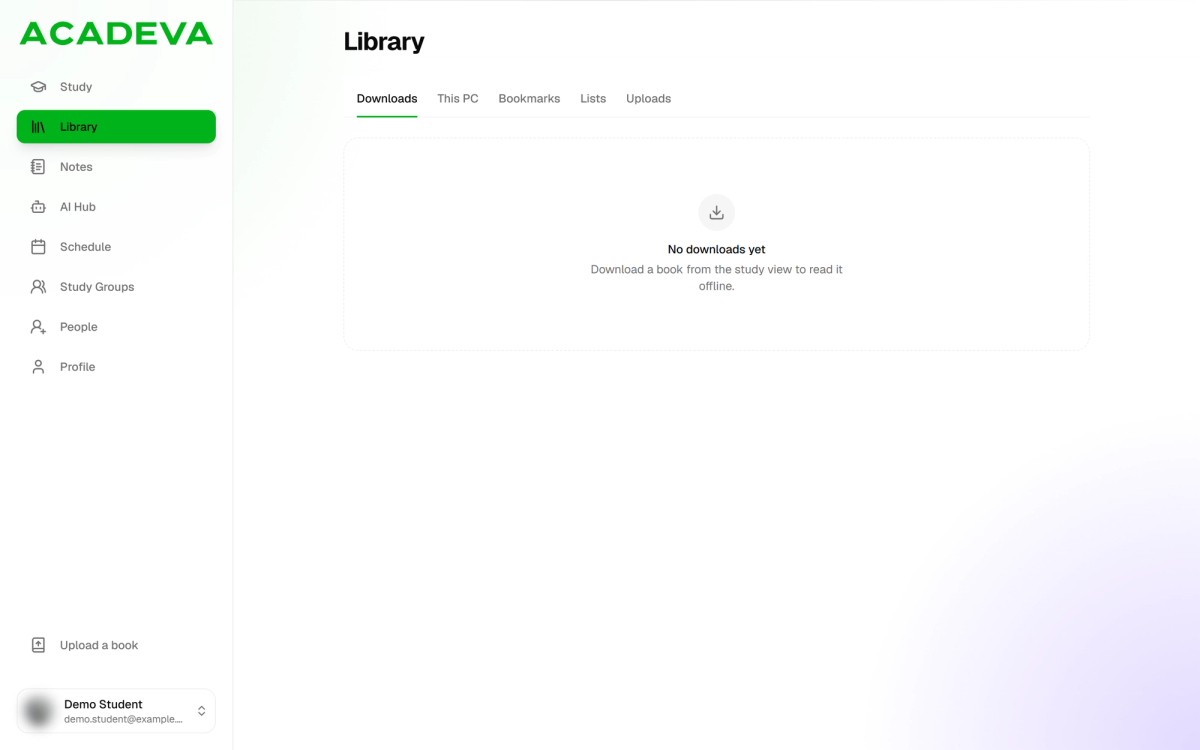
- The rail. Click an item to open it.
- Your account menu.
The dock
A thin strip on the right edge of the window is the dock. It keeps a book, a note or an AI conversation one click away. It appears once you pin something: in the reader, the note editor or an AI conversation, click the pin button (it says Pin to dock when you hover). Hover over the dock to widen it, click an item to go back to it, or click the X to unpin it. Close all unpins everything.
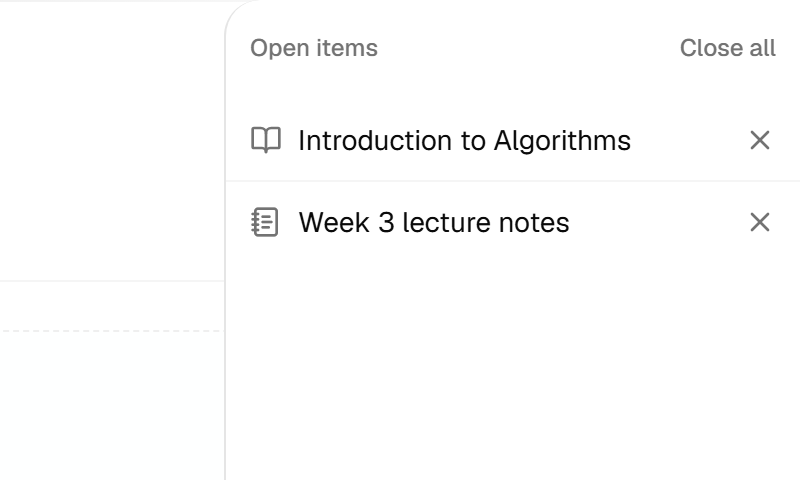
- Pinned items. Click one to open it.
Searches open over the page
Where the phone app pushes a new full screen, the desktop app opens a search box over the page. Choosing a school, department, country or state works this way, and so does the search for agendas and timetables on Schedule.
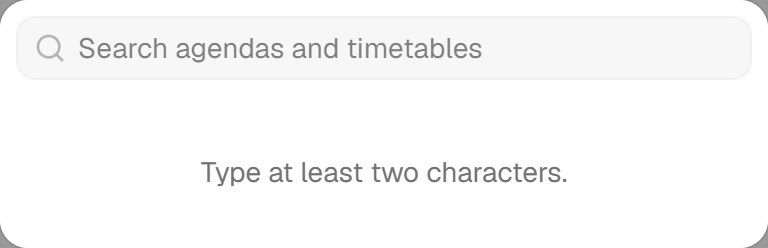
- Type at least two characters to search.
Keyboard shortcuts
On a Mac, use Cmd where this says Ctrl.
- Ctrl+K on Schedule opens the search for agendas and timetables.
- Ctrl+N on Notes starts a blank note.
- In the reader, Esc goes back. Ctrl with + zooms in, with - zooms out, and with 0 resets the zoom.
- In Math Solver, Ctrl+V pastes a screenshot of a problem.
PDFs on your computer
Library has a This PC tab for PDFs that live on your computer. Click Open PDF to pick one, or open a PDF with Acadeva from your file manager. Acadeva reads the file where it is and does not copy it.
Keep it up to date
Most desktop versions check for updates on their own. Update to the latest version explains how, and what to do on a Mac.
If it doesn't work
- If the pairing screen shows a red error, click Try again to get a new code.
- If the phone says Code not found, the code was mistyped or has expired. If it says Code already claimed or invalid, that code was already used. Either way, type the code that is on the computer screen now.
- If Google sign-in opens a browser window, finish there, then switch back to Acadeva.
Still stuck? See I can’t sign in, or Report a problem or contact support.