
Acadeva has the same main areas on your phone and on your computer, but each app lays them out its own way. This article shows where everything lives, so you can find what you need without hunting.
You use one account in both apps, so your streak and points are the same on each. Only the layout changes. The names below are the ones you see on screen.
Where things live
The phone app has four tabs along the bottom: Home, AI Hub, Schedule and You. Tap a tab to switch to it.
Home
Home is where you start. The bell at the top opens Notifications. Below it are three rows: Study (books and course materials), Library (offline books and lists) and Notes. Your day at a glance opens today's schedule. The round button in the corner opens the QR scanner, for something someone shared with you as a code.
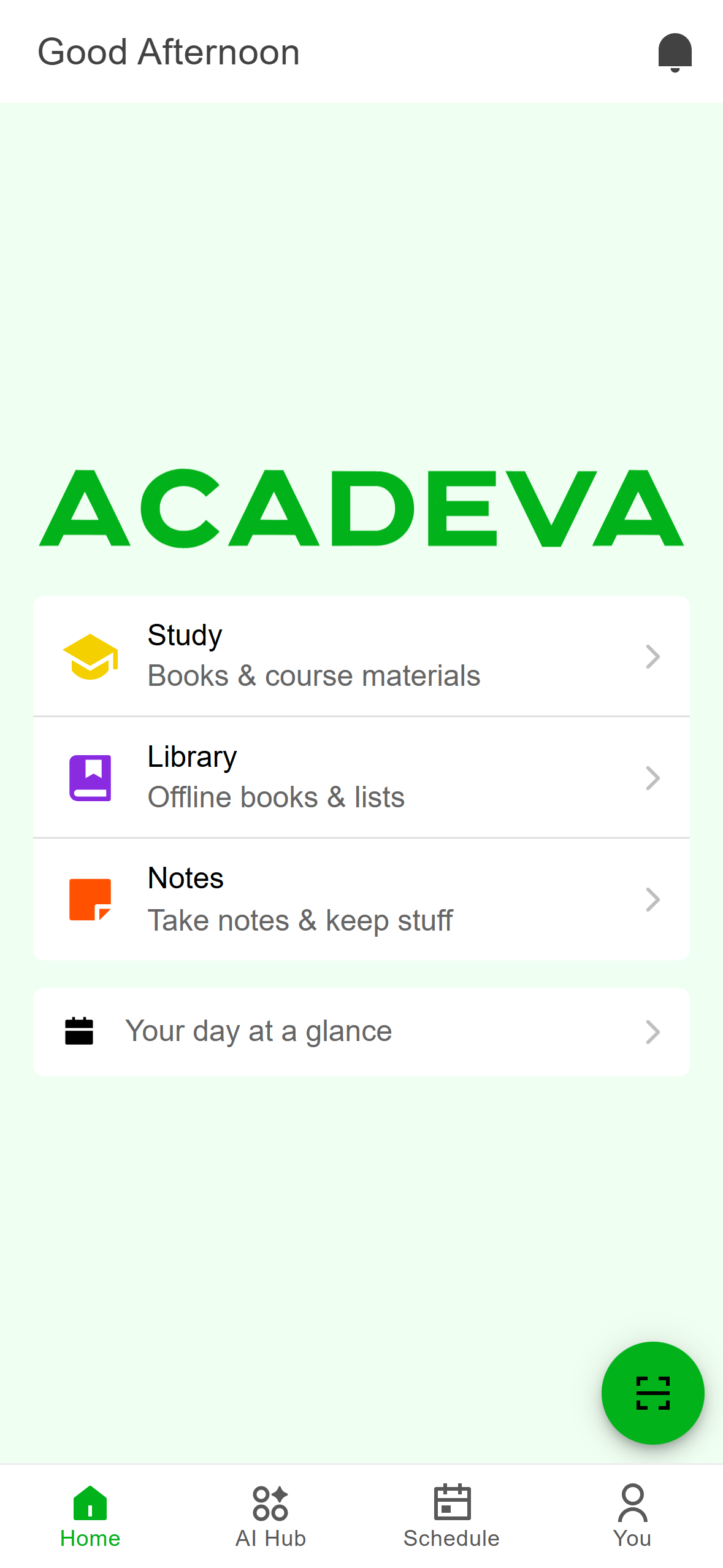
- Study, Library and Notes.
- The QR scanner button.
- The four tabs. Tap one to switch.
AI Hub
Under Create new AI task you pick Edima, Quiz Maker, Math Solver or Lecture Explainer. Below them, AI Task history lists your past tasks. Shared with me and Manage shared items cover what has been shared with you and what you have shared. Both are marked Preview in the app.
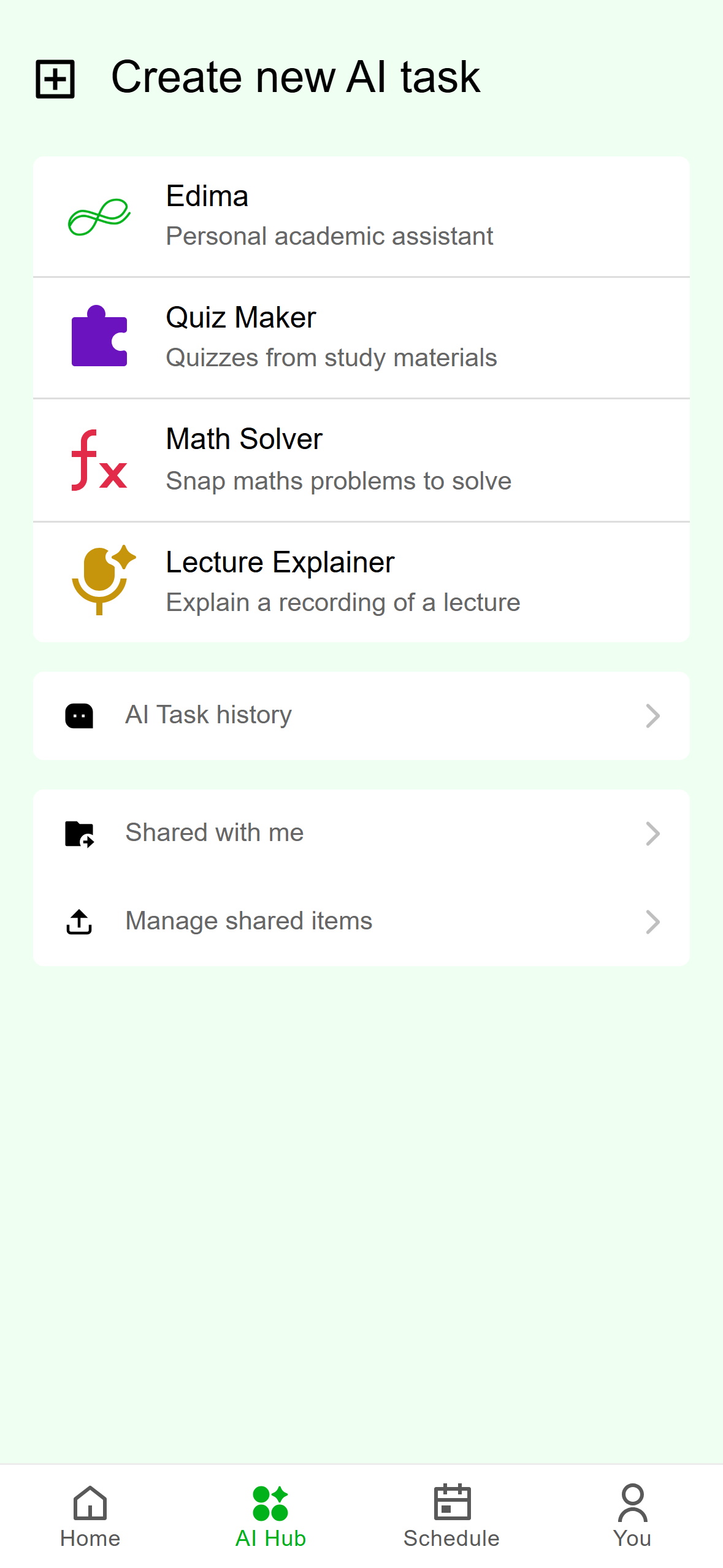
- The four AI tools.
- Your history and shared items.
Schedule
Schedule shows your classes for the week. The first time you open it, you may see Just a moment while your schedule downloads. Manage is where you create agendas and timetables. The megaphone button, with a number on it, opens Updates, the notices posted to your schedule. It only appears when there are updates. Use the arrows at the bottom to move between weeks.
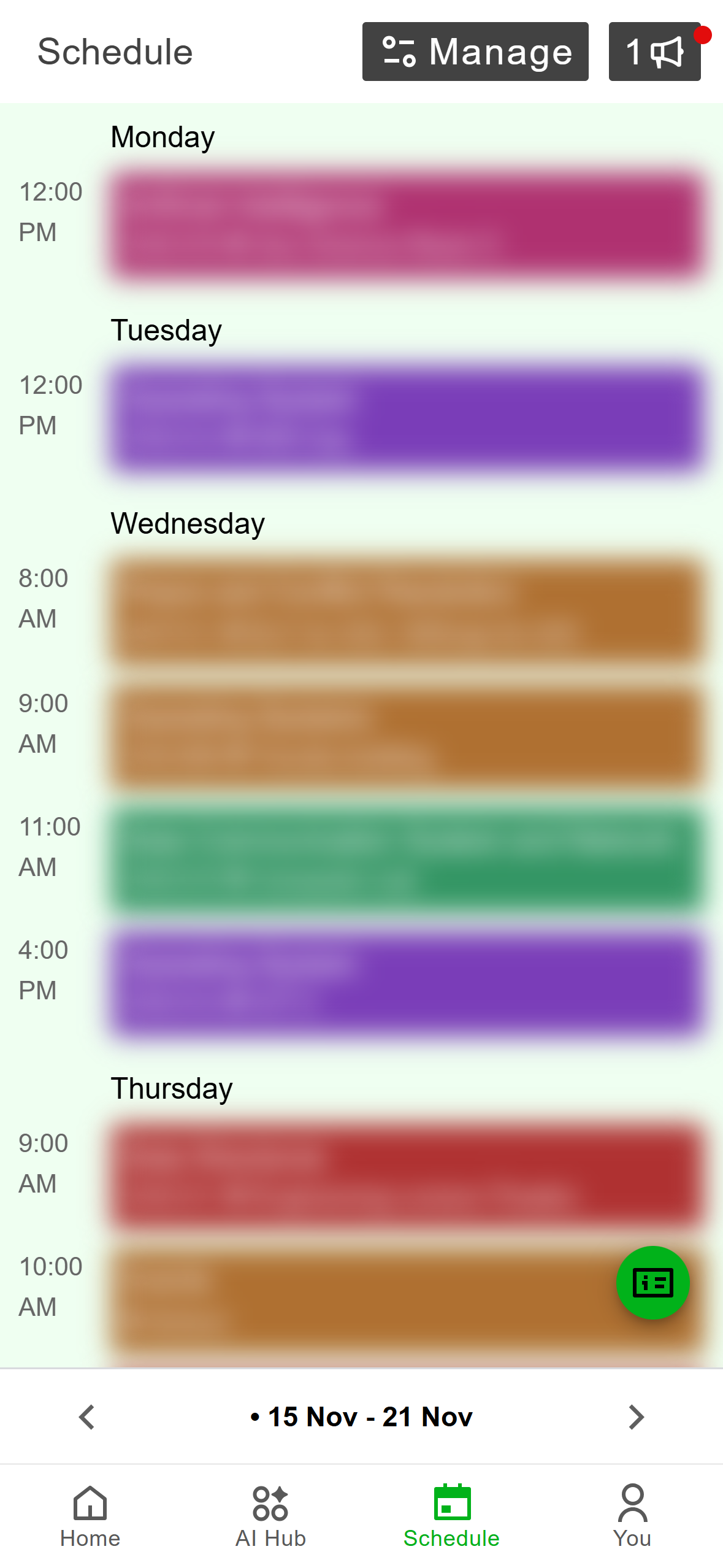
- Manage: create agendas and timetables.
- Updates, with the number of new notices.
- Move between weeks.
You
You holds everything about your account. At the top are your streak and points. Under them are My Profile, People, Study groups, Bookmarks, Lists, Sharing, Rewards, Downloads, Upload books and Refer a friend.
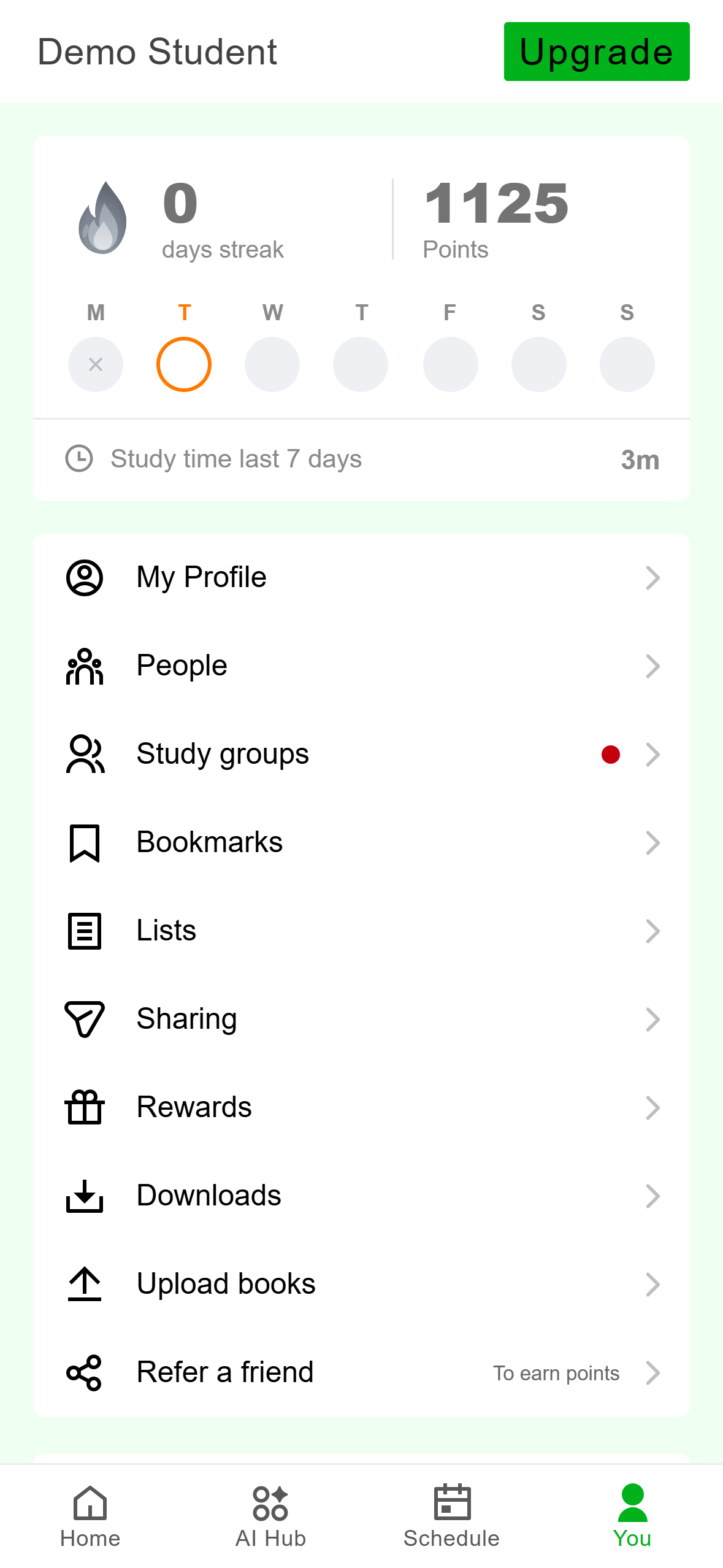
- Your streak and points.
- Your profile, people, groups and saved material.
Scroll down for the account and app rows: Subscription, Linked devices, Offline & Sync, Settings, Switch accounts, Request tickets, Get support and About. Log out is at the bottom.
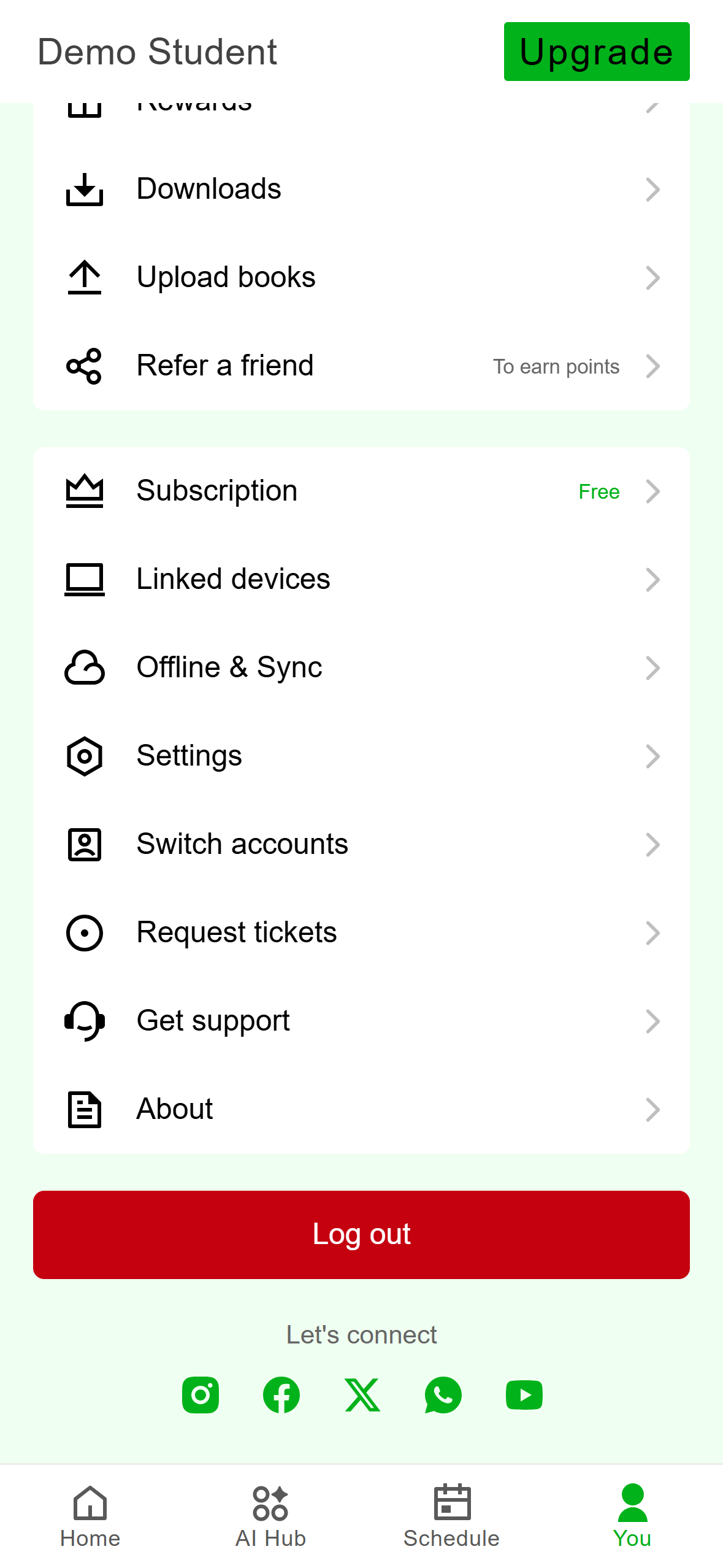
- Account and app rows.
- Log out. This is not the same as Switch accounts.
The desktop app has no bottom tabs. A rail runs down the left side of the window and stays there on every screen. It lists Study, Library, Notes, AI Hub, Schedule, Study Groups, People and Profile. Upload a book and your account sit at the bottom of the rail.
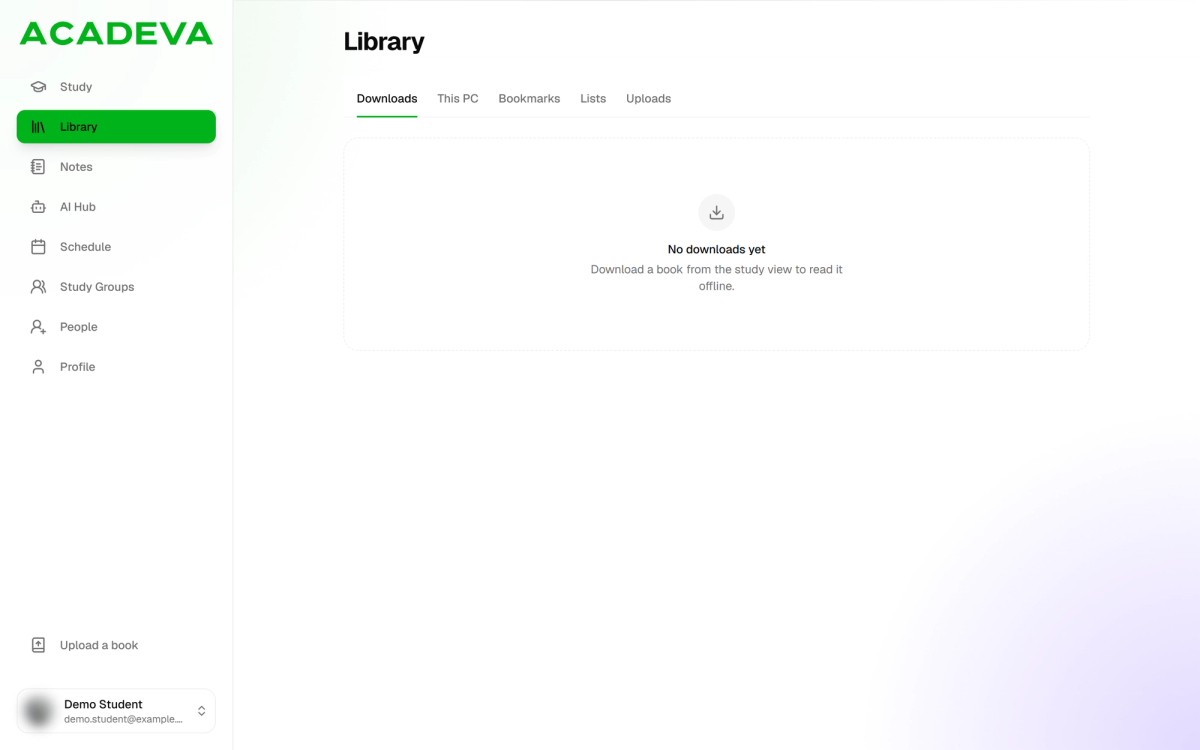
- The rail. Click an item to open it.
- Upload a book.
- Your account menu.
What each rail item opens
- Study is your home screen. It shows your level, streak and points, your courses, the book you were reading, and recent bookmarks. Search books and the notifications bell are at the top right.
- Library has five tabs: Downloads, This PC, Bookmarks, Lists and Uploads.
- Notes holds your notes, with New note and a search box.
- AI Hub lists your past conversations on the left and the four tools on the right: Edima, Quiz Maker, Math Solver and Lecture Explainer. New Task starts a task.
- Schedule shows a week view, with New agenda and Manage schedule at the top.
- Study Groups lists your groups. Pick one to open its chat.
- People has four tabs: Suggestions, Friends, Requests and Sent. Find people searches for someone.
- Profile is your profile page.
The dock
A thin strip on the right edge of the window is the dock. It appears once you pin a book, a note or an AI conversation, and it stays put while you move around the app. Hover over it to widen it. Click an item to jump back to it, or click the X to unpin it. Close all unpins everything. To pin something, use the pin button in the reader, the note editor or an AI conversation. Its tooltip says Pin to dock.
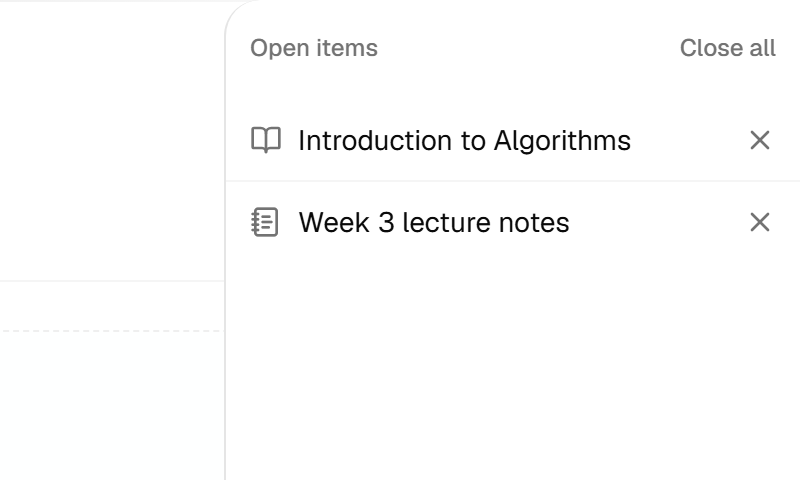
- Pinned items. Click one to open it.
- Close all unpins everything.
Your account menu
Click your name at the bottom of the rail to open the account menu. It has Settings, Add account and Log out. Settings has sections for Personal information, Apps & Connections, Linked devices, Offline & Sync, Usage, Support, About, General and Delete account.
Looking for something from the other app?
If you know where a thing is on your phone, here is where it is on your computer:
- Your streak and points, at the top of You, are on the Study screen.
- Bookmarks, Lists and Downloads are tabs in Library. So is Uploads, the list of books you uploaded. Upload a book at the bottom of the rail starts a new upload.
- Linked devices, Offline & Sync, Get support and About are sections in Settings, which you open from the account menu.
- Switch accounts is in the account menu. Once a second account is saved on the computer, the menu shows a Switch account section listing it.
- The notifications bell on Home is at the top right of the desktop Study and Schedule screens.
If a screen does not look like the one described here, you may be on an older version of the app. Update it and check again.