
The Account error screen has one button, Remove account. Acadeva shows it in place of your Home screen when it can't use the account saved on your phone.
This screen is only in the phone app. On desktop, an account the server no longer recognises is removed from the computer automatically, and you land on the sign-in screen.
What it means
While you use Acadeva, the app keeps your account details up to date over a live connection to the server. If the server answers with an error about your account instead of those details, for example that it can't find the account, the app marks the saved account as broken.
That mark is stored on your phone, so the screen comes back every time you open Acadeva until you act on it. It only affects the account you were signed in to. A weak or lost connection doesn't cause it: Acadeva sets the mark only when the server itself reports the problem.
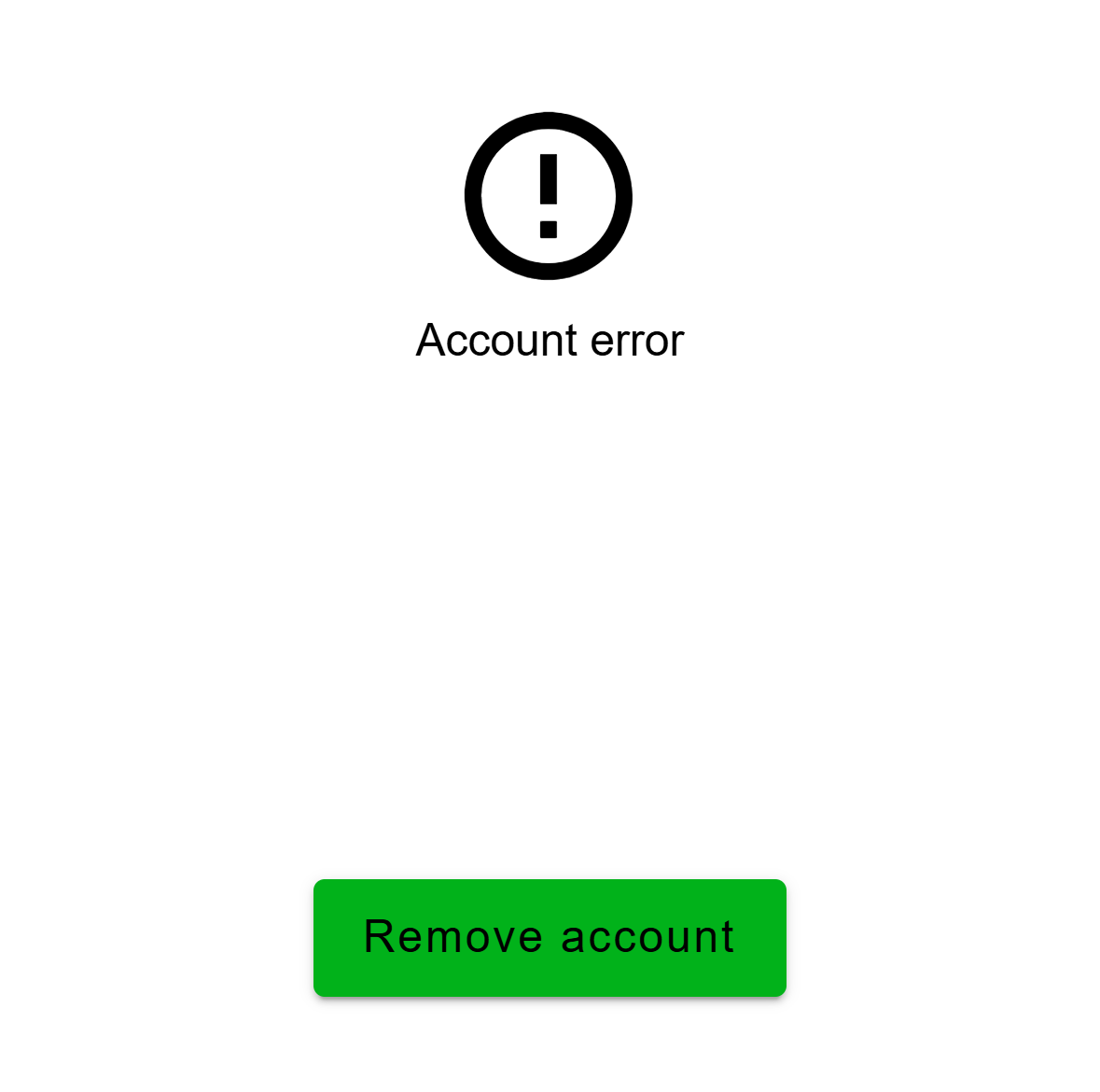
- The only way forward is to remove the account from this phone.
What Remove account does
- It signs the account out of this phone.
- It erases everything Acadeva stored for that account here, including downloaded books.
- It stops that account's notifications on this phone.
- It does not delete your account itself, and it does not change your other devices.
- A second saved account, if you have one, stays on the phone with its own data.
Anything that exists only on this phone for that account, such as a download or a note that never synced, is erased and can't be brought back.
Get back in
Make sure you are online. You need a connection to sign in again.
Tap Remove account. The app restarts.
If you have another saved account, the Accounts list opens. Tap that account to log in with no password, or use a sign-in button below the list. If not, you land on the welcome screen: tap Get started, then Let's dive in.
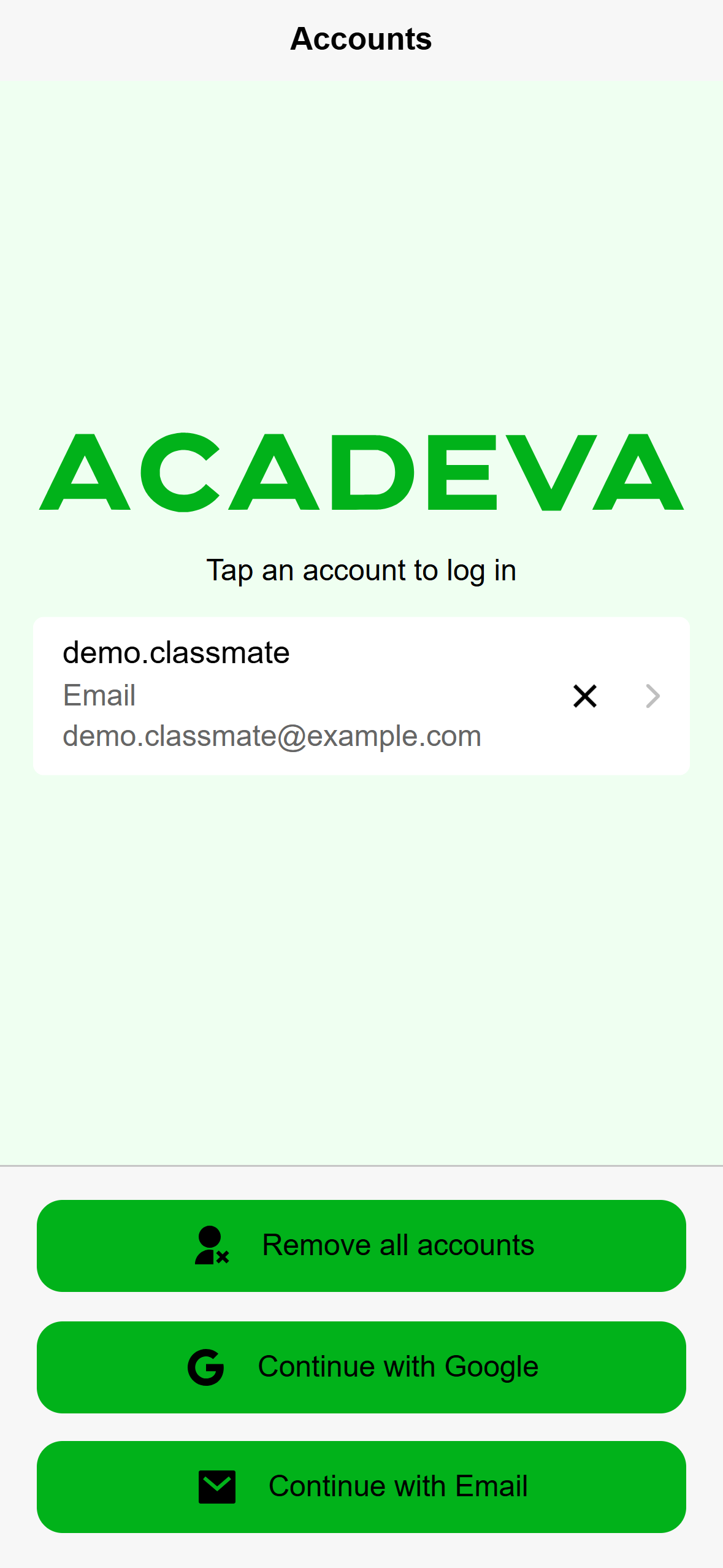
- Sign in again with one of these, or tap the account that is left.
Mobile: After the removal, the account is gone from the list. Sign in with the same method as before. Create your account walks through each option.
You don't need to reinstall Acadeva. Removing the account already clears what the app stored for it. Books you had downloaded on this phone need downloading again once you are back in.
If the server has no record of your account, signing in sets up a new account and starts the profile setup from the beginning. If it does know you, you land on your Home screen as usual.
If this was not expected, for example you have a paid plan on this account, contact support before you tap Remove account. The screen has no support button, so use Report a problem or contact support.
If it doesn't work
- The screen comes back after you sign in again. Contact support at support@acadeva.xyz and say what you did, and which sign-in method you used.
- You can't reach any other part of the app from this screen. Until you remove the account, the only way past it is the button.
- On Android, the back button closes Acadeva on this screen instead of leaving it.
- Session expired with Go back, or Something went wrong on our end with Retry, is a different screen. Those are not account errors: sign in again, or try again in a moment.
Signing in itself failing is covered in I can't sign in.