
Most sign-in problems come down to a few causes: no connection, a different sign-in method from the one you used before, a wrong password, or a pairing code that has gone stale. Find what you are seeing below.
If Acadeva asks you to Create a password for an address you already use, stop. The address you typed is not the one on your account. Go back and fix it. Finishing would create a second, separate account.
Check the basics first
- You are online. With no connection, the email step shows No internet connection. Later steps can show a general error message instead.
- You are using the method you signed up with: Google, Apple, or email and password.
- The email address is spelled exactly as before. Acadeva matches the whole address, so a typo, or a stray space at the end on the phone app, makes it look like a new address. Desktop ignores spaces at the ends.
A mistyped address leads to Create a password, with the address you typed shown in bold. Use Back and correct it.
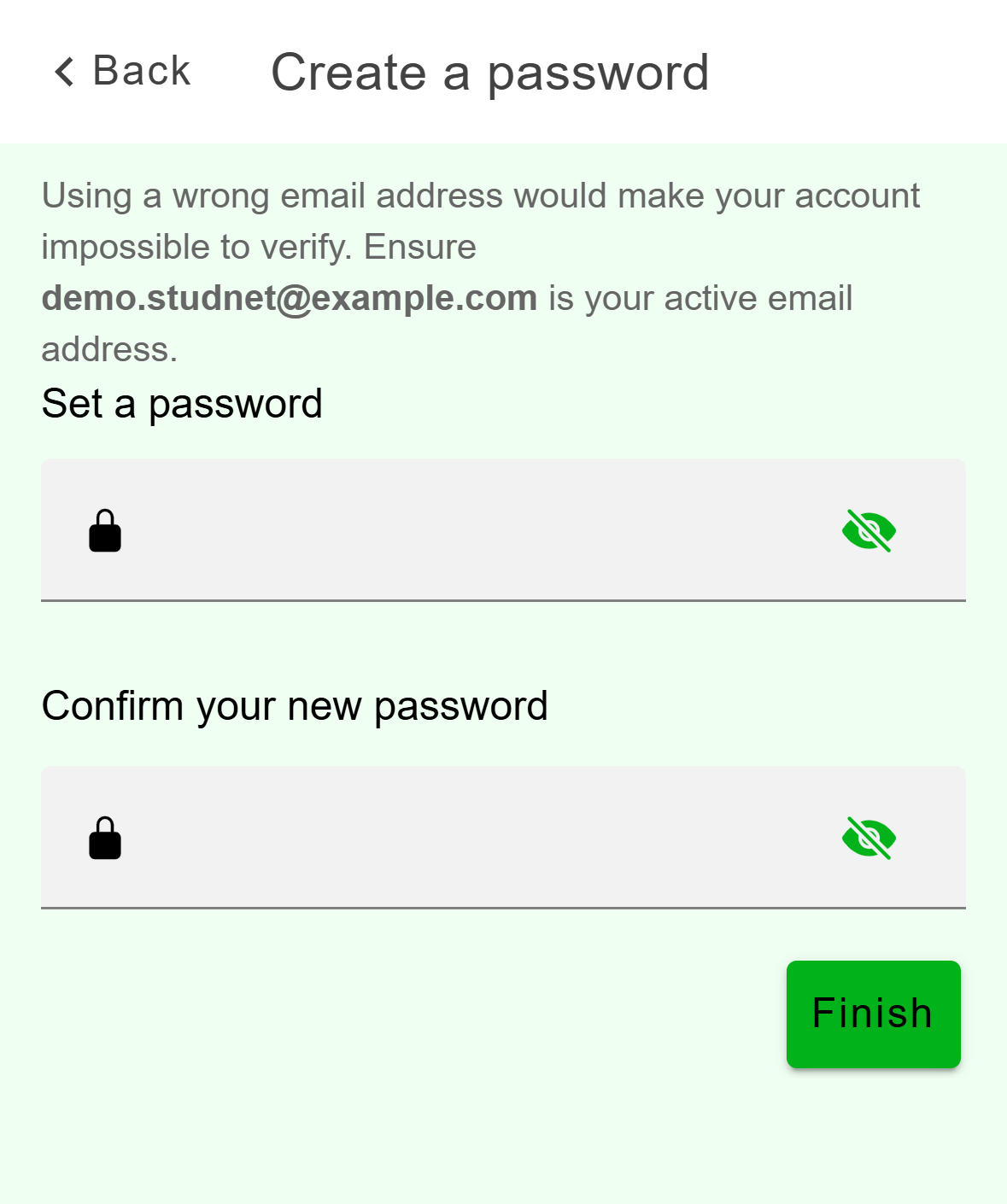
- Check the address in bold. If it is not exactly yours, go back.
What the messages mean
Messages show at the bottom of the screen on the phone and in a red box on desktop.
- Incorrect password. or Invalid credentials provided. The email or password is wrong. Use the eye icon to check what you typed.
- No user found with these credentials. There is no password login for that address. Check the spelling, or see the Google and Apple section below.
- Too many failed attempts. Try again later. Wait a while, then try again.
- This account has been disabled. A new password won't help. Contact support.
- An error occurred. Try again in a minute. On desktop, The server took too long to respond means the same. If it keeps happening, contact support.
- This account cannot be signed into from desktop yet. Desktop only. Sign in on your phone, then use the pairing steps below.
Reset your password
Acadeva emails a link to the address on screen, and you set a new password from it.
Tap Continue with Email, type your address on Login with email and tap Next.
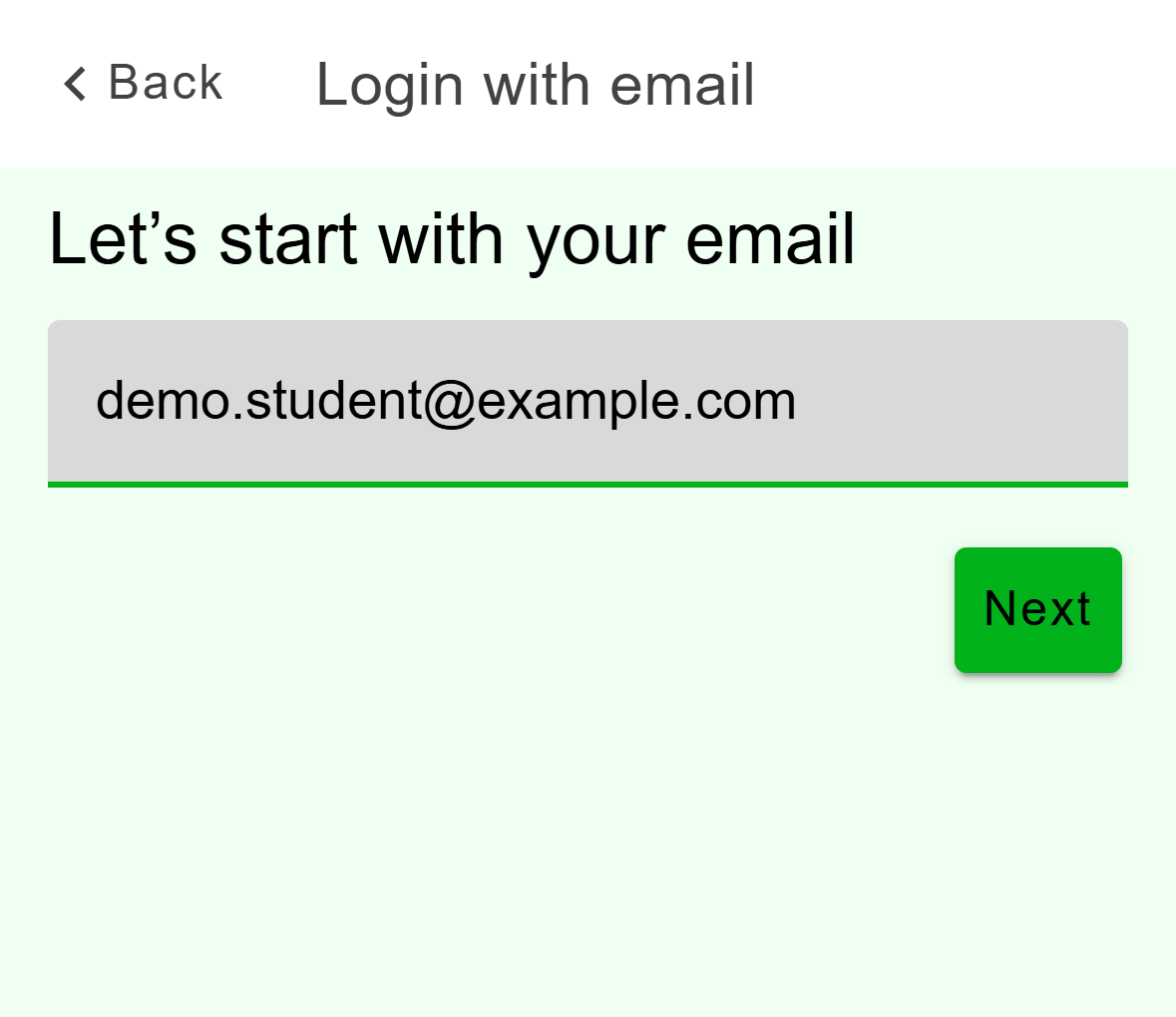
- Type the address you signed up with, then tap Next.
Mobile: Type the address you signed up with. On Enter your password., tap Forgot pasword (spelled as it is on the button).
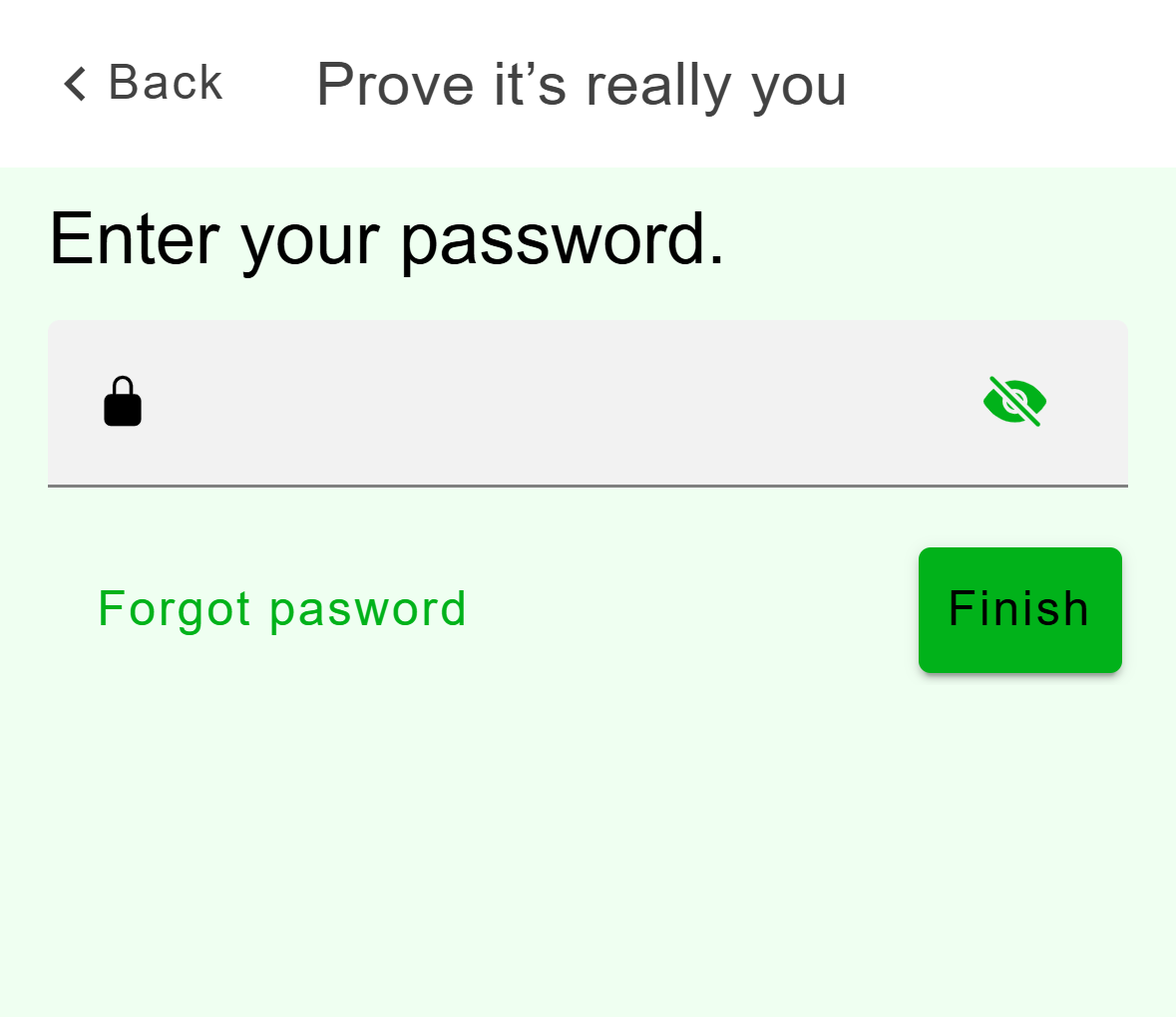
- Tap this to start a reset.
Mobile: The reset option sits next to Finish. On Account Recovery, check the address and tap Send Link.
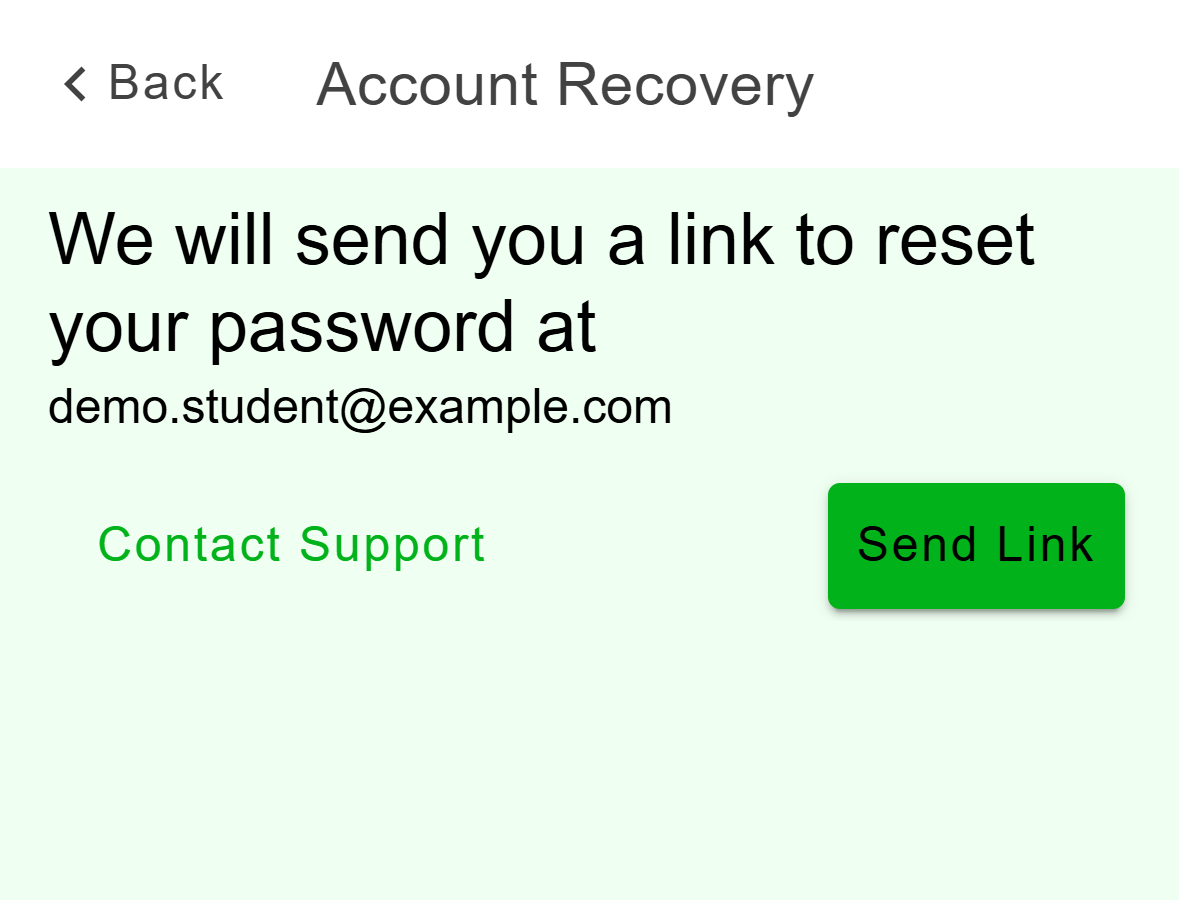
- Check the address above first, then tap Send Link.
Mobile: The link goes to the address shown here. Open the email, follow the link, and set a new password. Back in Acadeva, tap Back to Login on the Heads up screen and sign in with it.
Type your address and click Continue. On the password step, click Forgot password?. The email is sent right away.
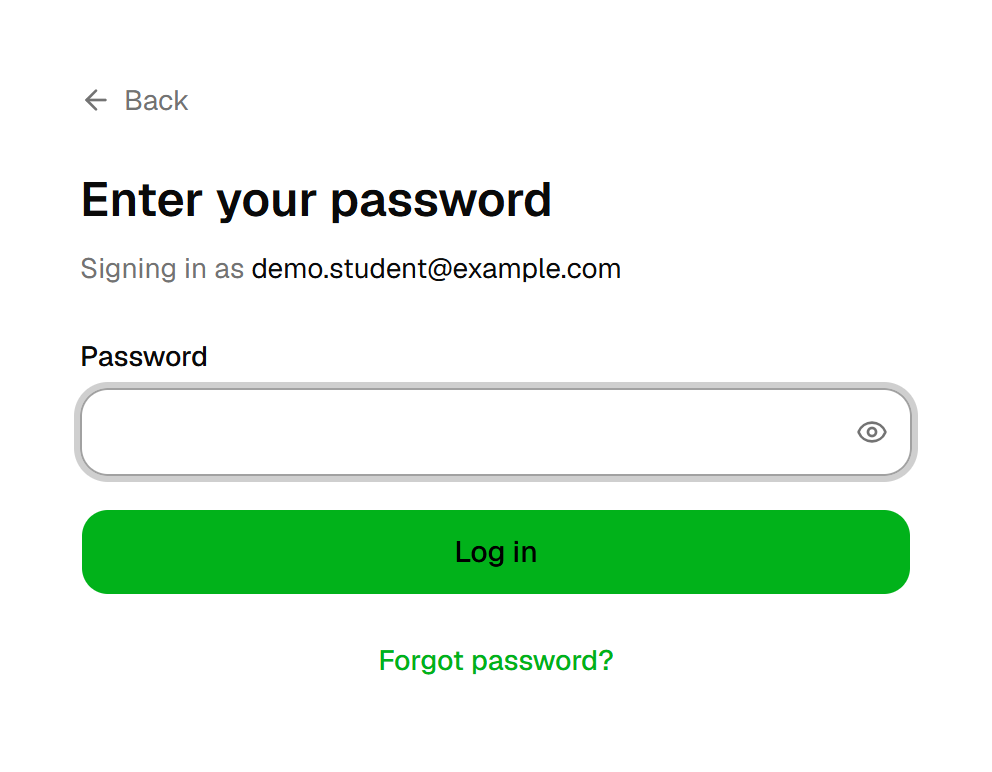
- Click this to send the reset email.
Desktop: Forgot password? sits under the Log in button. Open the email from the Check your inbox screen, follow the link and set a new password. Then click Back to login.
No email after a few minutes? Check your spam folder, and check the address on screen.
If your account uses Google or Apple
Each account remembers how you signed up. The phone app offers Continue with Apple on iPhone and Continue with Google on Android. Desktop offers Google, or Apple on a Mac. So an account can look missing on a device that doesn't offer its method.
To add a password to a Google account, for example to use it on an iPhone:
Tap Continue with Email, type the same address and tap Next.
On Add Email Sign-In, tap Proceed. Acadeva adds email sign-in to the account and emails you a link to set a password. No, Don't Add goes back without changing anything.
Set the password from the email, then sign in with your email and password.
Account uses only Apple? Tapping Next does nothing, and no message appears. Use Continue with Apple on an iPhone. The Android app has no Apple button, so contact support.
Type the same address and click Continue.
On Add email sign-in?, click Proceed. Acadeva emails you a link to set a password.
Set the password from the email, then sign in with your email and password.
On a Mac, an Apple account signs in with Apple on its own after you type the address. On Windows or Linux, an Apple account shows This account uses Apple Sign-In. Click Pair with my phone and follow the pairing steps below.
Sign in on a computer with your phone
You need to be signed in on the phone first. The computer shows a six-character code, and you type it into the phone.
On the computer, open the desktop app and click Log in with your phone. Leave that screen open.
On your phone, open the You tab, tap Linked devices, wait for Loading devices to finish, then tap Add a New Device.
Type the code into Device Code and tap Link Device.
Don't tap a device in the list above Add a New Device. That asks if you want to remove it. If an Error says the code was not found, expired or already used, read the code again from the computer. It makes a new one on its own.
Click Log in with your phone. Keep this screen open: it shows a QR code and a six-character code.
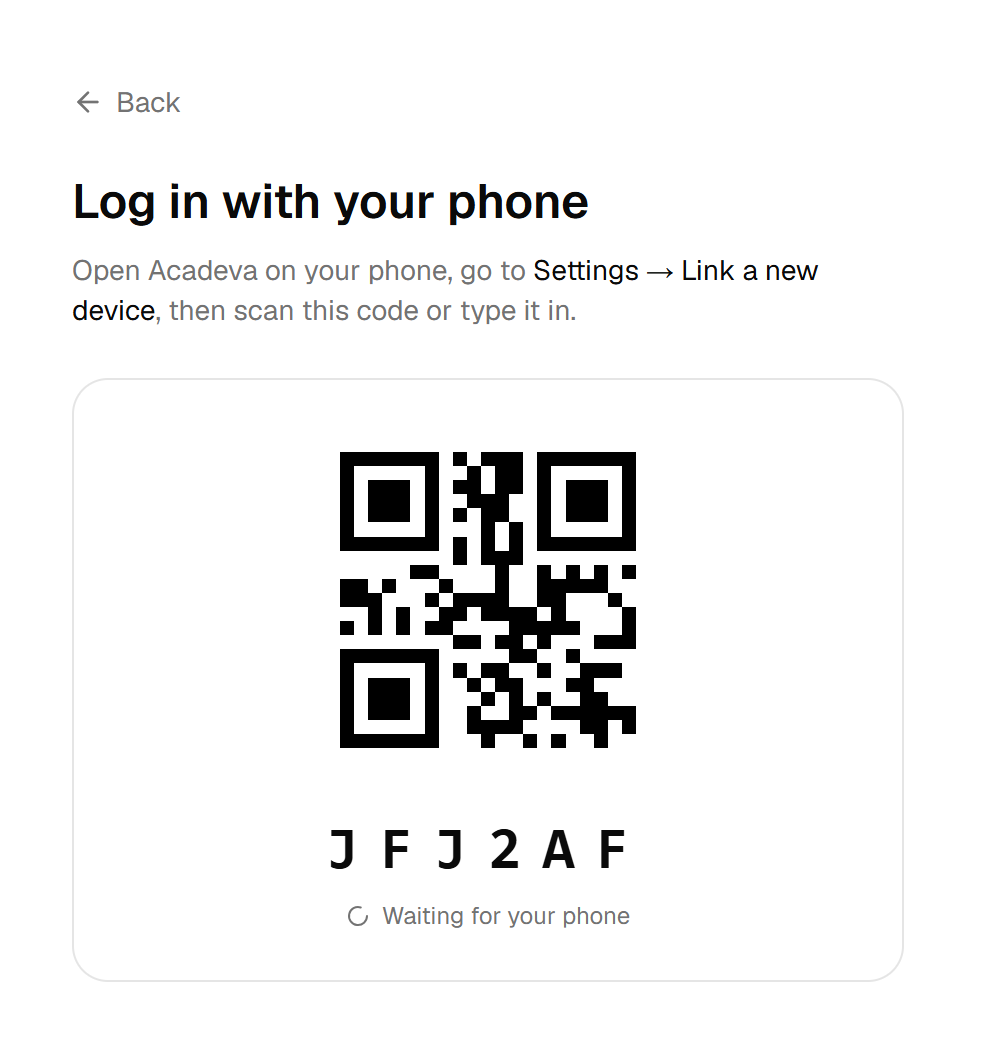
- Type this code into the phone app. If it changes, use the new one.
Desktop: The code changes by itself about every two minutes while this screen is open. On your phone, open the You tab, tap Linked devices, then Add a New Device, type the code and tap Link Device.
If an error shows on the computer, click Try again.
The hint on this screen says to go to Settings. On the phone, the option is under Linked devices, not Settings.
Google sign-in opens your browser and shows Waiting for your browser. Finish there, or click Cancel to go back.
Other things that can stop you
- You're not 13 yet. Acadeva is for people aged 13 and over. It emails you a reminder when you turn 13.
- Session expired with Go back on the phone, or Your session has expired. Please log in again on desktop. The saved sign-in was rejected. On the phone, go back, open the You tab, tap Log out and confirm, then sign in again. Logging out removes the account and its downloads from this phone. The account itself stays.
Switching between saved accounts
If you are signed out but an account is still saved, the app opens the Accounts list. Each row shows the username, how that account signs in (Google, Email or Apple) and its address. Tap a row to log in, with no password. To use a different account, use the sign-in buttons below the list.
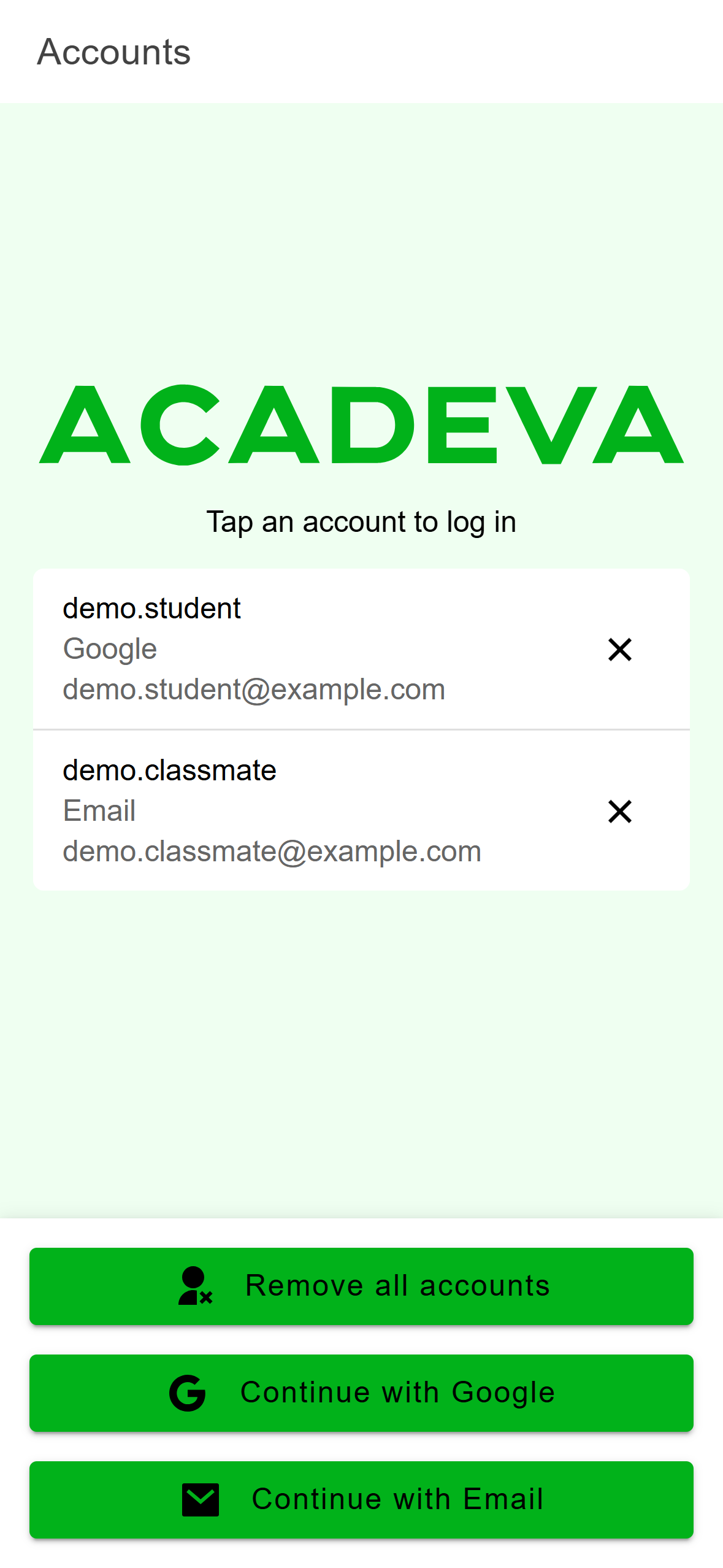
- Tap a row to log in. The X removes that account from this phone.
Under the sign-in options, click Use a saved account to open Choose an account. If you pick one and see That account is no longer available. Please log in again, the server no longer has it. Sign in again from the start. Use another account goes back to the sign-in options.
A device keeps two accounts. Signing in with a third removes the oldest saved account from that device, along with its downloads. The account itself is not deleted.
If it still doesn't work
Note the exact message and the screen it appeared on, then email support@acadeva.xyz. Report a problem or contact support shows every way to reach us.