
You can keep two accounts saved on the same phone or computer, for example a personal account and one for a project. Switching takes a tap or a click and you do not have to sign in again.
Switching is not logging out. Switching keeps both accounts saved on the device. Logging out removes that account and its data from the device, and you have to sign in again to use it here.
What you need
- One account already signed in on this device.
- The sign-in details for the second account: its email and password, or the Google (or, on an iPhone, Apple) account it uses. See Create your account if you do not have a second account yet.
Add a second account
Open the You tab and scroll down to Switch accounts. Tap it. Your current account stays saved on the phone.
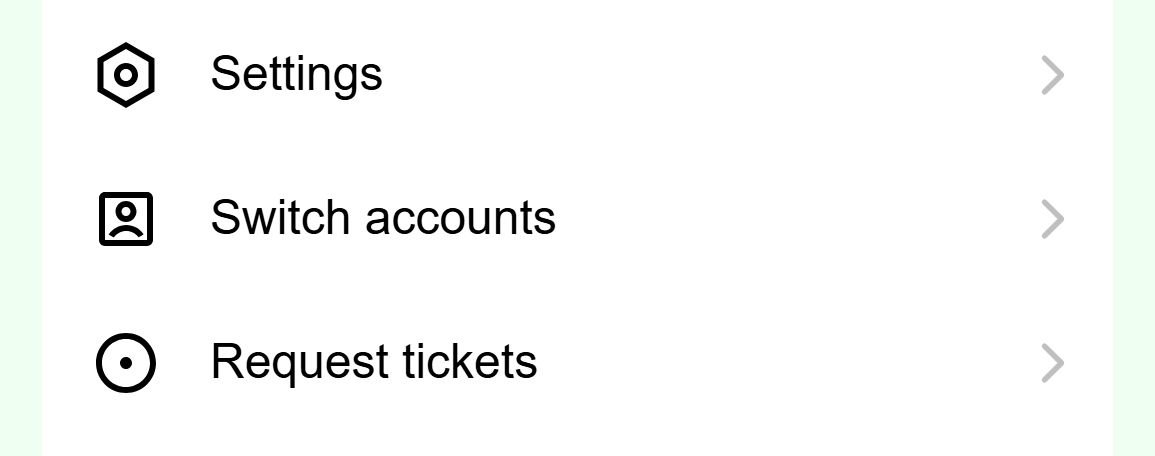
- Tap Switch accounts. It does not log you out.
Mobile: Switch accounts is in the second list on the You tab. The Accounts screen lists the accounts saved on this phone. To add another, tap Continue with Email, or Continue with Google on Android. On an iPhone the button says Continue with Apple.
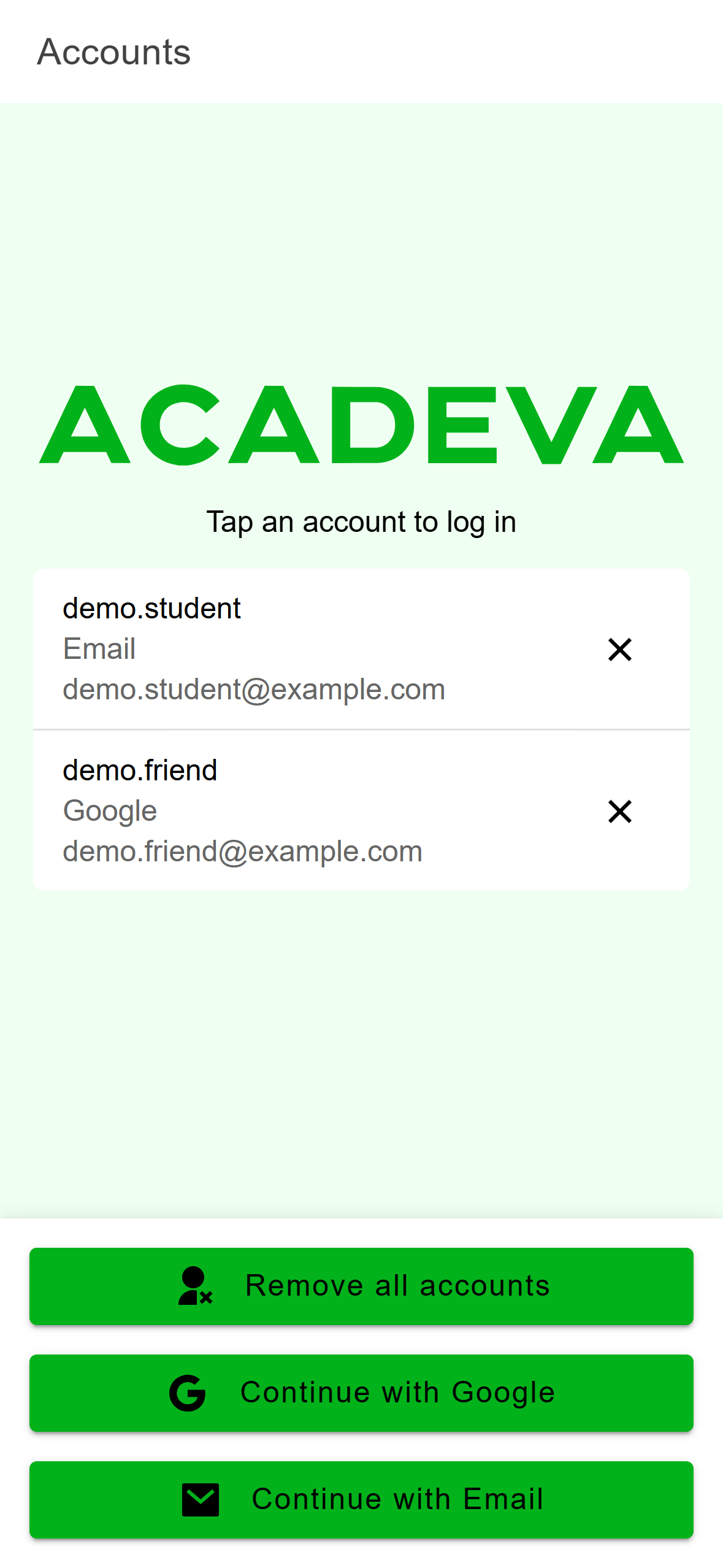
- Saved accounts. Tap one to log in to it.
- The X logs this account out of the phone.
- Sign in with another account here.
Mobile: The Accounts screen. The two accounts shown here are examples. Sign in the usual way. You land in the new account, and the first account stays in the list. A brand new account starts with profile setup.
Click your name at the bottom of the left rail, then choose Add account. Your current account stays saved on the computer.
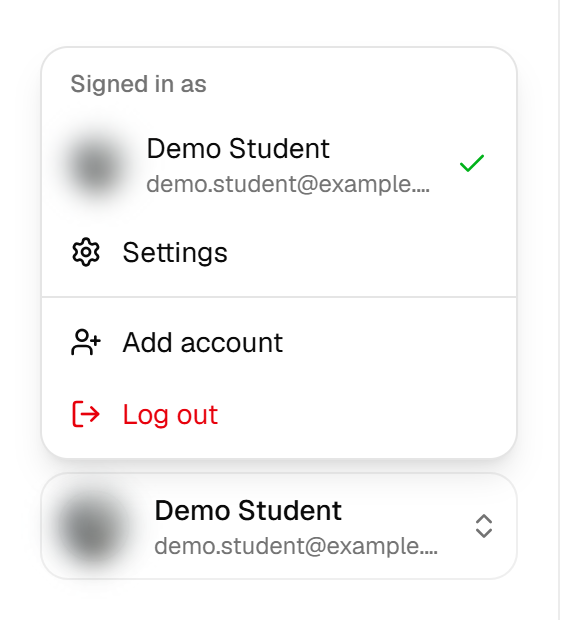
- Add account keeps your current account saved.
- Log out removes this account's data from the computer.
Desktop: The account menu. The Add another account screen opens. Type the second account's email and click Continue, or click Continue with Google.
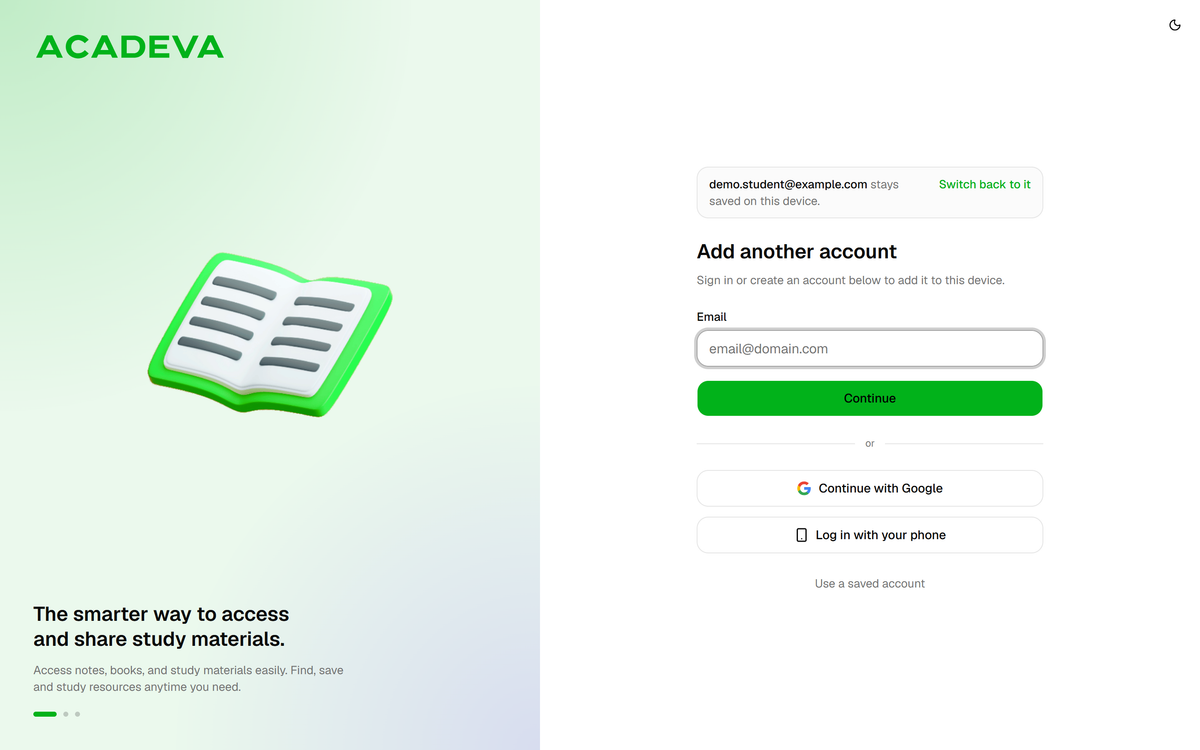
- Your first account stays saved. Switch back to it cancels.
- Use a saved account opens the list of saved accounts.
Desktop: The Add another account screen. Finish signing in. The app opens in the new account.
Switch between your accounts
Open You, tap Switch accounts, then tap the account you want on the Accounts screen. The app reloads into that account.
Click your name at the bottom of the rail. Once a second account is saved, the menu has a Switch account section. Click the other account in it and the app opens in that account. You can also reach the same list from the sign-in screen with Use a saved account.
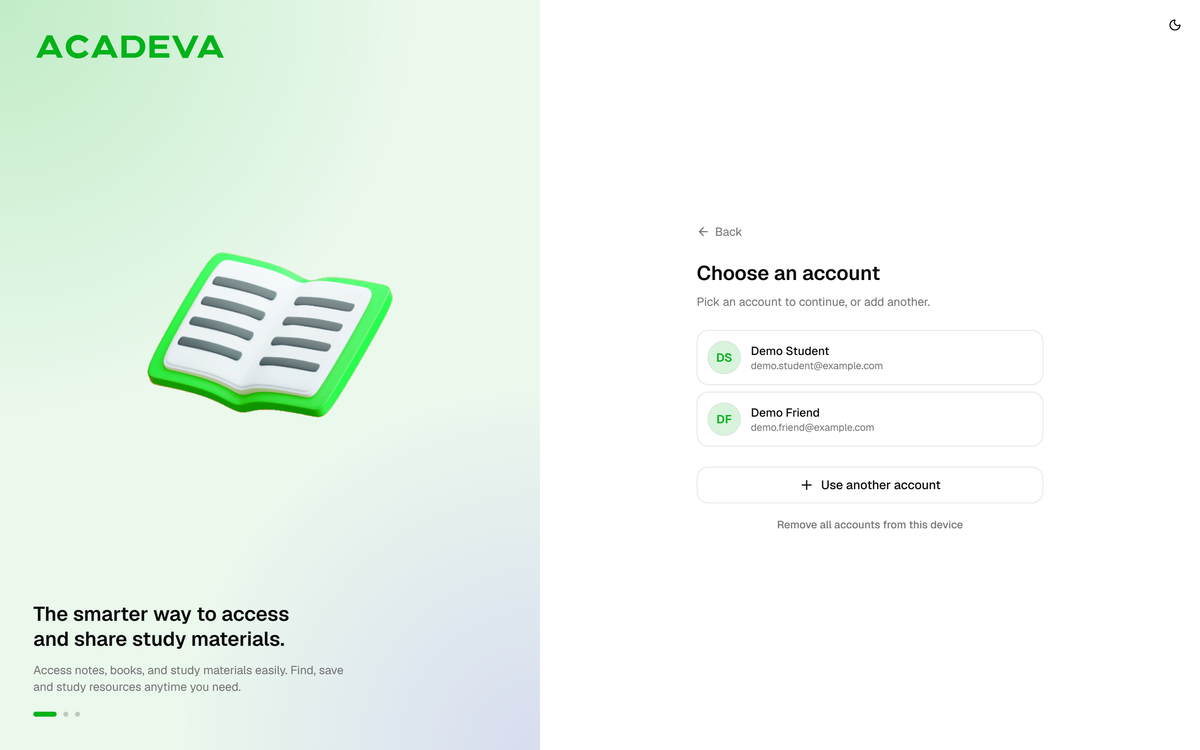
- Saved accounts. Click one to switch to it.
- Use another account adds a new one.
Switching to an account that has already signed in on this device does not need an internet connection.
Limits and what to expect
- A device holds two accounts. Each one keeps its own saved data on the device, separate from the other.
- If two accounts are already saved and you add a third, the account you added first is removed from the device to make room. The desktop app warns you with Replace a saved account? and lets you cancel. The phone app does not warn you, so if you need to choose which account goes, remove it with its X first, then add the new one.
- To remove one account, use the X beside it on the account list (on desktop, point at the row to see it). It asks you to confirm first. On the computer you can also clear the device with Remove all accounts from this device.
If it doesn't work
If an account is missing from the list, it was removed from this device, usually because a third account replaced it or you logged out of it. Sign in with it again to bring it back. If the desktop app says That account is no longer available. Please log in again, do the same. If sign-in itself fails, see I can’t sign in.