
A study group is a shared space for you and a few classmates: a group chat, a daily check-in, and a streak for each member. You can start one yourself or join one you've been invited to.
Groups are part of your account, so a group you create or join on your phone also shows up in the desktop app, and the other way round.
What you need
- An Acadeva account, signed in.
- To join a group: its invite link or invite code, from someone who's already in it. An admin can also add you directly (see "Other ways in" below).
Open Study groups
Open the You tab and tap Study groups.
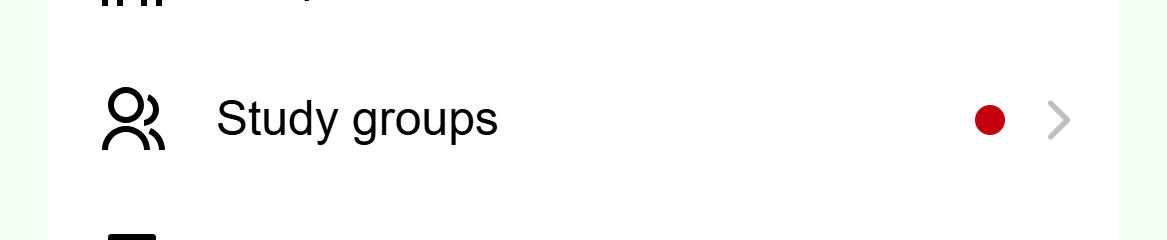
Mobile: Study groups sits between People and Bookmarks on the You tab. Your groups are listed with their member count and whether you've checked in today. Groups where you're an admin carry an Admin badge.
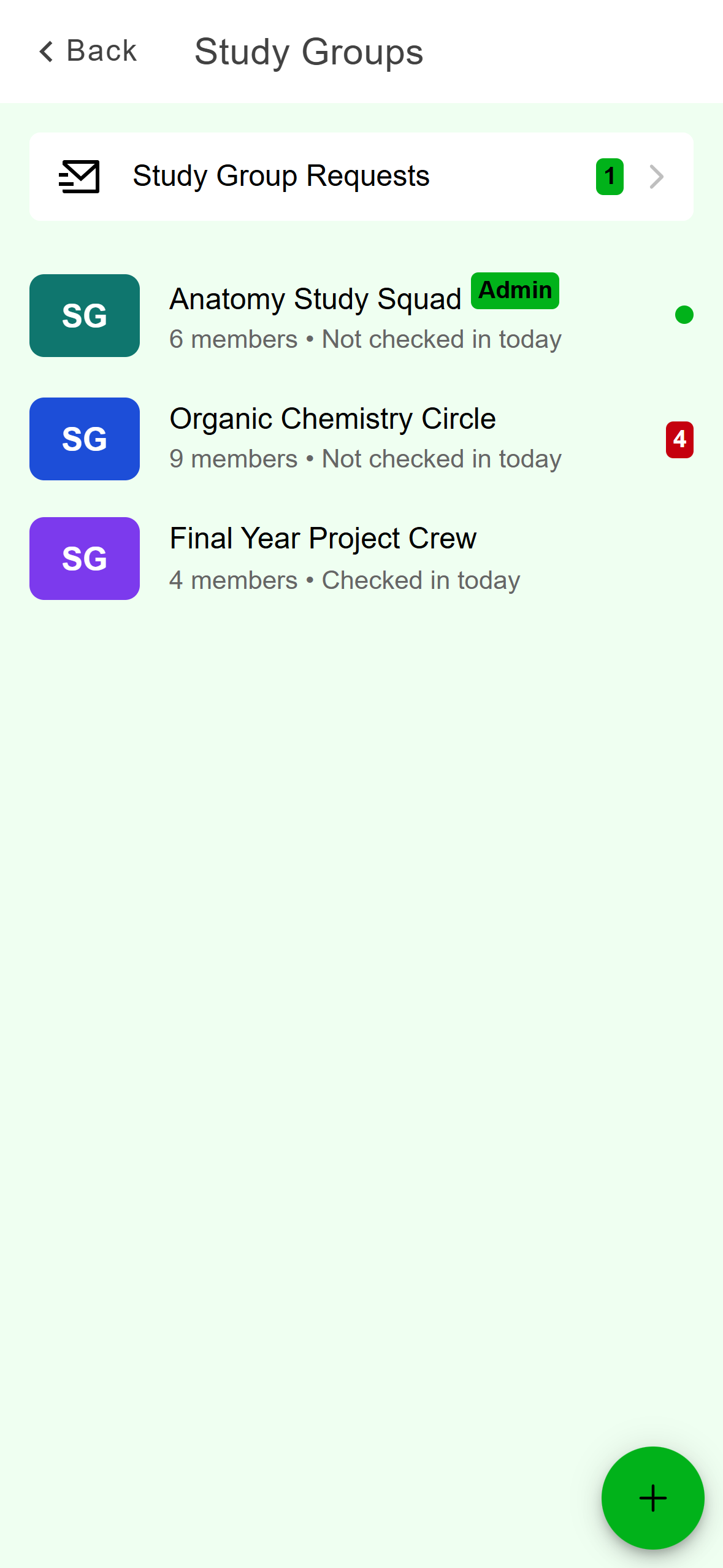
- Only shown while you have a join request waiting for approval.
- Tap here to create a group.
Mobile: Your groups, with the plus button at the bottom right.
Click Study Groups in the left rail. Your groups are listed in the middle column. The right side says Select a study group until you open one.
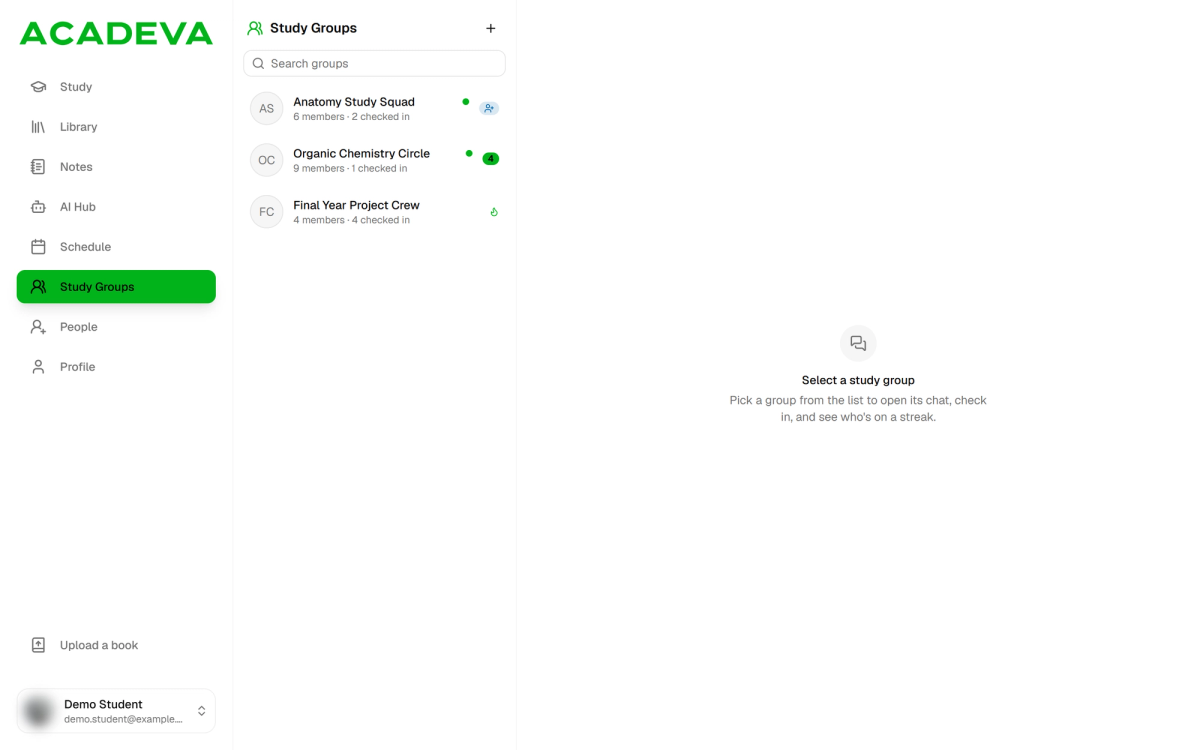
- The plus button opens the menu to create or join a group.
Desktop: The Study Groups page on desktop.
Create a group
Tap the round + button at the bottom right of the Study Groups screen.
Type a name under Group name and tap Create.
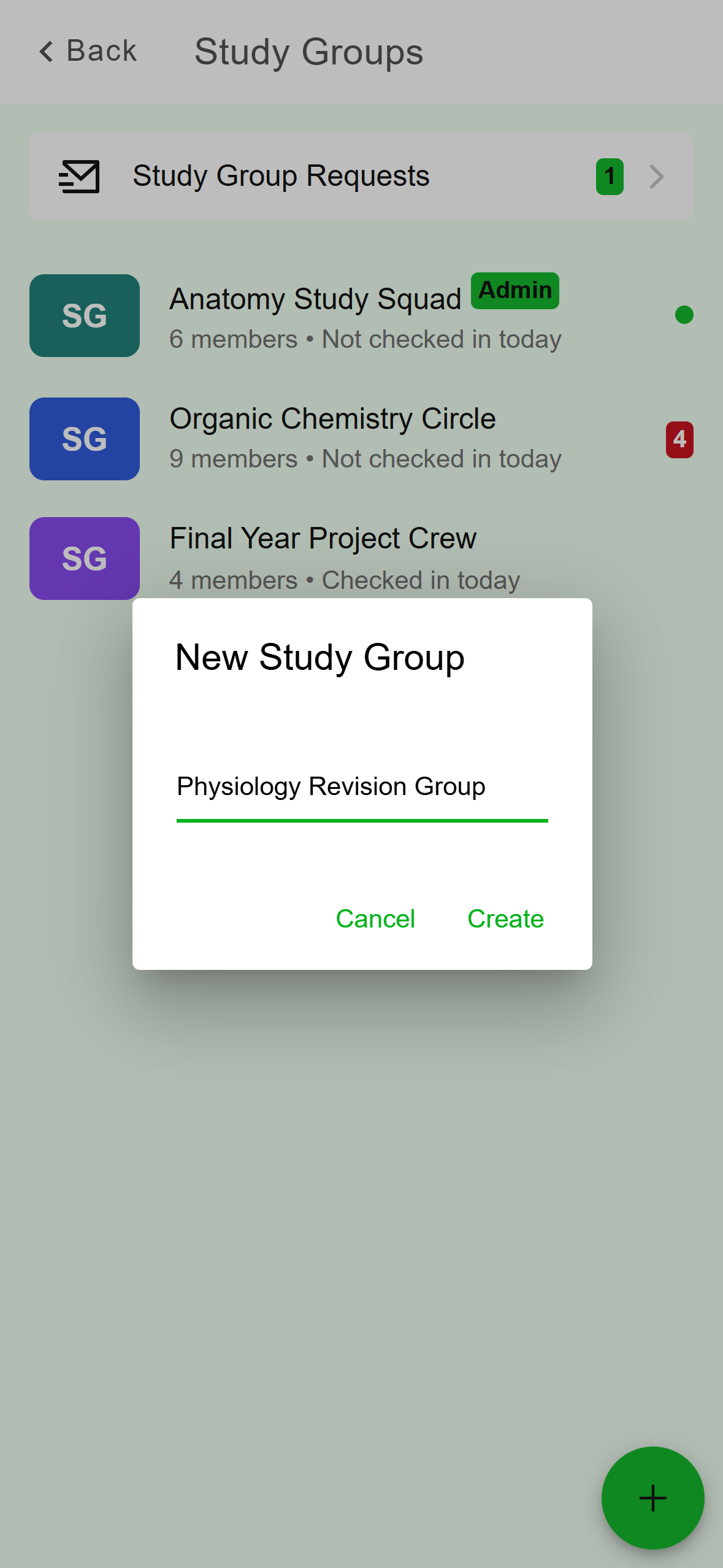
- Create makes the group right away.
Mobile: Name the group, then tap Create. The group appears in your list with an Admin badge and "1 member", which is you. If you don't see it yet, pull down on the list to refresh.
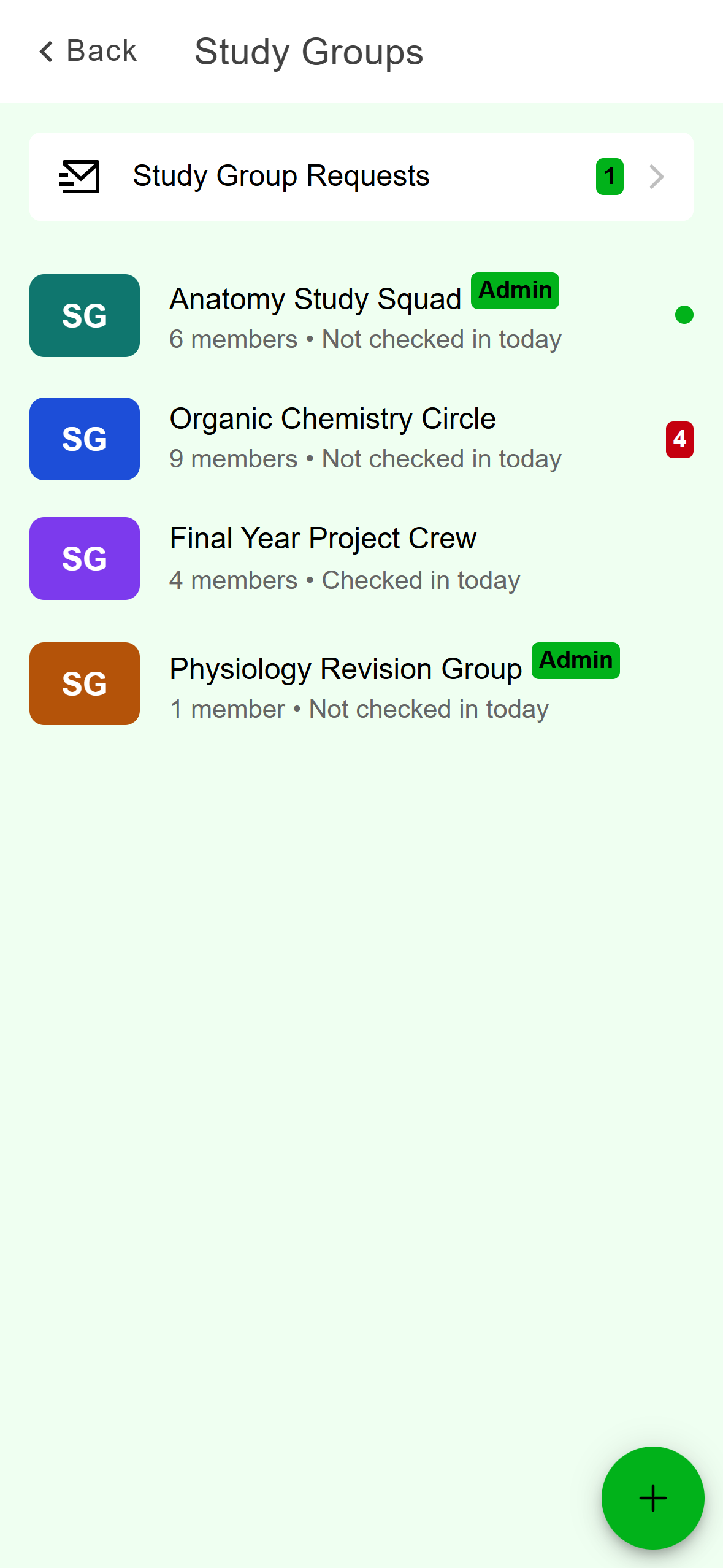
- Your new group.
Mobile: The new group, with you as its only member.
Click the + button above the list, then choose Create a group.
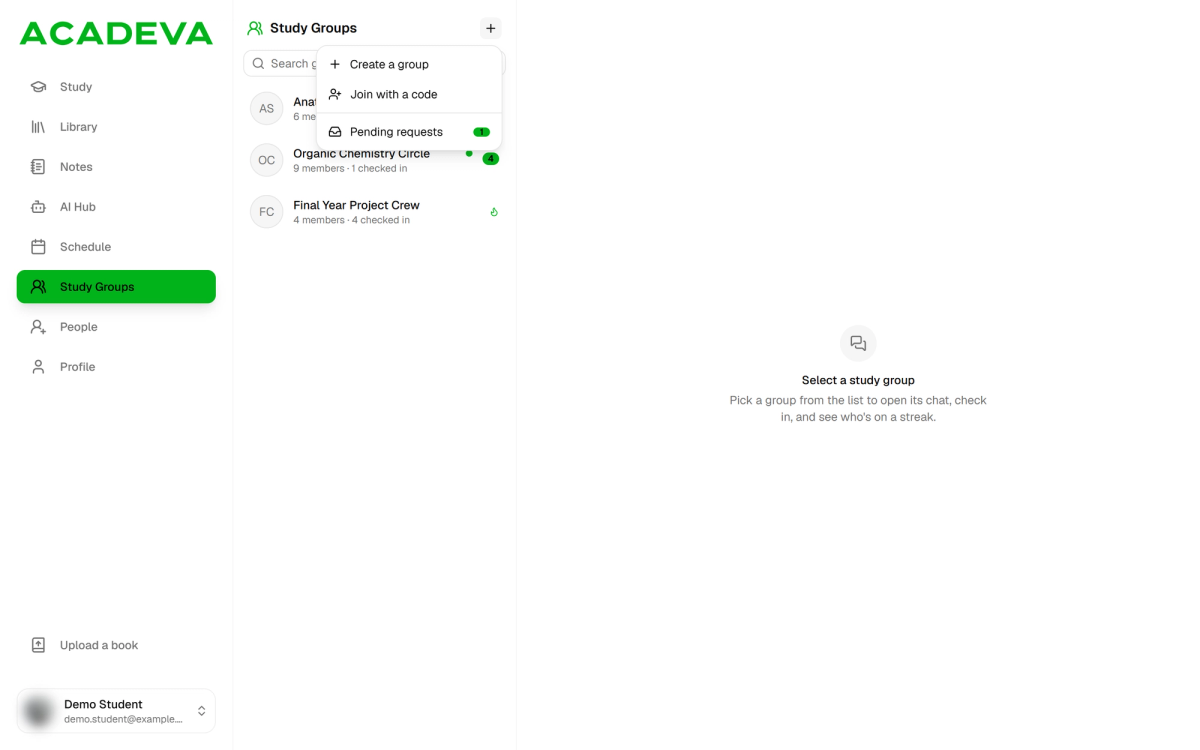
- Create a group, Join with a code, and Pending requests (with a count).
Desktop: One menu for creating, joining and checking requests. Type a name under Group name (up to 60 characters) and click Create group.
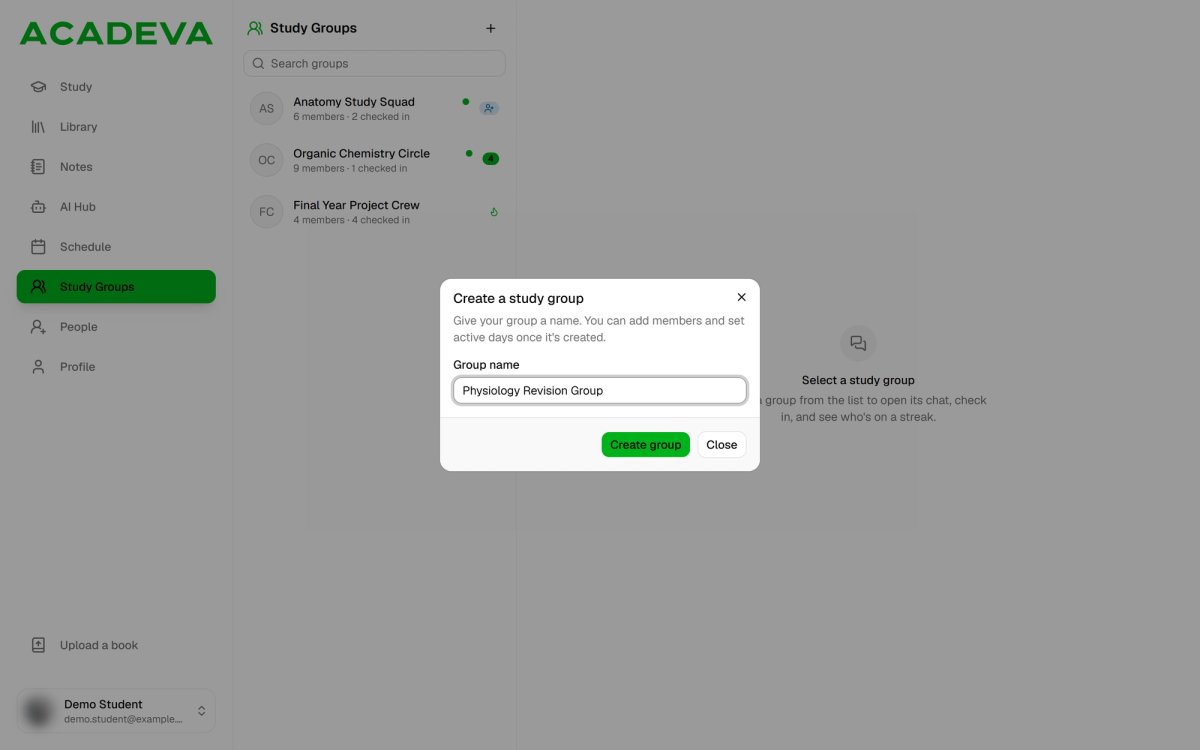
- Create group makes it straight away.
Desktop: Give the group a name. The new group opens on its Overview tab. The invite link is already there on the right, ready to copy.
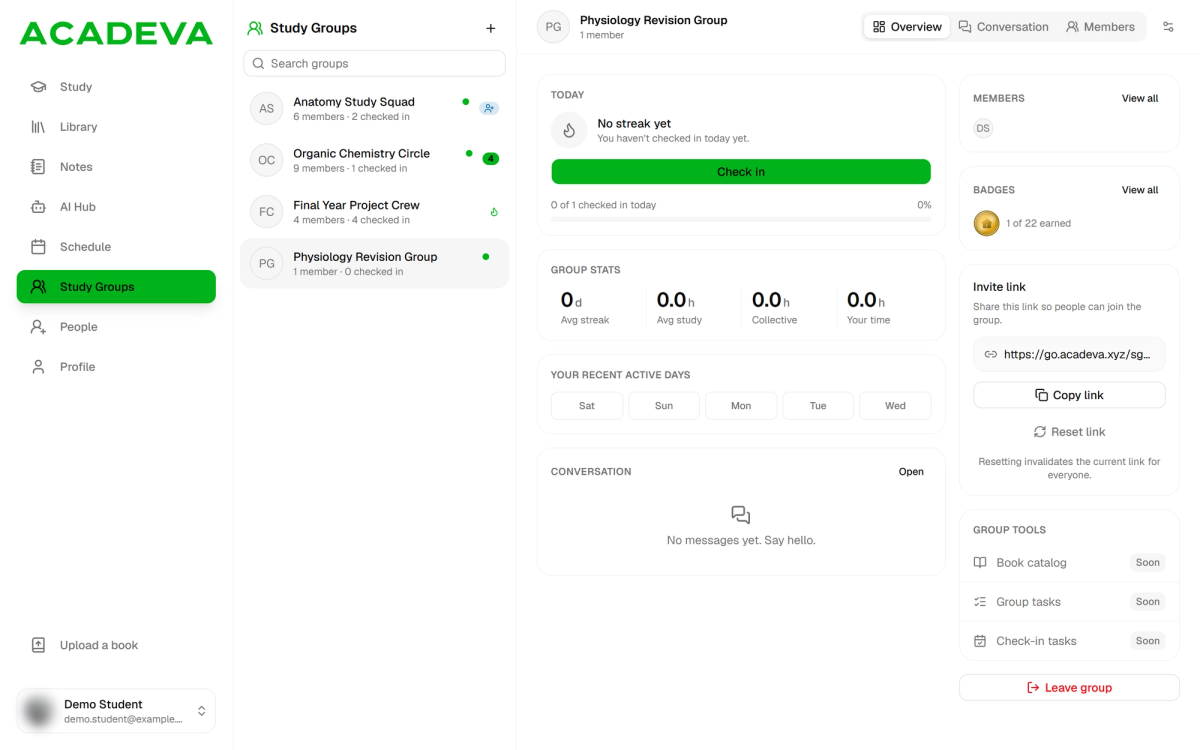
- The invite link, with Copy link and Reset link.
Desktop: A new group opens on Overview.
You're the group's only member and its admin. A new group starts with check-in days set to Monday to Friday, anyone able to post in the chat, and anyone with the invite link able to join straight away. Admins can change all of that, and add people, in the group's settings.
Join with an invite link or code
A group's invite link looks like go.acadeva.xyz/sg/ followed by a short code. Ask a member or an admin for it. The code is the last part of the link.
Tap the invite link on your phone. It opens in Acadeva. If it opens a web page instead, tap Open in App.
A prompt asks "Do you want to join" the group. Tap Join, or No to back out.
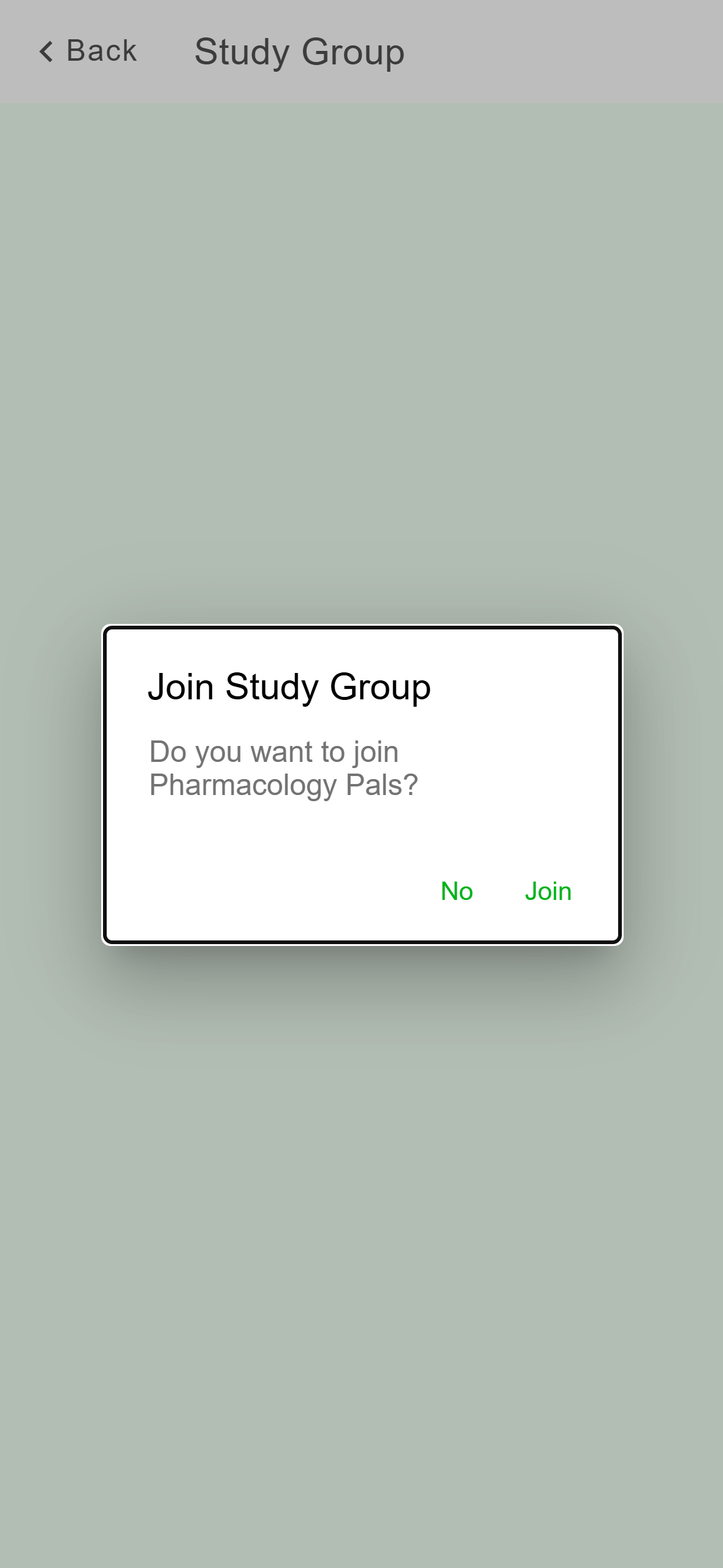
- Join adds you to the group at once.
Mobile: A group that lets anyone with the link in. Some groups approve new members first. The prompt then reads Request to Join. Tap Send request.
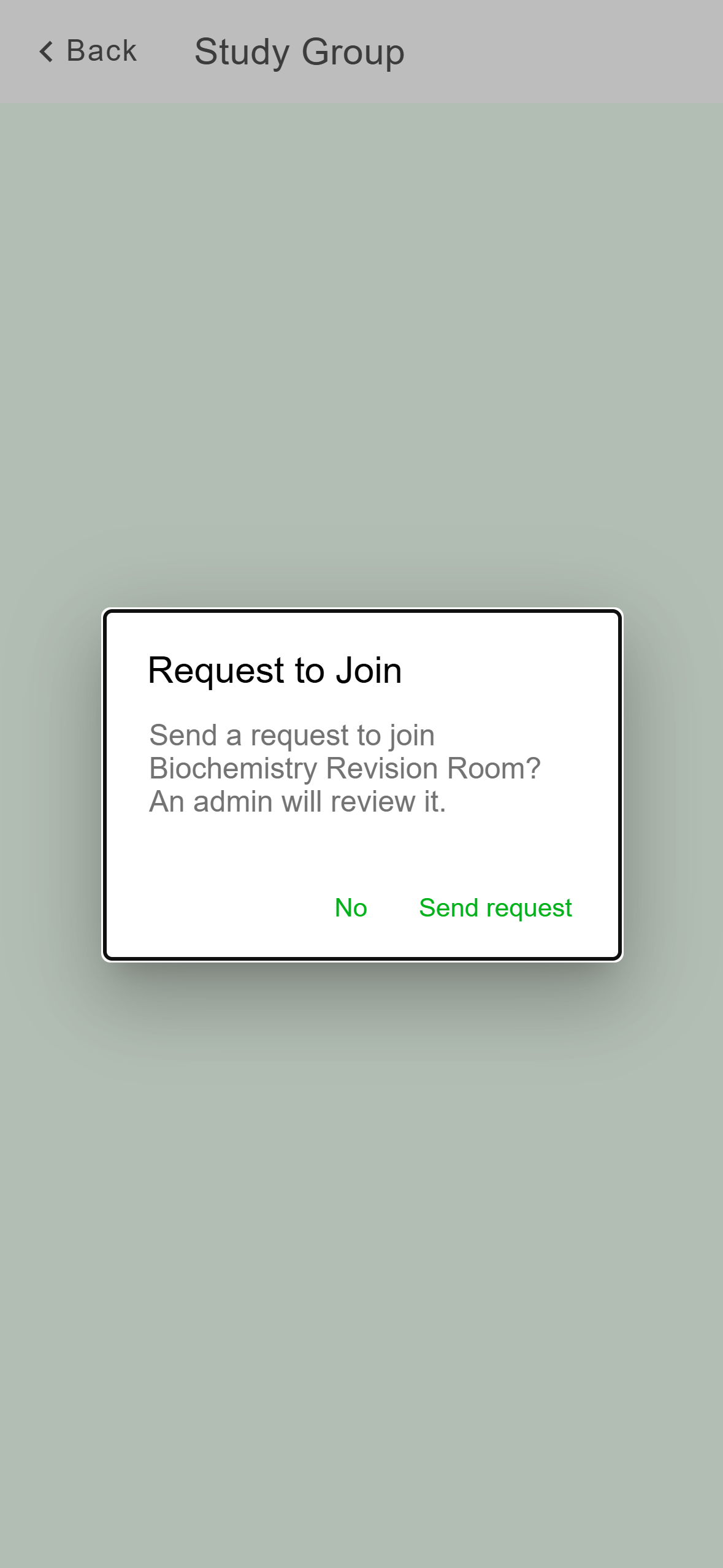
- This sends a request to the group's admins.
Mobile: A group that approves new members. You see a Request sent screen. An admin reviews it, and you're in once they accept. Tap Go back to leave the screen.
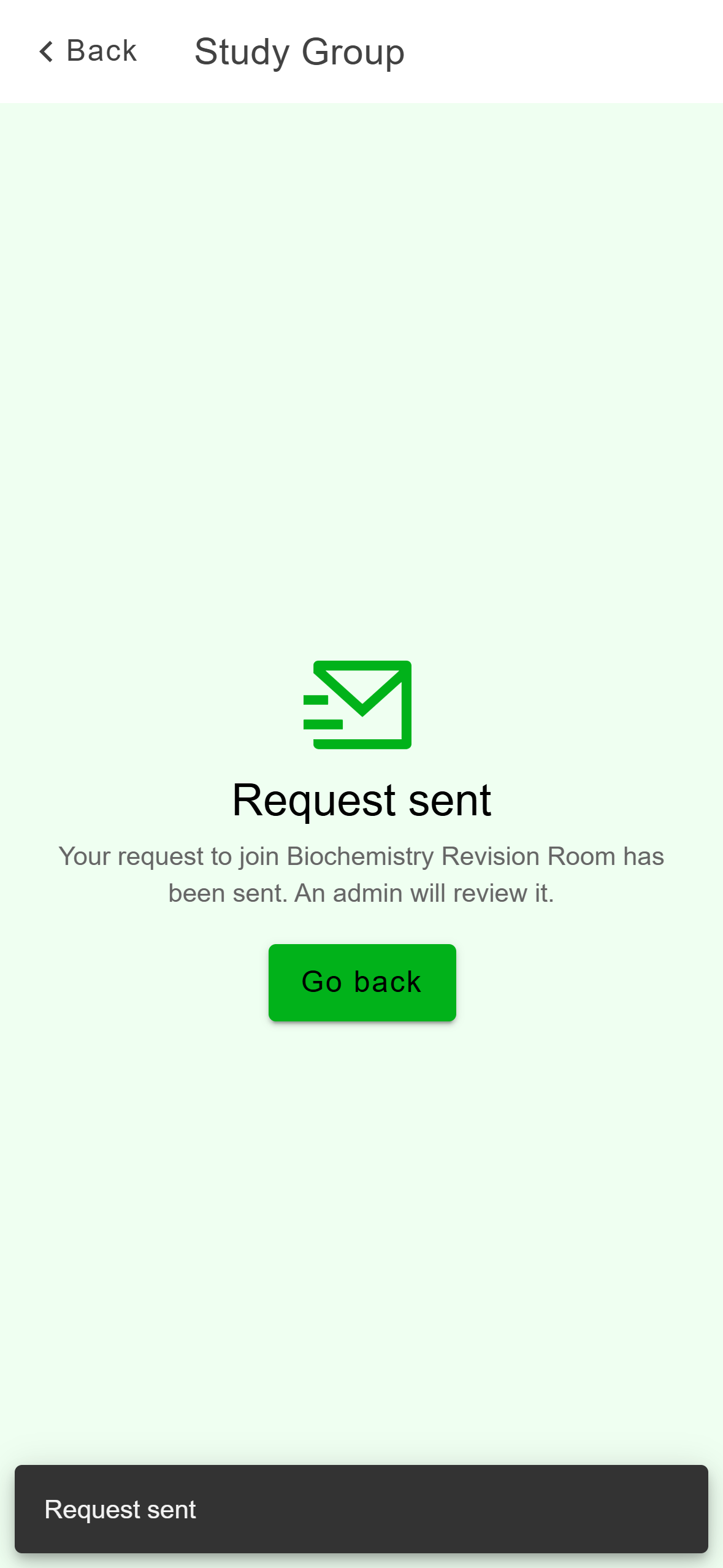
- You wait here until an admin accepts or rejects.
Mobile: Your request is waiting for an admin.
The phone app has no box for typing a code. If you only have the code, add it to the end of https://go.acadeva.xyz/sg/ and open that address on your phone.
Click the + button above the list, then choose Join with a code.
Paste the link, or type just the code, under Invite code or link and click Continue.
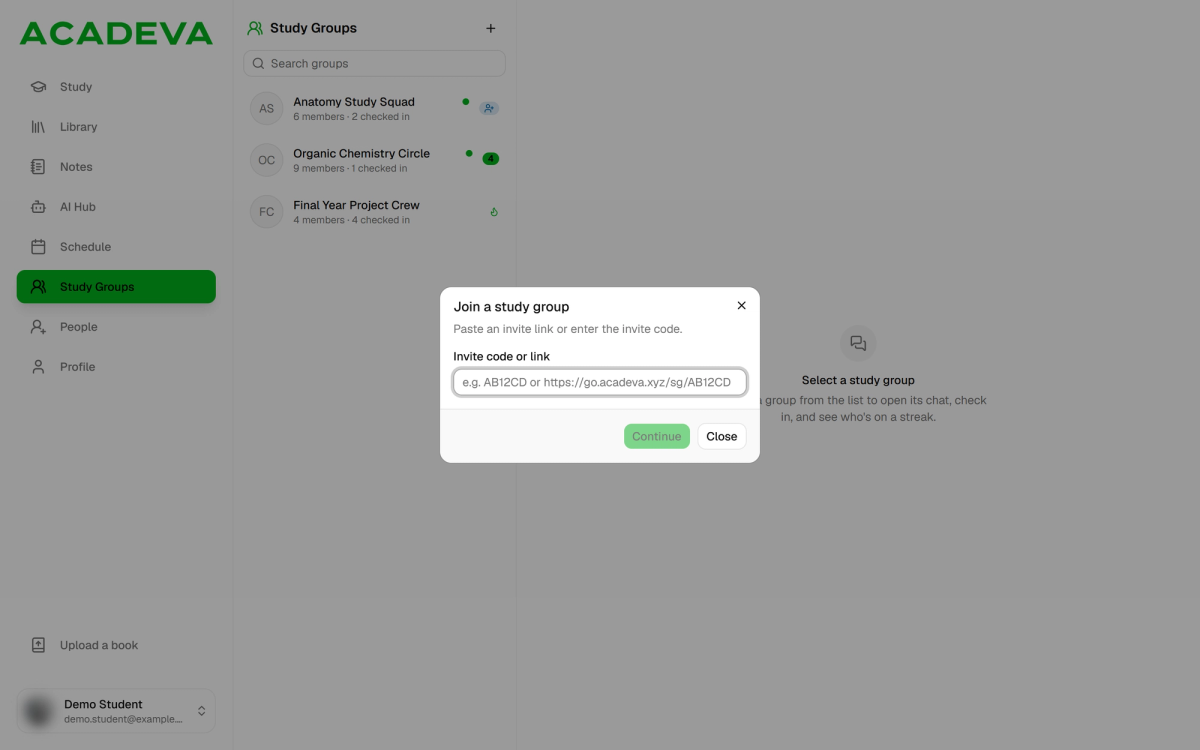
- Either works. The app picks the code out of a link.
Desktop: Paste the whole link or only the code. The dialog shows the group's name and what happens next. "Anyone with the code can join this group" means Join group adds you at once.
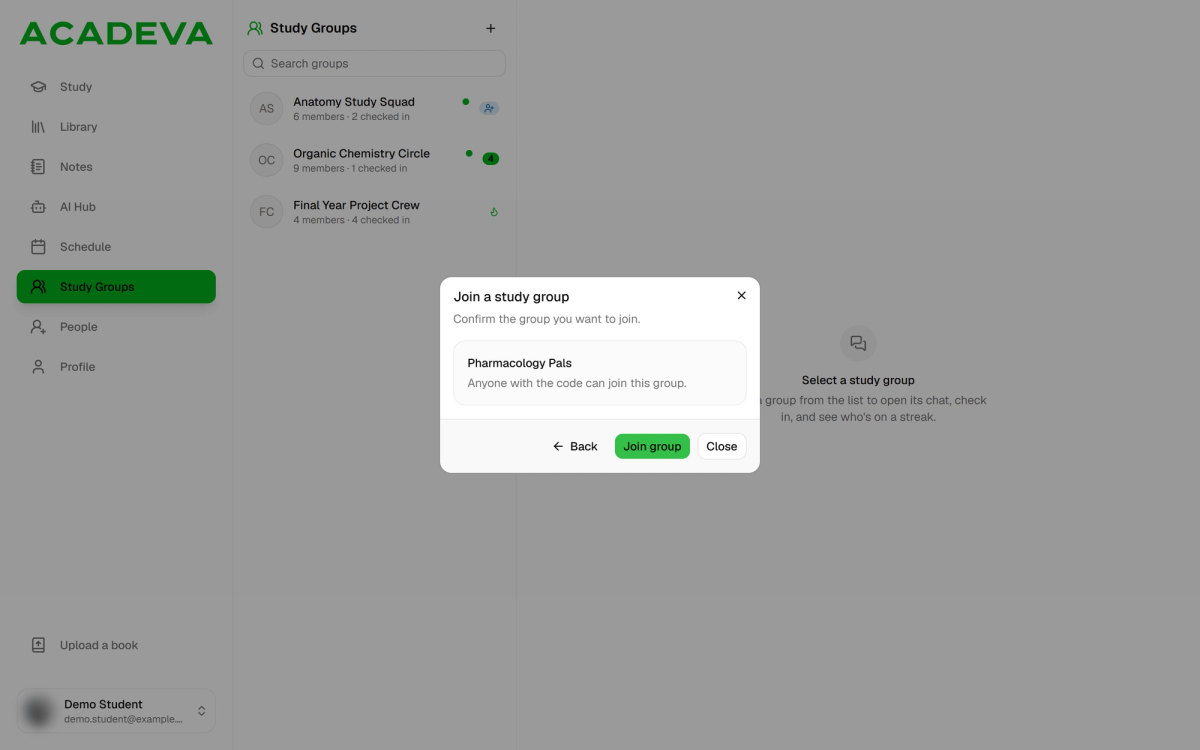
- Join group adds you straight away.
Desktop: A group that lets anyone with the code in. "This group approves members" means the button is Request to join and an admin decides. You'll see "Request sent to the group admins".
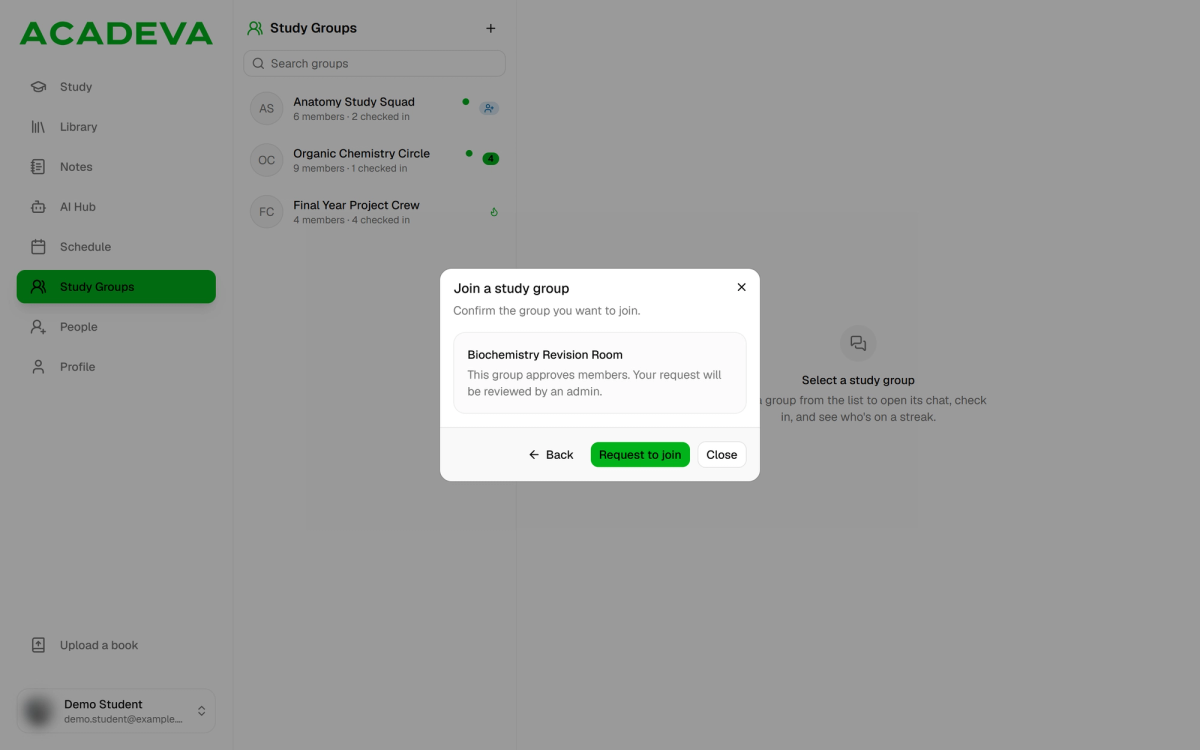
- This sends a request instead of joining.
Desktop: A group that approves new members.
If you already belong to the group, the dialog says so and the button is Open group. If you've already asked, it says your request is pending approval.
If you open an invite link in a web browser on your computer, the page offers Open in Acadeva Desktop. That opens this dialog with the code already filled in.
Codes are matched exactly as written, so copy the whole link or code rather than retyping it.
Other ways in
- An admin adds you. Admins can add people straight from their friends, with no link. There is nothing for you to accept: the group just appears in your Study groups list.
- From a profile (phone only). If a group has Public stats turned on, it's listed under Study Groups on its members' profiles. Open the group there, tap Request to Join, and an admin reviews it. Tap Withdraw Request to take it back.
Check or withdraw a request
While you have a request waiting, a Study Group Requests row appears at the top of Study Groups, with a count. Open it.
Each request shows the group and "Pending approval". Tap Cancel to withdraw one.
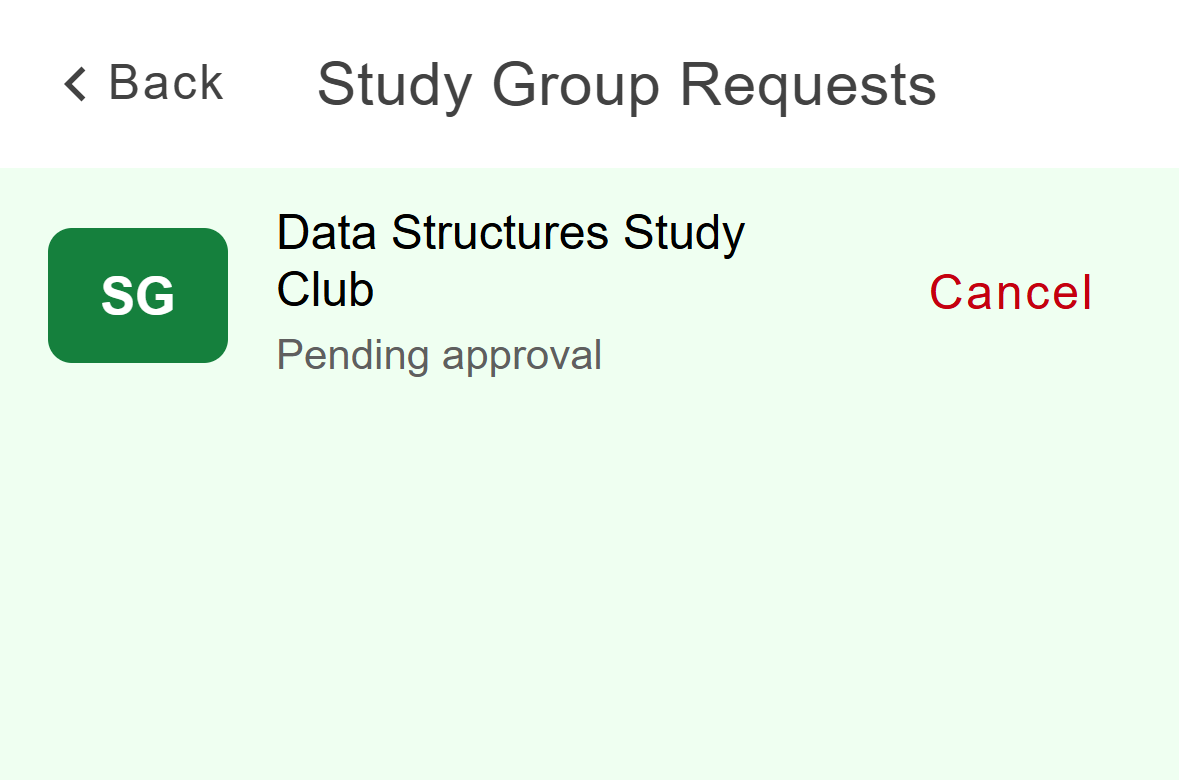
- Cancel withdraws it. You can send a new one later.
Mobile: Cancel withdraws the request.
Click the + button and choose Pending requests. It shows a count when you have any.
Click Withdraw beside a request to take it back.
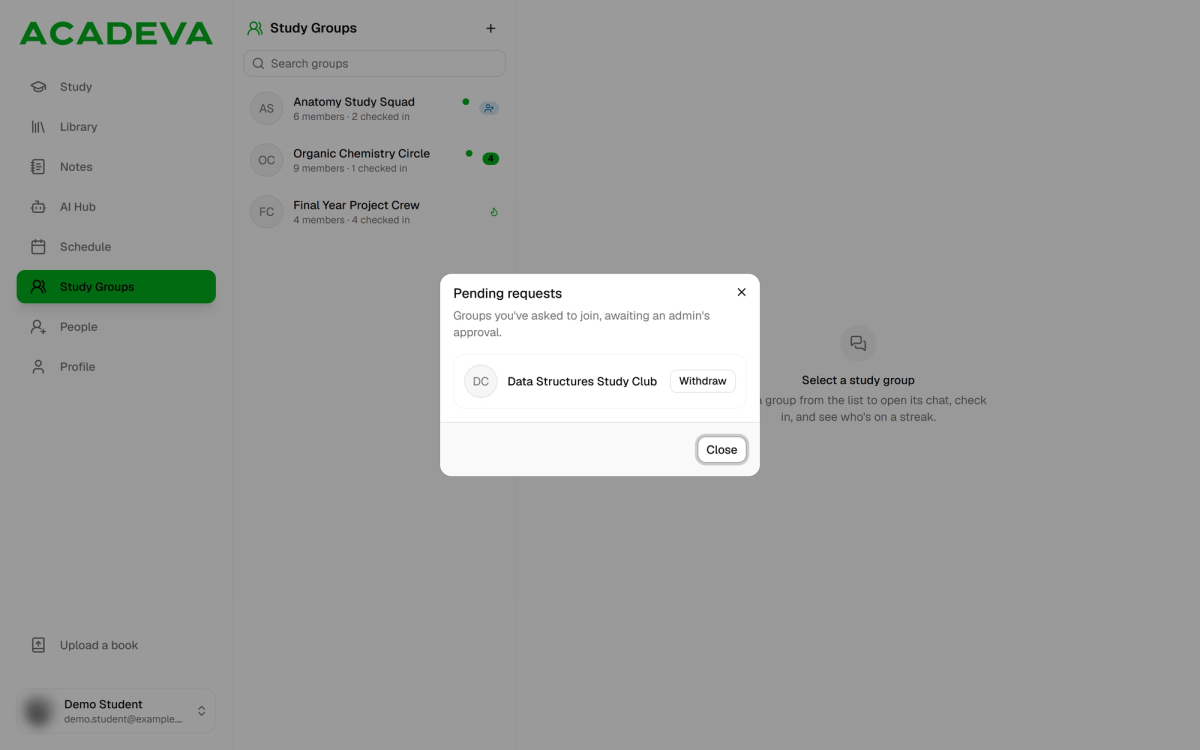
- Withdraw takes the request back.
Desktop: Groups you've asked to join.
If it doesn't work
- "Invalid invite link". No group matches that code. Copy it again, or ask for a fresh link: admins can reset a group's link, and a reset stops the old one working.
- "Failed to create group" or "Network error" on the phone. Check your connection. Before you try again, pull down on the Study Groups list to refresh it, because the group may already have been created.
- "Please sign in to join this group." Sign in to Acadeva, then open the link again.
- You left, or an admin removed you. You can only come back with a new invite or an admin's approval.
Once you're in, Manage your group: members, roles, and settings covers adding people and the admin controls.