
People is where you find coursemates on Acadeva and connect with them as friends. Friends see more of each other, including streaks. Nobody is added without saying yes: one person sends a friend request and the other person accepts it.
The pictures in this article use made-up people. Your own lists will show the people you know.
Open People
Open the You tab and tap People.
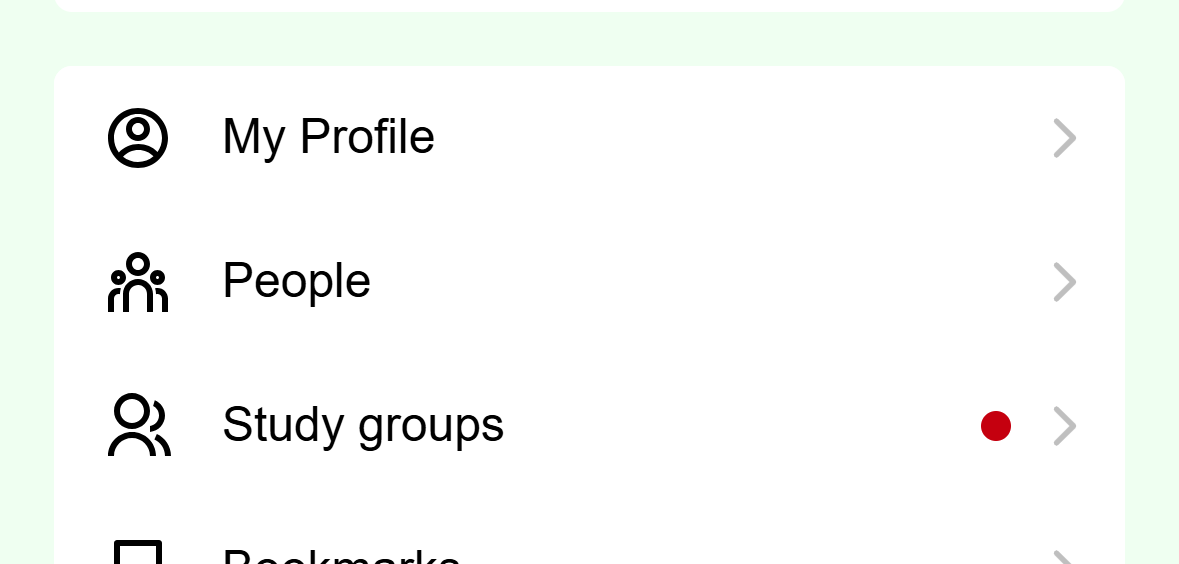
- Tap People.
Mobile: People is in the list on the You tab. The screen lists Your friends, Friend requests, Sent requests and Find people. The number on the right is how many are in each. Below them, Suggestions shows people from your department.
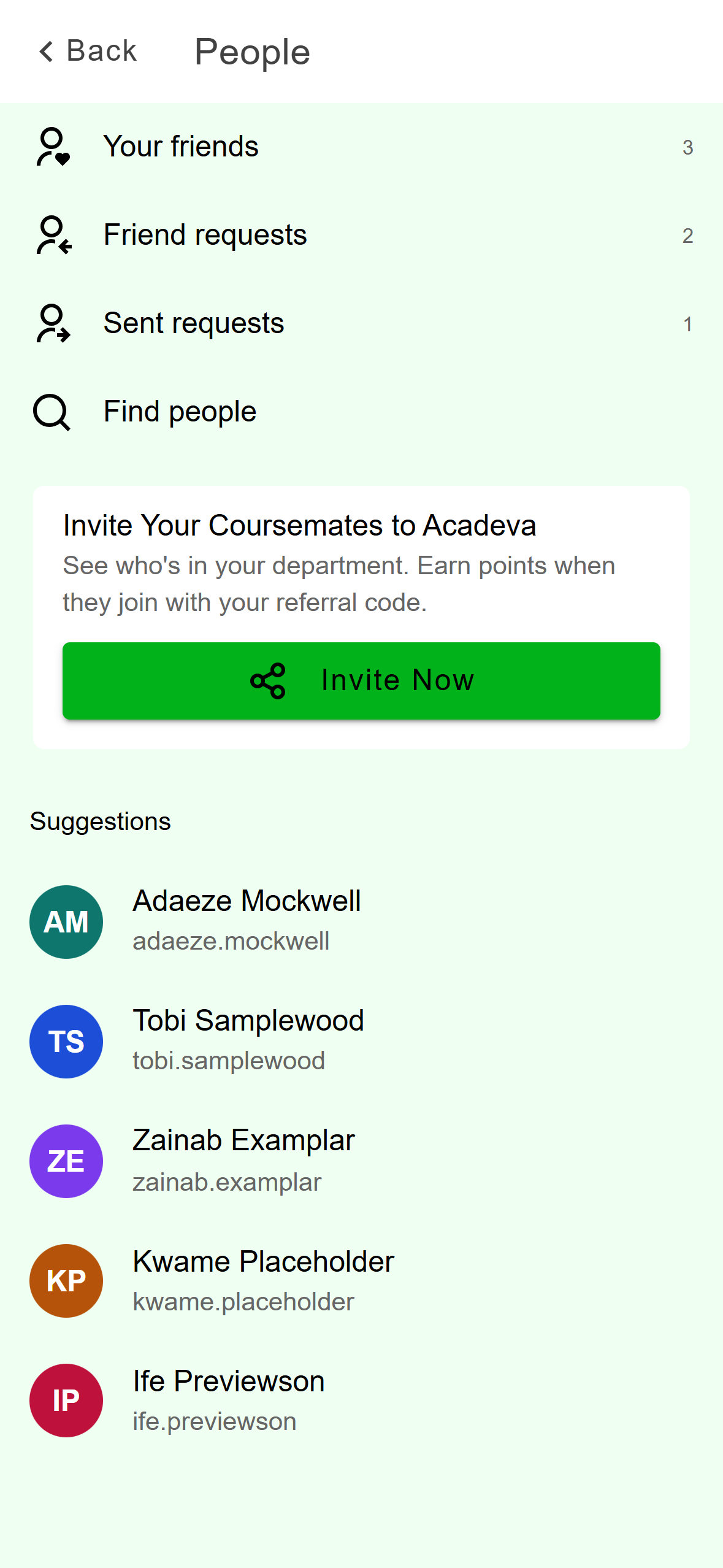
- Your friends, requests you received and requests you sent.
- Find people searches everyone.
- Suggestions: people from your department.
Mobile: The People screen.
Click People in the left rail. The tabs are Suggestions (people from your department), Friends, Requests and Sent. The numbers on Requests and Sent show how many are waiting.
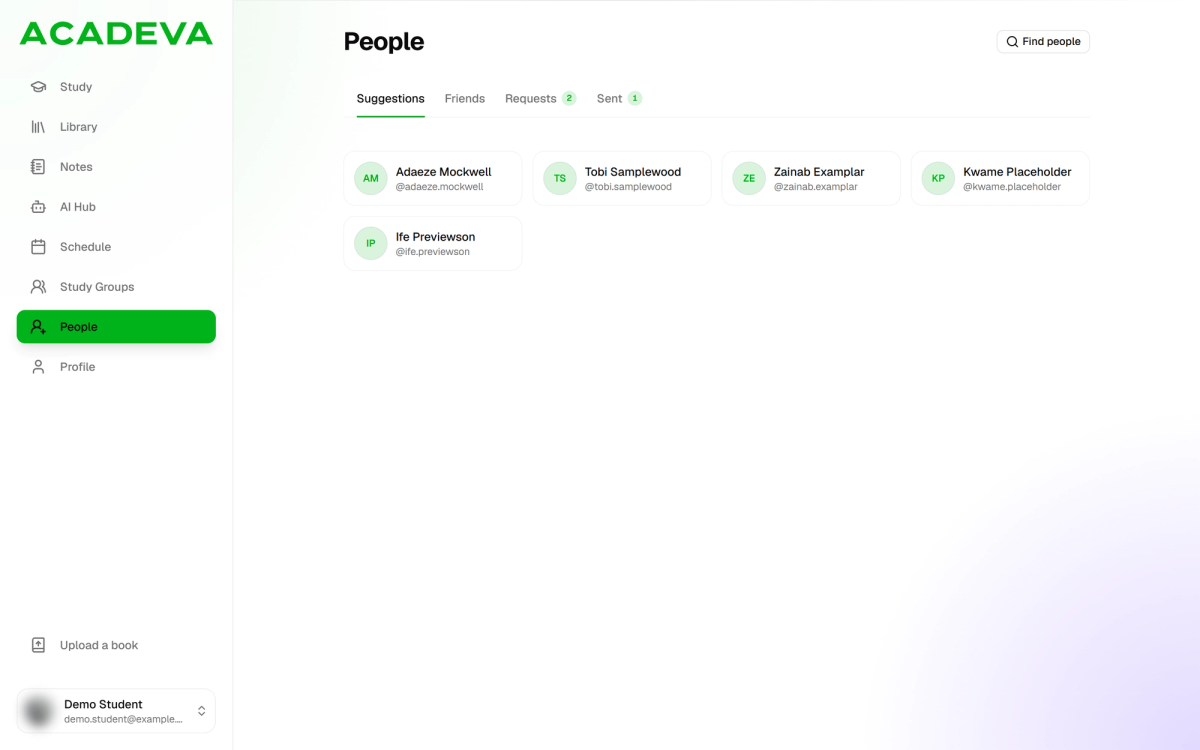
- The four tabs. The numbers show how many are waiting.
- Find people searches everyone.
- Suggestions: people from your department.
Desktop: The People page.
Find someone
Suggestions only lists people from your department. To find anyone else, search by name or by exact username.
Tap Find people. Type a name, or an exact username, then press Enter or tap the search icon.
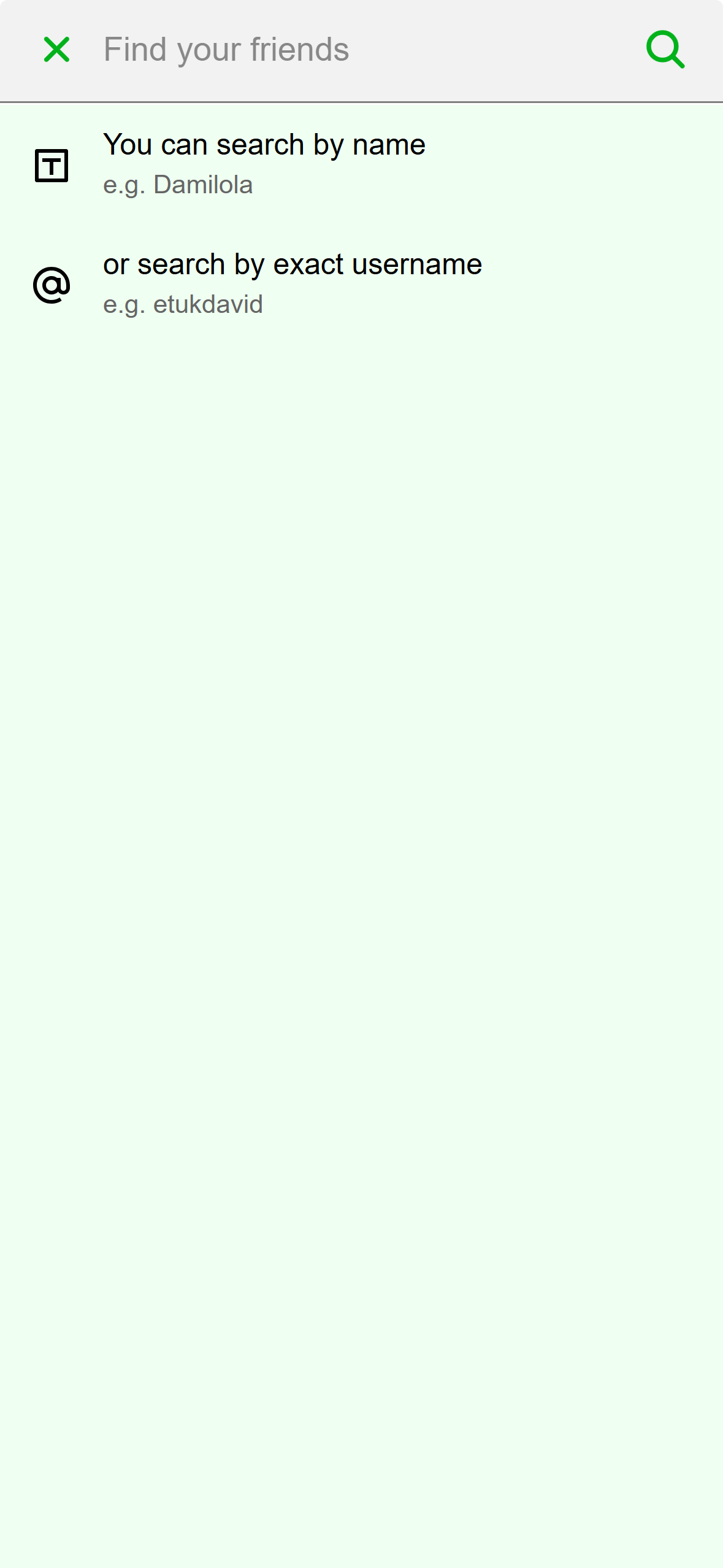
- Type a name or an exact username.
Mobile: Search by name, or by exact username. The Search results screen lists each person with their department. Tap one to open their profile. More results load as you scroll.
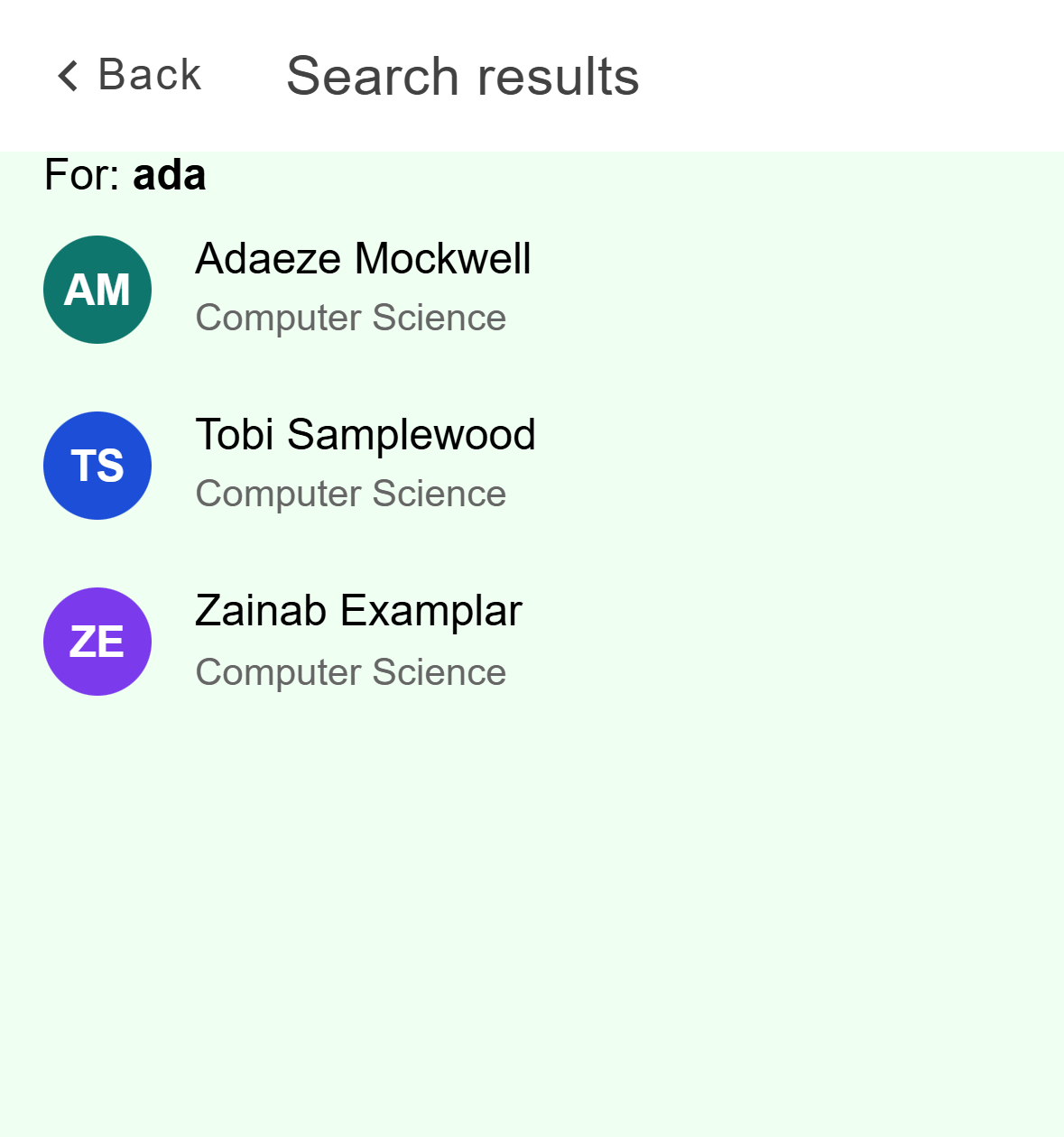
- Tap a person to open their profile.
Mobile: Search results.
Click Find people and type in the Search by name or username box. Results appear as you type. If there are more, click Load more. Click a person to open their card.
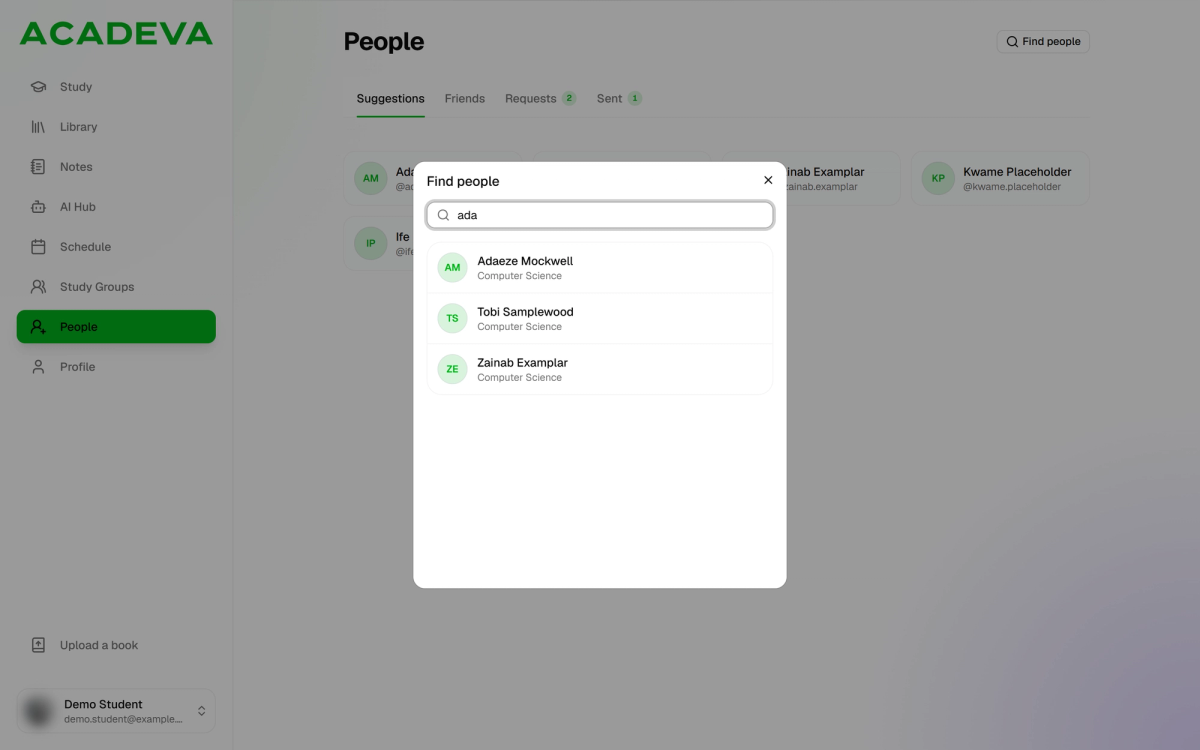
- Type a name or a username.
- Click a person.
Desktop: Results appear as you type.
Send a friend request
On their profile, tap Add friend. Contact links that someone shares only with friends stay hidden until you are friends.
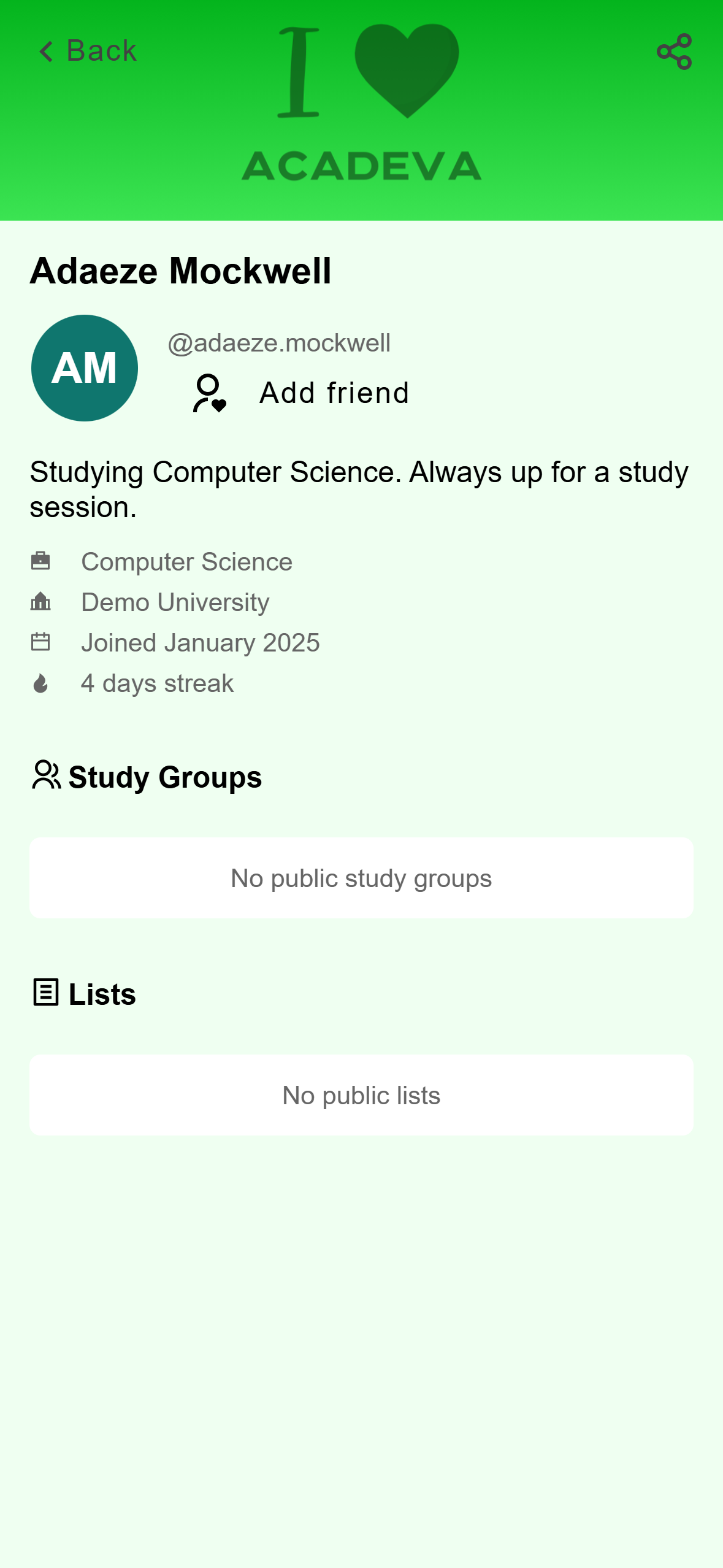
- Tap Add friend.
Mobile: A profile with the Add friend button. A message says Friend request sent. The profile now reads You sent them a friend request, with a Withdraw request button.
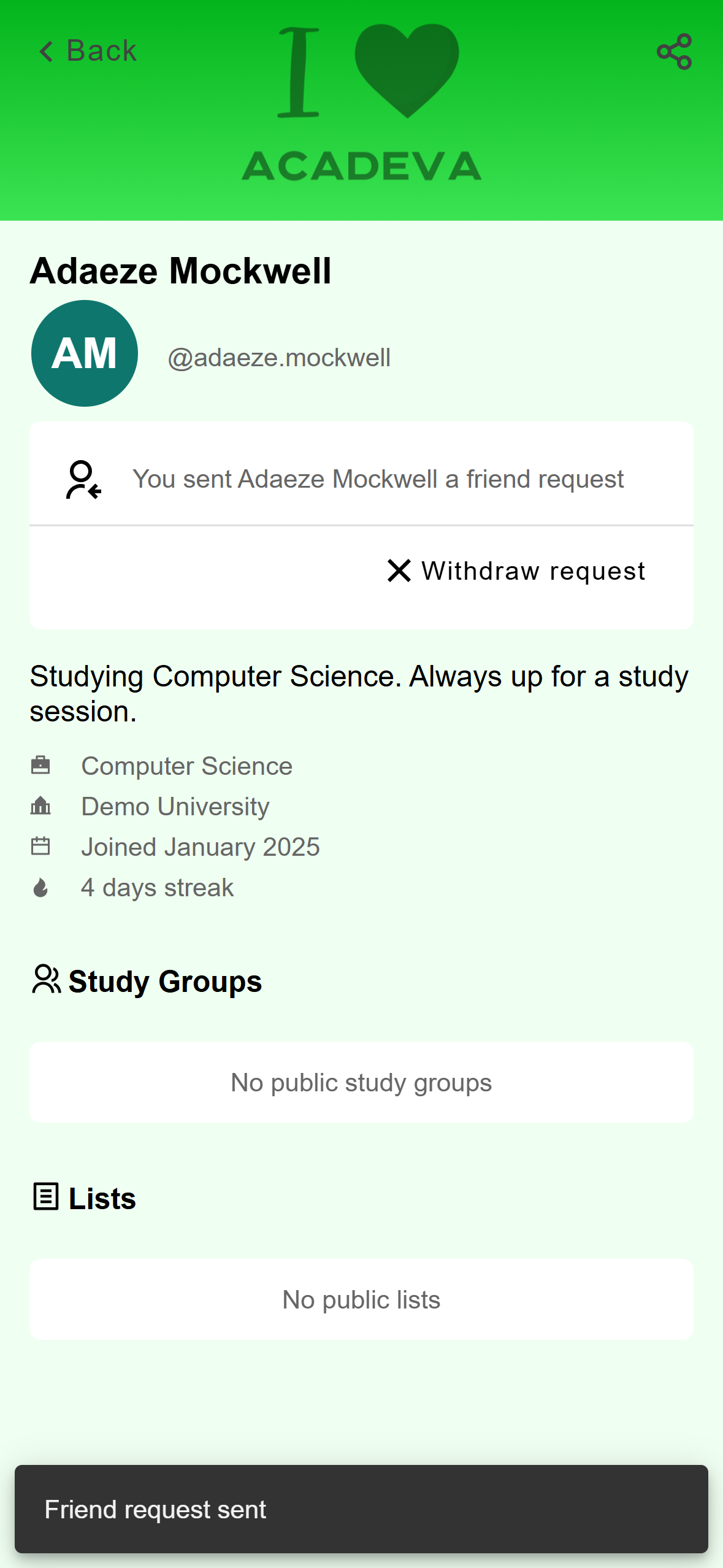
- Withdraw request cancels it.
- The confirmation message.
Mobile: The request is waiting for them.
Their card shows their name, username, bio and department. Click Add friend. View profile opens their full profile page instead.
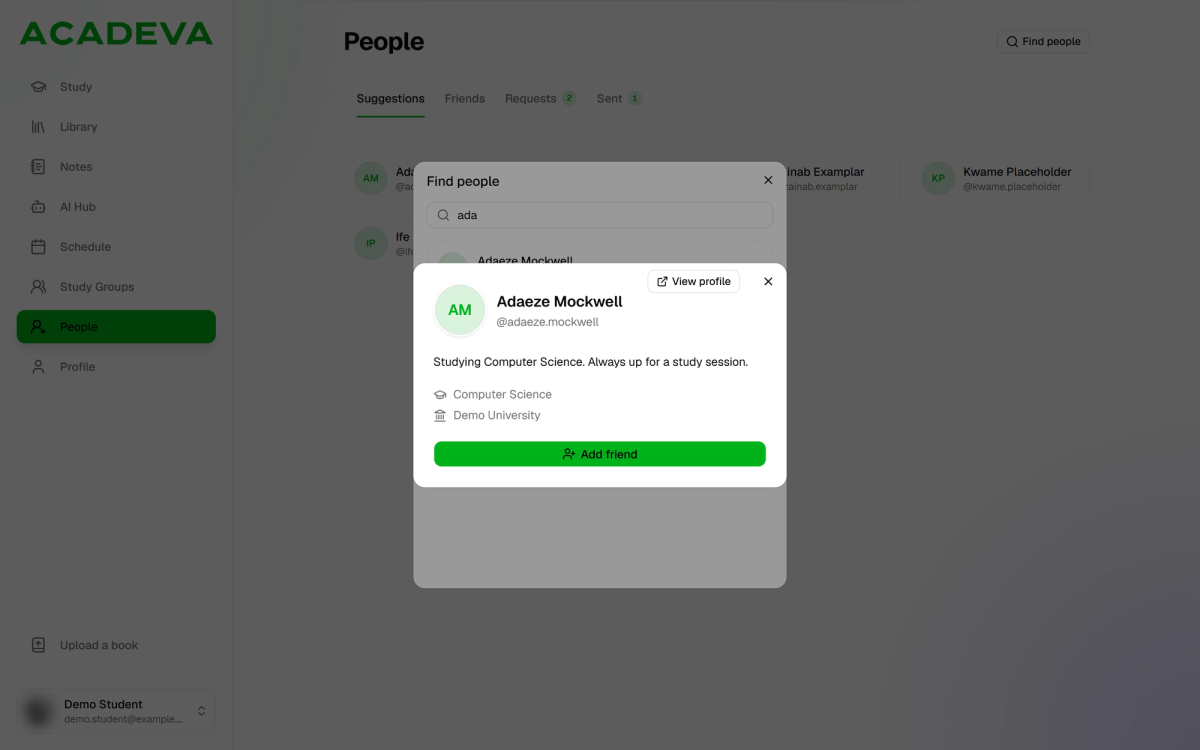
- Click Add friend.
- View profile opens their full profile.
Desktop: A person's card. A message says Friend request sent. The card now reads You sent them a friend request, with a Withdraw request button.
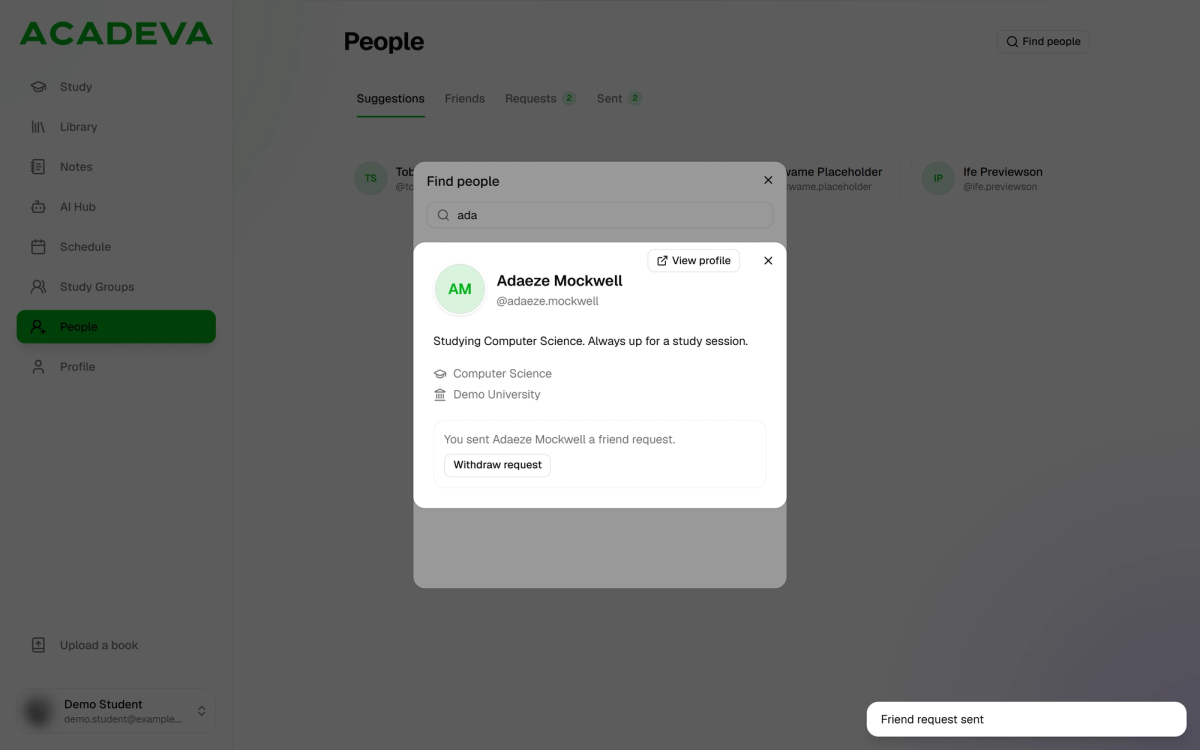
- Withdraw request cancels it.
- The confirmation message.
Desktop: The request is waiting for them.
They get a notification. Your pending requests are listed under Sent requests on the phone and the Sent tab on desktop.
Accept or decline a request
On the People screen, open Friend requests. Each row is someone who asked to be your friend. Tap one.
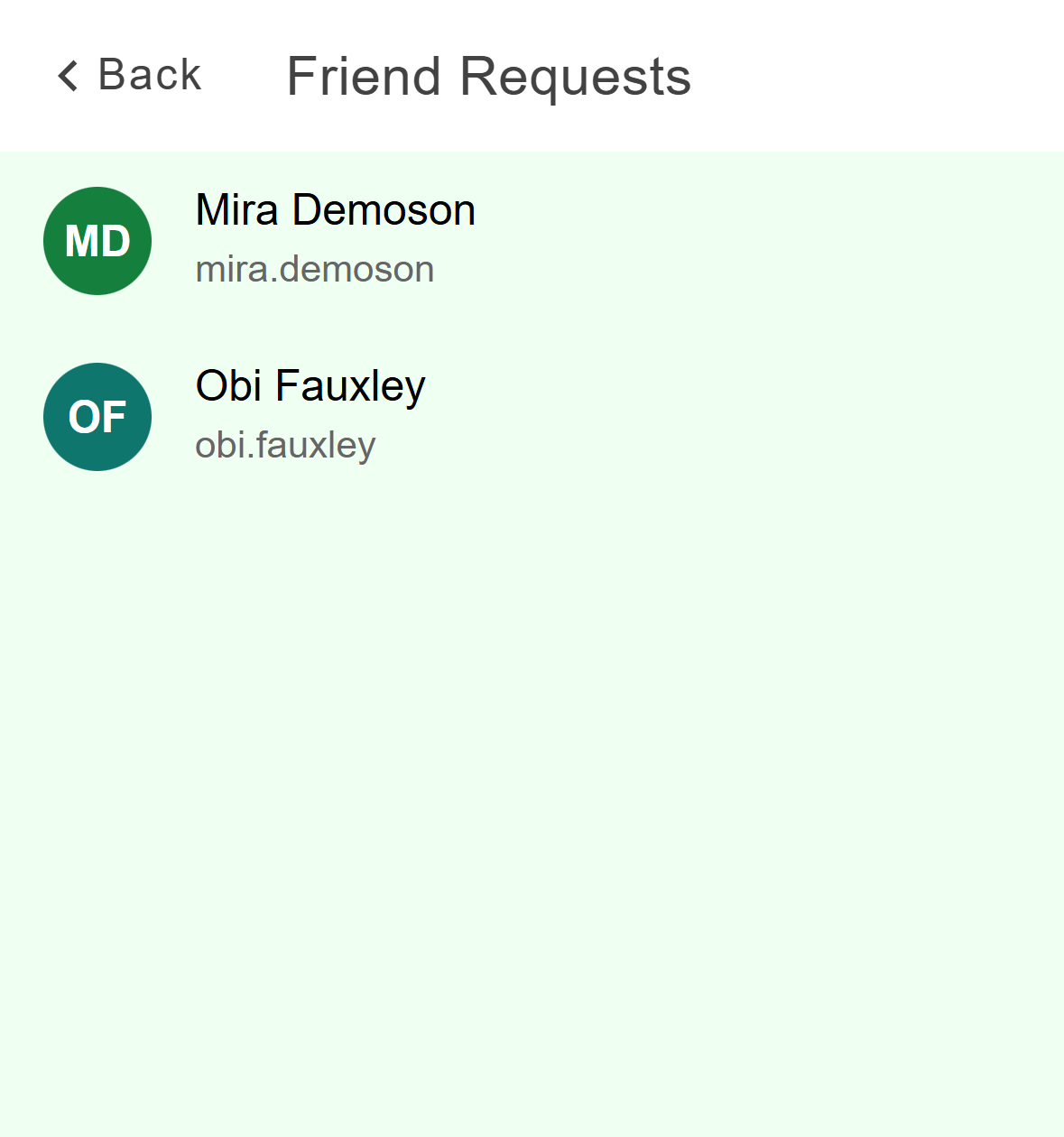
- Tap a person to see their request.
Mobile: People waiting for your answer. Their profile reads that they sent you a friend request. Tap Accept or Decline.
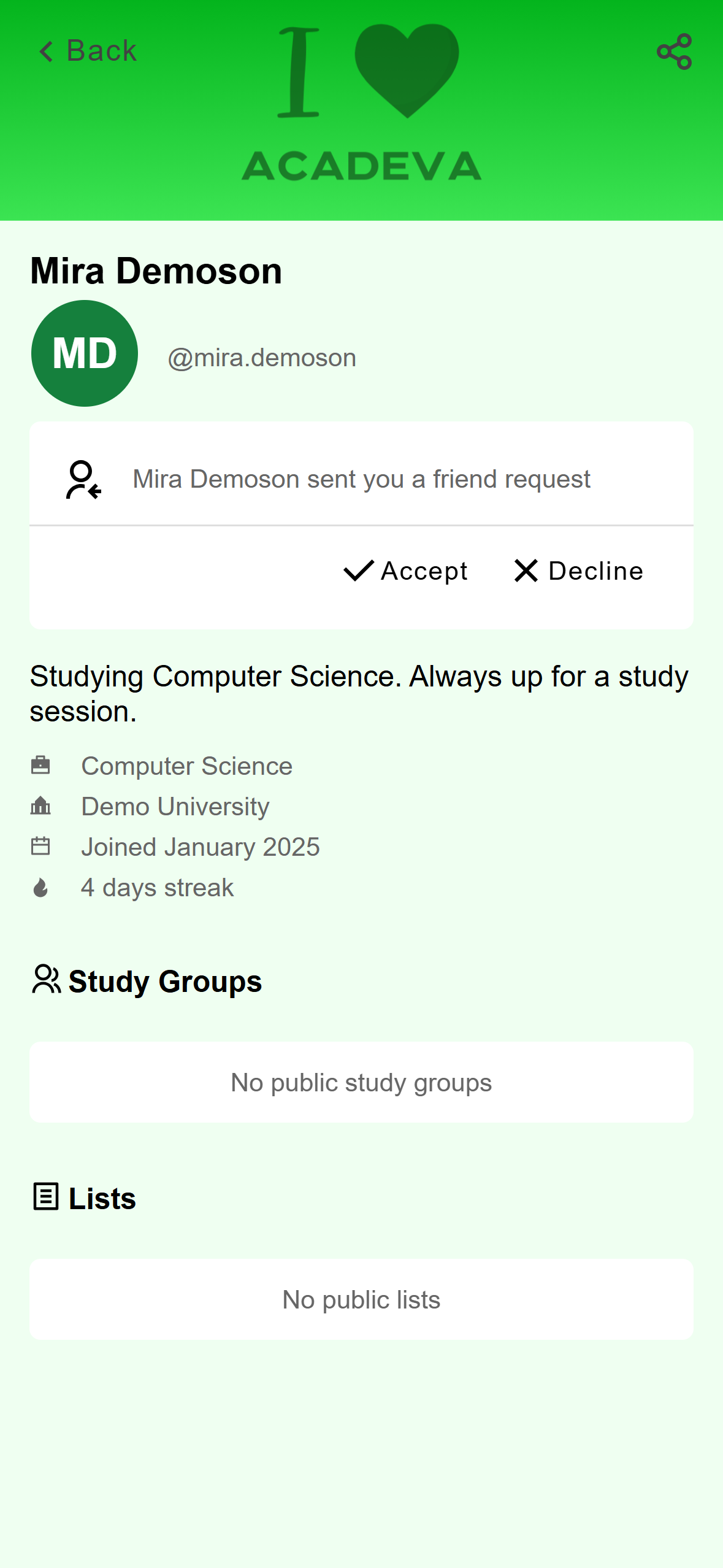
- Accept makes you friends. Decline removes the request.
Mobile: Accept or Decline. After Accept, a message says Friend request accepted. The profile now shows Remove friend, and a chat button if they share contact links with friends.
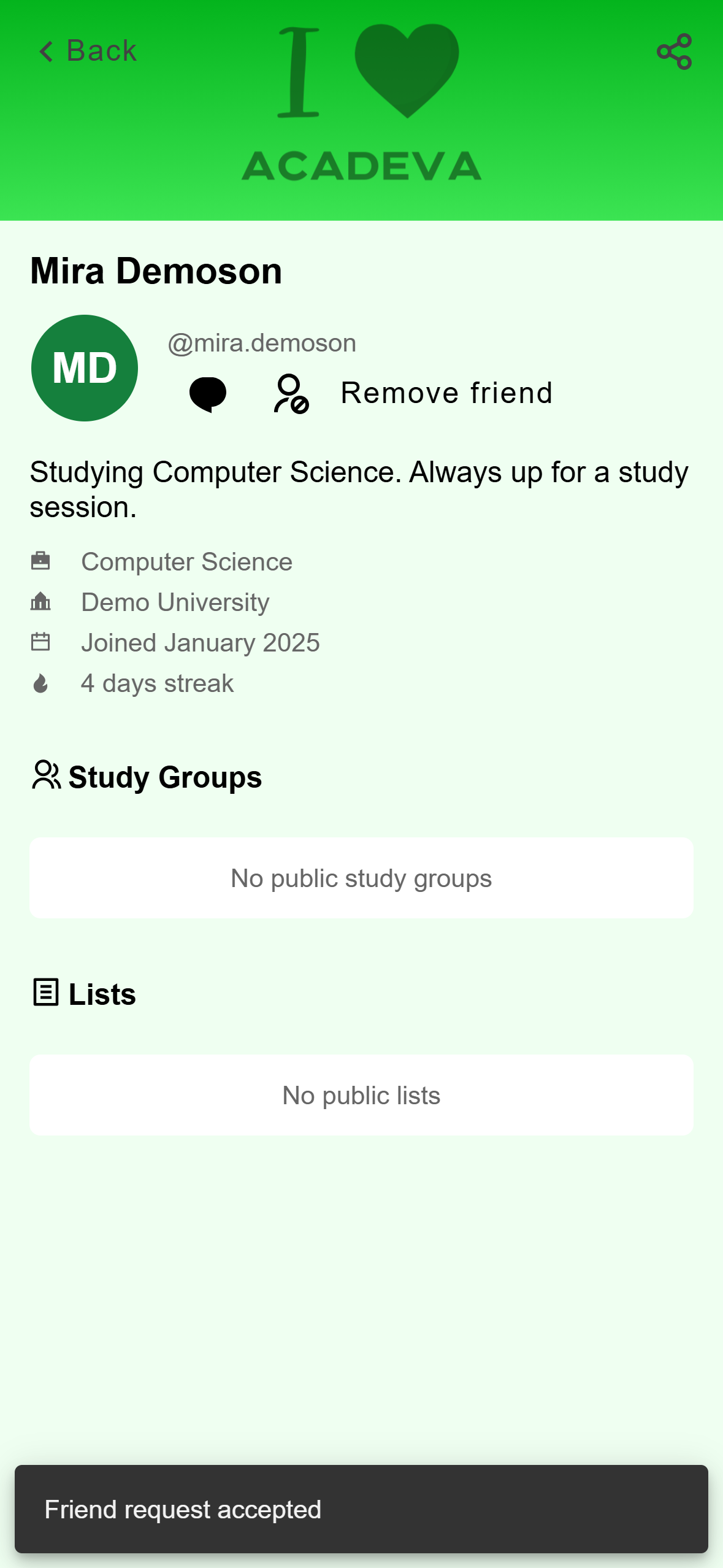
- Remove friend undoes it.
Mobile: You are friends now.
Open the Requests tab. Each card is someone who asked to be your friend. Click one.
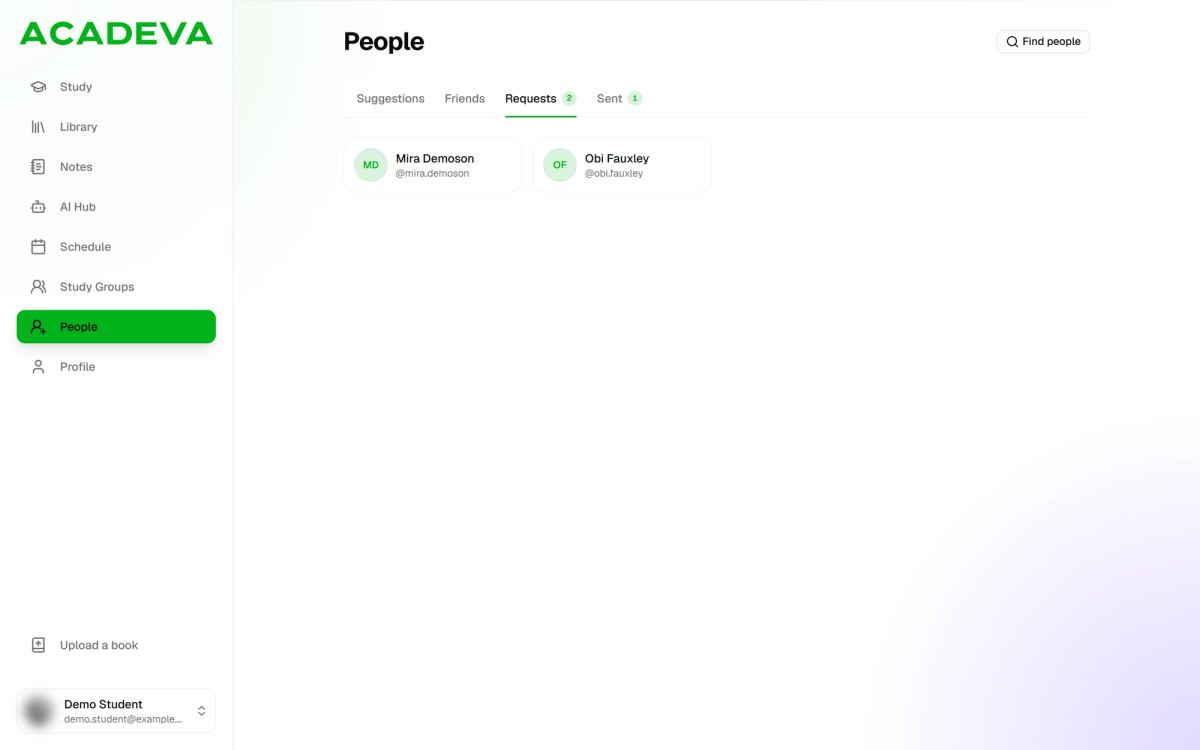
- The number is how many are waiting.
- Click a person.
Desktop: People waiting for your answer. Click Accept or Decline.
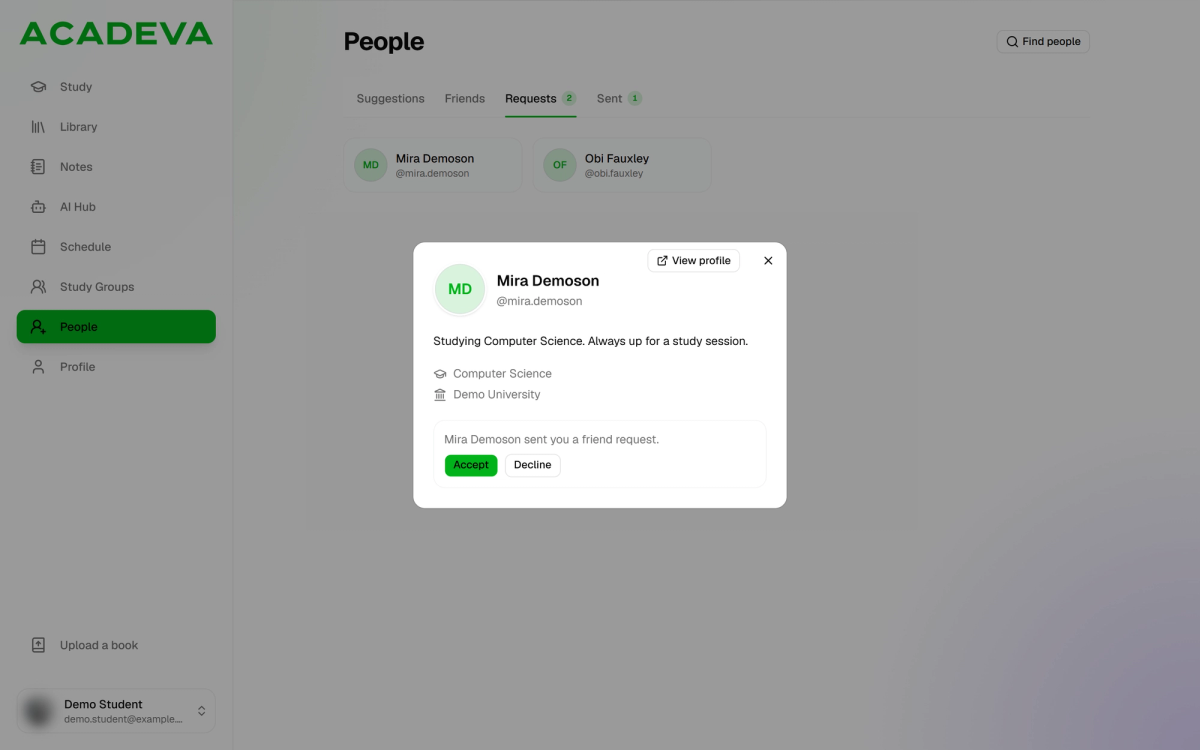
- Accept makes you friends. Decline removes the request.
Desktop: Accept or Decline. After Accept, a message says Friend request accepted. The card shows the contact buttons they share with friends, and Remove friend.
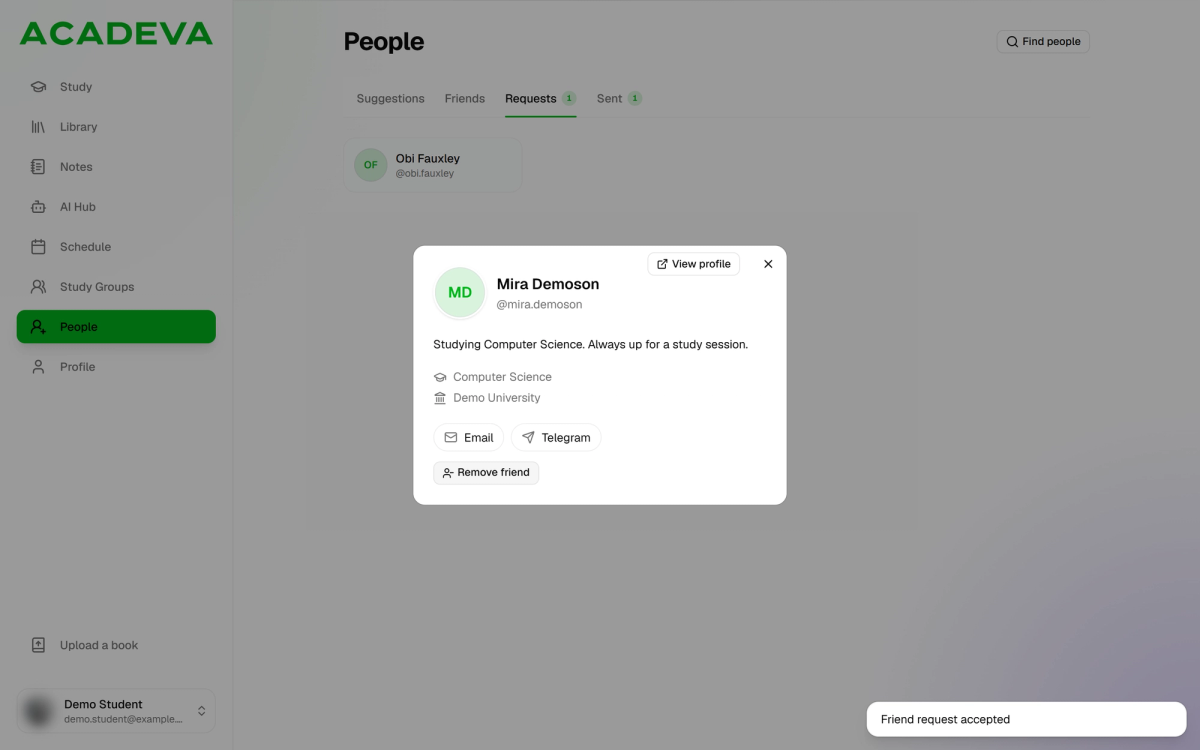
- Contact details they share with friends.
- Remove friend undoes it.
Desktop: You are friends now.
When you accept, the sender gets a notification. Declining isn't announced, so the other person isn't told.
Change your mind
- Withdraw request cancels a request you sent. Open the person from Sent requests (phone) or the Sent tab (desktop).
- Remove friend ends a friendship. On the phone it happens at once. On desktop you confirm in a Remove dialog first. Nobody is notified, and either of you can send a new request later.
What friends can see
Each person chooses what their profile shows. Details set to friends only, such as email, Telegram or WhatsApp links, appear once you are friends. Friends also appear on your Streak screen's Friends tab, where you can see their streaks and cheer them on.
Invite coursemates who aren't here yet
On the phone, Invite Now on the People screen shares your referral link. On desktop, the Invite your coursemates card on the Suggestions tab has a Copy link button. You earn points when someone joins with your referral code.
If it doesn't work
- No user found: check the spelling, or search their exact username. Ask them for it if you don't have it.
- No suggested friends for now (phone) or No suggestions for now (desktop): suggestions come from your department and leave out people you are already connected to. Use Find people instead.
- No Add friend button: you already have a request open with that person, in either direction, or you are already friends. Check Friend requests and Sent requests, or the Requests and Sent tabs.
- Could not send request or Could not accept request (phone), or a message at the bottom of the window (desktop): check your connection and try again.