
Every study group has a chat for its members. Besides sending messages, you can reply to a specific message, react to it with an emoji, and, if you're an admin, pin the one everybody should see.
What you need
- An Acadeva account and a study group you belong to. Create or join a study group explains how.
- To pin a message: the admin role in that group.
Open the chat
Open You > Study groups, tap your group, then tap Conversation under Group tools. A red number on the row is how many messages you haven't read.
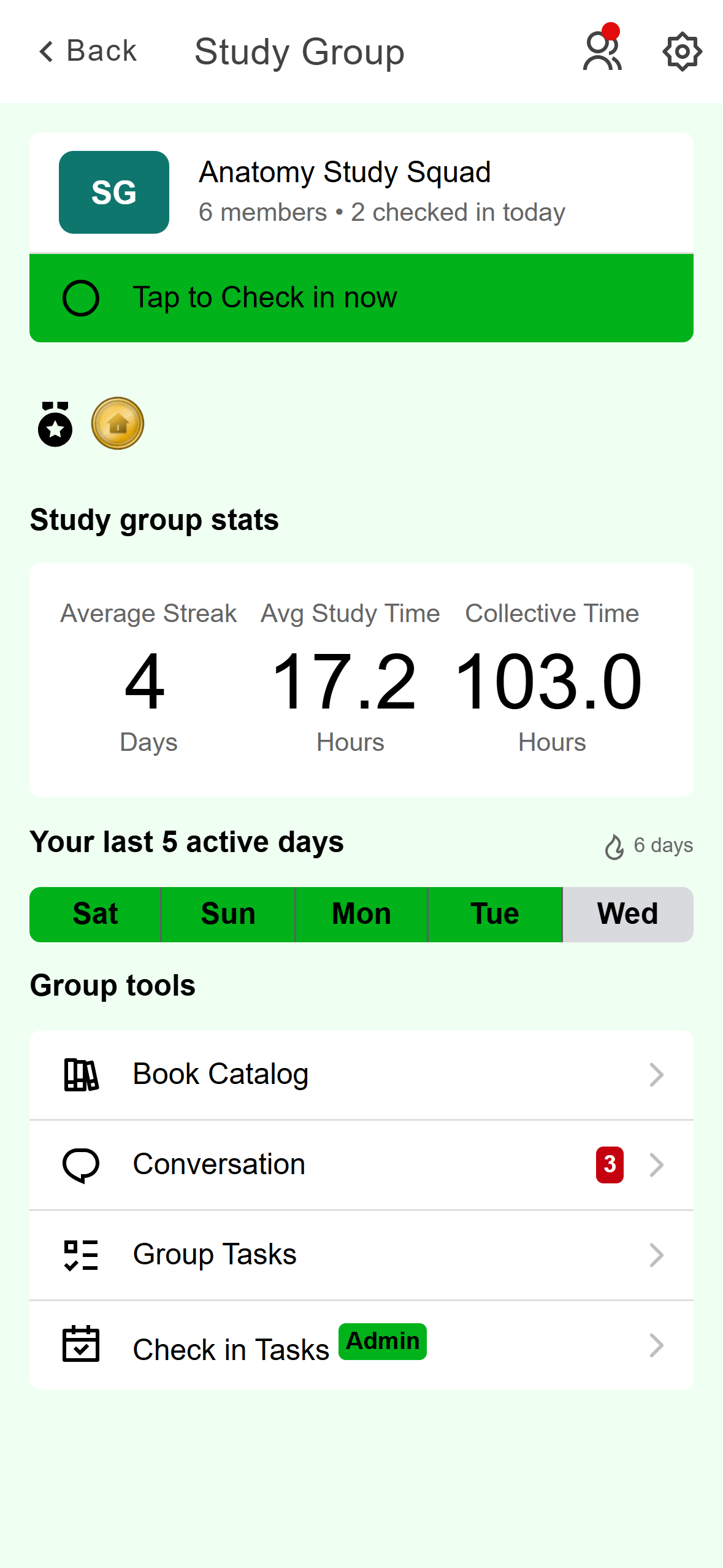
- Opens the group chat. The red number counts unread messages.
Mobile: Conversation sits under Group tools. The newest messages are at the bottom. Your own messages are green and on the right. A replied-to message is quoted above the reply, and reactions sit under a message as small counts.
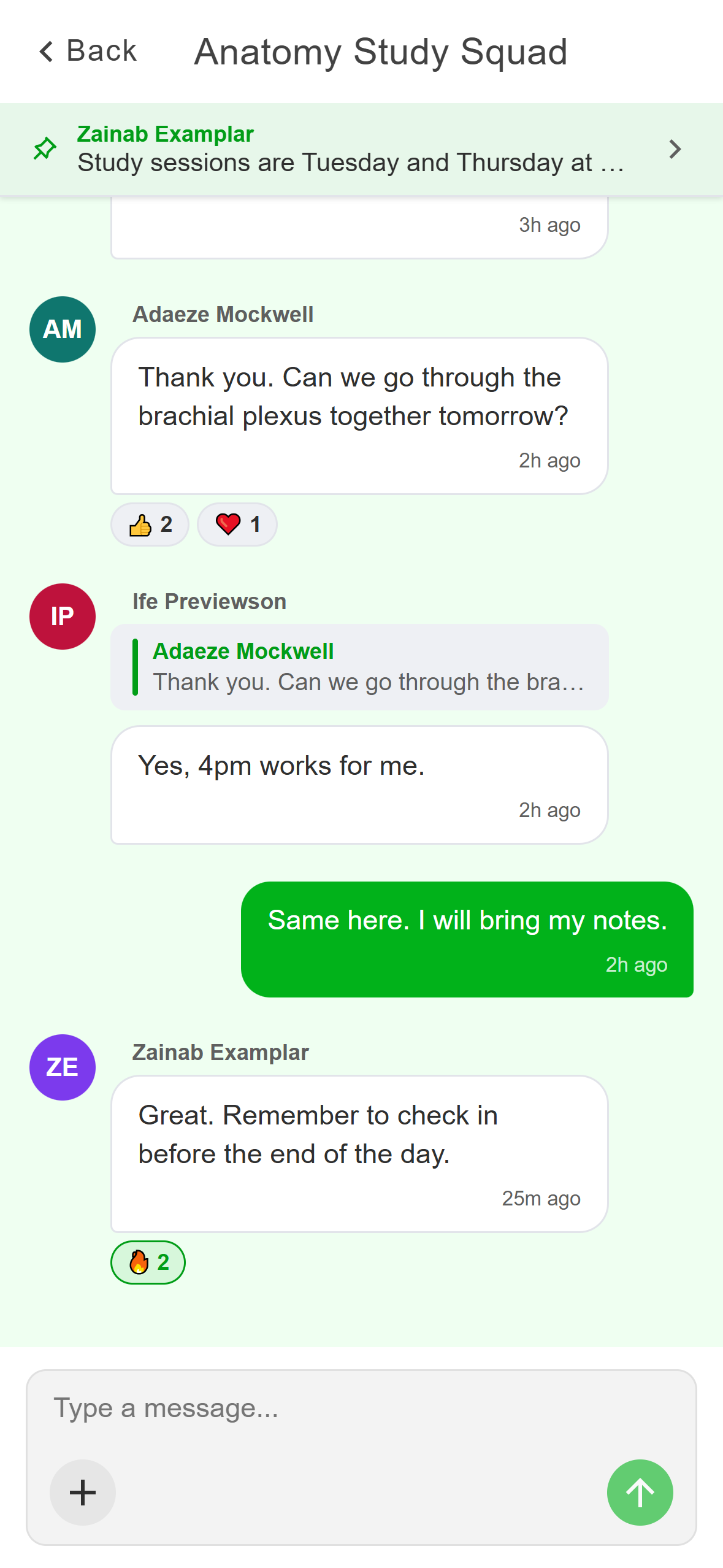
- The pinned message. Tap it to open it.
- A reply quotes the message it answers.
- Reaction counts.
- A green outline means you reacted.
Mobile: A group chat on the phone.
Click Study Groups in the left rail, open your group and click the Conversation tab. A number on the tab is how many messages you haven't read.
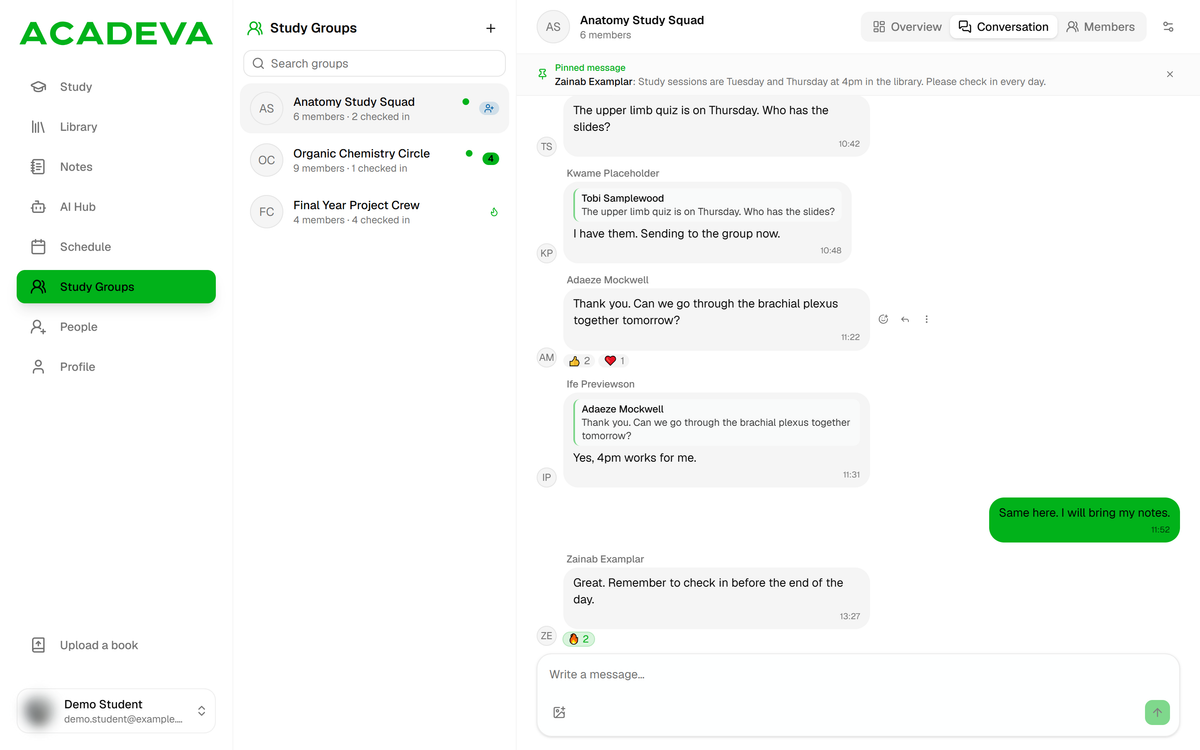
- The pinned message sits above the chat.
- A reply quotes the message it answers.
- React, Reply and More appear when you hover a message.
Desktop: Hover a message to see its toolbar.
Send a message
Type under Type a message... and tap the green arrow. The + button adds one photo, from Camera or Photo Library. Type a line of text to go with it.
Type under Write a message… and press Enter, or click the arrow. Shift+Enter starts a new line. The picture button adds one image.
Your message appears at once while it sends. If it can't reach Acadeva, you can retry it (see "If it doesn't work").
Reply to a message
Drag the message to the right and let go. Or press and hold it, then tap the curved reply arrow at the top right. Reply is only offered when exactly one message is selected.
A bar above the message box says Replying to and the person's name. Type your reply and send it. Tap the X on the bar to cancel.
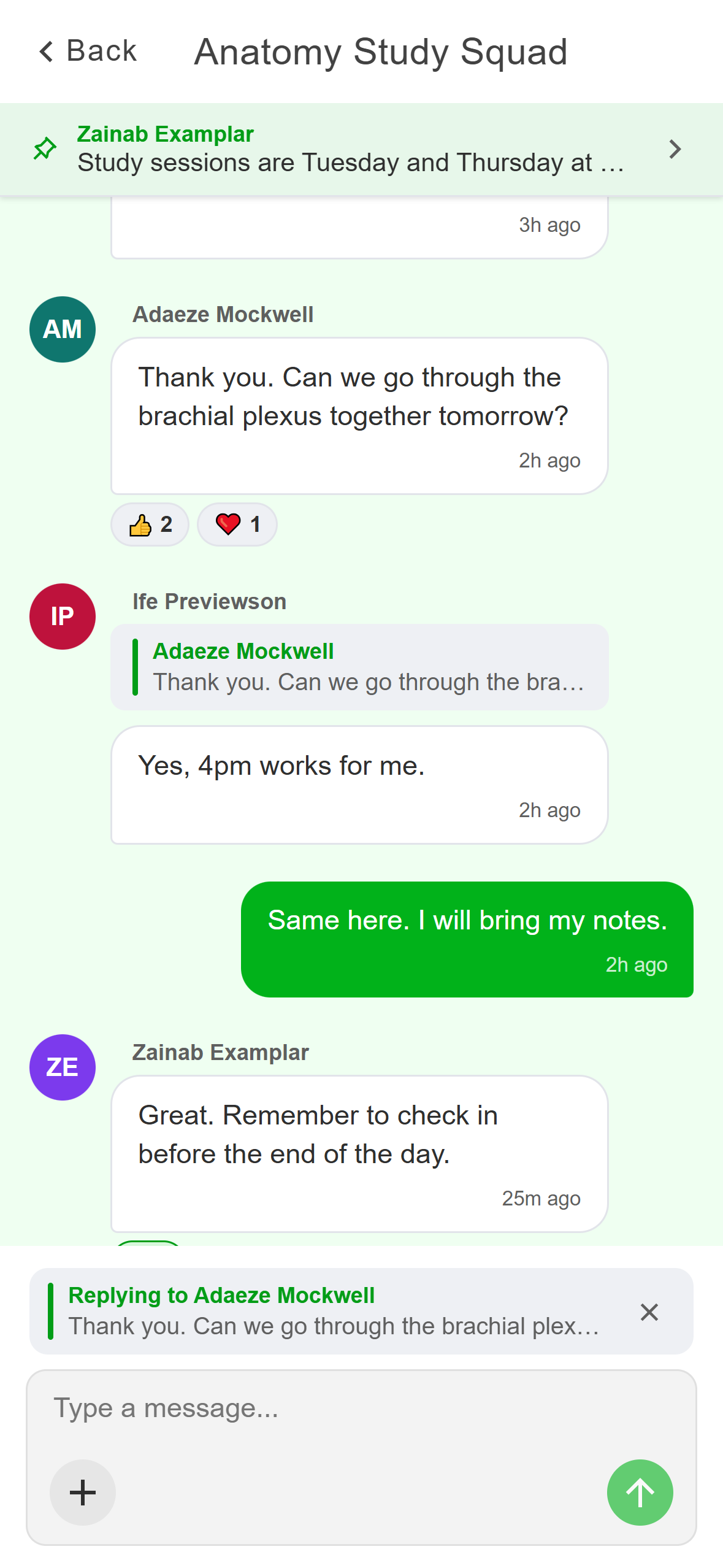
- Your message will quote this one. Tap X to cancel.
Mobile: The reply bar sits just above the message box.
Hover the message and click the curved reply arrow.
A strip above the text box says Replying to and the person's name. Type your reply and send it. Click the X on the strip to cancel.
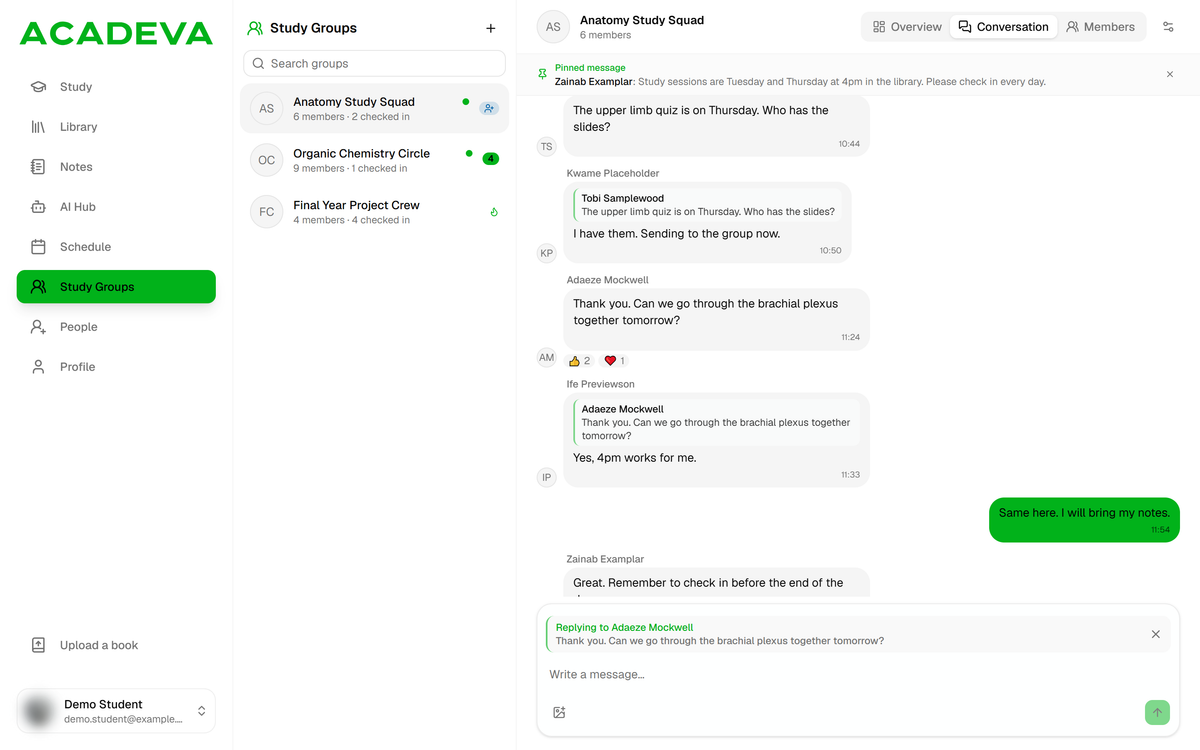
- Your message will quote this one. Click X to cancel.
Desktop: The reply strip appears above the text box.
The reply shows the other person's name and the first part of their message above your text.
React to a message
Press and hold the message. A row of five emoji appears above it, and the top bar changes to reply, copy, pin and delete icons. Tap an emoji to react.
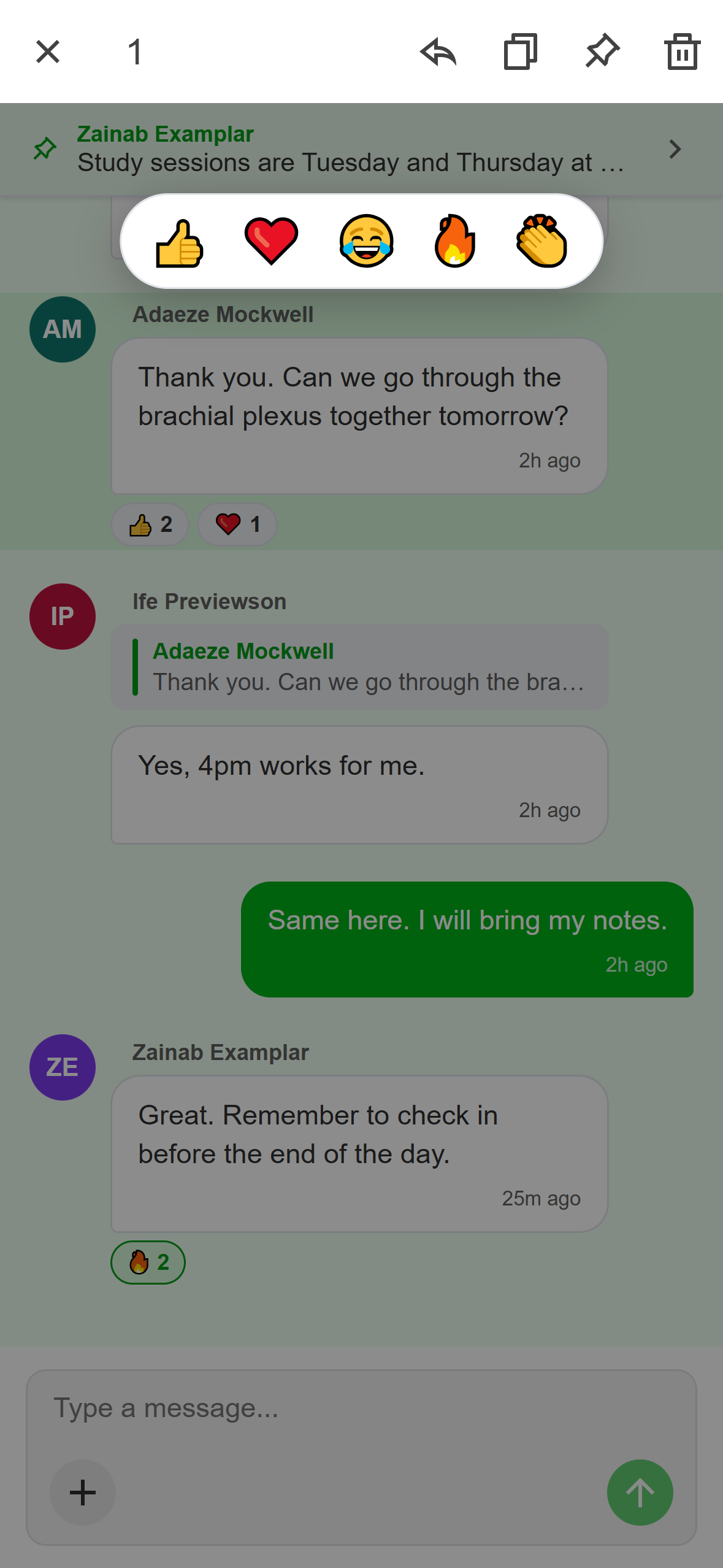
- Tap an emoji to react.
- Reply.
- Copy the text.
- Pin or unpin. Admins only.
- Delete. Your own messages, or any message if you're an admin.
Mobile: Press and hold a message. Tap an emoji count under the message to add or remove your own reaction.
Hover the message and click the smiley with a plus. A row of five emoji opens. Click one to react.
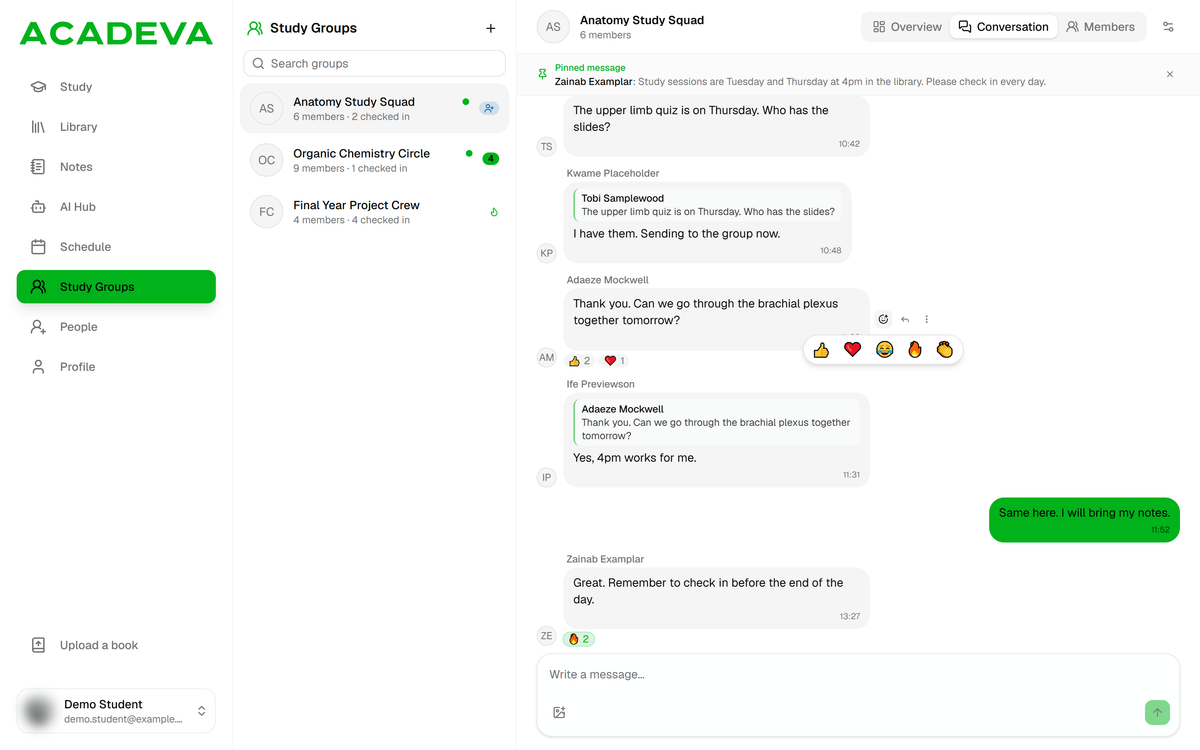
- Pick one of the five emoji.
Desktop: The five reactions. Click an emoji count under the message to add or remove your own reaction.
The five reactions are 👍 ❤️ 😂 🔥 👏. You can have one reaction per message. Picking a different emoji replaces your first one, and picking the same one again takes it off. You see counts, not names.
Pin a message
Only admins can pin. A group has one pinned message at a time, so pinning another replaces it. The pinned message is shown in a bar at the top of the chat, and carries a pin mark in the thread.
Press and hold the message and tap the pushpin icon in the top bar. The app says Message pinned.
Tap the bar at the top of the chat to open the Pinned Message screen. Admins see an unpin button at the top right.
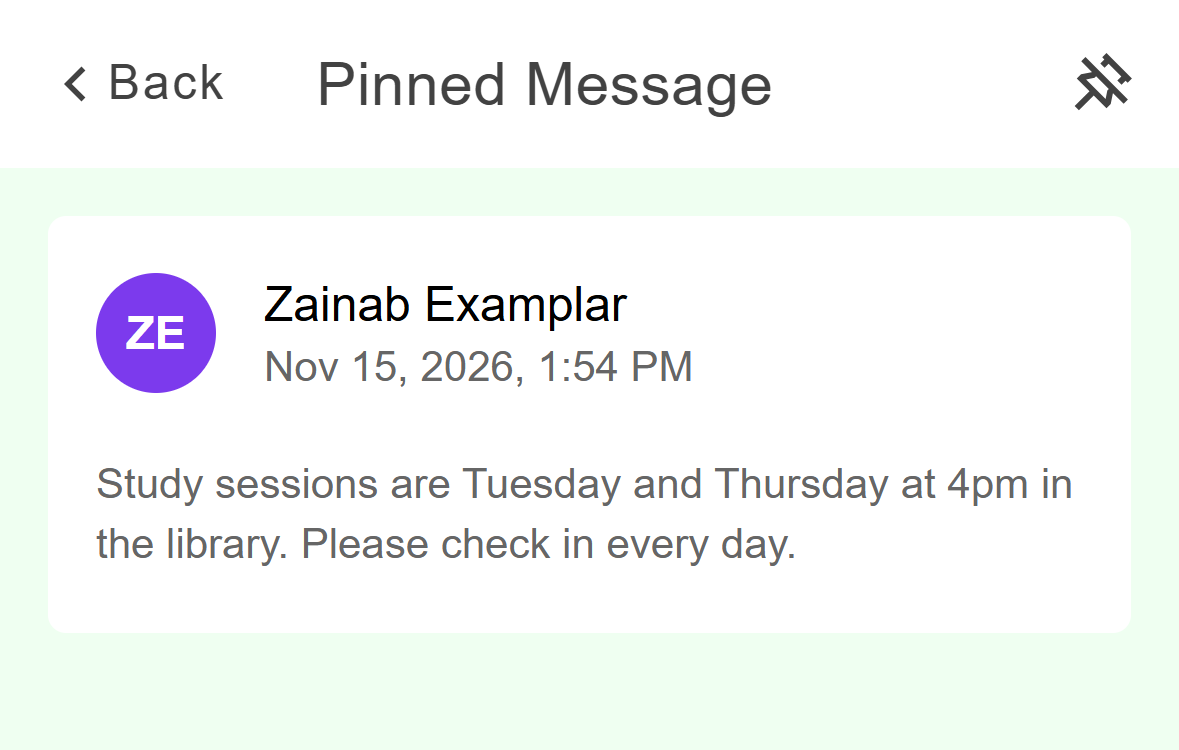
- Unpin. Only admins see this.
Mobile: The Pinned Message screen.
To unpin from the chat, press and hold the pinned message and tap the same icon again.
Hover the message, click the three dots (More) and choose Pin message. The menu offers Unpin message on the pinned one.
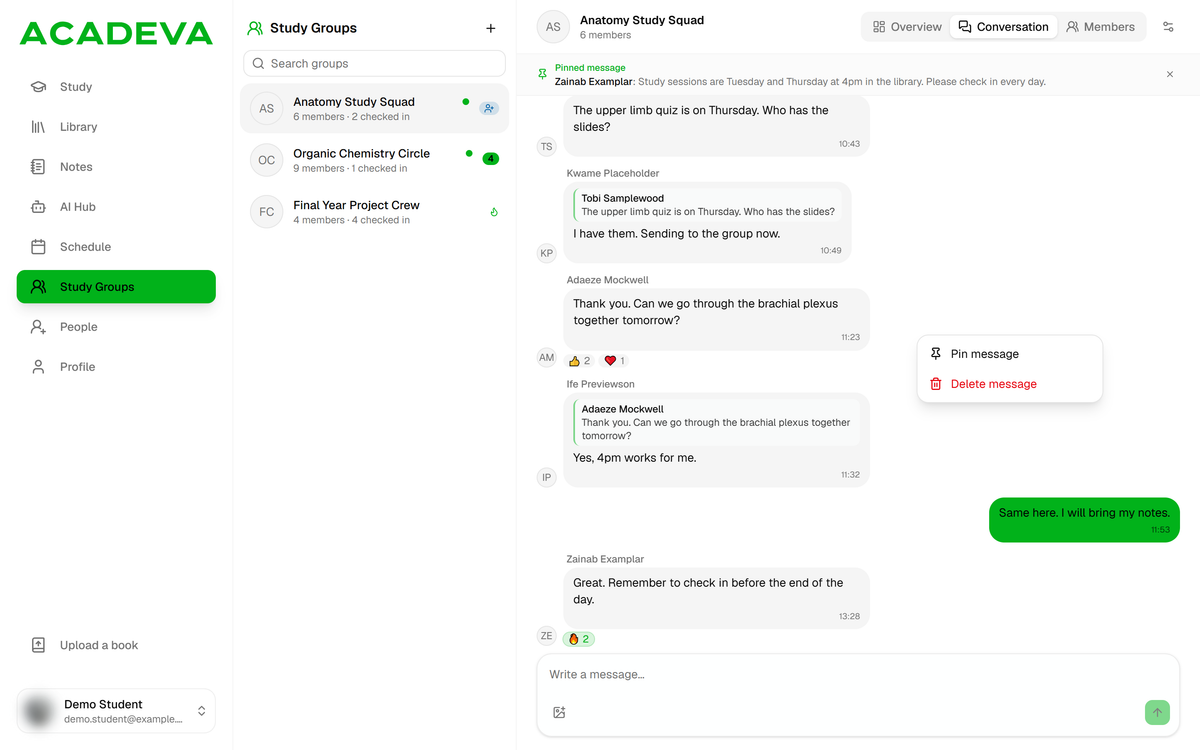
- Pin message is for admins. Delete message is for your own messages, or any message if you're an admin.
Desktop: The More menu.
Admins also see an X at the right of the pinned bar. Click it to unpin.
Acadeva automatically deletes chat messages that are older than 7 days. A pinned message is kept. Pin the things people will need later, such as a meeting time or a link.
Copy or delete a message
Press and hold a message, then tap the copy icon to copy its text, or the bin icon to delete it. While a message is selected you can tap more messages to select several. Delete works on several at once. Reply, copy and pin need exactly one.
Hover your message, click More and choose Delete message. Members only get this menu on their own messages. To copy text, select it and copy as usual.
You can delete your own messages. Admins can delete anyone's. Delete acts straight away and doesn't ask you to confirm.
When only admins can send
An admin can limit the chat to admins. Members then see a lock and "Only admins can send messages" instead of the message box. They can still read the chat and react. The setting is covered in Manage your group: members, roles, and settings.
Catching up
A line marked Unread messages (phone) or New messages (desktop) shows where you stopped last time. Acadeva doesn't send a notification when someone posts. The unread number on the group in your list, and on its Conversation row or tab, is how you know to open it.
If it doesn't work
- "Not delivered" (phone) or "Not sent" (desktop). The message didn't reach Acadeva. Check your connection and tap Retry. Desktop also offers Discard. The phone keeps unsent messages and offers Retry again when you reopen the chat.
- "Reconnecting…" or "Offline". Live updates have paused. They return by themselves when your connection does.
- "Couldn't load messages" on the phone. Tap Retry at the bottom of the screen once you're back online.
- You can't find Pin. Only admins have it. Ask an admin to pin the message, or to make you an admin.
- A message you remember is gone. It was deleted, or it was older than 7 days and not pinned.
- "You're no longer a member of this group." on desktop. You were removed. You can only come back with a new invite or an admin's approval.
Daily check-ins and streaks covers the other thing groups do every day.