
The first time you sign in, Acadeva asks a few questions before it opens. Your answers decide the name other students see, and which books, courses and timetables Acadeva shows you. It takes about two minutes.
The phone app and the desktop app ask the same three things in the same order: your name and school, what you study, and how you found Acadeva. Only the layout differs. The phone shows one screen per step, with three bars at the top. The desktop app lists the steps on the left (Profile, Academics, Referral), and you can click a finished step to go back to it.
What you need
- An internet connection. The school and department lists load as you search.
- The name you want other students to see.
- Your school, your department, the name of your programme, and your current level.
Step 1: your name and school
On the Let's get to know you screen, type your Display name. Other users can see it, so use the name your classmates know you by.
Tap the School field. Type your school's name or its short form, then tap your school in the results. Each result shows the school's logo, name and abbreviation.
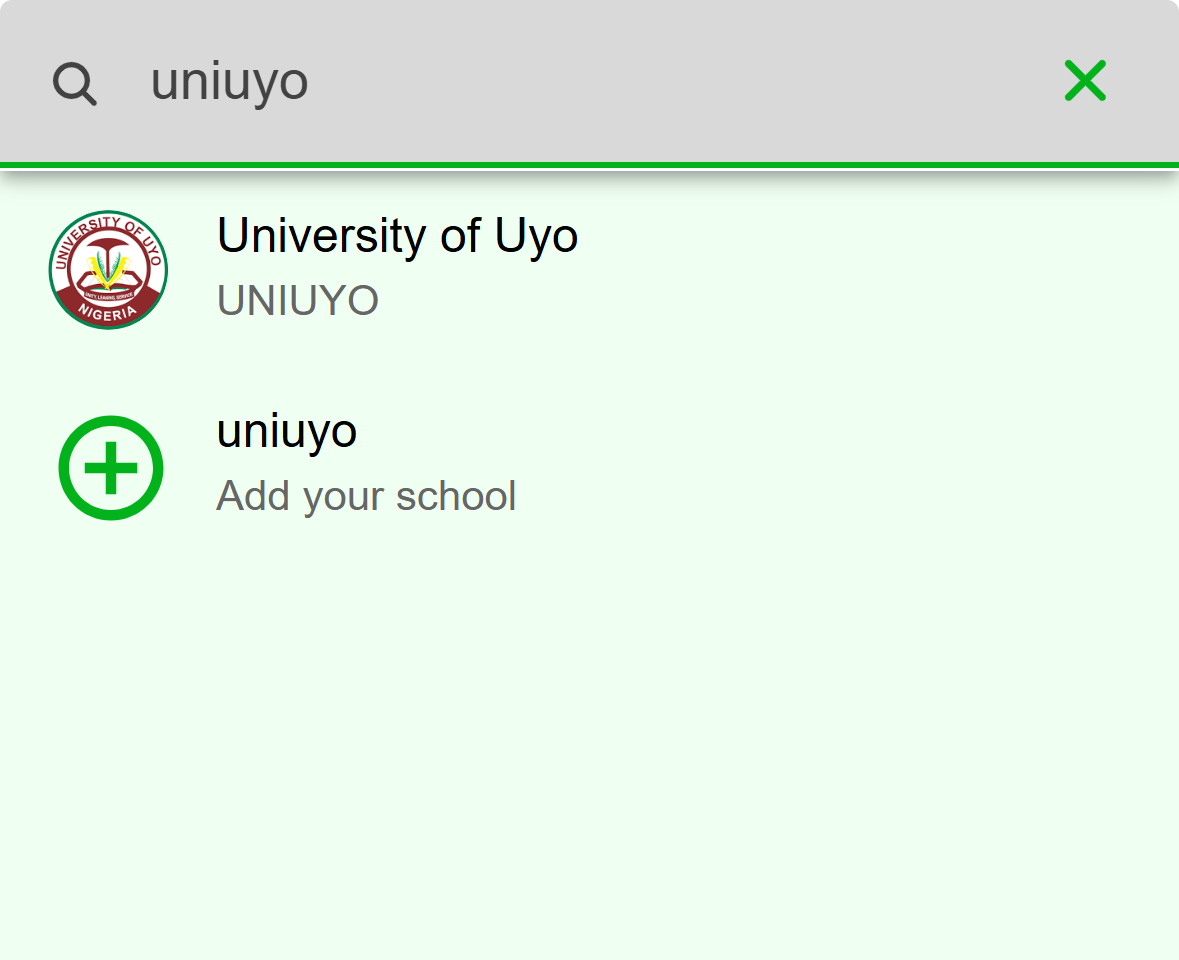
- Tap your school in the results.
- Not in the list? Tap this row. See "Your school or department isn't listed".
Mobile: Search for your school and tap it in the list. Tap Next. It stays greyed out until you have both a name and a school.
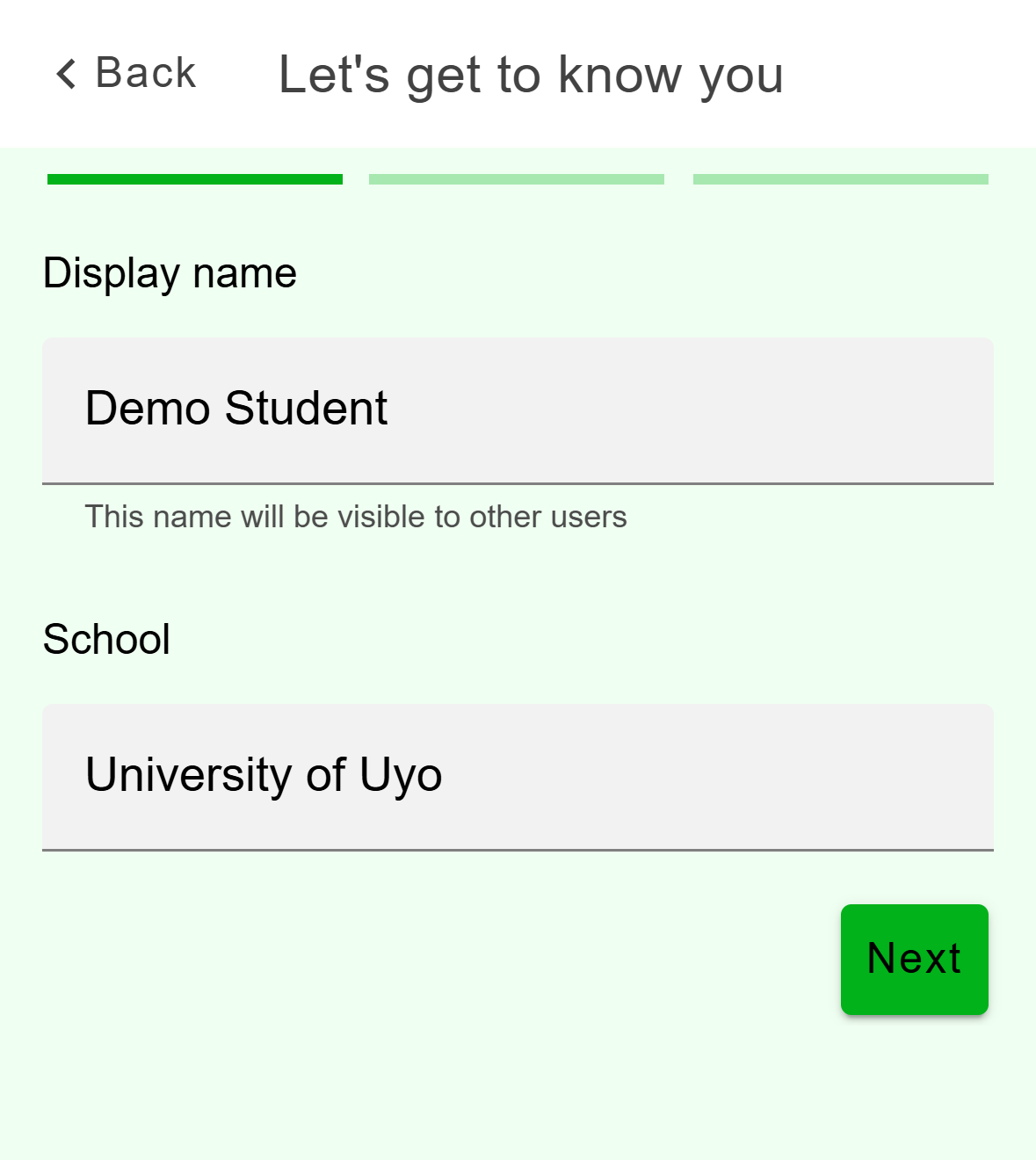
- Tap here to search for your school.
Mobile: Step 1 of 3, filled in.
On the Profile step, type your Display name. It needs 2 to 60 characters, and other users can see it.
Check Date of birth. The field starts on a date 18 years ago, so change it to yours. You must be at least 13. A date that makes you younger shows "You must be at least 13 to use Acadeva", hides the school field and keeps Next switched off.
Click the School field. In the Find your school window, type your school's name or abbreviation, then click your school. Each result shows the name, abbreviation and state.
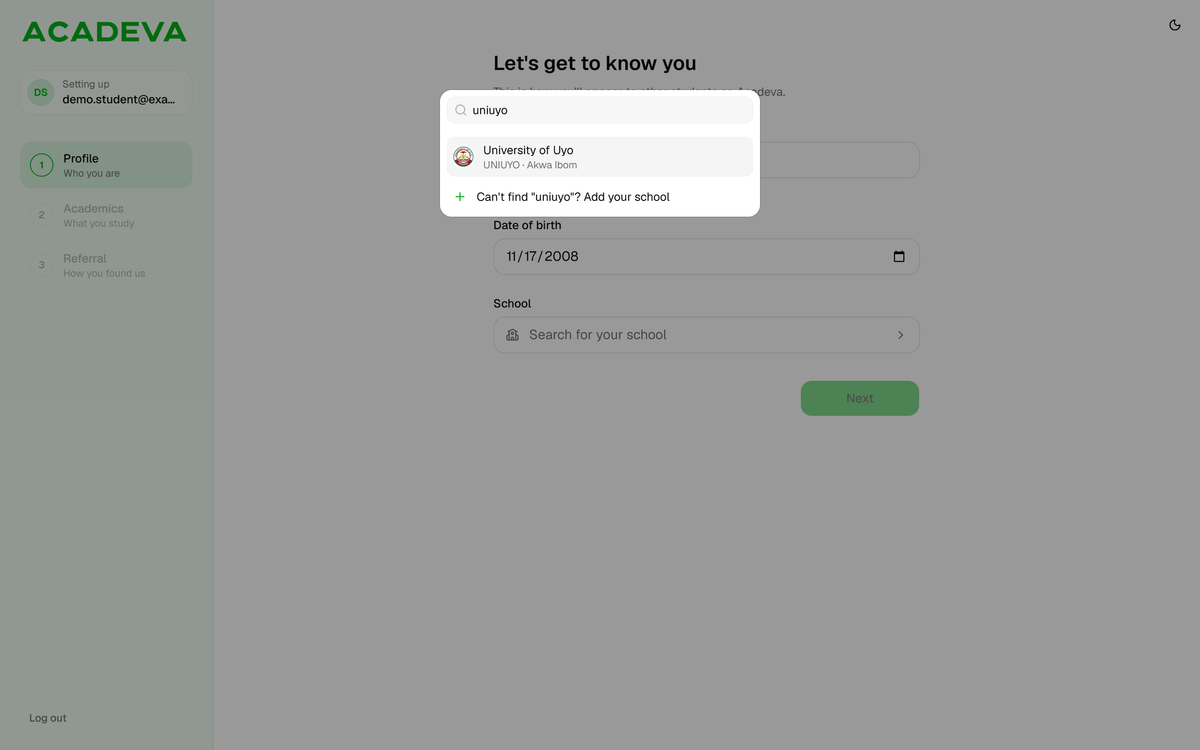
- Click your school in the results.
- Not in the list? Use this row. See "Your school or department isn't listed".
Desktop: The school search on desktop. Click Next.
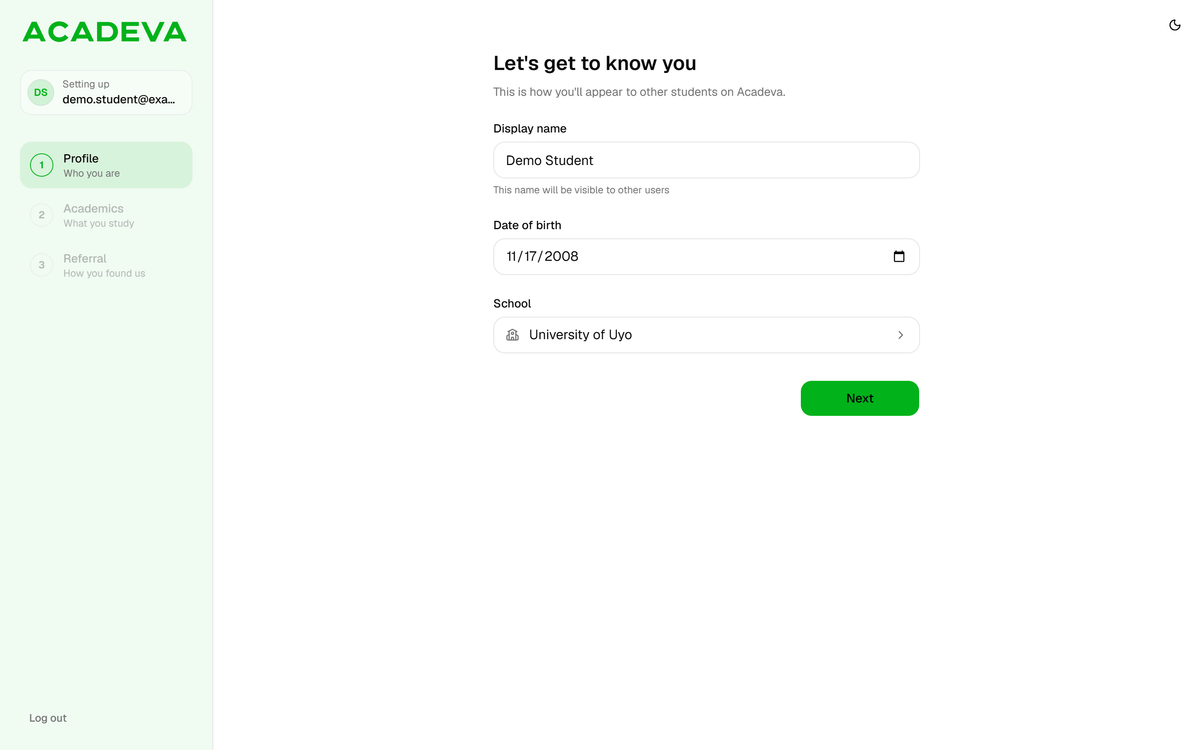
- Starts on a date 18 years ago. Change it to your own.
Desktop: Step 1 of 3, filled in.
Step 2: your department, programme, and level
This step tells Acadeva what you study. It uses your answers to show you the right materials and timetables.
On the Your course? screen, tap the Department field. Your school's departments load in a list. Type to narrow it, then tap yours. The faculty appears under the field.
Check Programme. Acadeva fills it in from your department name without "Department of", so Department of Accounting becomes Accounting. Change it to the exact name of what you study, for example Mechanical Engineering.
Set Current level and Current semester. They start on 100 Level and 1st Semester, so change them if that isn't you.
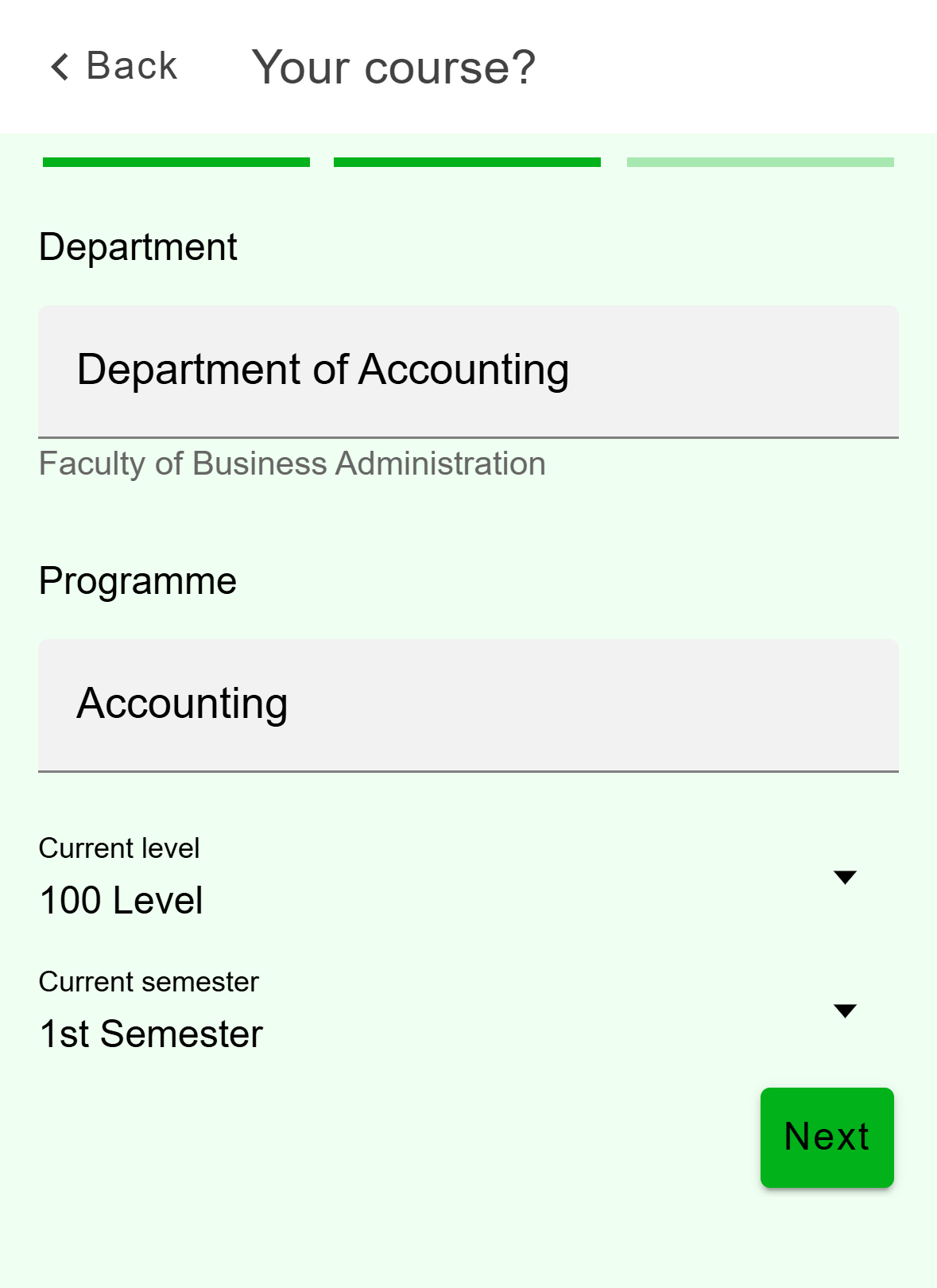
- Filled in from your department. Change it to match what you study.
- Both start on 100 Level and 1st Semester. Change them if that isn't you.
Mobile: Step 2 of 3, filled in. Tap Next. It stays off until the department, faculty and programme are filled in.
On the What do you study? step, click Department. In the Find your department window, type to narrow the list, then click yours. The faculty appears under the field.
Check Programme. It fills in from your department name the same way. Change it to the exact name of what you study.
Pick your Current level from the list and choose 1st Semester or 2nd Semester. They start on 100 Level and 1st Semester.
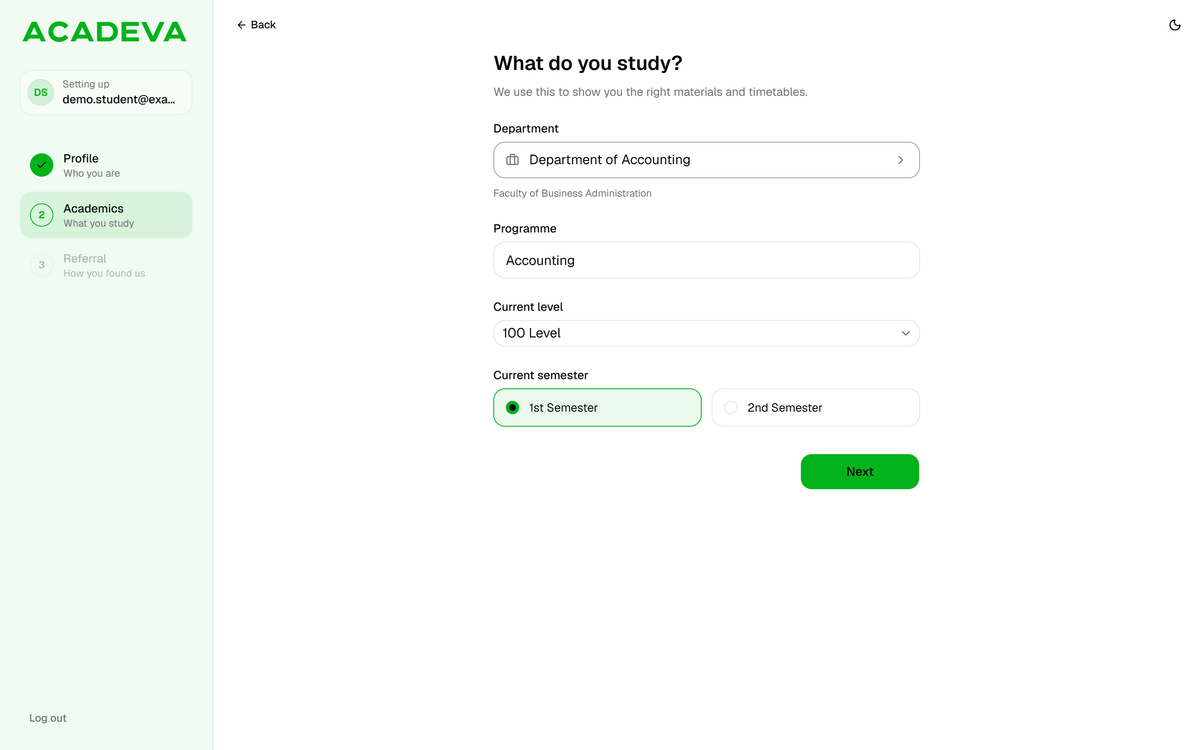
Desktop: Step 2 of 3, filled in. Click Next. It stays off until the department, faculty and programme are filled in.
- The level list depends on your school. A university lists 100 Level up to 800 Level, plus options such as Predegree, Diploma, Postgraduate and Alumni. A polytechnic lists ND1, ND2, HND1 and HND2, plus options such as Pre-ND. Awaiting Admission is there if you haven't started yet.
- Your department isn't in the list? Your school or department isn't listed shows how to carry on.
Step 3: how you found Acadeva
The last step is one question, with an optional referral code.
On the We're curious screen, choose where you heard about Acadeva: A friend, Twitter, Instagram, Google search, Event/Conference or Other. A friend is selected to start with.
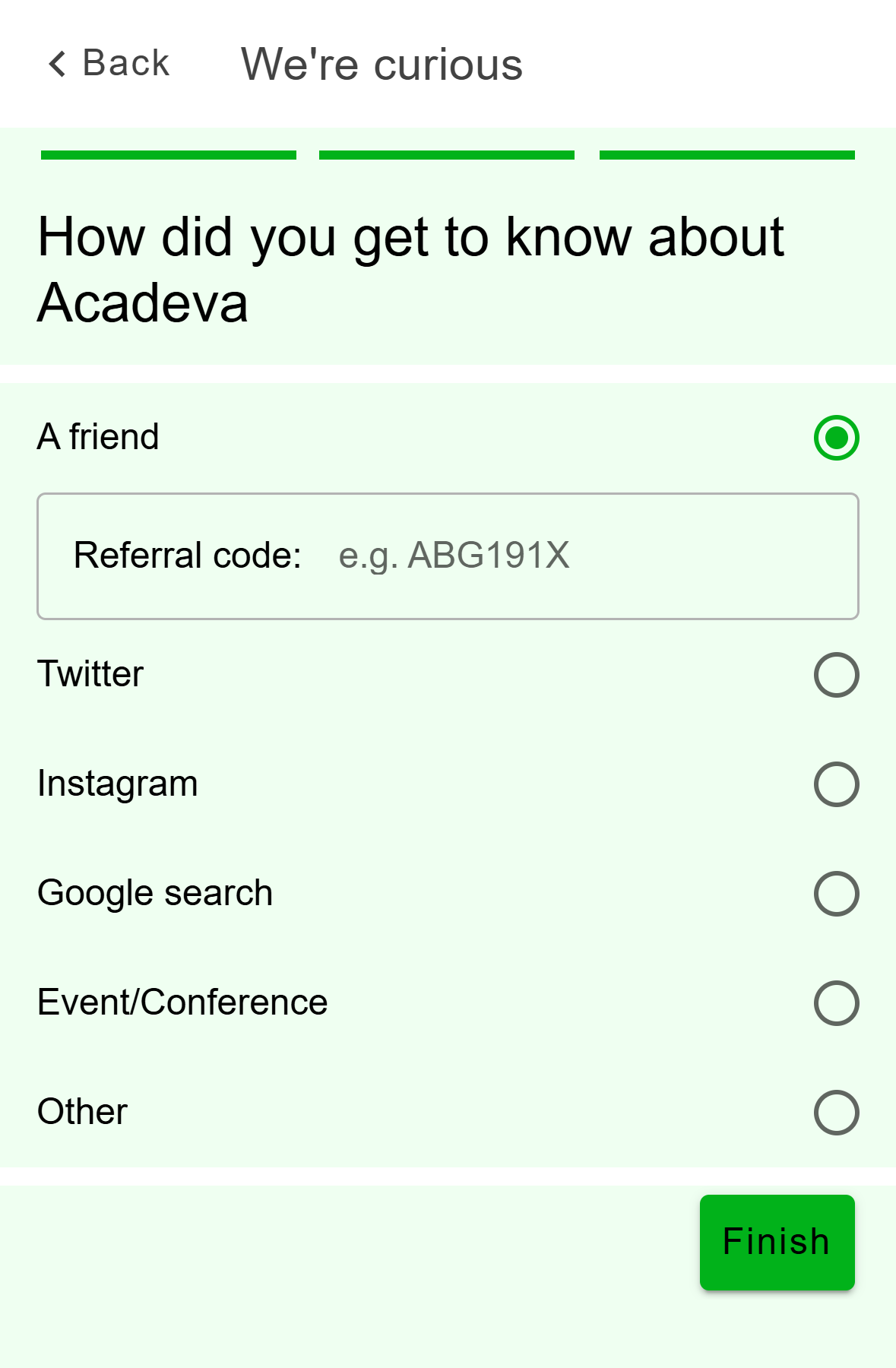
- Finish saves your profile. Check the earlier steps first.
Mobile: Step 3 of 3. If a friend sent you, type their code in Referral code. You can leave it empty.
Tap Finish. This is the button that saves your profile. Tap Back first if you want to change anything.
On the Referral step, choose where you heard about Acadeva: A friend, Twitter, Instagram, Google search, Event / Conference or Other. A friend is selected to start with.
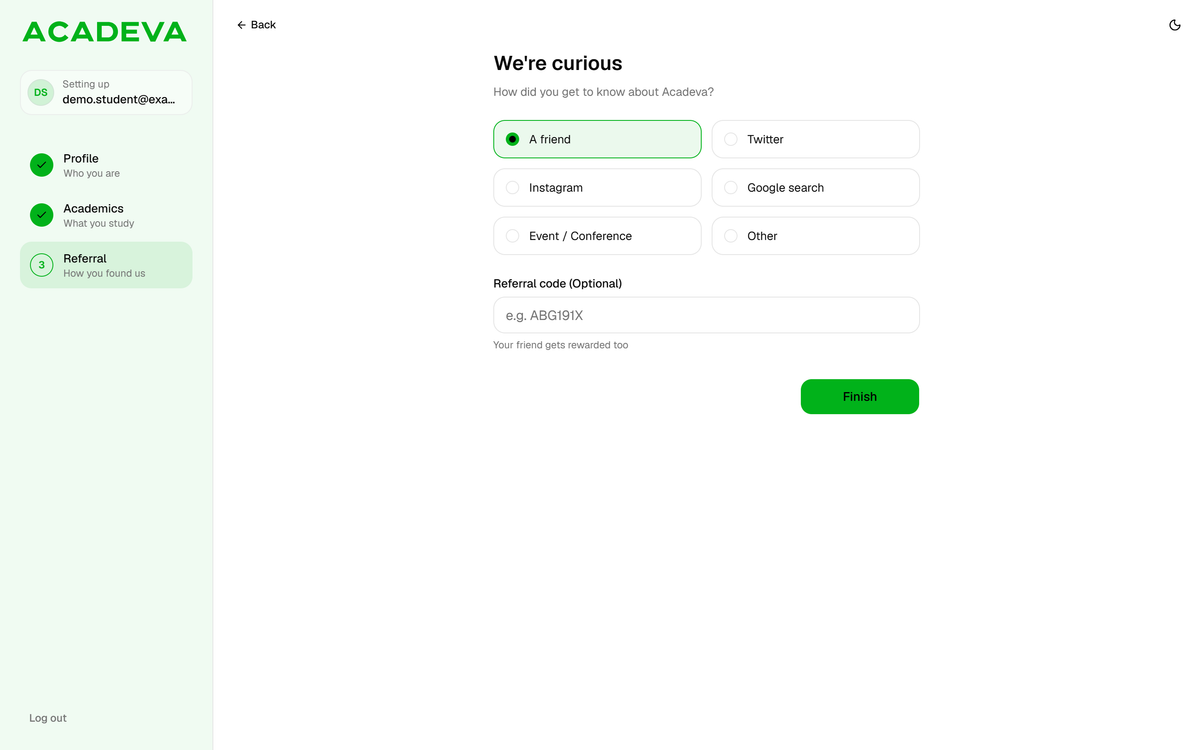
- Finish saves your profile. Check the earlier steps first.
Desktop: Step 3 of 3. If a friend sent you, type their code in Referral code (Optional). Choosing any other option clears the code.
Click Finish. This is the button that saves your profile. Click Back, or a finished step on the left, first if you want to change anything.
If you opened Acadeva from a friend's referral link, the code is already filled in.
After you finish
- Nothing is saved until you tap Finish. If you close the app before that, setup starts again from the first step the next time you sign in.
- Acadeva opens your home screen, and gives you the Fresher badge and a welcome reward.
- You can change your name, school, department, programme and level later:
Open the You tab, tap My Profile, then Edit profile. Change your Display name, or tap Change next to Academic details. That screen starts empty, so choose your institution, department and level again, then tap Done. Tap Save at the top to keep your changes.
Click Profile in the menu on the left, then Edit academic details. The dialog has three pages: School, Department and Level & semester. Click Save on the last one. To change your name, use Edit profile on the same page.
If it doesn't work
- Next is greyed out. Step 1 needs a name and a school. Step 2 needs a department, a faculty and a programme. On desktop, the name also needs 2 characters or more and the date of birth has to make you 13 or older.
- A list stays empty, or says "Could not retrieve school names". The lists load from Acadeva as you search, so check your connection, close the list and open it again.
- On the phone, Finish shows a message at the bottom. "Network error. Check your connection and try again", "Too many attempts. Wait a moment and try again" and "Our server had a problem. Your details are safe, please try again in a moment" all mean you can tap Finish again. On desktop, the same kind of message appears in a red box above the button.
- "Your session has expired. Taking you back to sign in" or "We could not find your account. Taking you back to sign in". The app returns to the sign-in screen after a few seconds. Sign in again and redo the three steps. Create your account covers signing in.
- "We could not save your details. Go back, check them and try again". Go back through the steps, check each answer, then tap Finish again.
- "Your details were saved, but we could not finish setting up. Tap Finish to try again". Tap Finish again. It is safe to repeat.
If setup still won't finish, see Report a problem or contact support.