
Study is where your books and course materials live. Acadeva organises them by your programme: your programme has courses for each level and semester, and every course has its own textbooks and related books. You open a course, pick a book and download it to read.
The pictures in this article use made-up courses and books. Yours will show the courses you picked when you set up your study, and the books your school and other students have added to them.
Open Study
Open the Home tab and tap Study. Its subtitle reads Books & course materials.
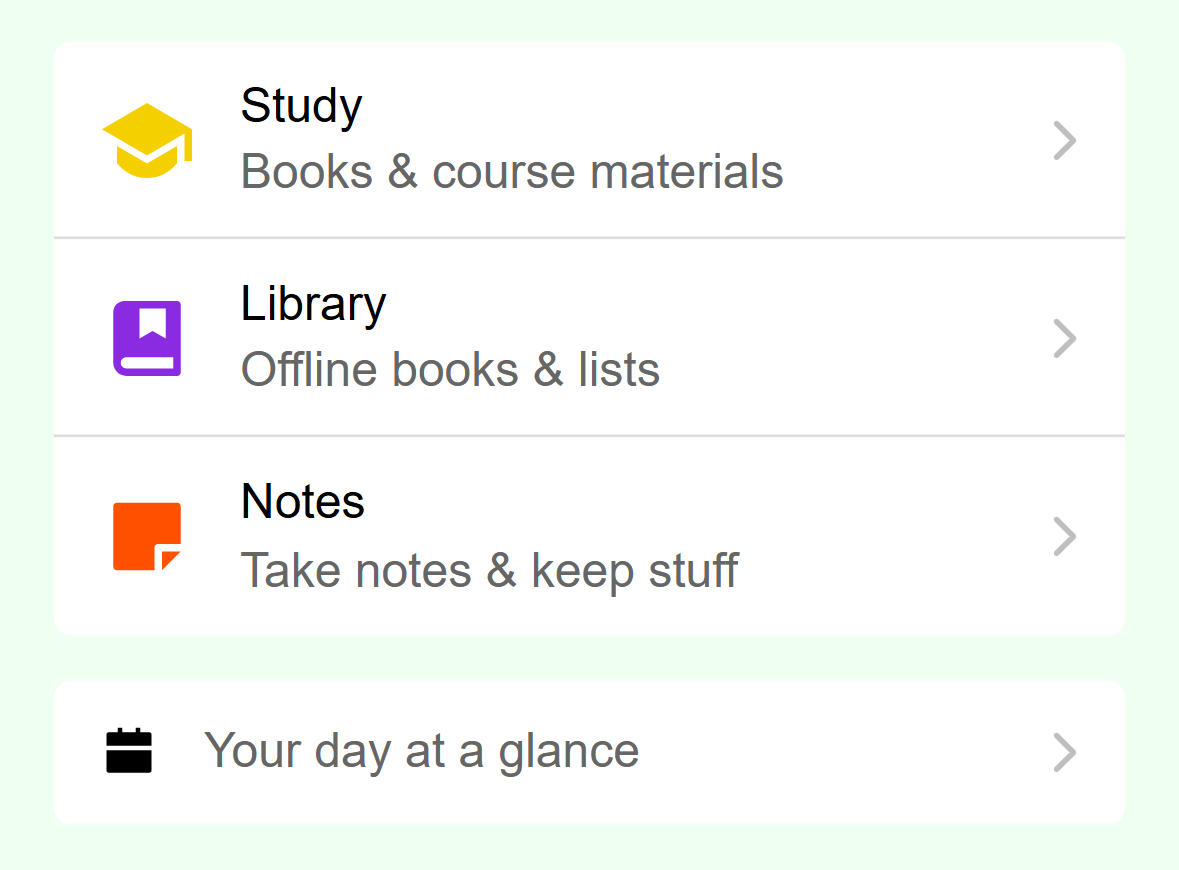
- Tap Study.
Mobile: Study is the first row on Home. The Study screen shows your level, your semester, how many courses you have and your programme. Your courses are listed under Your courses, with the course code above the title. A course with no code shows only its title.
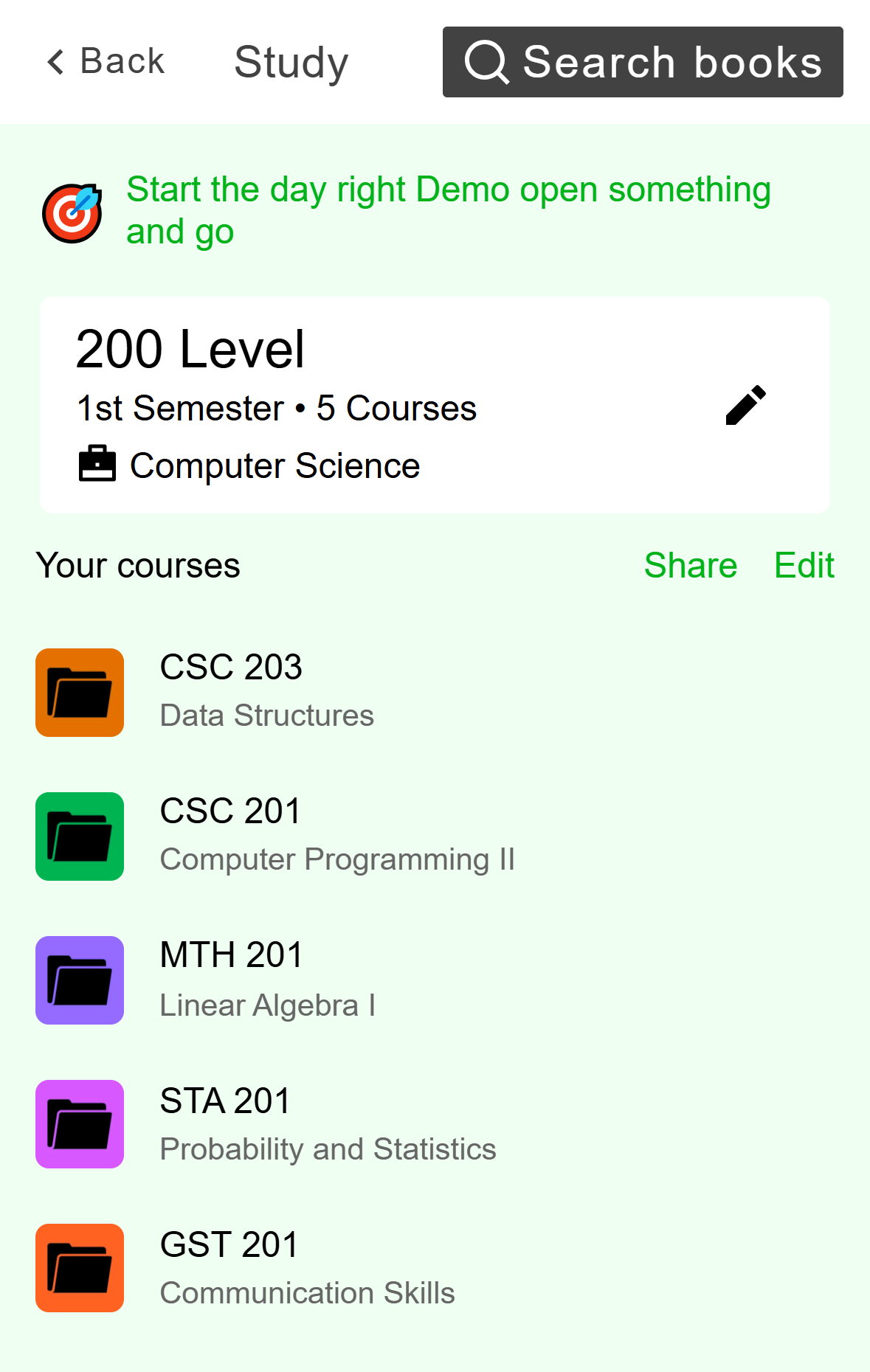
- Search books looks through the whole catalogue.
- Your level, semester, number of courses and programme.
- Your courses. Tap one to open it.
Mobile: The Study screen. These courses are examples.
The pencil on the level card and Edit next to Your courses change your setup, and Share sends it to classmates. You don't need any of them to browse.
Click Study in the left rail. It is also the screen the app opens on.
The banner at the top shows your level, semester, number of courses and programme, with your streak and points on the right. Your courses lists each course with its title first and its code underneath. Search books is at the top right.
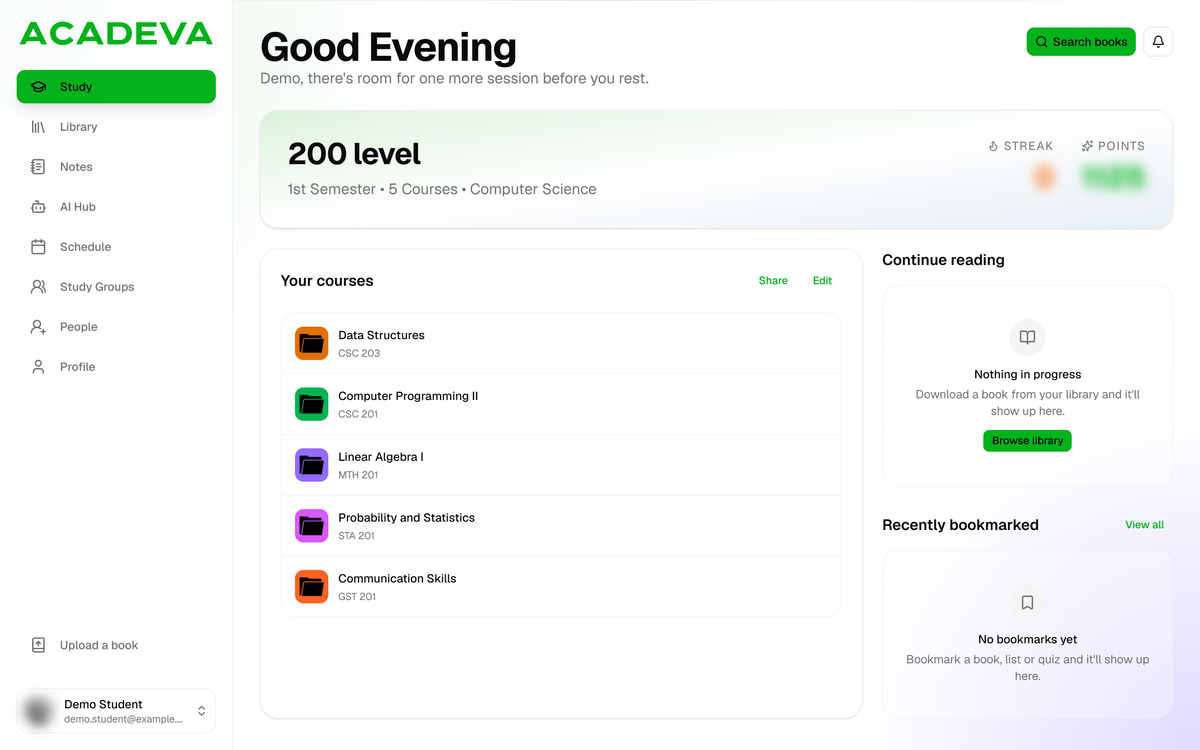
- Search books looks through the whole catalogue.
- Your level, semester, number of courses and programme.
- Your courses. Click one to open it.
Desktop: The Study page. These courses are examples, and the streak and points are blurred.
Share and Edit above the list send your course setup to classmates or change it. You don't need either to browse. On the right, Continue reading takes you back into the book you read last, and Recently bookmarked lists your newest bookmarks.
Open a course
Tap a course. The Course screen shows the title, the code and the number of chapters, then About course. Tap it to read the whole description.
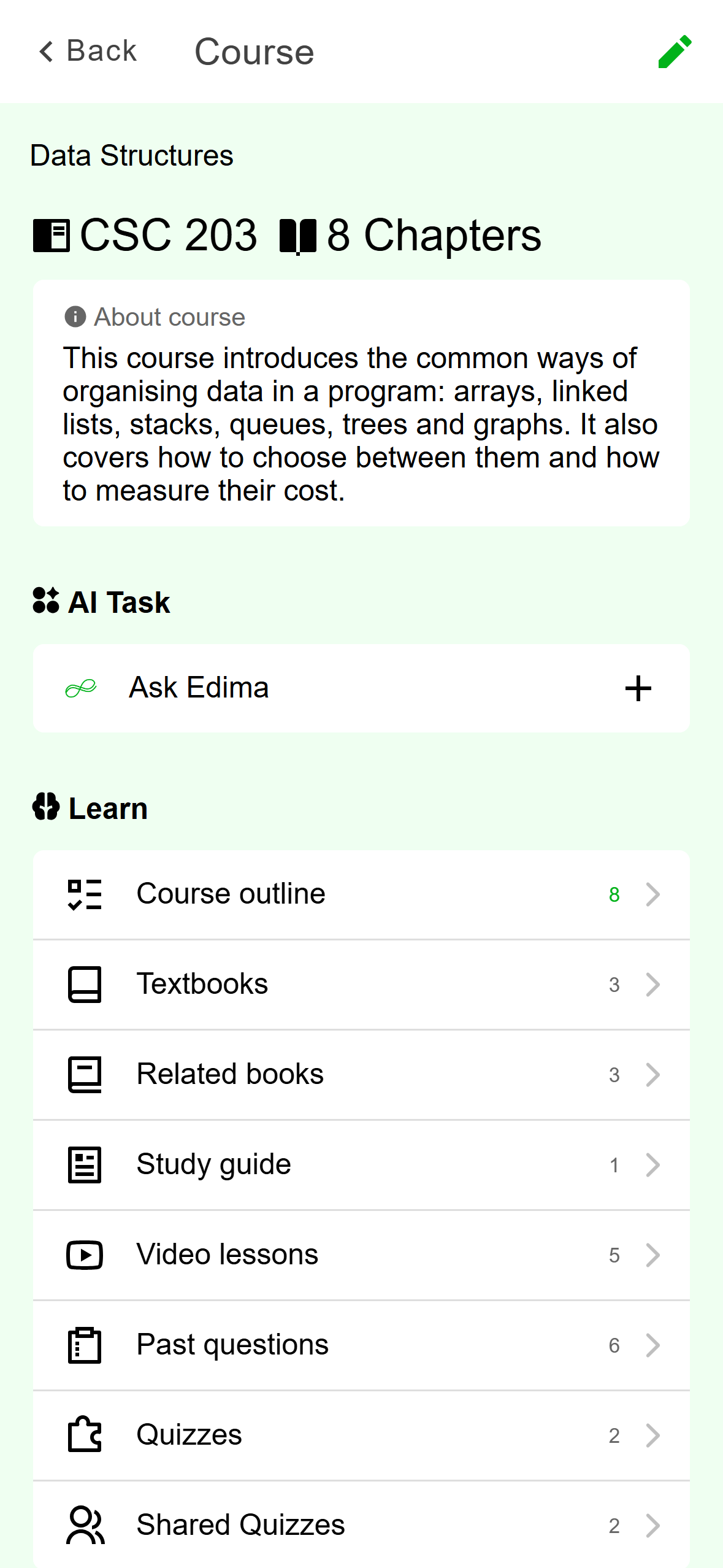
- Textbooks and Related books. The number is how many books each holds.
- Past questions only shows a count. It does not open.
Mobile: A course. The Learn list is where the books are. Scroll to Learn. Textbooks opens the books the course is built on. Related books opens extra reading, and it only appears when the course has both kinds. If a course has related books but no textbooks, the related books are listed under Textbooks.
Click a course. The header shows its title, code and chapters. The tabs under it are Overview, Textbooks, Related books, Shared quizzes (only when the course has some), Discussions and Contributions.
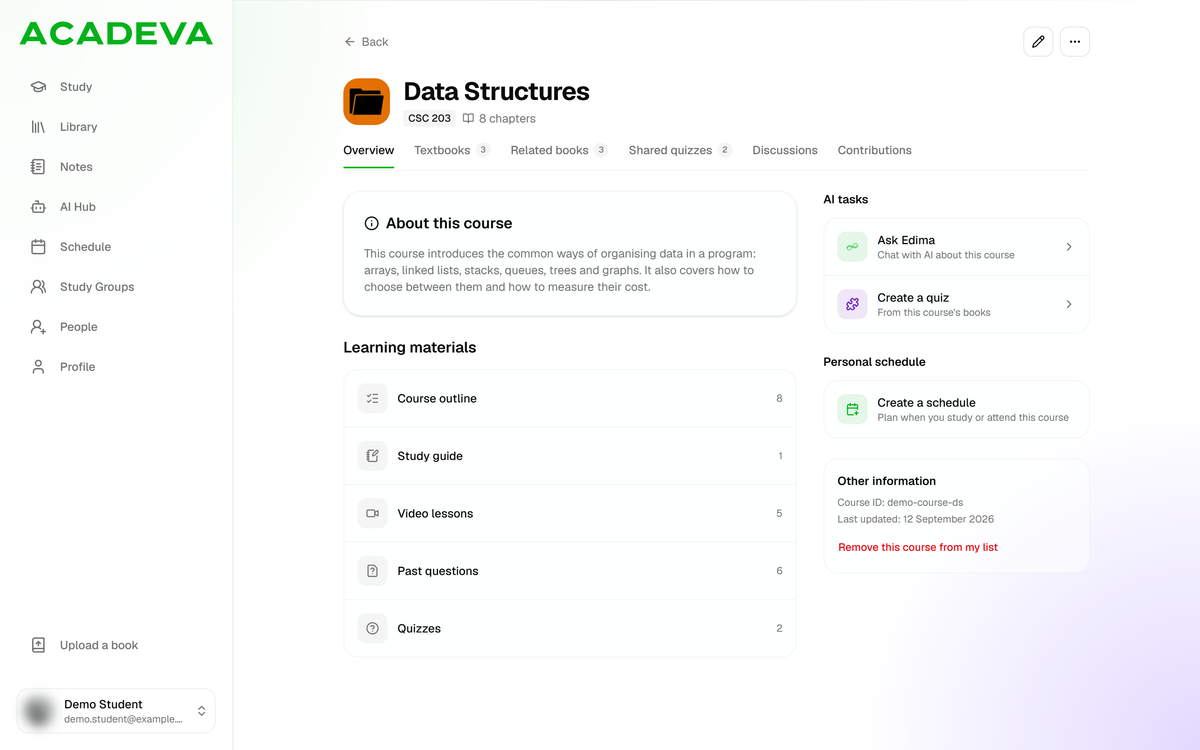
- The tabs. The number beside Textbooks and Related books is how many books each holds.
- Learning materials shows counts only. These rows are greyed out.
Desktop: A course. The tabs hold its books. Click Textbooks for the books the course is built on, or Related books for extra reading.
Choose a book
Each row shows a cover, the title and one line underneath, such as your school's name or the word Book. Recommended marks a book your school has recommended. A Downloaded label on the cover means the book is already on this device. Books are listed with the best fit for the course first.
Tap a book to open its page.
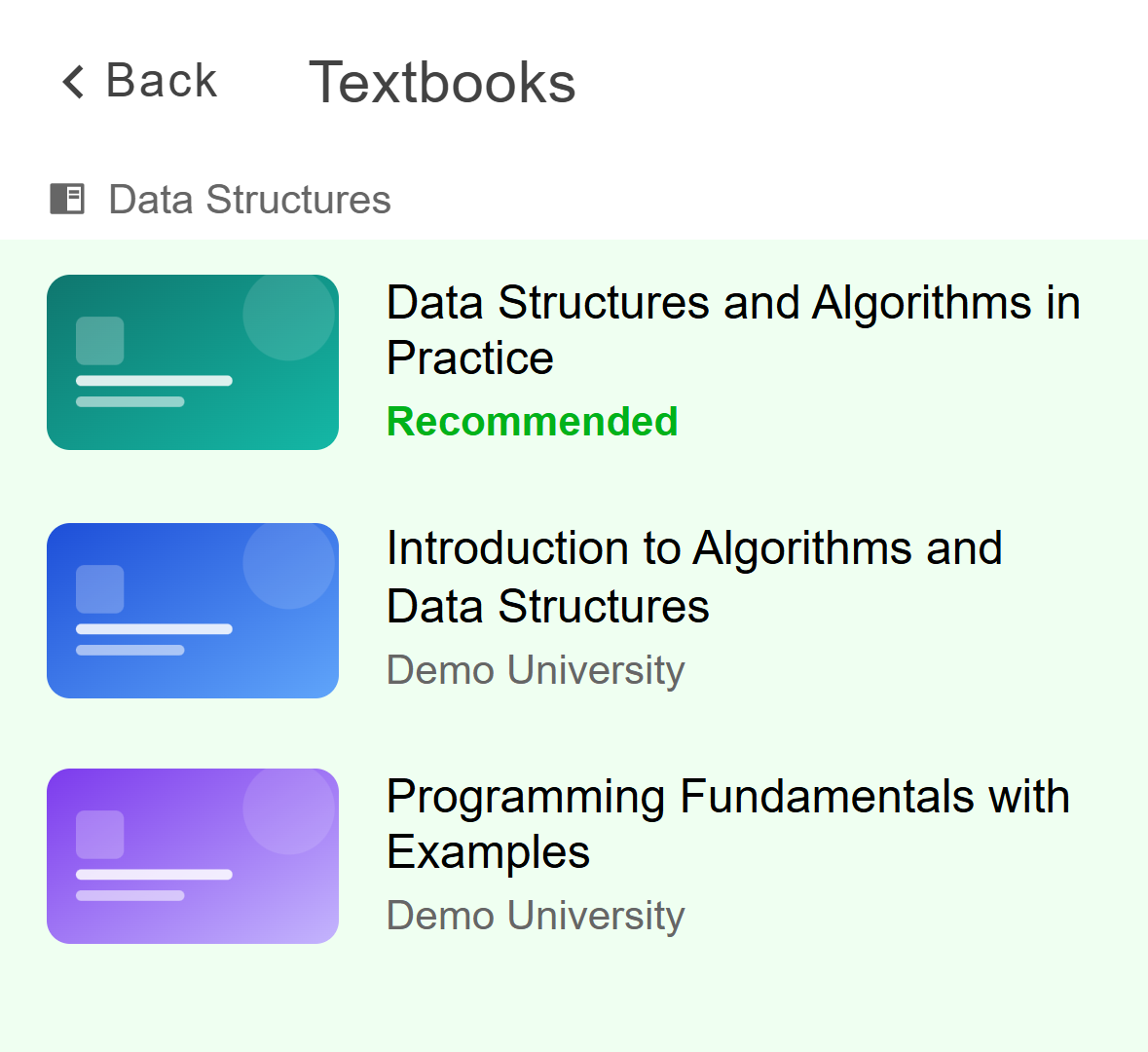
- Tap a book to open it.
Mobile: The Textbooks list for a course.
The round button at the bottom right adds a book to the course. It is covered in Add books and past questions to a course.
Click a book to open its page.
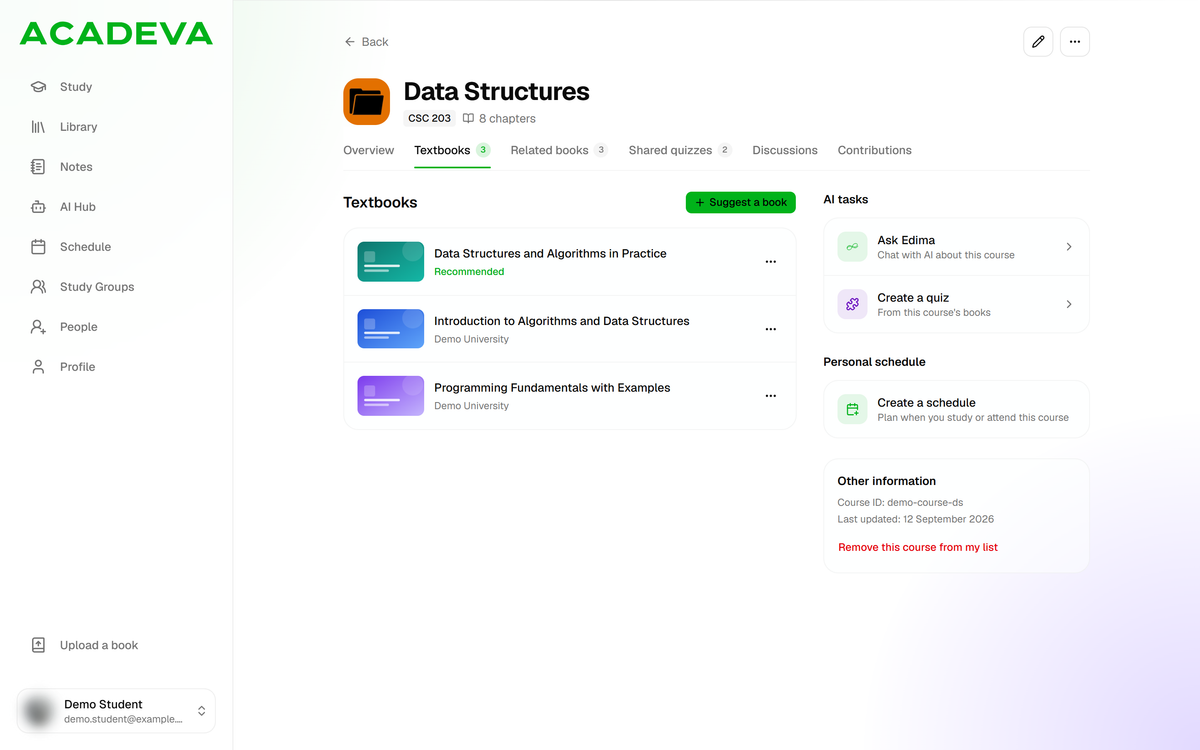
- Click a book to open it.
Desktop: The Textbooks tab for a course.
Suggest a book adds a book to the course. It is covered in Add books and past questions to a course.
Open a book
A book's page shows its cover and page count, the title, the author, the subject and the course code. Next to those are its rating, its file size and how many times it has been downloaded. Below that you get the description, Discussions, Ask Edima, Create a quiz and Reviews. A Book outline appears when one is available.
Tap Download to save the book to your phone. A progress bar runs, and when it finishes Read appears next to Delete.
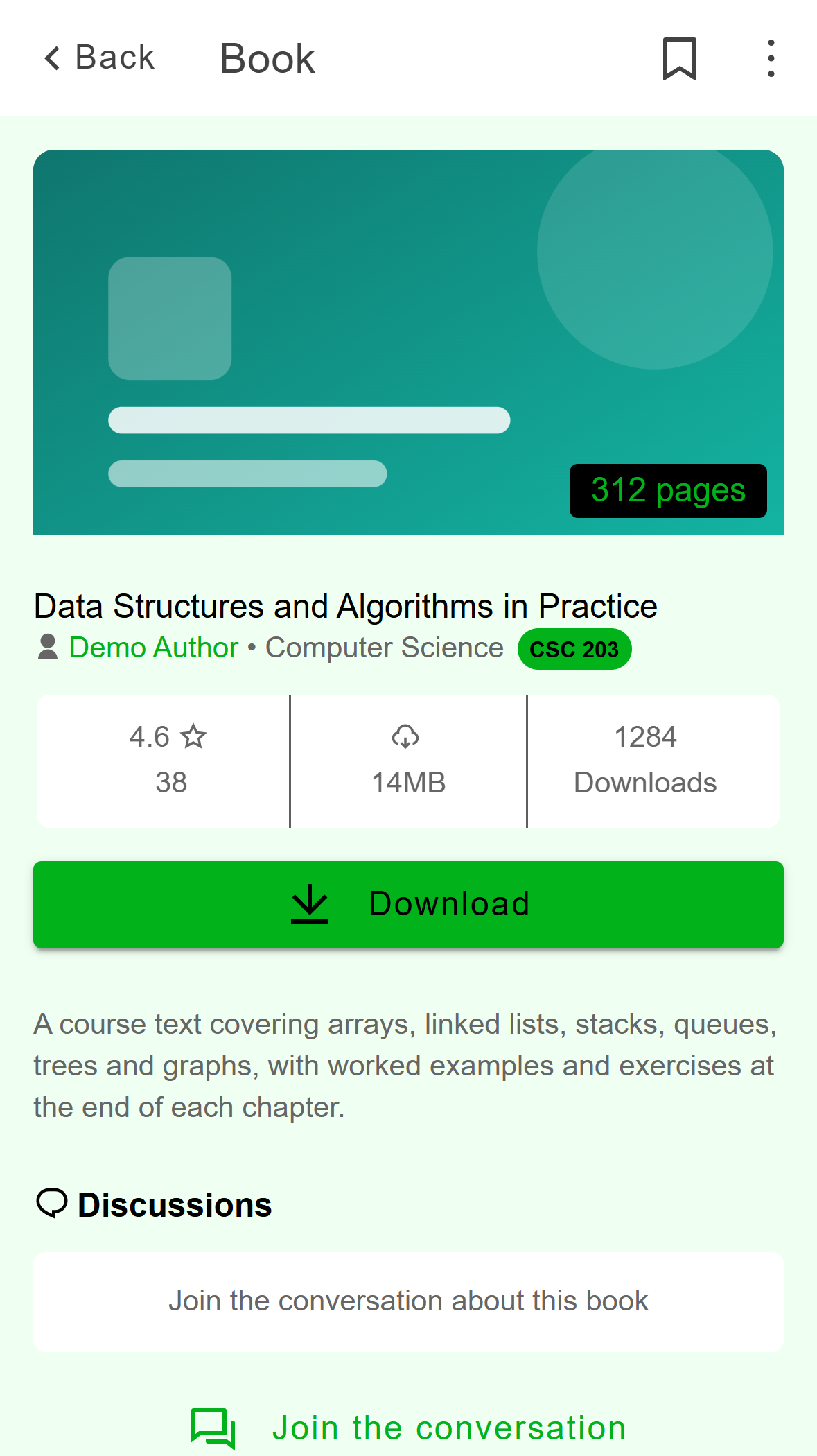
- Rating, file size and number of downloads.
- Tap Download to read the book.
Mobile: A book's page.
The bookmark and the three dots at the top right save the book or open sharing and list options.
Click Download to read. A progress bar runs, and when it finishes Read appears next to Delete.
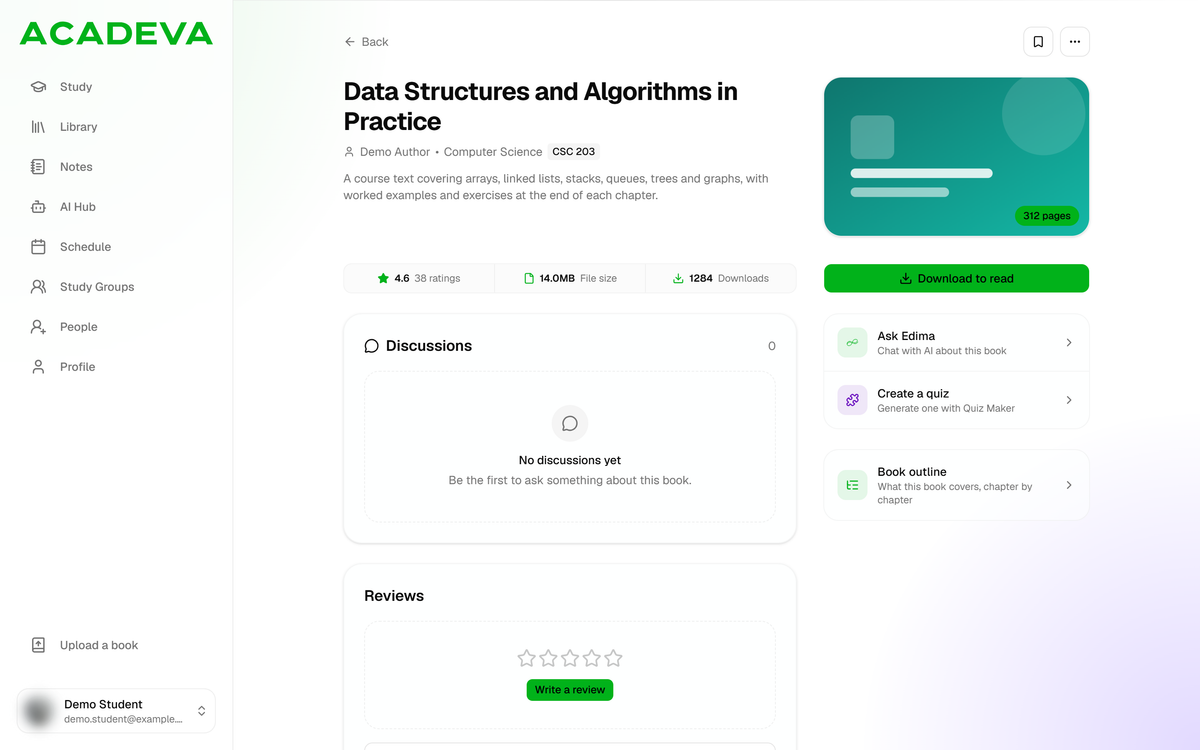
- Rating, file size and number of downloads.
- Click Download to read.
Desktop: A book's page.
The bookmark and the three dots at the top right save the book or open sharing and list options.
Opening a book's page does not download it, and you can't read it until the download finishes. Read a book and Download books to read offline cover the rest.
Rows that only show a count
On a course, rows such as Course outline, Study guide, Video lessons, Past questions and Quizzes show how many items exist. In the current version they are not links, so tapping or clicking them opens nothing. On desktop they are greyed out, and hovering over one says Coming soon to desktop. Shared Quizzes does open a list. To find past questions, search for them: Search for books and past questions shows how.
If it doesn't work
- Study says Setup your study (phone) or No courses set up yet (desktop): you haven't picked your courses. Tap Get started or click Set up courses. On desktop, Use a shared link loads a classmate's setup. Set up your courses for the semester walks through it.
- You see List may be outdated. Check your connection (phone) or Showing saved course info, reconnecting (desktop): Acadeva is showing a saved copy because it can't reach the server. Reconnect and the list updates by itself, or click Retry on desktop.
- A course has no books: the phone shows Add Study Materials where Textbooks would be, and the desktop says No textbooks yet. Search for the book you need, or suggest it for the course.
- A course you expect is missing: use Edit next to Your courses to check your list.
- A book says Book not found: it may have been removed. Go back and try another book.