
Your Schedule is where the classes from every agenda you own or have joined come together in one week. This article shows how to read it, move between weeks, see what is on now and next, and find Updates. To change what is in it, see Create an agenda and add periods.
The pictures use a made-up account with made-up courses and updates. Yours will show your own.
What your Schedule shows
- Every period from every agenda you own or have joined. It makes no difference whether an agenda sits in a timetable.
- Weekly and Daily periods show in every week. One time periods show only in the week that holds their date.
- Each agenda has its own colour, so you can tell courses apart at a glance.
- Weeks run from Sunday to Saturday.
Read a week
Open the Schedule tab. The first time, you may see Just a moment while your schedule downloads. Your classes are listed by day, from Sunday to Saturday, and only days with a class get a heading.
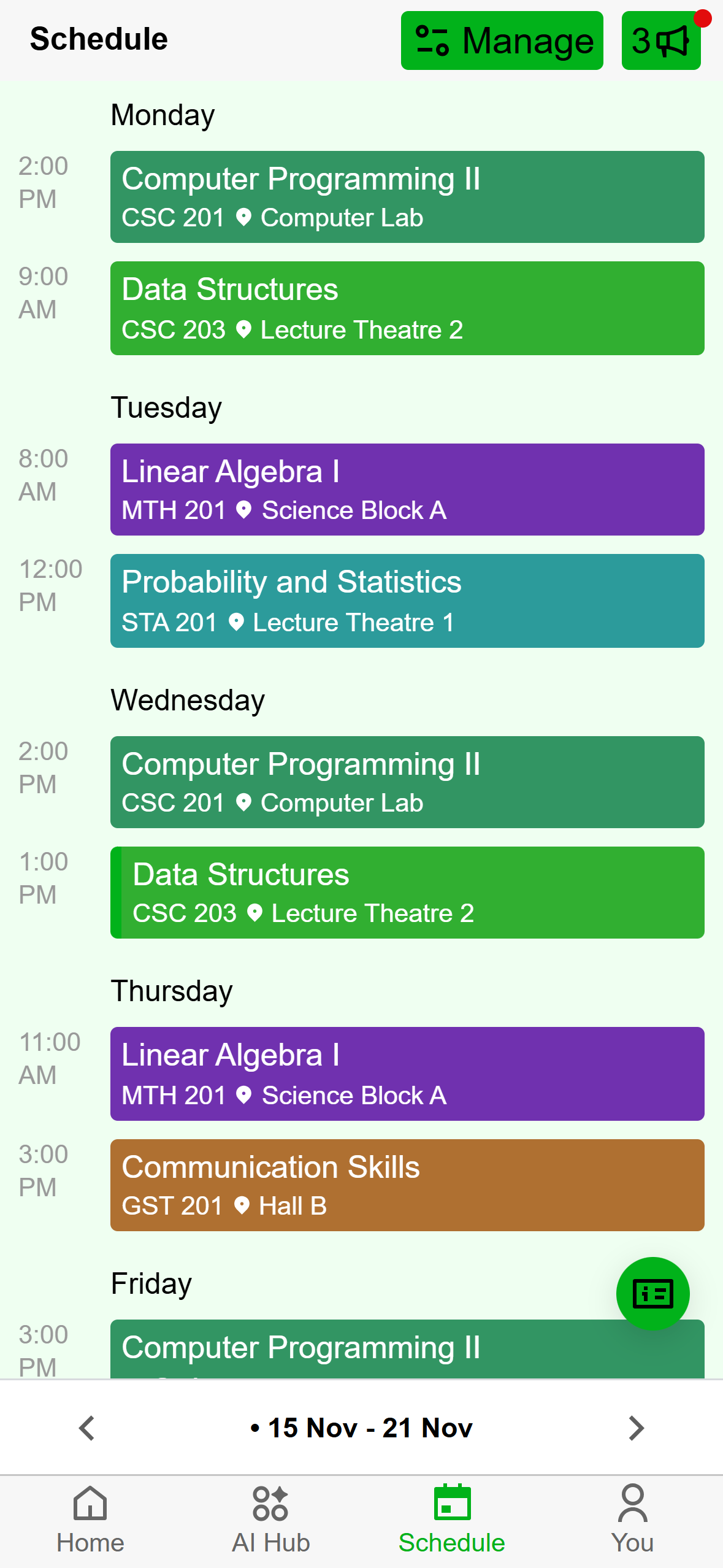
- One class: start time on the left, then the course, its code, and the room.
- A bar down the left edge means this class is on right now.
- Opens the now and next card.
- Move between weeks here.
- Updates, when there are any.
Tap a class to see its details at the bottom of the screen: the course, the date, the time range, and the venue. A class that is on at that moment also says Happening now. Tap the class again to close the details. Press and hold a class to open its agenda.
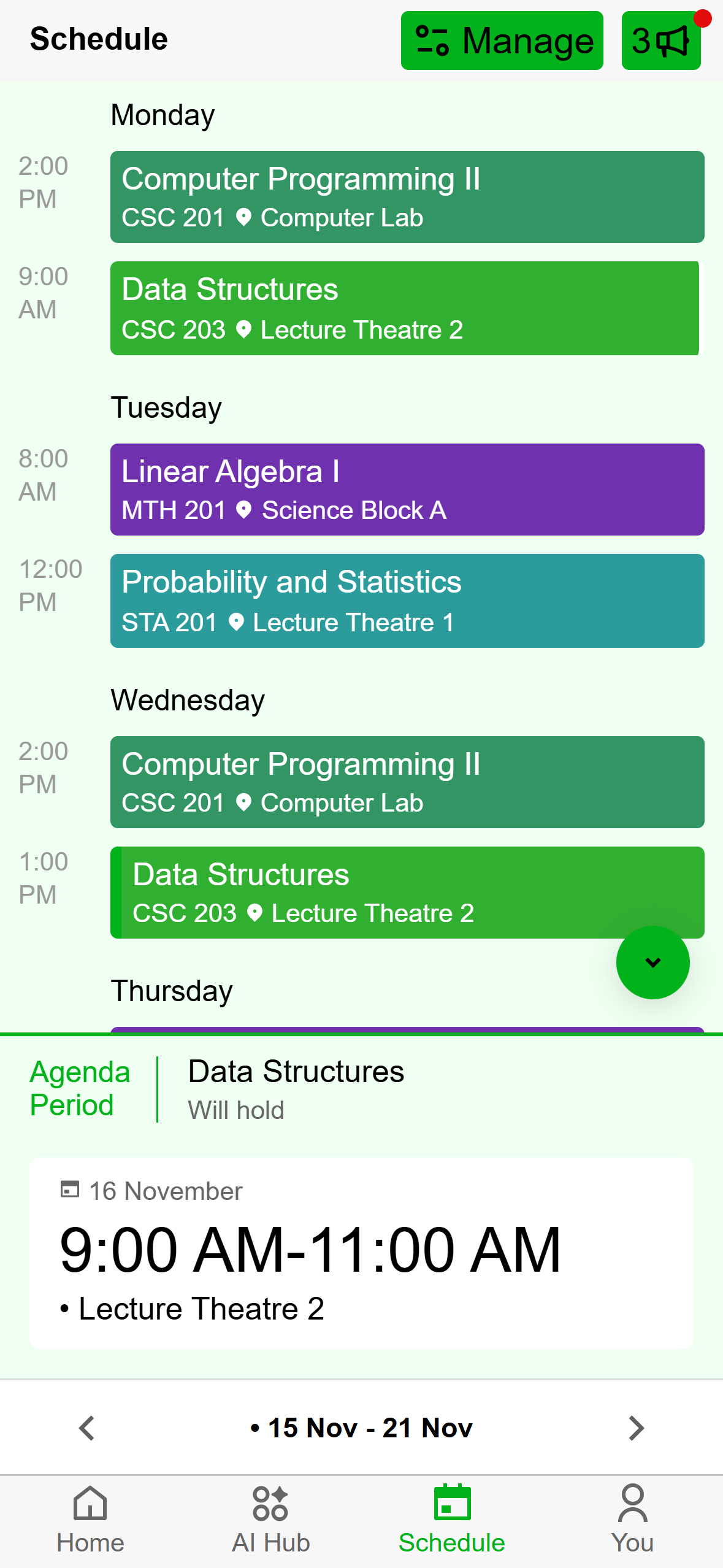
- The class you tapped.
- Its details. Tap the class again to close them.
A class with extra details, such as a note about a lab test, shows them on the card with an information icon. A one time class also shows its date.
Click Schedule in the left rail. You see a week grid with one column for each day, Sunday to Saturday, and the date at the top of each. Today's column is highlighted. The hours run down the left side from 12 AM to 11 PM, and the grid opens near the current hour. Scroll for earlier or later.
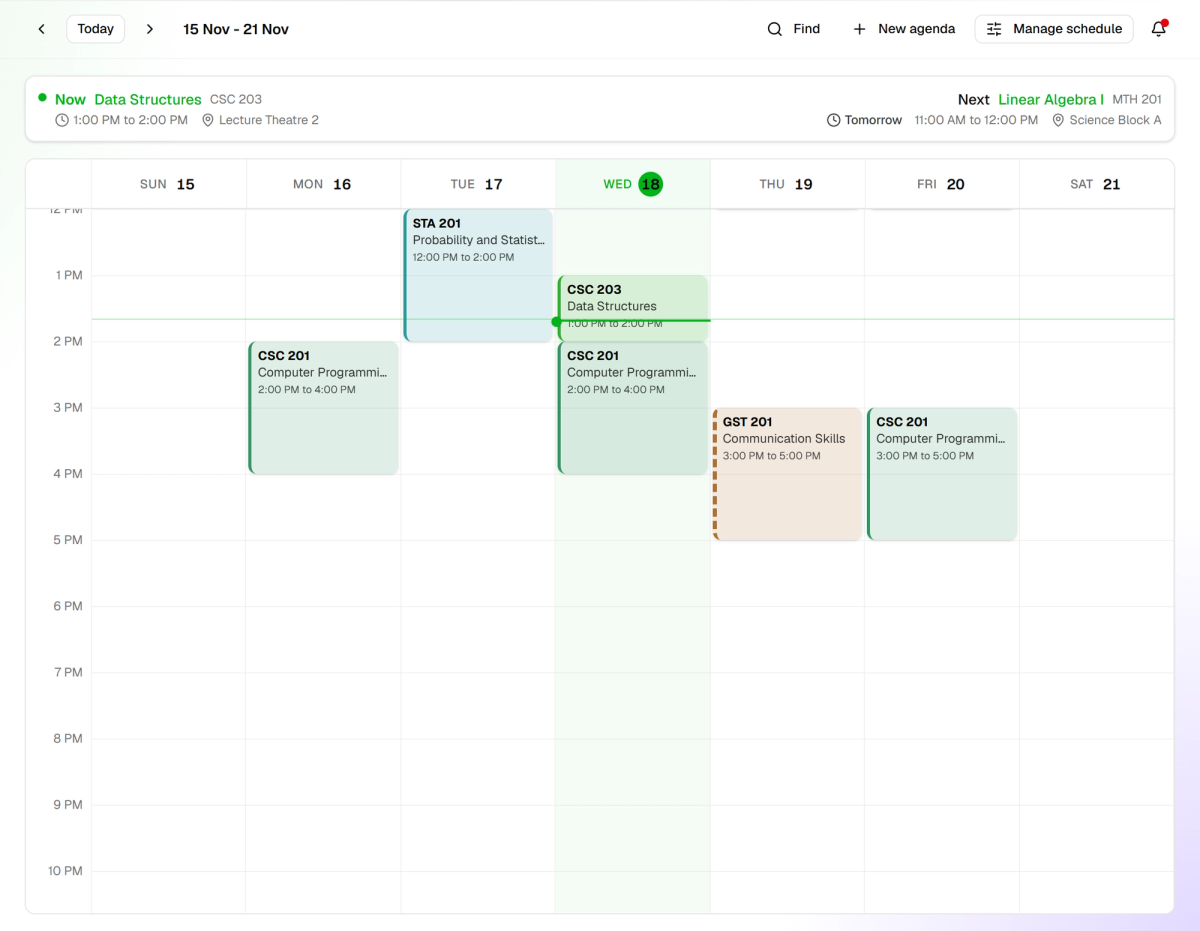
- Move between weeks. Today brings you back.
- What is on now and what is next.
- A dashed edge means the class is set to May hold.
- Updates. The red dot means something is unread.
Each block shows the course code and name, and taller blocks add the time. A faded block with a line through it is set to Will not hold. Classes that overlap sit side by side in the same column. A line across the grid marks the current time in this week. Hover over a block to see its course, time, and room.
Click a block for its details: the course, the time, the room, and its status. If the agenda is yours, the box also has Edit and Delete period. Clicking an empty hour instead starts a new period, as described in Create an agenda and add periods.
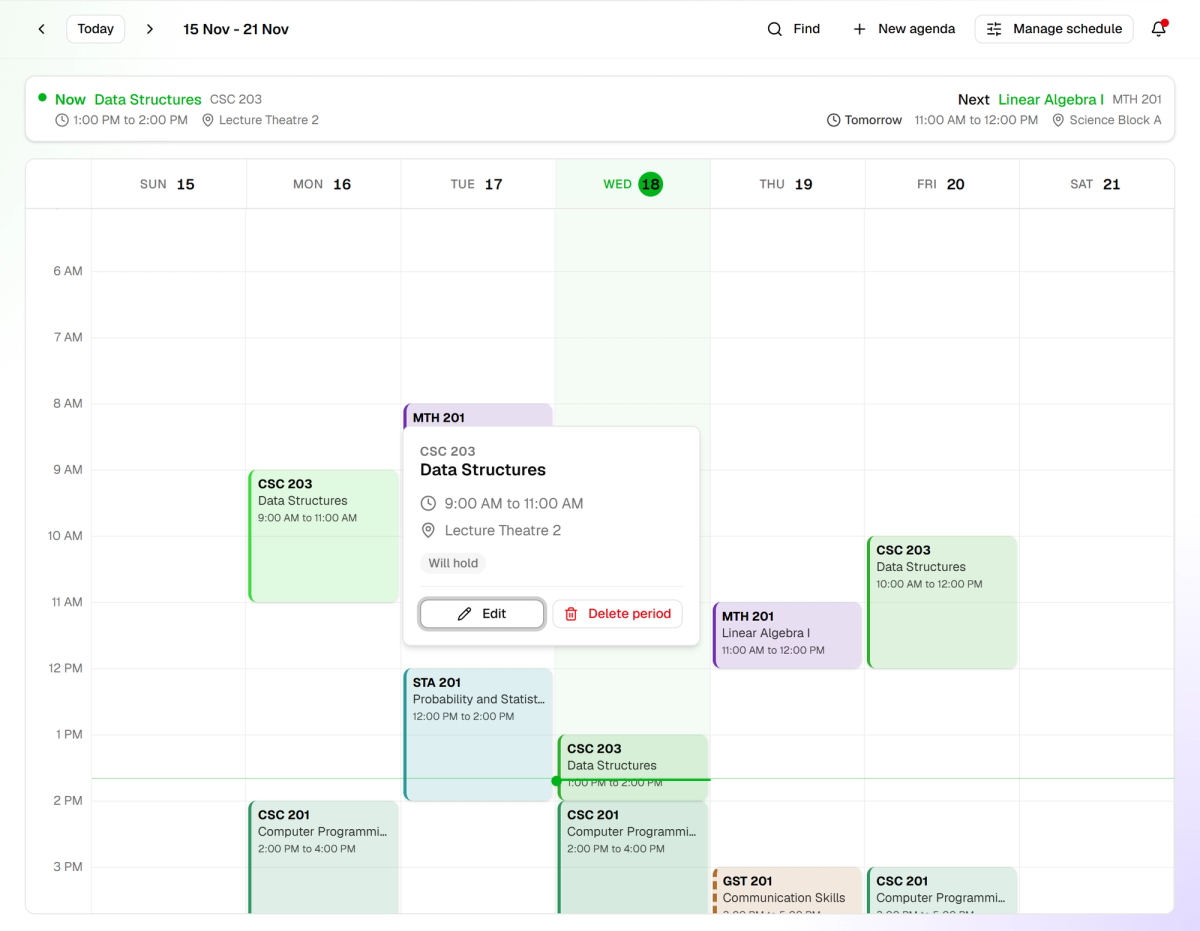
- The details. Edit and Delete period only show on agendas you own.
Move between weeks
The bar at the bottom shows the dates of the week you are looking at. A dot before the dates means it is this week. Tap the left or right arrow to move one week back or forward. There is no limit in either direction.
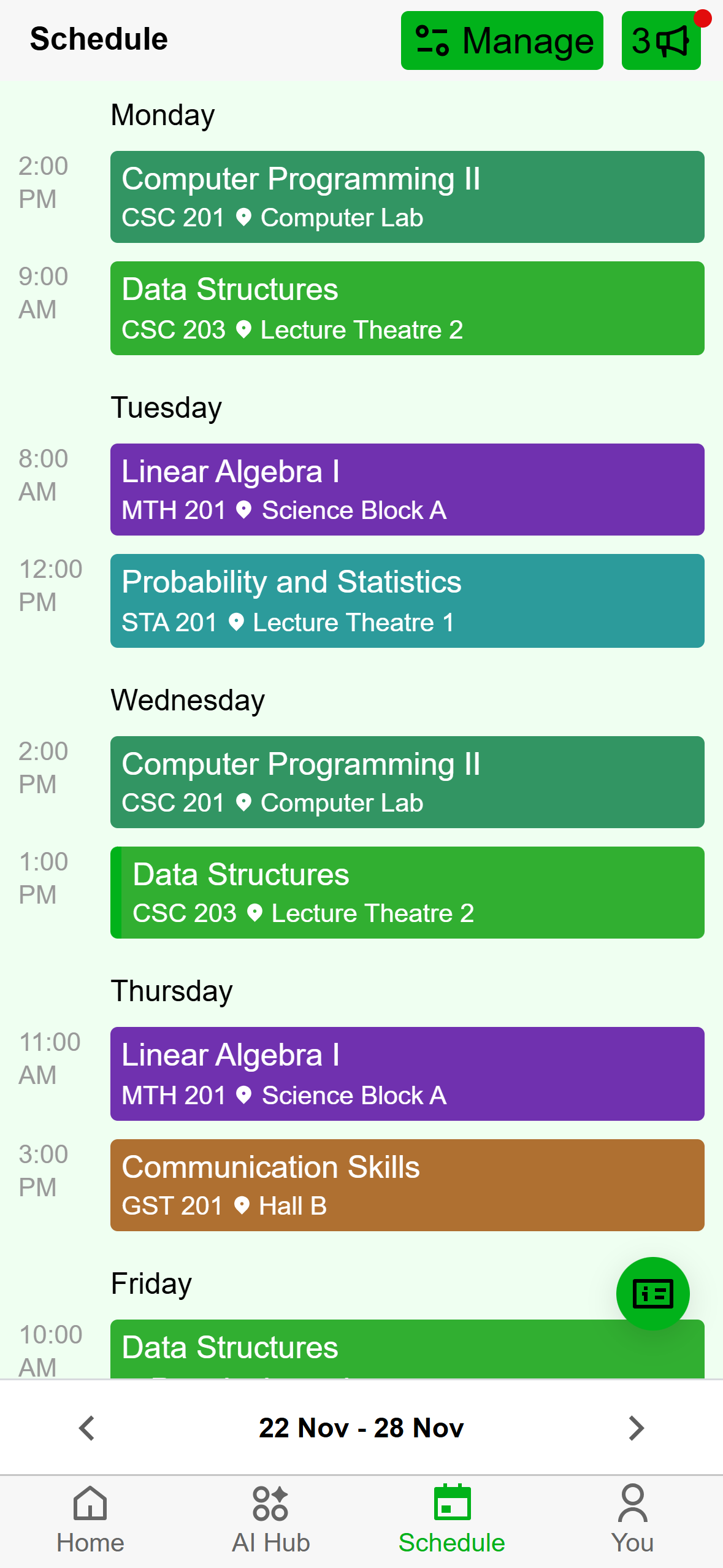
- The arrows move one week. The dates open the week picker.
To jump further, tap the dates. A Select week calendar opens. Tap any row to go to that week, use the arrows at the top to change month, and tap Jump to the current week to come back. A small dot under a date means a one time class falls on it.
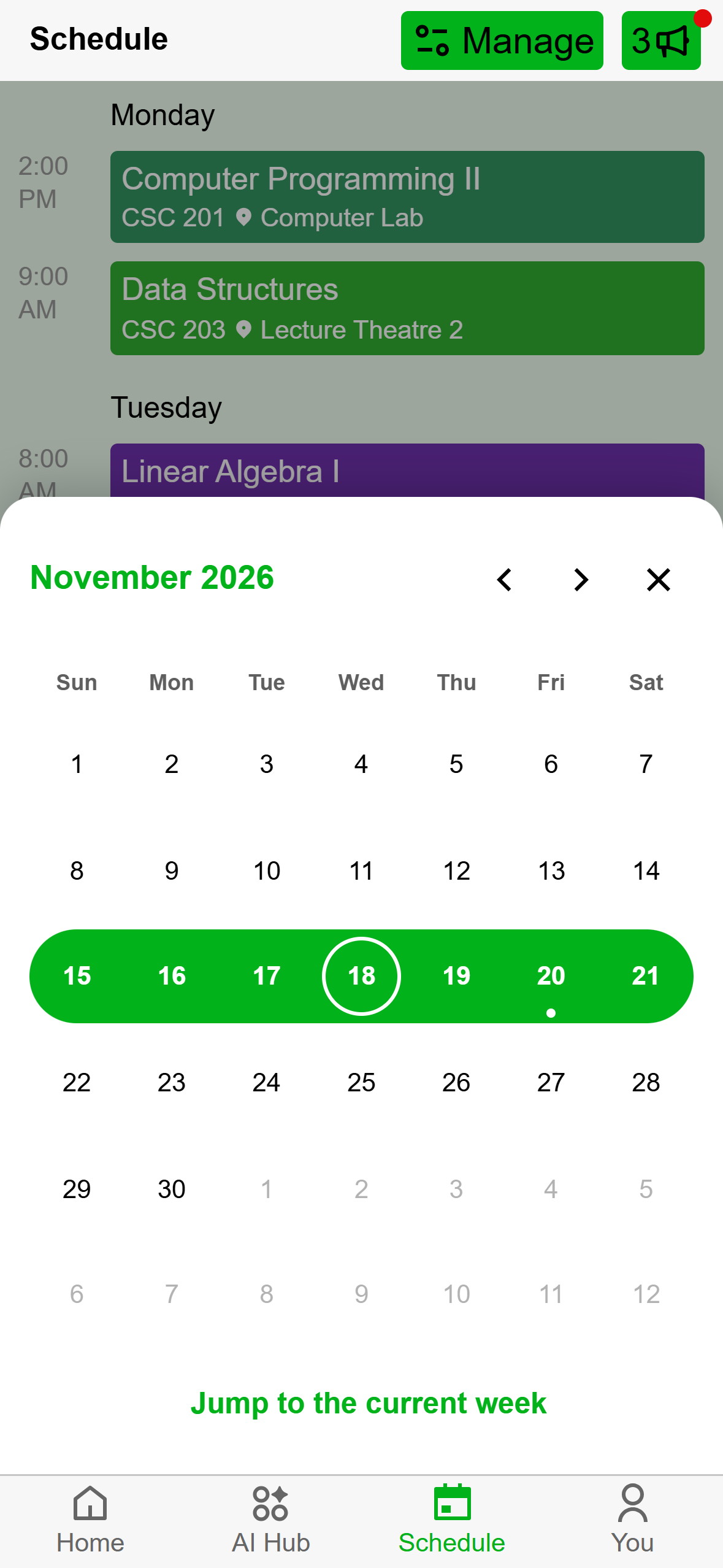
- The week you are on. Tap any row to go to that week.
- A dot marks a date with a one time class.
- Back to this week.
The controls are at the top left of the page. The arrows move one week back or forward, Today brings you back to this week, and the dates beside them name the week you are looking at.
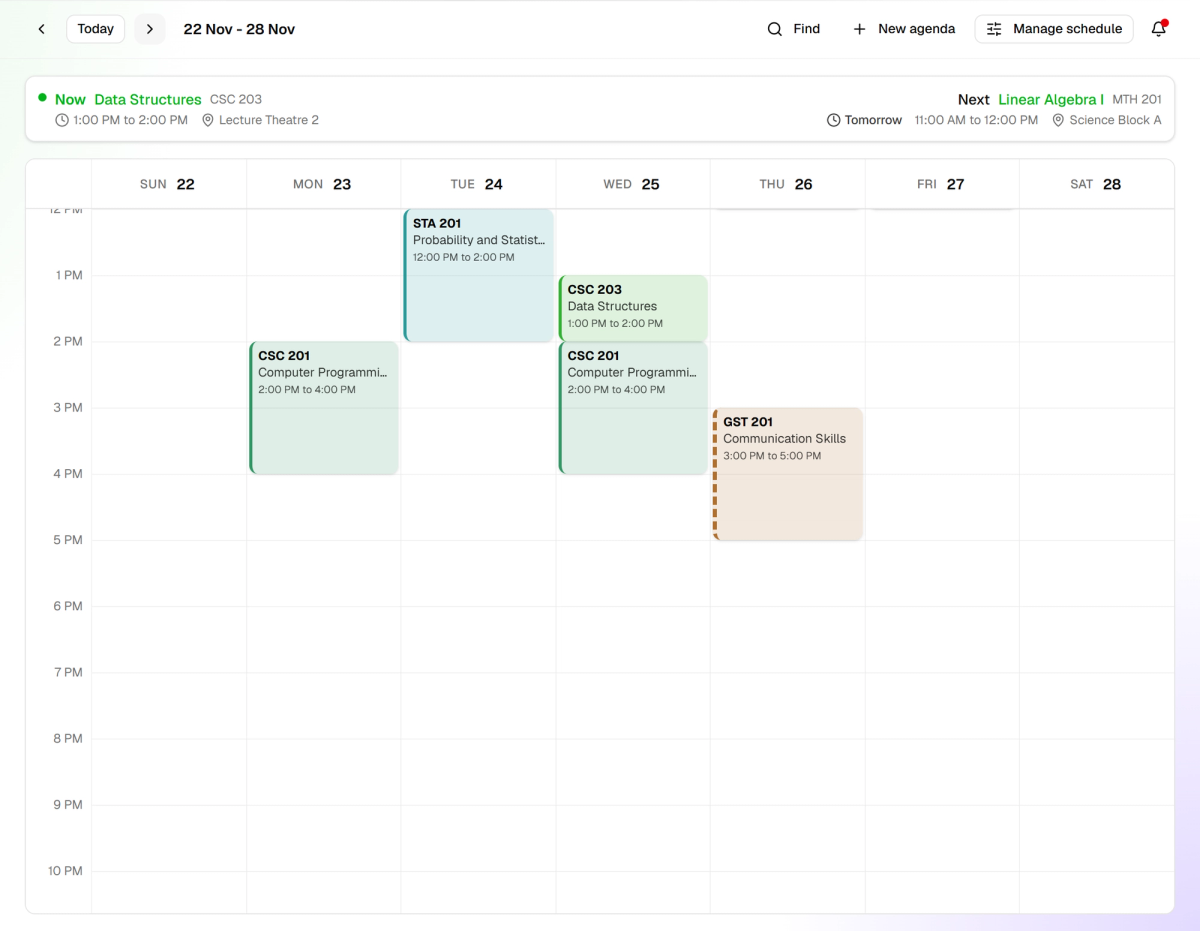
- The arrows, Today, and the dates of this week.
- No one time class here, because it belongs to last week.
Weekly and daily classes look the same in every week. One time classes appear only in the week that holds their date, so a class that seems to have vanished is usually in a different week.
See what is on now and next
Tap the round button at the bottom right, the one with a card on it. A card opens with the class that is on now and the class that comes next.
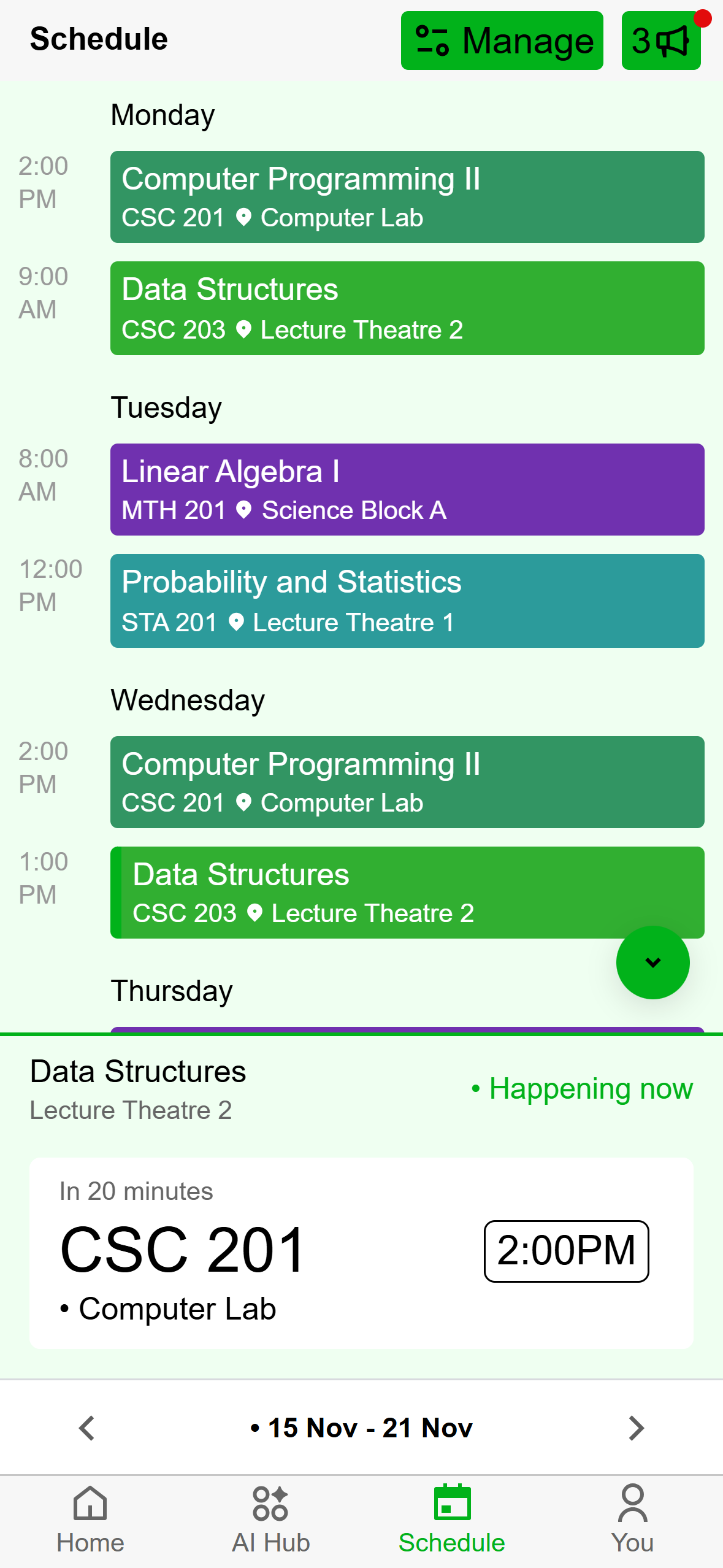
- What is on now. It says Nothing is happening now when nothing is.
- The next class, when it starts, and where.
- Tap to close the card.
The next class shows how long is left, such as In 20 minutes, Tomorrow, or On Friday, then its course code, start time, and room. Weekly, daily, and one time classes all count.
The bar above the grid has two sides. Now names the class that is on, with its time and room. Next names the next class, with a countdown such as Tomorrow. When nothing is on, the left side says No class currently in session. Click a course name to open that agenda.
The Now and Next bar only looks at weekly classes. Daily and one time classes still appear on the grid, but they never show in the bar. The phone counts all three.
On both apps, only a class set to Will hold counts as now or next. A class set to Uncertain or Not holding (May hold and Will not hold on desktop) is skipped.
Check your Updates
An update is a note posted on an agenda or a timetable, such as a cancelled class or a room change. It is one of three kinds: Info, Reminder, or Critical. Updates from all your agendas and timetables are gathered in one place, critical first.
The megaphone button at the top right of the Schedule tab appears once there is at least one update. The number on it is how many there are, and a red dot means something is new since you last looked. Tap it to open Updates.
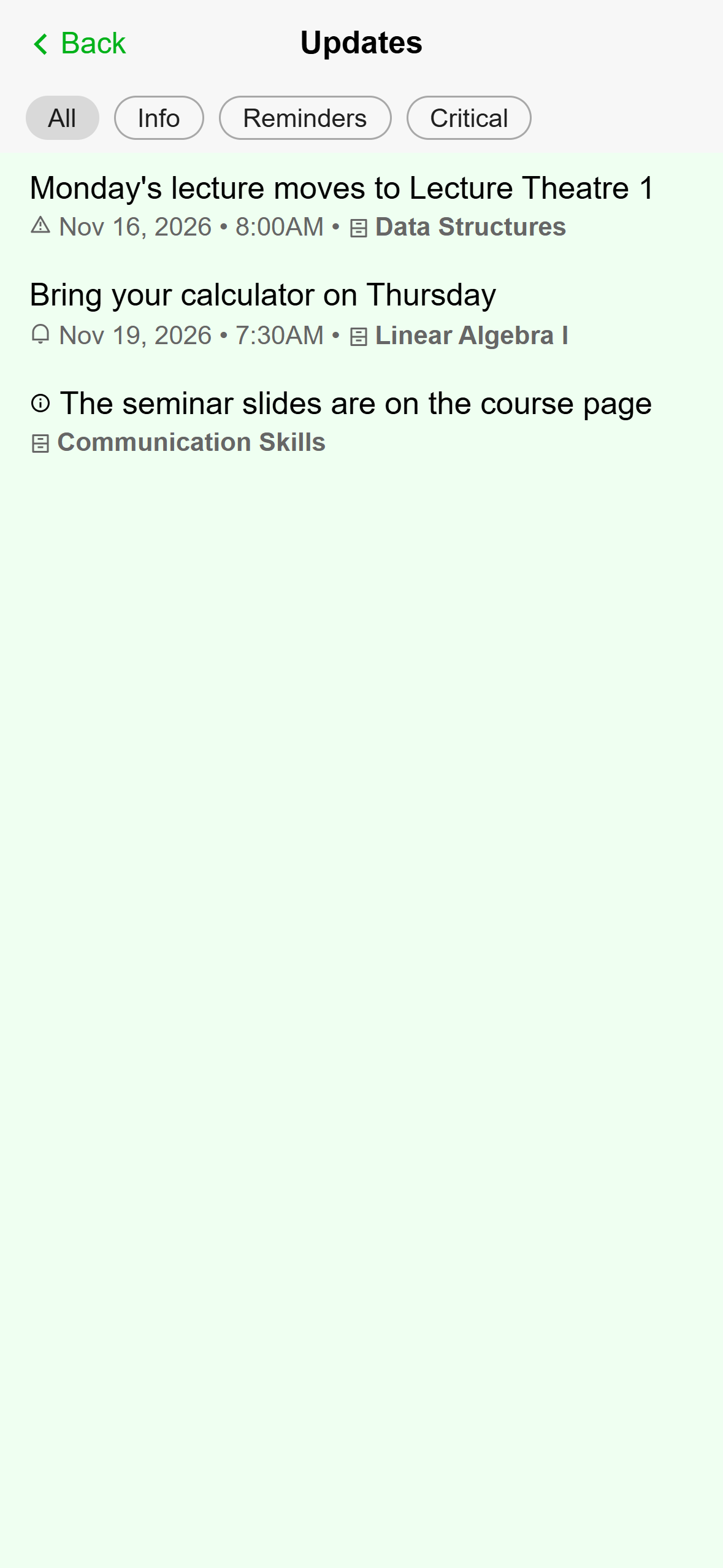
- Show one kind at a time.
- Each update names its agenda or timetable. Tap one to open it.
Reminders and critical updates also show a date and time. If a filter has nothing to show, the screen says No updates.
Click the bell at the top right of the page. A red dot on it means something is unread, and it clears when you open the list. The Updates box shows up to 20 updates, critical first. Each one has its kind, the agenda or timetable it came from, and the message. If there are none, it says No updates yet.
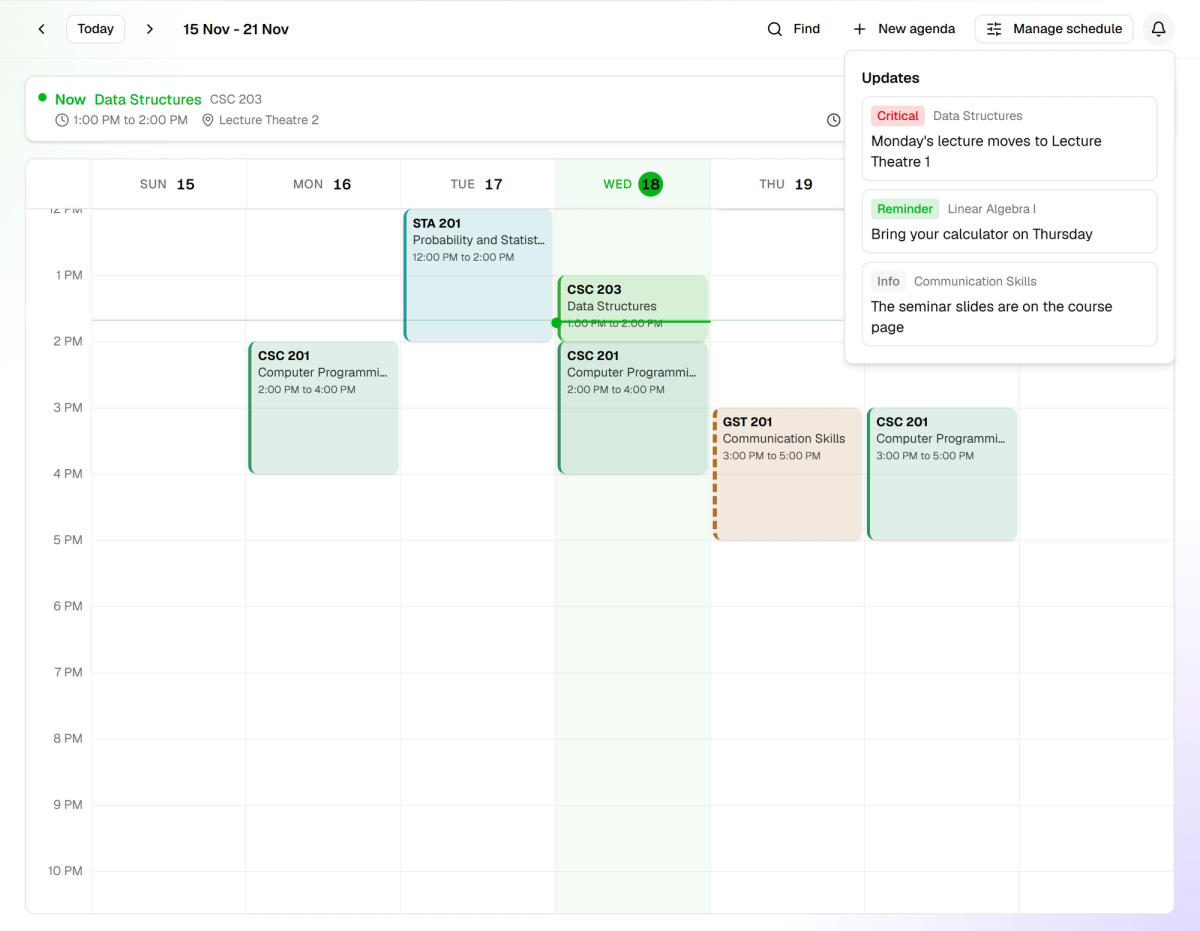
- Updates from all your agendas and timetables, critical first.
If it doesn't work
- The phone says Just a moment for a long time, or It just couldn't happen. Your schedule has not finished downloading. Check you are online. The error screen says the phone will try again in a moment.
- A class is missing. Check the week first, because one time classes show only in their own week. Then check the agenda is one you own or have joined.
- The phone says Welcome to your schedule. That week has no classes at all. Move to another week.
- There is no Updates button on the phone. It only appears once an agenda or timetable you follow has an update.