
Acadeva's school and department lists don't cover everyone. If yours is missing, you don't have to stop. During profile setup you can add your school, or type your faculty and department yourself, and carry on.
Adding a school or department sends nothing by itself. Acadeva submits it together with the rest of your profile when you tap Finish on the last setup step, so you can still go back and change it before then.
If your school isn't listed
Search before you add. The search matches a school's full name and its abbreviation, so try both. If it still isn't there, add it:
On the first setup screen, tap the School field and type your school's official name. If it isn't in the results, tap the row that shows your text with Add your school under it.
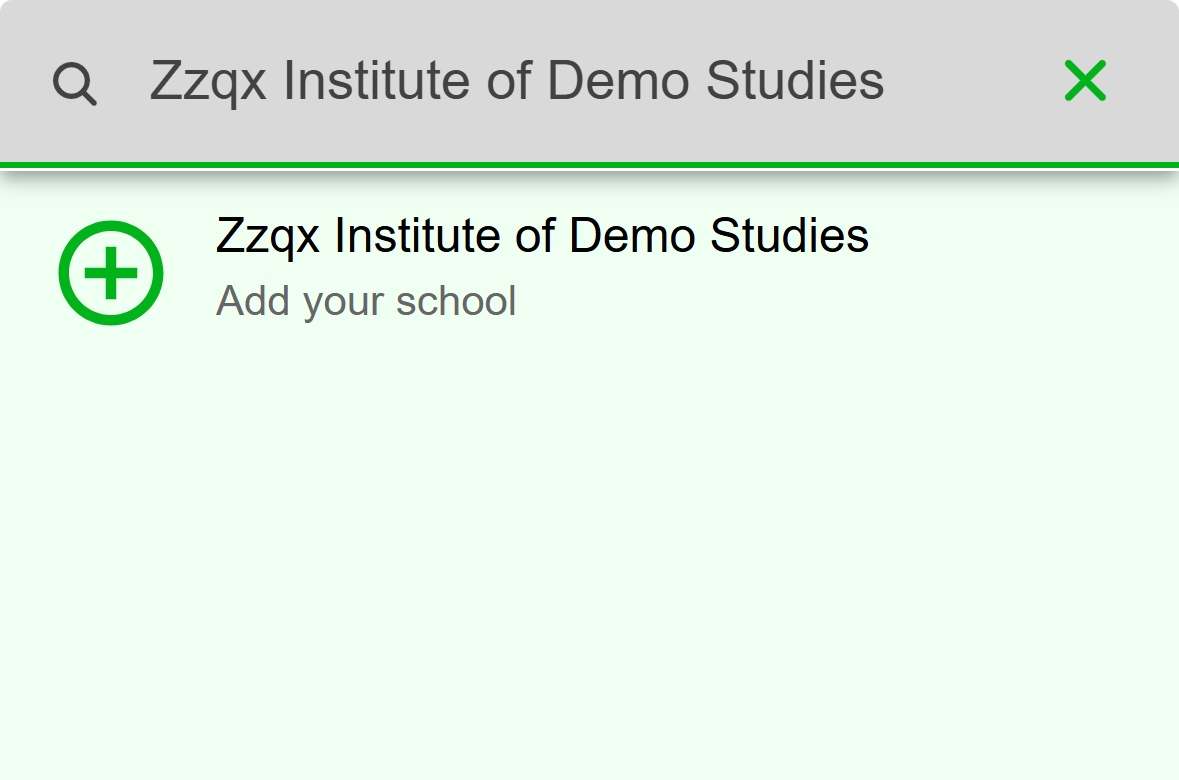
- Tap this row to add your school.
Mobile: When nothing matches, the Add your school row is what's left. On the Add your Institution screen, check Name of Institution. It is filled in with what you typed. Use the official name, not an abbreviation.
Tap Country and pick yours, then tap State and pick yours. State only appears after you choose a country.
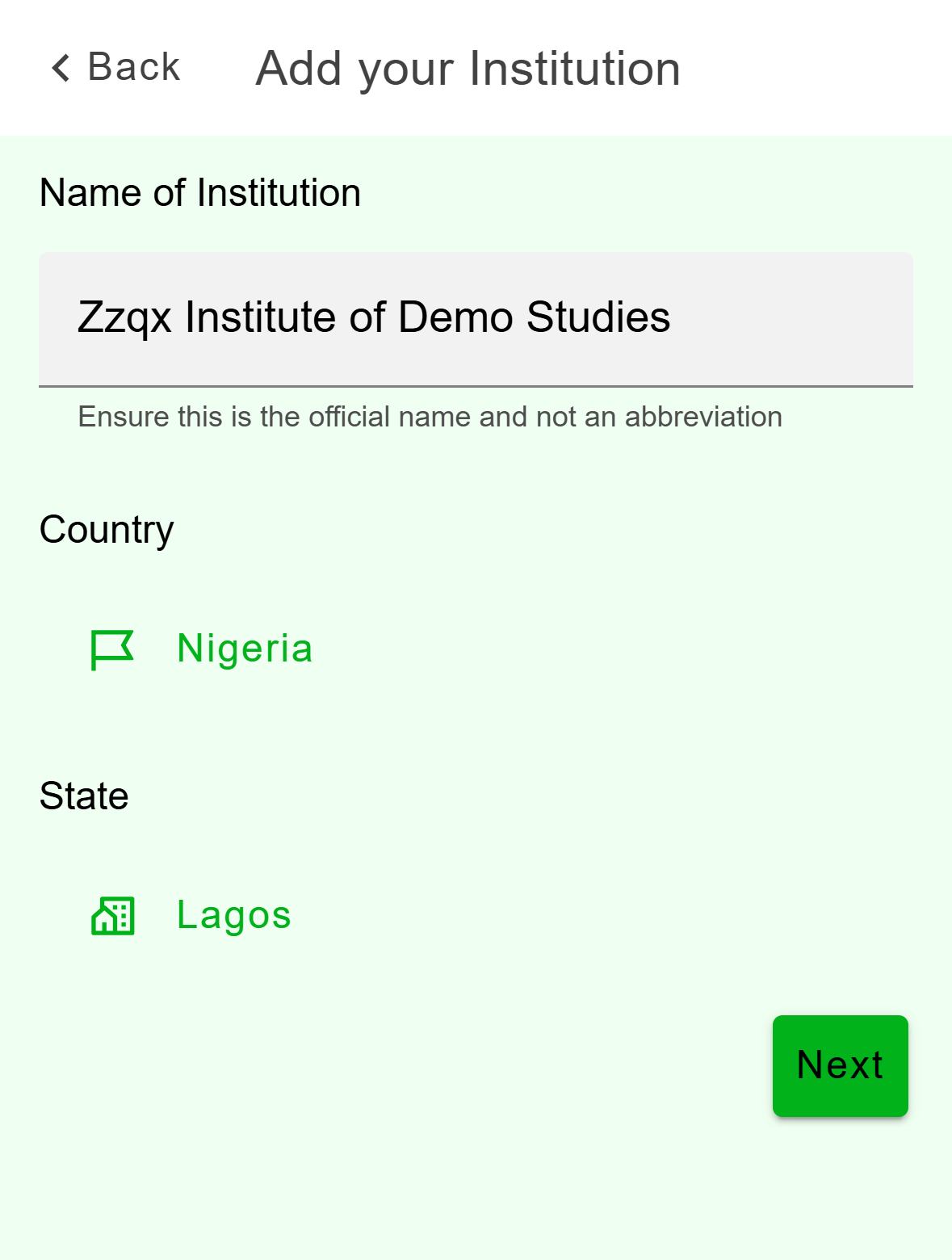
- Use the official name, not an abbreviation.
- Pick your country first. The state list depends on it.
Mobile: Name, country and state, filled in. Tap Next. You see a summary of the name, country and state. Check it, then tap Confirm Details.
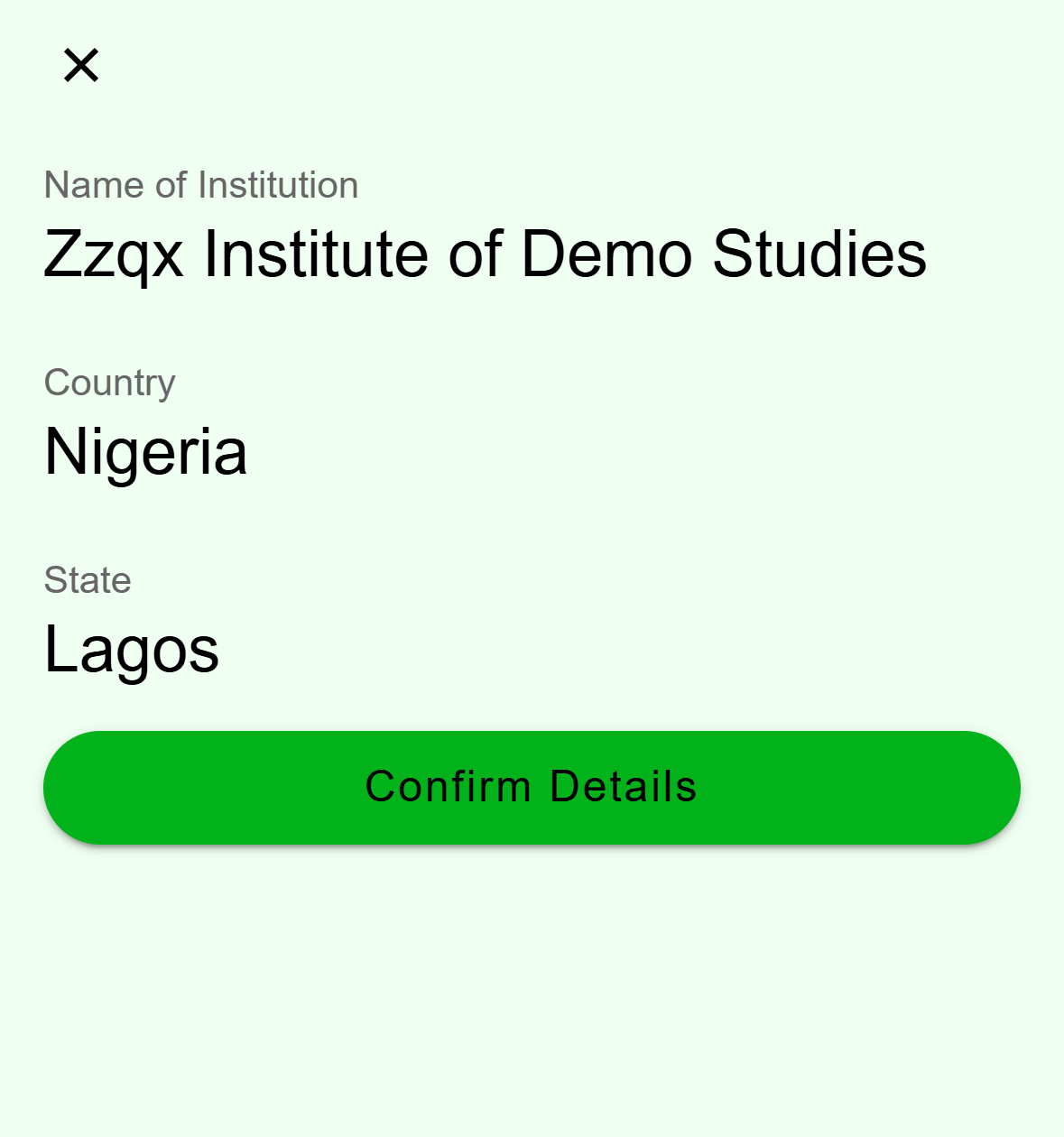
- Tap here to use this school on your profile.
Mobile: The summary before you confirm. You return to the first setup screen with your school filled in. Tap Next and carry on.
On the Profile step, click School and type your school's official name in the Find your school window. If it isn't in the results, click the row that reads Can't find "your text"? Add your school.
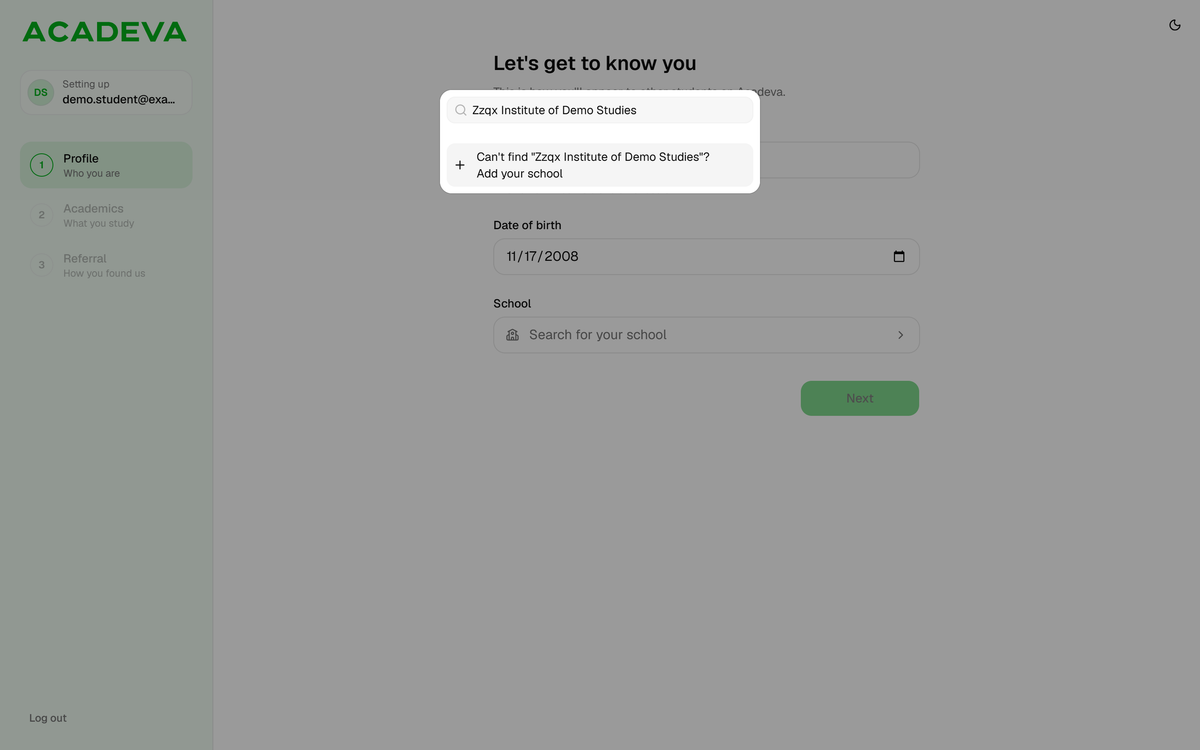
- Click this row to add your school.
Desktop: The row at the bottom of the school search. In the Add your institution window, type the Name of institution. Use the official name, not an abbreviation. Then click Country and pick yours, and click State and pick yours. State only appears after you choose a country.
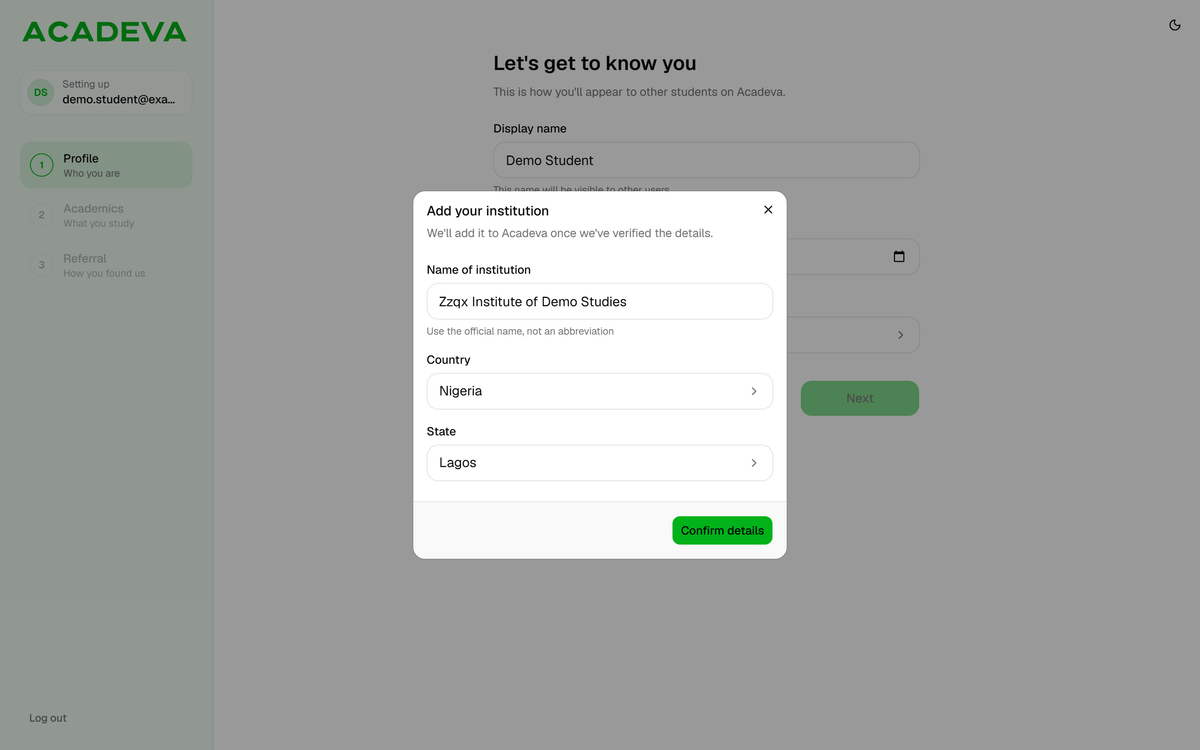
- Use the official name, not an abbreviation.
- Click here to use this school.
Desktop: The window says Acadeva adds the school once the details are verified. Click Confirm details. The button stays off until the name, country and state are filled in. You return to the Profile step with your school filled in. Click Next and carry on.
A school you add has no department list yet, so the next step asks you to type your faculty and department yourself. The next section shows how.
If your department isn't listed
This can also happen with a school that is listed. Its department list may not include yours.
On the Your course? screen, tap Department and type your department's name. If nothing matches, the list says "Type a valid department name". Tap * Can't find your department?, which is at the bottom of the list.
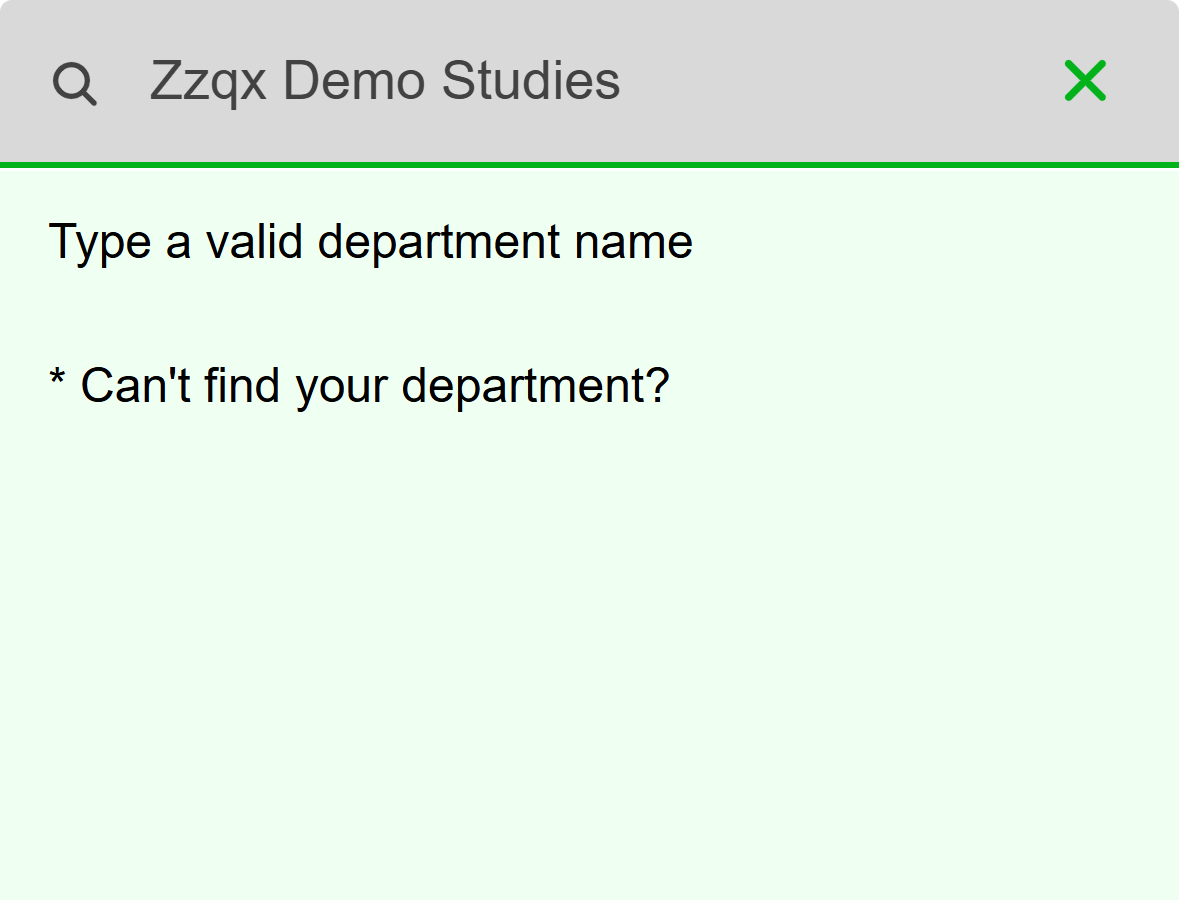
- Tap here to type your department yourself.
Mobile: The row is always at the bottom once the list has loaded. Type your Department and your Faculty in the two boxes that replace the list, for example Department of Biology and Faculty of Science.
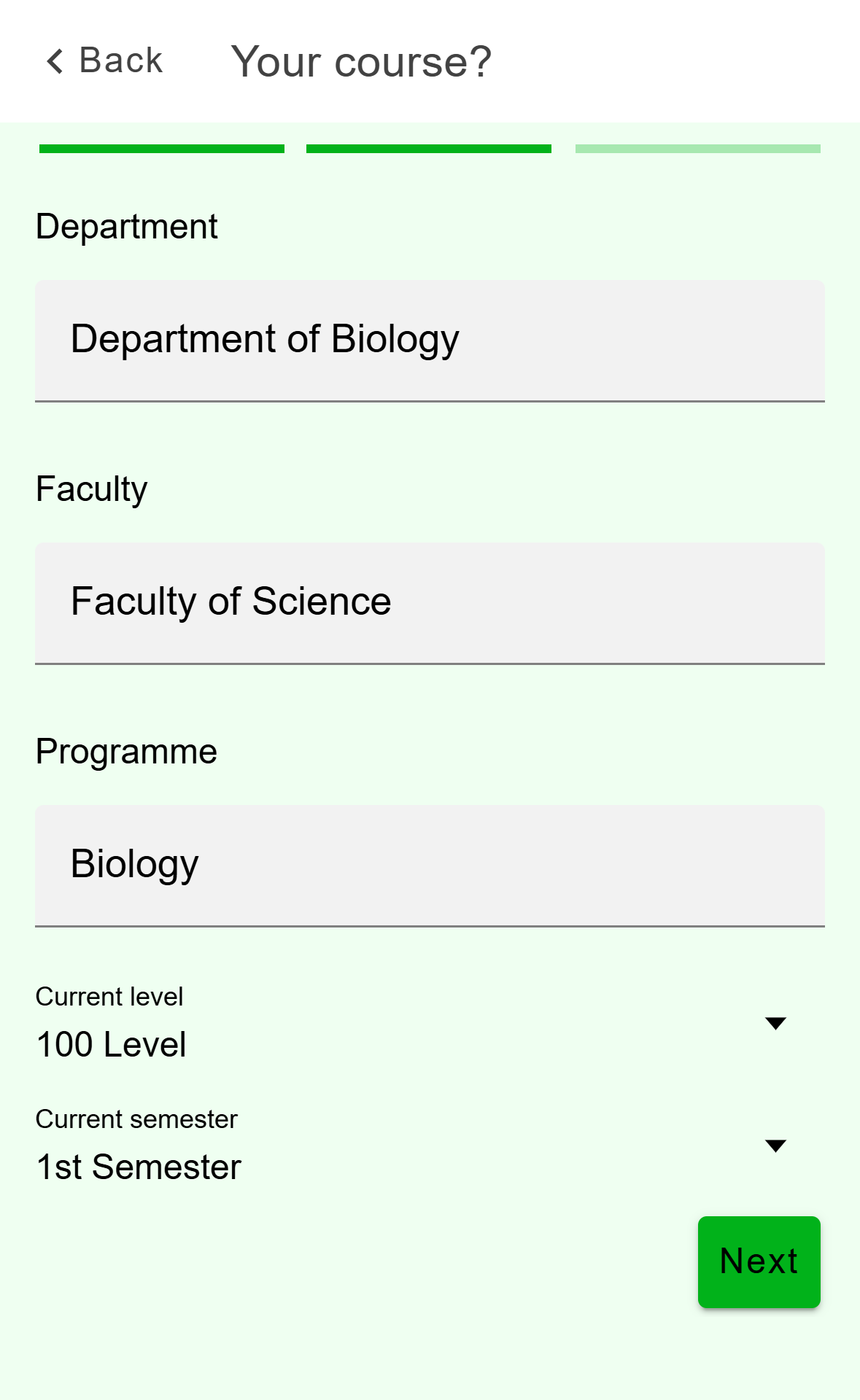
- Type your department the way your school writes it.
- Not filled in for you this time. Type your programme.
Mobile: Department and faculty are text boxes now. Type your Programme. Acadeva fills it in only when you pick a department from the list. Then check Current level and Current semester, and tap Next.
Tapped it by mistake? Tap Back, then Next again. The department list comes back.
On the What do you study? step, click Department and type its name in the Find your department window. If it isn't there, click Can't find your department?, which stays at the bottom whatever you type.
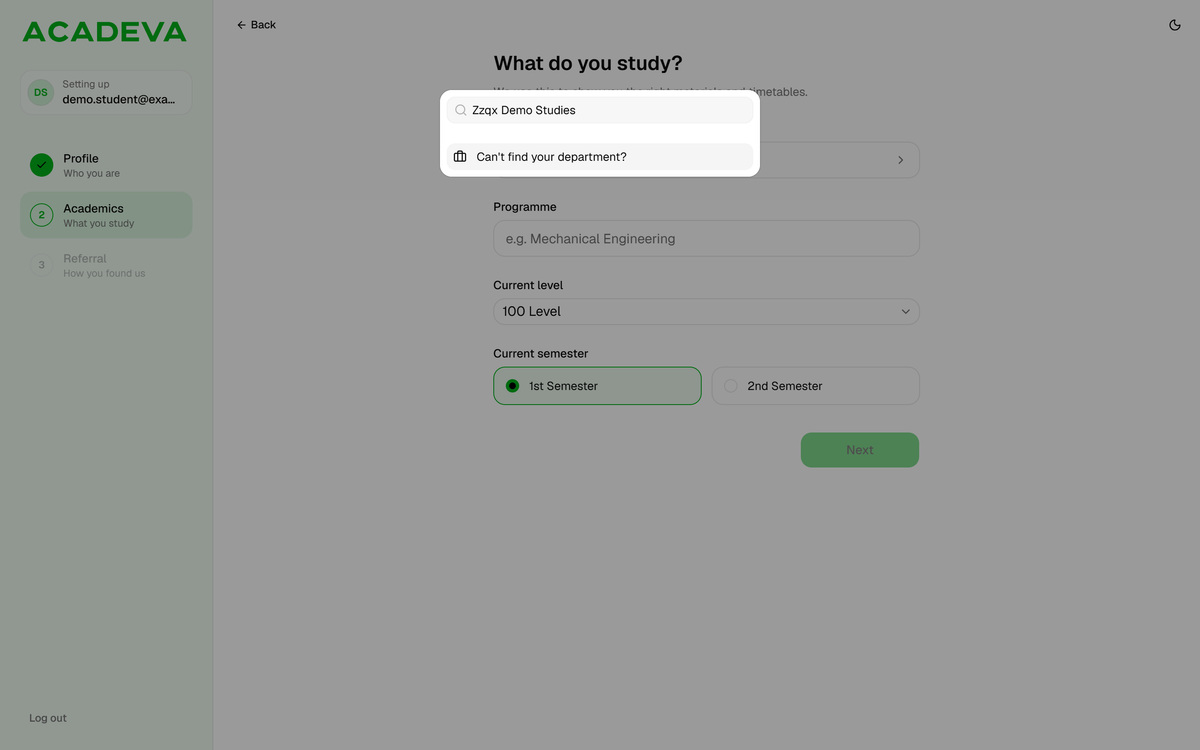
- Click here to type your department yourself.
Desktop: The row at the bottom of the department search. Type your Faculty and your Department in the two boxes that replace the department button, for example Faculty of Science and Department of Biology.
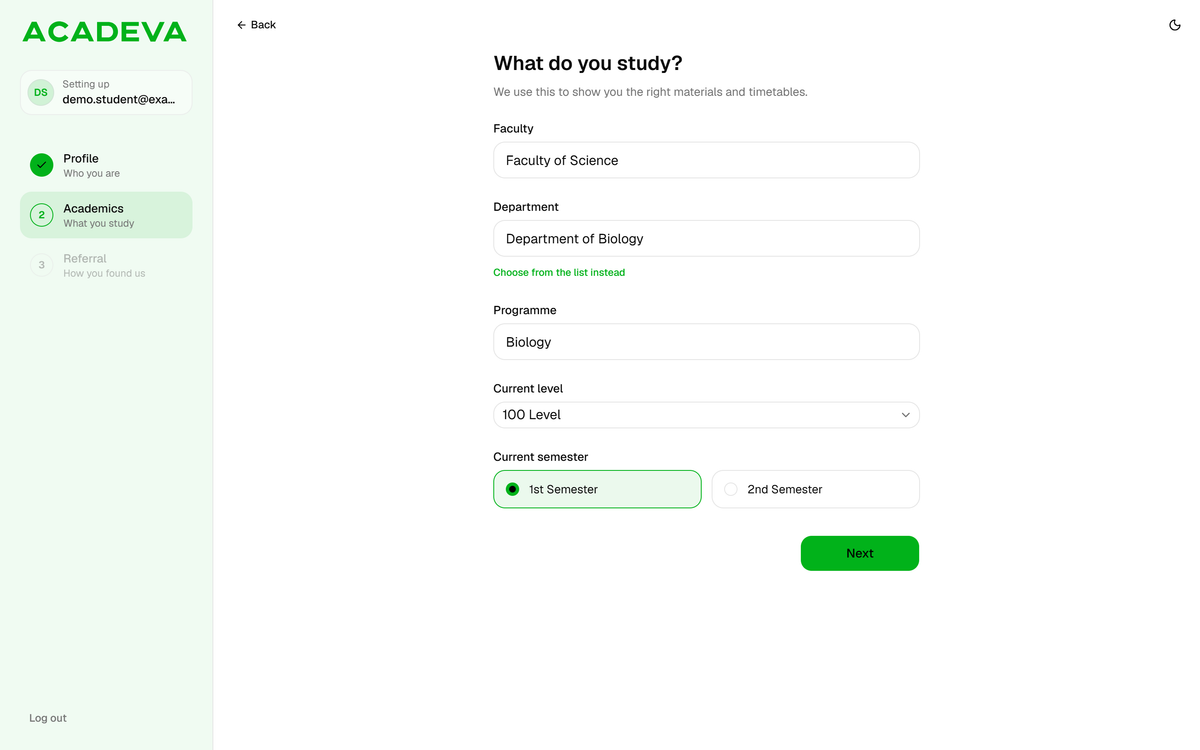
- Changed your mind? This brings the list back.
Desktop: Faculty and department are text boxes now. Type your Programme. Acadeva fills it in only when you pick a department from the list. Then check Current level and Current semester, and click Next.
Choose from the list instead only appears for a school that is in the list. After you add a new school, typing is the only option.
What happens next
- Your school and department are saved on your account exactly as you typed them, so spell them the way your school does.
- Acadeva checks a new school or department before adding it to the lists. The desktop window says: "We'll add it to Acadeva once we've verified the details."
- A school you add uses the general level list: 100 Level to 500 Level, ND1 to HND2, and options such as Diploma and Alumni.
Your programme is what Acadeva uses to work out which courses to offer you. Type it the way your course is usually named, for example Mechanical Engineering.
Once your school or department is in the list, you can swap your typed version for it:
Open the You tab, tap My Profile, then Edit profile. Tap Change next to Academic details. The Edit academic details screen starts empty, so choose everything again: tap Institution and search for your school, tap Department and pick yours from the list, and set Current level. Then tap Done and Save.
Click Profile in the menu on the left, then Edit academic details. On the School page, search again if your school was the one you added, then click Next. On the Department page, click Department and pick yours from the list, then click Next. Click Save on the Level & semester page.
If it doesn't work
- The Add your school row isn't there on the phone. It appears once the search has finished, so wait for the spinner to stop. "Could not retrieve school names" means the search couldn't reach Acadeva: check your connection and type the name again.
- The country or state list is empty or says "Could not load countries list" or "Could not load states list". Check your connection, go back and open it again.
- The next button won't switch on. Adding a school needs a name, a country and a state. Typing a department needs a faculty, a department and a programme.
- You typed the wrong name. Before you tap Finish, go back and search again, then pick the right school or add it again.
Not sure about a step? See Set up your profile: school, department, and level.