
Your Schedule is built from three pieces: periods, agendas, and timetables. Once you know how they relate, setting up your week is quick, and the screens stop looking like three separate features.
The pictures use a made-up account with made-up courses. Yours will show your own agendas and timetables.
The three pieces
- Period. One slot in your week: a day or a date, a start and end time, and a venue. "Monday, 9:00 AM to 11:00 AM, Lecture Theatre 2" is a period. A period always belongs to an agenda and never exists on its own.
- Agenda. One course, class, or activity. It has a name, an optional code such as CSC 203, and as many periods as you need. A course that meets on Monday and has a lab on Friday is one agenda with two periods. The agenda is the thing you create, join, share, and delete.
- Timetable. A named bundle of agendas, such as "200 Level, First semester". A timetable has no periods of its own. It only points at agendas, so you can keep a semester together and share the whole set at once.
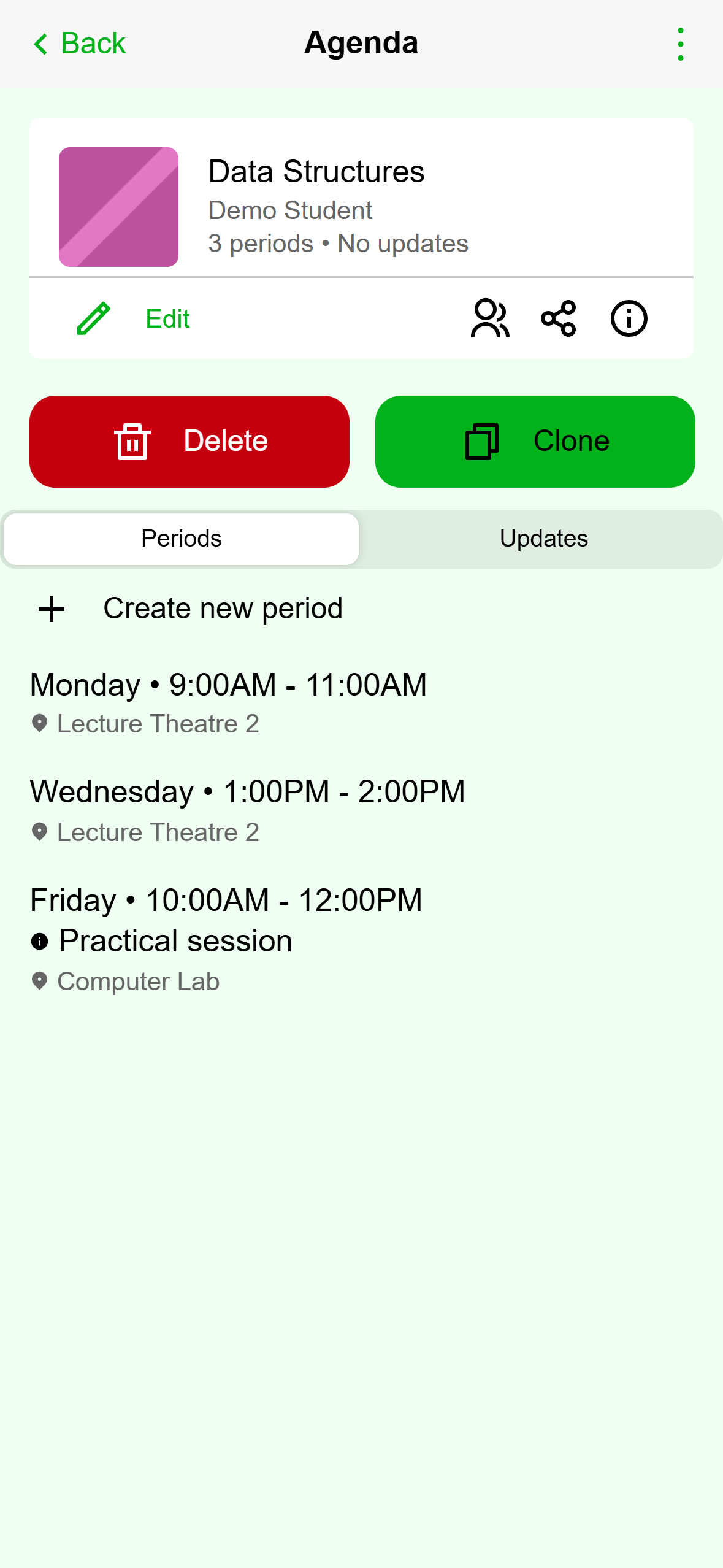
- The agenda: one course.
- Its periods. Each row is a day, a time range, and a venue.
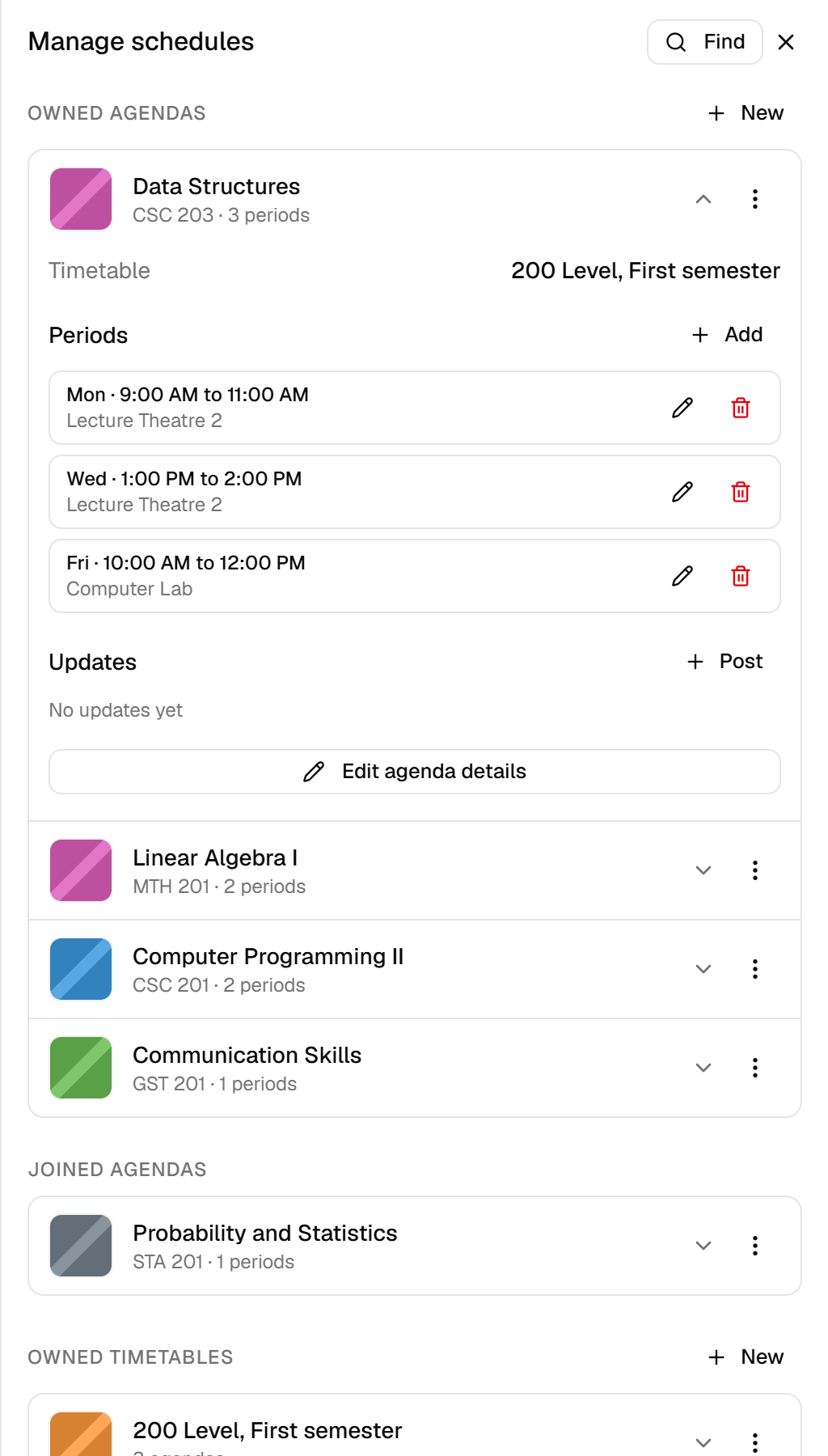
- The agenda: one course.
- Its periods. Each row is one slot in the week.
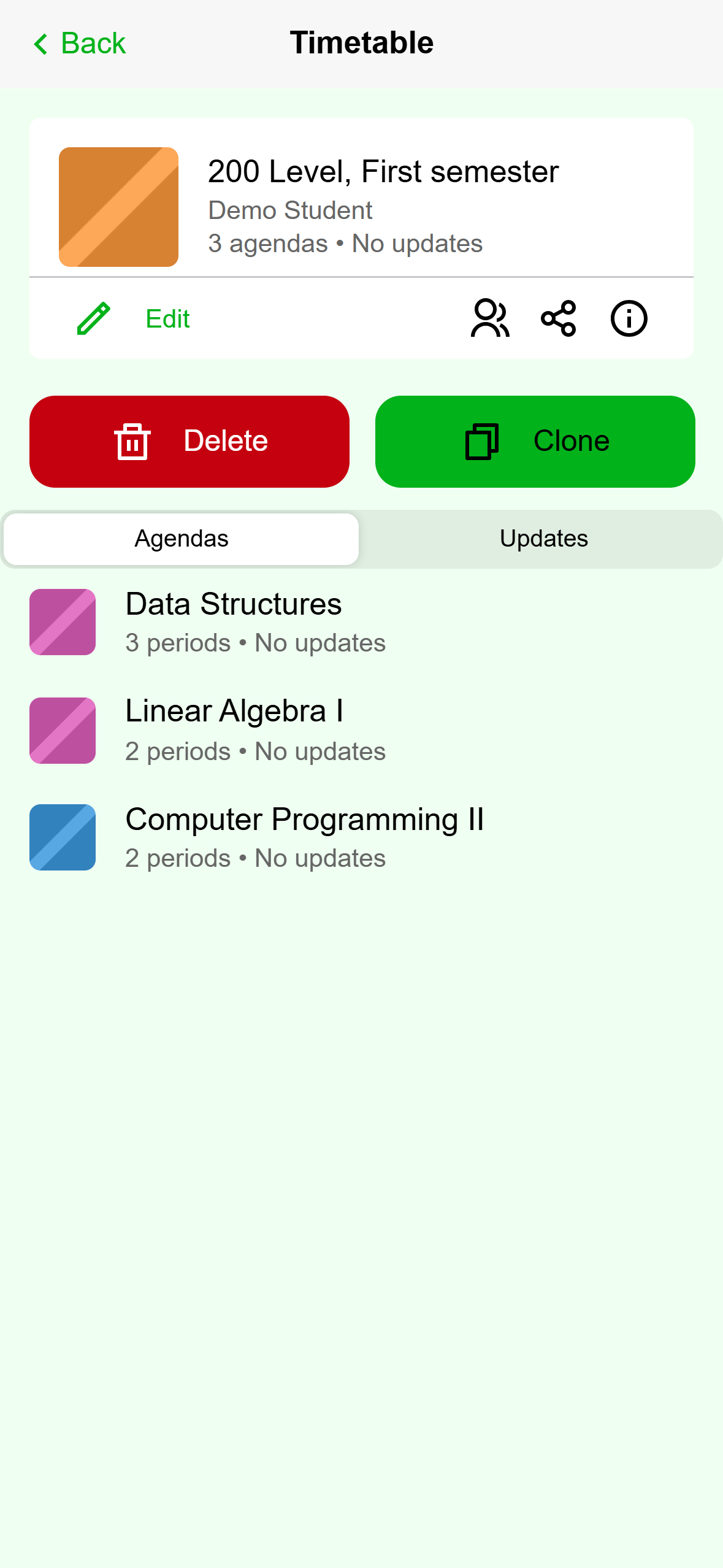
- A timetable only lists agendas. The periods stay inside each agenda.
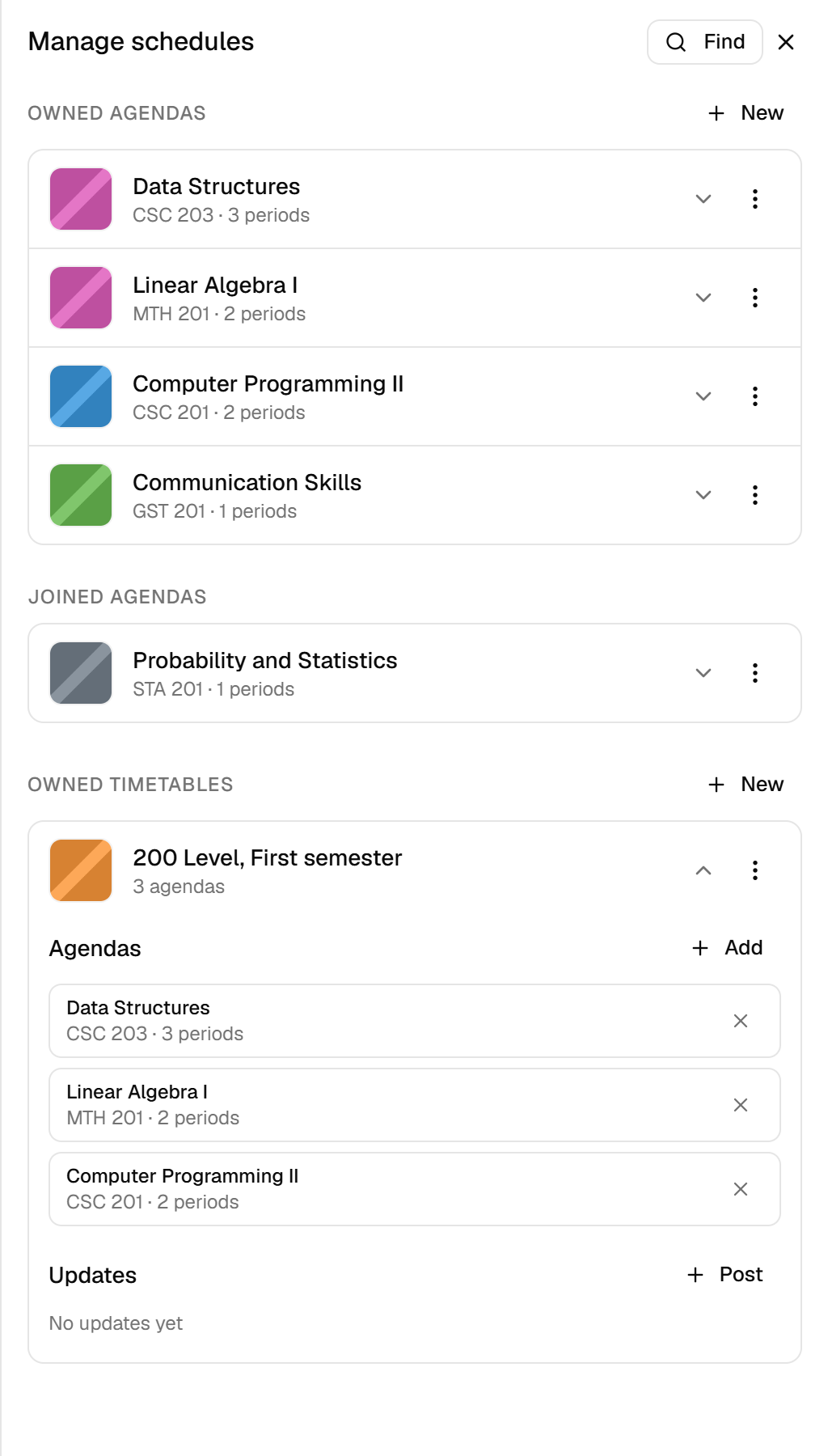
- A timetable only lists agendas. The periods stay inside each agenda.
What shows up on your Schedule
Your Schedule draws every period from every agenda you own or have joined. Whether an agenda sits inside a timetable makes no difference to what you see, so you can skip timetables entirely and your week still fills in.
- Weekly periods repeat every week on one day.
- Daily periods repeat every week on the days you pick, or on every day if you pick none.
- One time periods appear only in the week that holds their date. Browse to another week and they are gone.
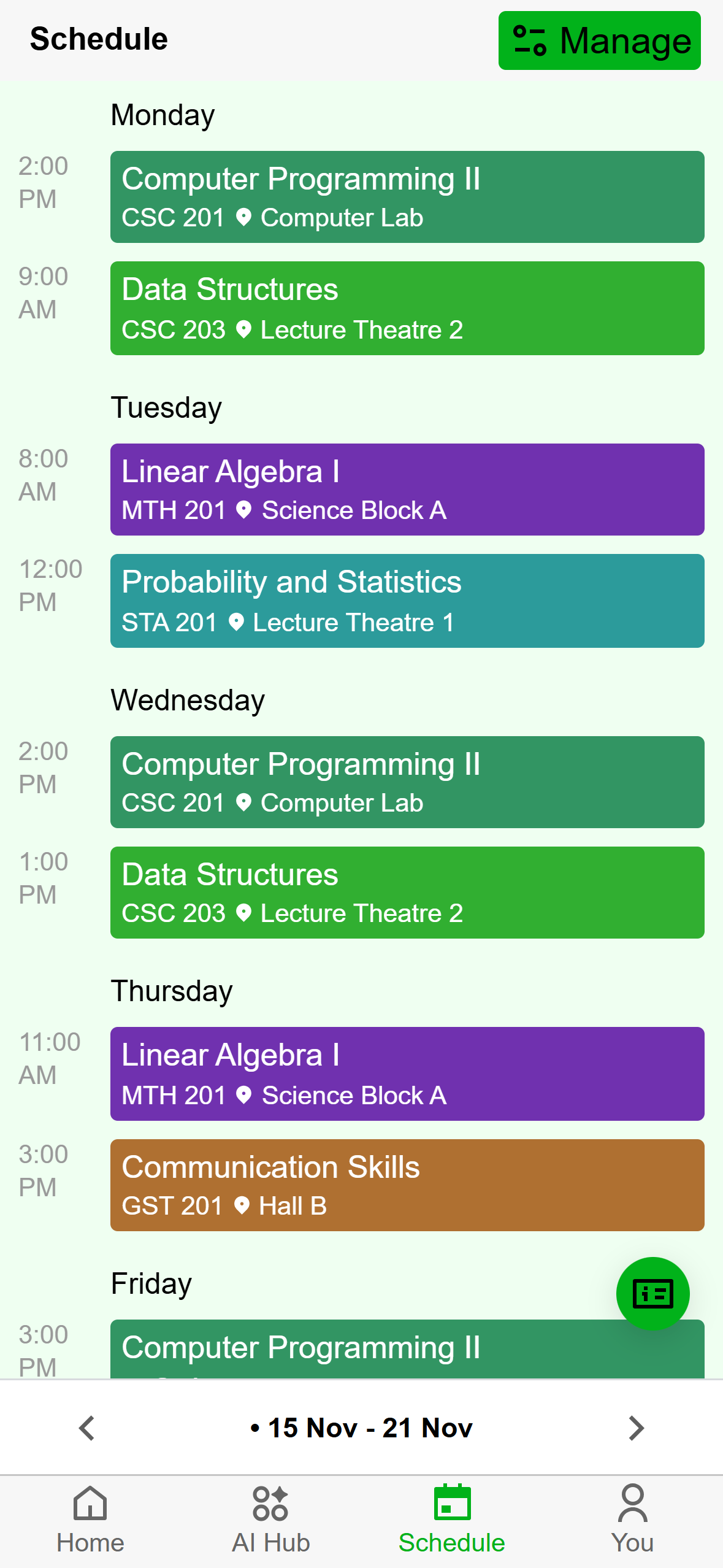
- One period, from an agenda you made.
- A period from an agenda you joined. It sits next to your own.
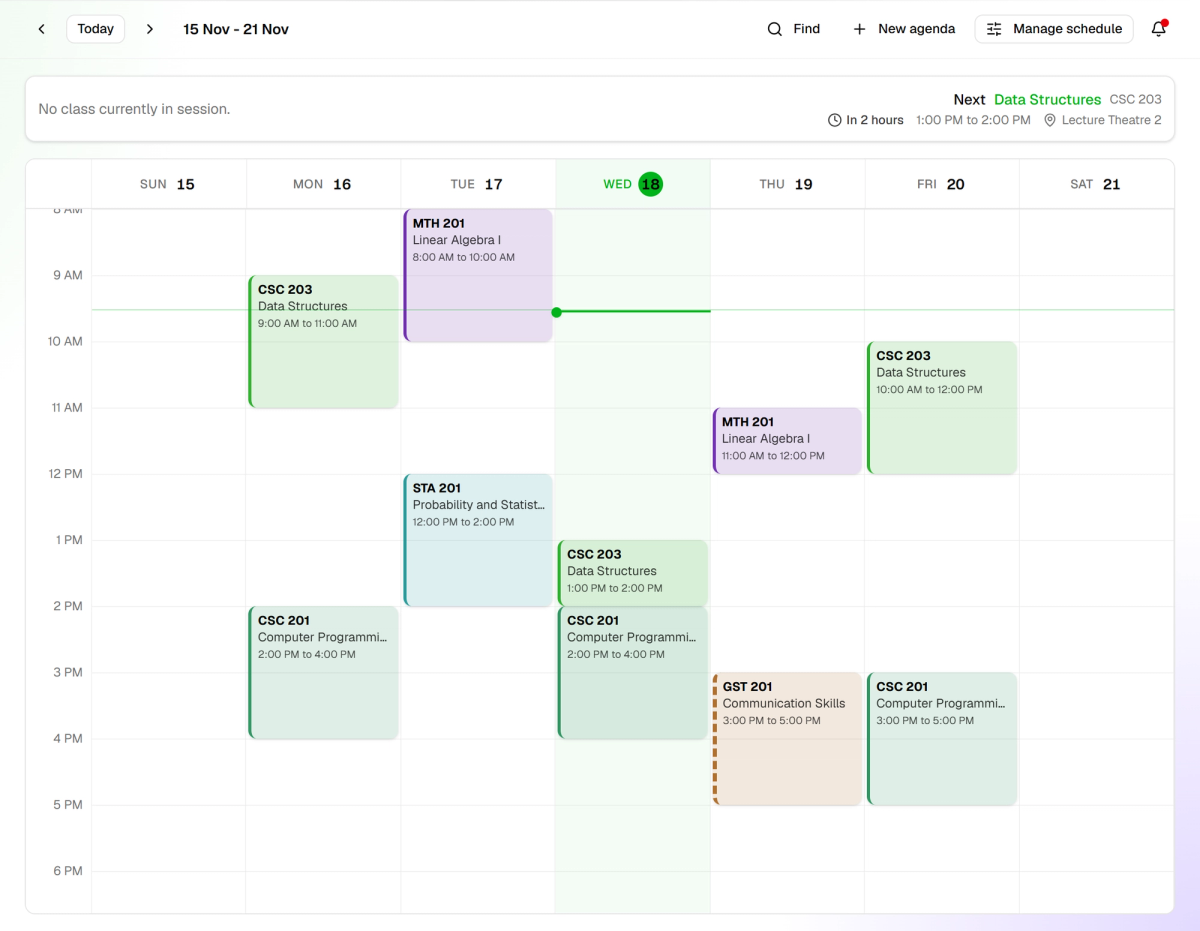
- One period, from an agenda you made.
- A period from an agenda you joined. It sits next to your own.
Owned and joined
Every agenda and timetable is either yours or someone else's. The ones you made are owned: you can change them and delete them. The ones you joined, for example from a classmate or from Find, are joined: you can see their periods on your Schedule, but the buttons to add or edit periods are not there. You can Leave a joined one at any time.
Want a version you can change? Use Clone on the phone or Duplicate on desktop. You get your own copy to edit. It needs a connection, because Acadeva makes the copy for you.
Where each piece lives in the app
Open the Schedule tab and tap Manage. The All agendas row, marked with a lock, lists every agenda you own or have joined. Your timetables are listed below it. Tap a timetable to see the agendas inside it. The All, Owned, and Joined chips at the top narrow the timetable list.
Click Schedule in the left rail, then Manage schedule. A panel slides in with Owned agendas and Owned timetables. Joined agendas and Joined timetables appear once you have joined something. Click a row to open it.
A setup that works
Most students end up with one agenda per course and, if they want, one timetable per semester. Make the agendas first, add their periods, then group them. The steps are in Create an agenda and add periods and Build a timetable from your agendas.
If a class you added is missing from your Schedule, check two things. The week you are looking at must contain it, because one time periods only show in their own week. And the agenda must be one you own or joined.