
Class reminders and deadline reminders work differently. Class reminders come from Google Calendar. Deadline reminders for study group tasks arrive as notifications on your phone. This article shows how to turn each on and when each arrives.
The pictures use a made-up account and a made-up Google address. Your screens show your own.
What you need
- For class reminders: a Google account, and at least one agenda or timetable on your Schedule. If you have not built one yet, start with Create an agenda and add periods.
- For deadline reminders: the Acadeva phone app, signed in, with notifications allowed.
How class reminders work
Acadeva does not set class alarms on your phone or computer. When you connect Google Calendar, it copies every period from the agendas and timetables you own or have joined into a separate calendar called Acadeva in your Google account and leaves your other calendars alone. Google Calendar then shows the reminders, on any device where you use it, even when Acadeva is closed.
Each period gets two reminders: one before it starts and one when it begins. Weekly and daily periods repeat, so you connect once. A period marked as not holding (Not holding on the phone, Will not hold on desktop) is left out.
Connect Google Calendar
Open the You tab, tap Settings, then Notifications. Under Class reminders it says Off until you connect.
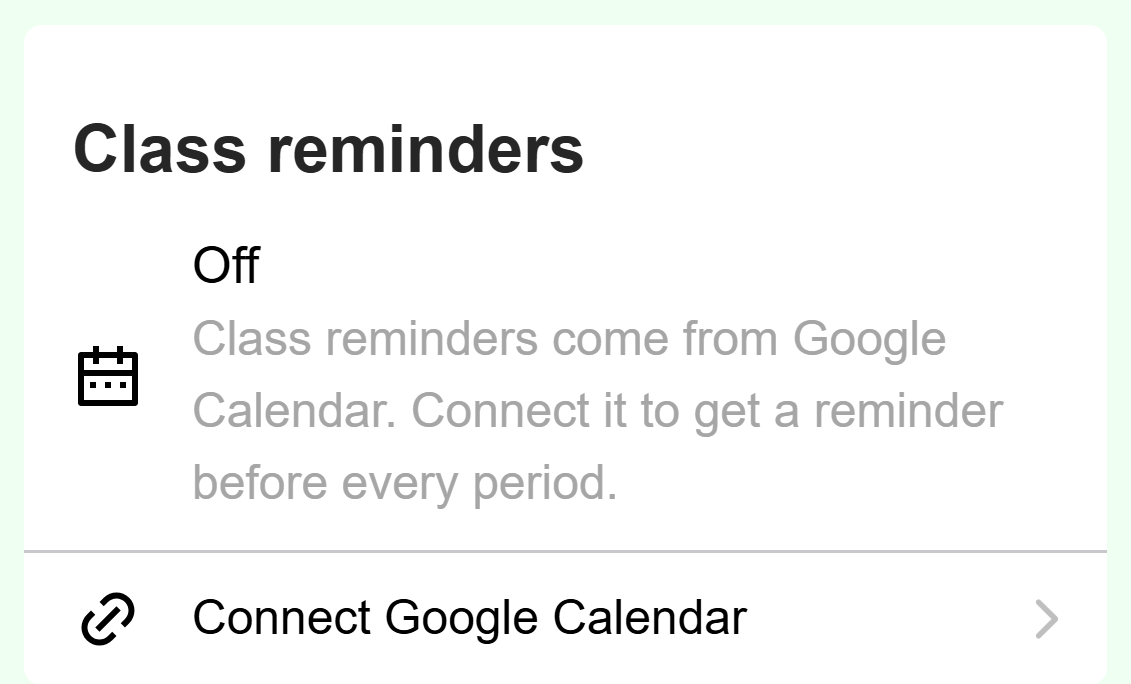
- Tap this row to open Apps & Connections.
Mobile: Class reminders are off until Google Calendar is connected. Tap Connect Google Calendar. It opens Apps & Connections, where the Google Calendar card has the same button. Tap it there. You can also reach this screen from Settings > Apps & Connections.
A box titled Connecting Google Calendar asks you to finish in your browser. Sign in to the Google account you want your classes in, allow access, then go back to Acadeva.
The card now shows Connected with your Google address, and Acadeva starts copying your periods. The first copy can take a short while.
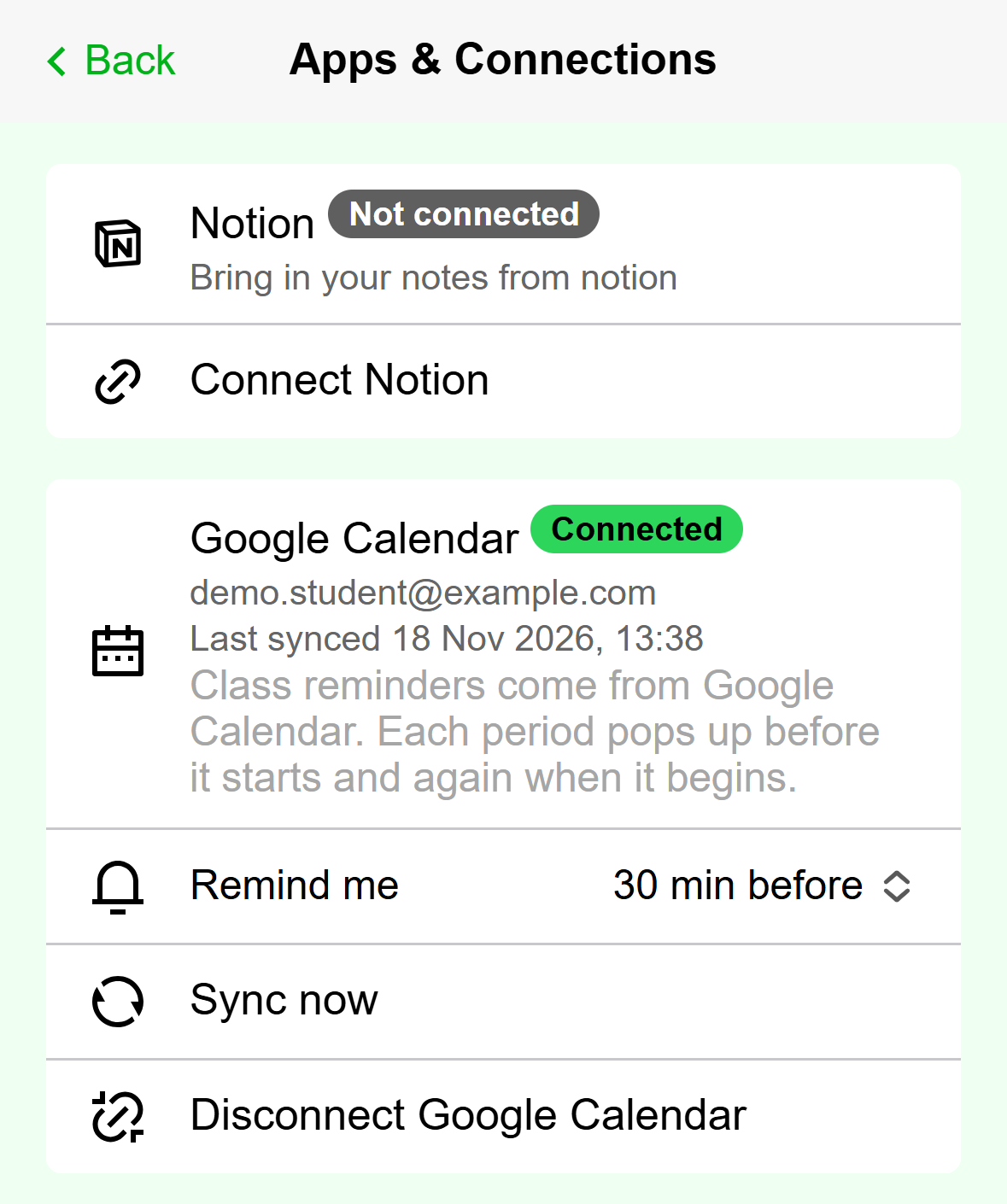
- Connected means your classes are being copied to Google Calendar.
- How early the first reminder arrives.
- Copies your schedule to Google Calendar right now.
Mobile: A connected Google Calendar card.
Click your account menu at the bottom of the left rail, then Settings.
Choose Apps & Connections. On the Google Calendar card, click Connect.
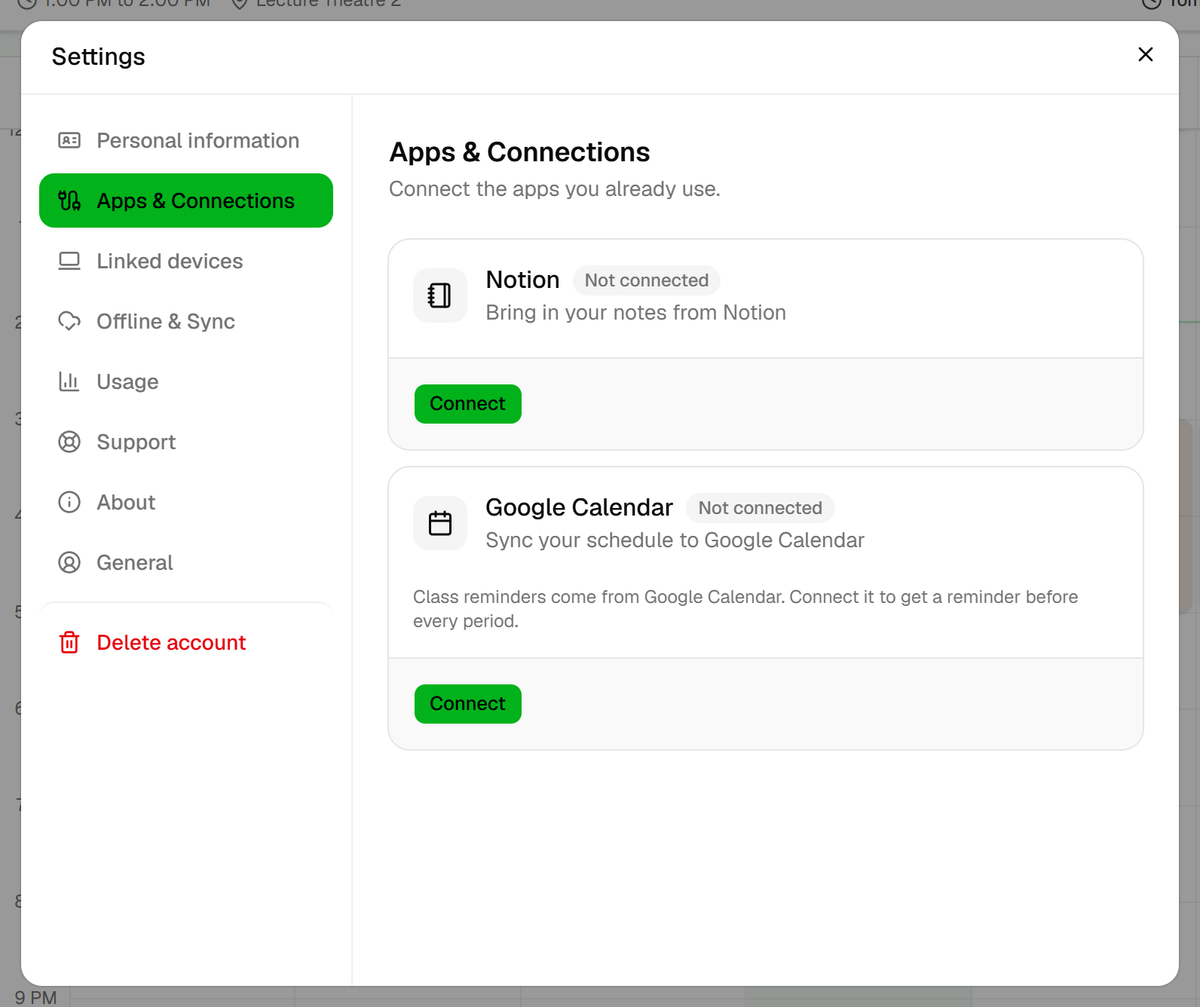
- Click Connect on the Google Calendar card, not the Notion one.
Desktop: Settings, Apps & Connections, before Google Calendar is connected. Your browser opens a Google page. Sign in to the account you want your classes in, allow access, then come back to Acadeva. The card changes to Connected and shows your Google address.
Choose how early the reminder arrives
The default is 30 minutes before. You can pick 5 minutes, 10 minutes, 15 minutes, 30 minutes or 1 hour. The second reminder, when the period begins, is always there. The change saves as soon as you pick it.
In Settings > Notifications, under Class reminders, tap Remind me and pick a time. The same choice is on the Google Calendar card in Apps & Connections.
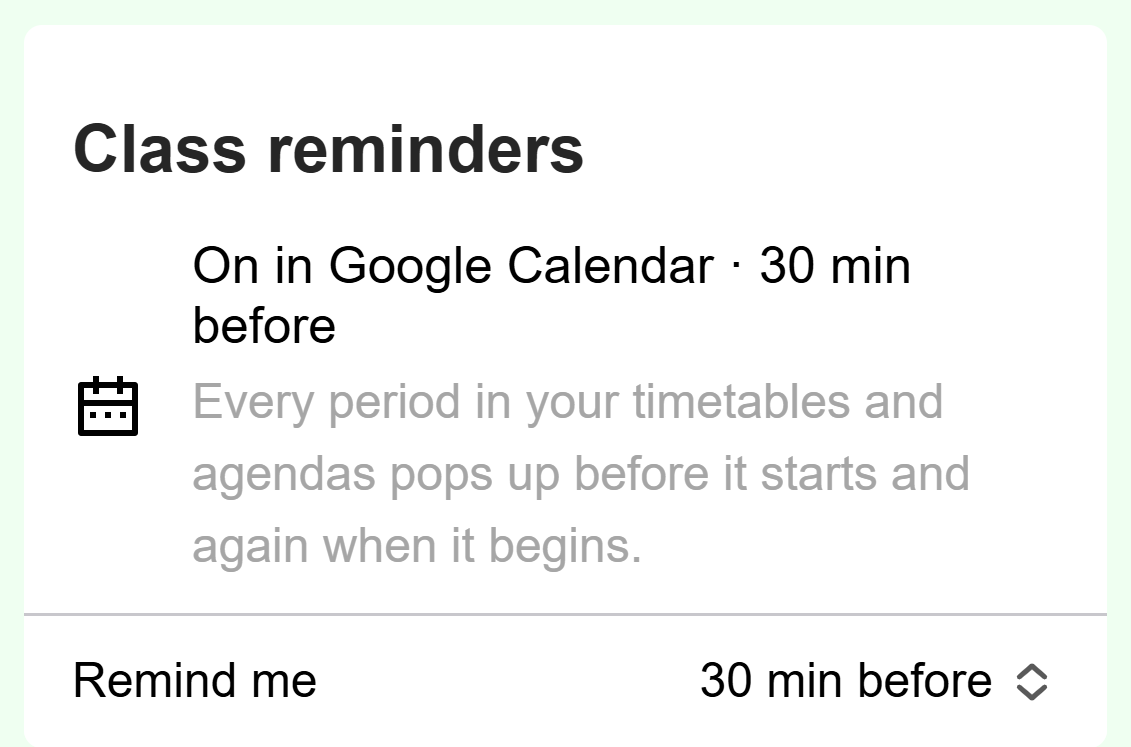
- This line shows that class reminders are on and how early they arrive.
- Tap to choose 5 min, 10 min, 15 min, 30 min or 1 hour.
Mobile: Class reminders on, 30 minutes before.
In Settings > Apps & Connections, open the Remind me list on the Google Calendar card and pick a time. A message confirms the new time.
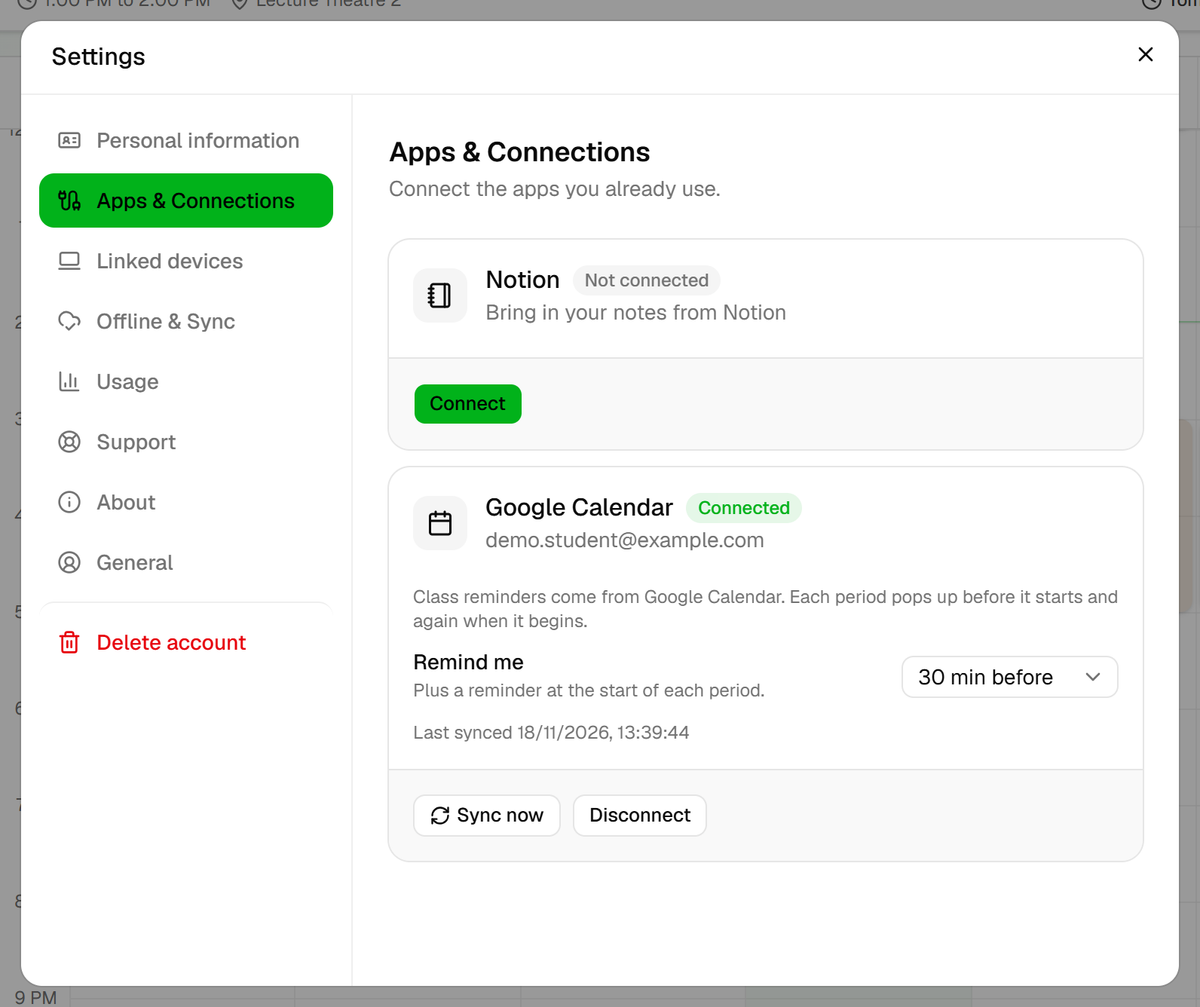
- Pick how early the reminder arrives.
- Copies your schedule to Google Calendar right now.
Desktop: The connected Google Calendar card on desktop.
When your calendar updates
- When a period, agenda or timetable changes, Acadeva updates the calendar of everyone who is connected and sees it. A nightly sync catches anything that was missed.
- To copy everything right now, use Sync now. A message says Your schedule is synced to Google Calendar, or Sync didn't finish. Try again in a moment.
- A schedule update of type Reminder or Critical also goes into your calendar, as a 30-minute event at its date and time (9:00 AM if it has no time), with the same two reminders. Info updates stay in the app.
Deadline reminders for study group tasks
Acadeva reminds you about the deadlines on study group tasks. Tasks are in the phone app, in a group's Group Tasks list. The desktop app does not have them yet.
- The notification is titled Deadline coming up in, followed by the group name, with the task title underneath. Tap it to open the task.
- It arrives about six hours before the deadline and again about an hour before. Acadeva checks once an hour, so the exact time can be an hour early or late.
- You get it only while the task shows Not done or Rejected. Once you submit and it shows Submitted, or it is marked Done, the reminders stop.
There is no switch for these in Acadeva. They arrive whenever your phone allows notifications from Acadeva.
Allow notifications and set a morning summary
Deadline reminders and the morning summary are notifications, so your phone has to allow them from Acadeva. The first time you open Acadeva after signing in, your phone usually asks: choose to allow. To check, open Settings > Notifications and read Notification Permission under On this device. If it says Denied, see I'm not getting notifications.
On the same screen, Wake up notification turns the morning summary on or off, and Daily wake up time sets when it arrives. If you never pick a time, Acadeva uses 6:00 AM.
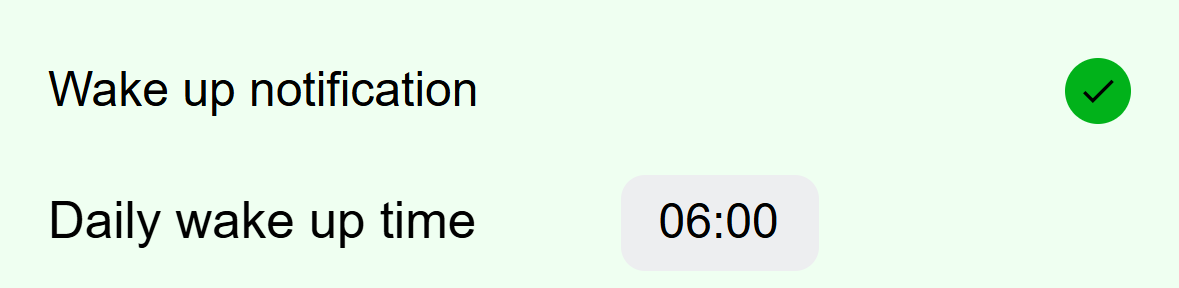
- Turns the morning summary on or off.
- Tap to choose the time.
Mobile: The morning summary settings.
The summary lists today's classes and any group tasks due today that you have not submitted. It is sent only on days when there is something to list, and only while Your day at a glance is switched on in the Acadeva reminders list at the top of the same screen. It follows the time zone in your Streak settings.
The desktop app does not receive class or deadline notifications of its own. Class reminders still reach you through Google Calendar, on every device where you use it, so make sure Google Calendar is allowed to show notifications on those devices. Study group task reminders and the morning summary are phone only.
If it doesn't work
- Open Apps & Connections and read the line under the Google Calendar card. A line starting Last sync problem says what went wrong. Could not reach Google Calendar means Acadeva will retry shortly. Google access was removed means you need to reconnect: choose Disconnect, confirm, then connect again.
- If the phone says Couldn't connect Google Calendar, choose Try again and finish the Google page.
- Tap Sync now, then check that Google Calendar shows a calendar named Acadeva, switched on, and is allowed to show notifications on that device.
- To stop class reminders, choose Disconnect Google Calendar on the phone or Disconnect on desktop and confirm. Acadeva removes its Acadeva calendar from your Google account.
Still nothing on your phone? See I'm not getting notifications.