
Notes in Acadeva are rich text. You can add headings, bold and italic text, lists and checklists, and your notes follow you between your phone and your computer. There is no Save button: a note saves as you type.
Create a note
Open Home and tap Notes. Your notes are listed there, with pinned notes at the top.
Tap the + button at the bottom right, then Create empty note. The same sheet also offers Import from Notion and Start with a template.
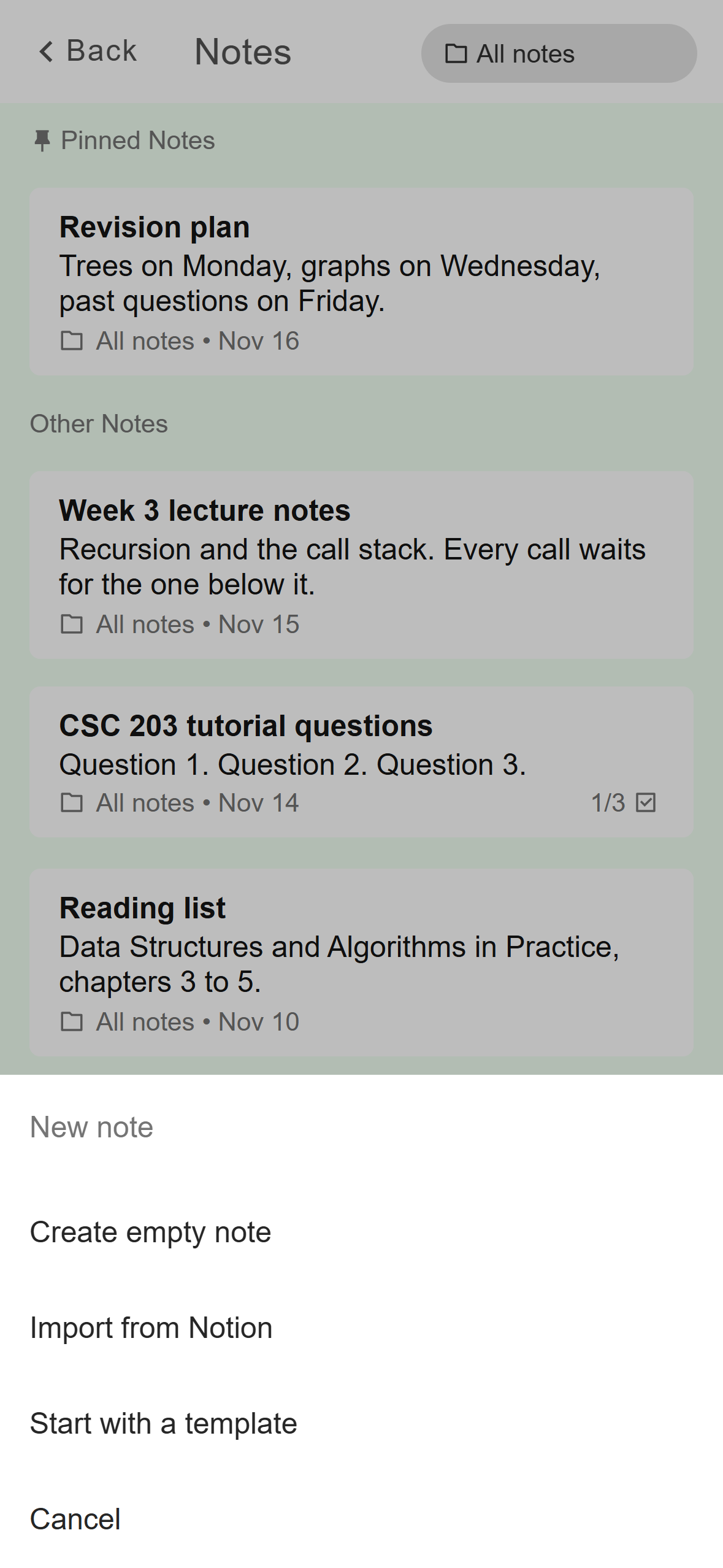
- Create empty note opens a blank note.
Mobile: The New note sheet on the Notes screen. Tap Title and type a title, then tap below it and write. A note is only created once you type something, so opening a new note and leaving without typing saves nothing.
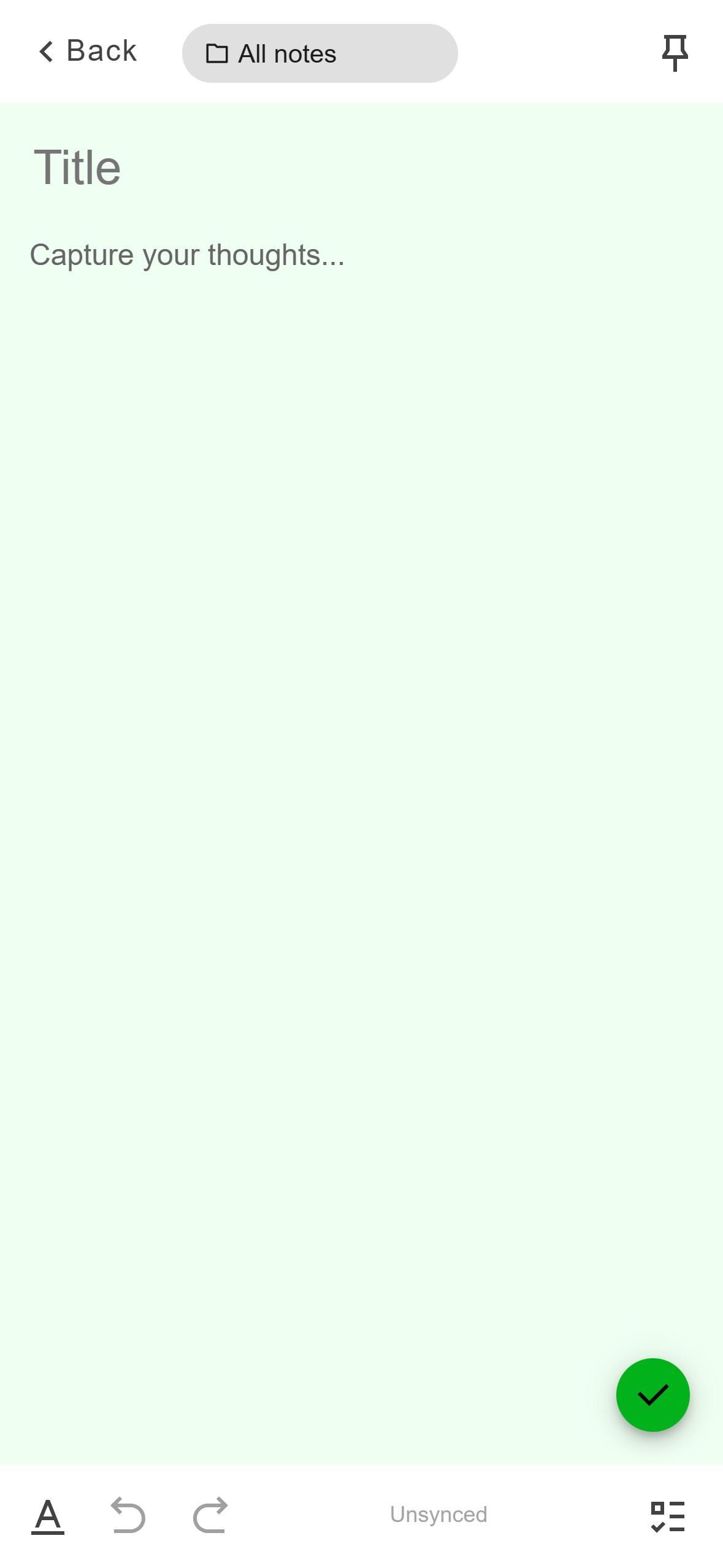
- The A button shows the formatting buttons.
- Unsynced changes to Synced once the note has reached your account.
- The checklist button.
- The tick button switches to reading mode.
Mobile: A new note. The toolbar is along the bottom. When you finish, tap the tick button at the bottom right. The note switches to reading mode. Tap the pencil at the bottom right to edit it again.
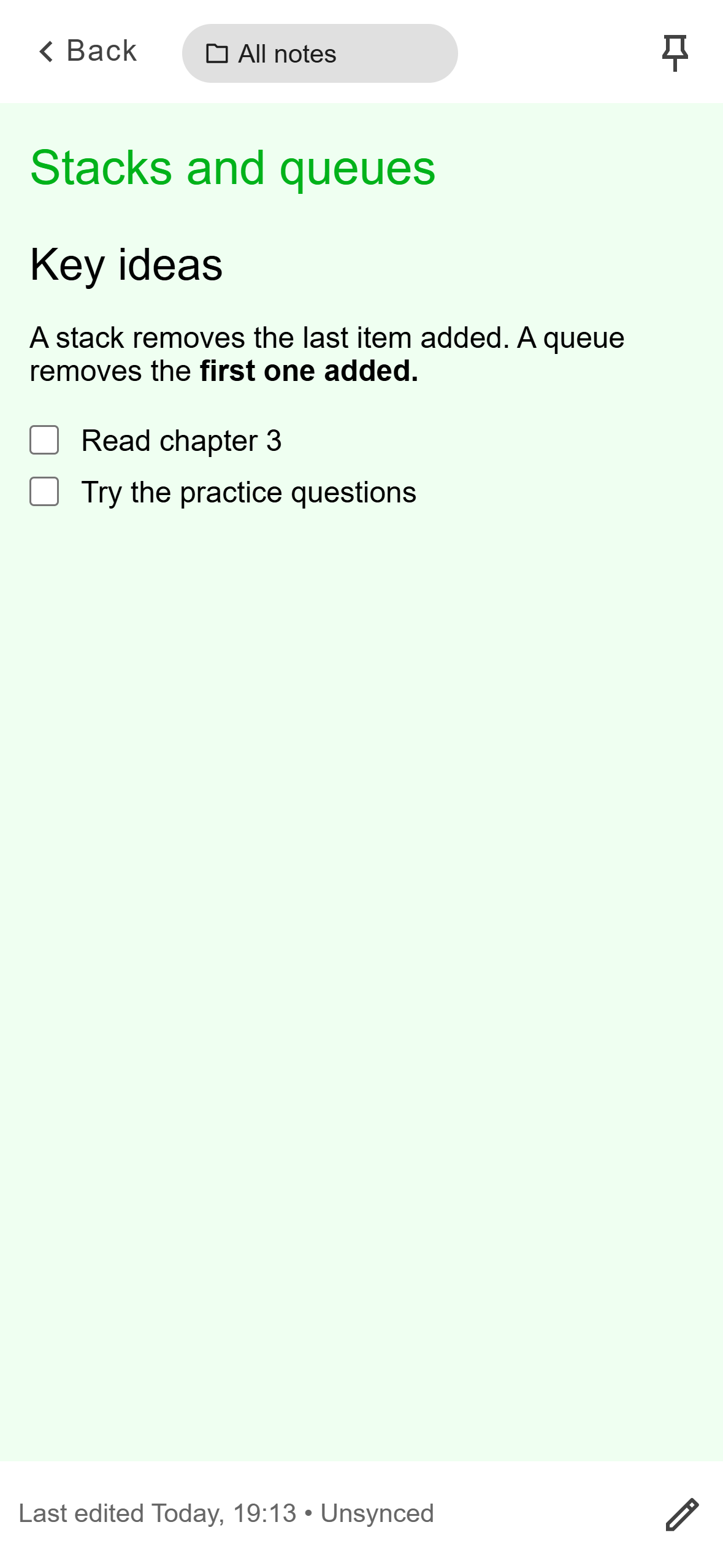
- When the note was last edited, and whether it has synced.
- The pencil: edit the note again.
Mobile: Reading mode. The pencil takes you back to editing.
Click Notes in the left rail.
Click New note at the top right, then Blank note. On the Notes page you can also press Ctrl and N (Cmd and N on a Mac). The menu also has Start with a template and Import from Notion.
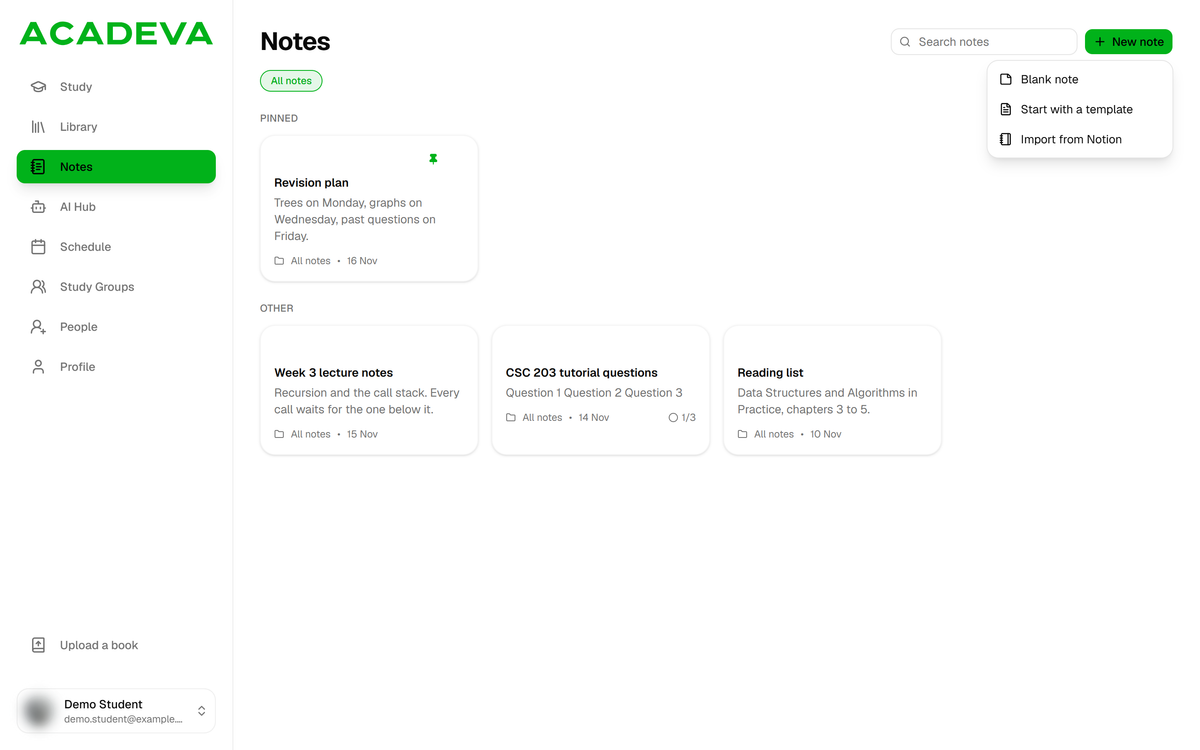
- New note.
- Blank note opens an empty note at once.
Desktop: The New note menu on the Notes page. Type a title in Title, then click below it and write. The note exists as soon as you choose Blank note, so an empty one stays in your list as Untitled until you delete it.
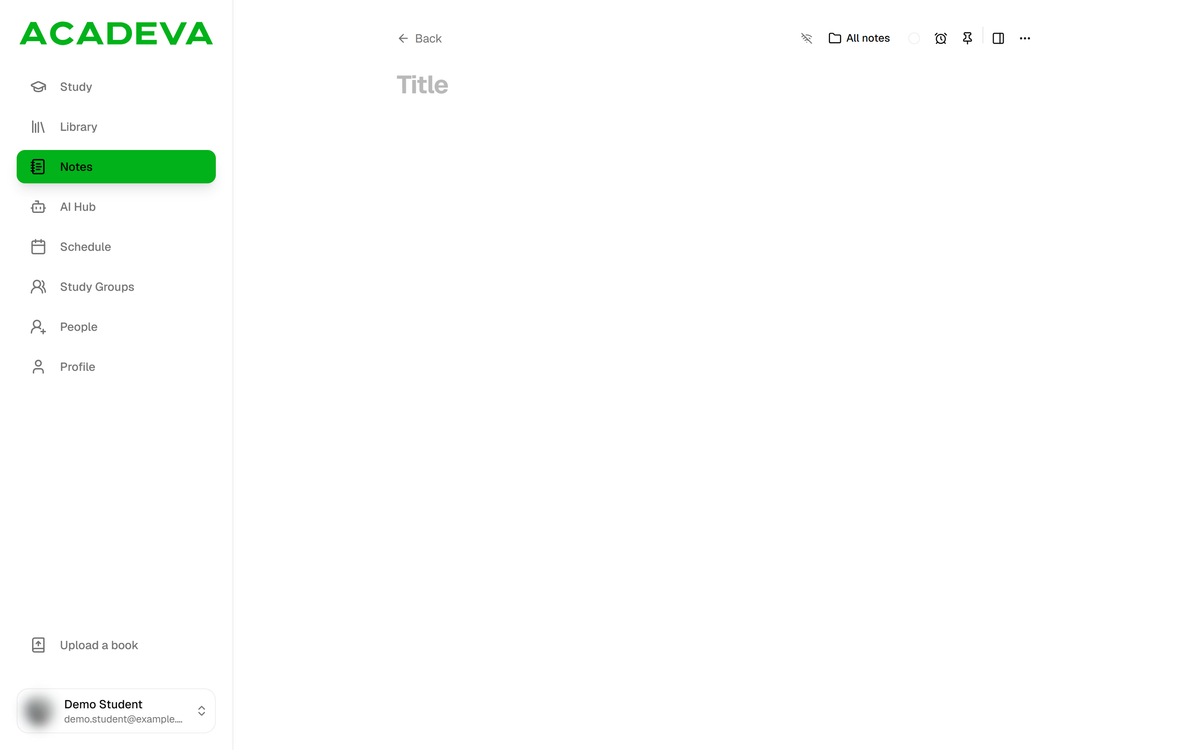
- Type the title here.
- Not synced yet: the change hasn’t reached your account.
- The folder this note is in.
- The note’s colour.
- A reminder.
- Pin the note to the top of your list.
- Pin to dock.
Desktop: A new note on desktop.
Format your text
The formatting buttons sit along the bottom of the editor. They are icons without labels.
Tap the A button at the bottom left. The row changes to the formatting buttons. From left to right they are H1 and H2 (headings), a plain A (normal text), then bold, italic, underline and strikethrough.
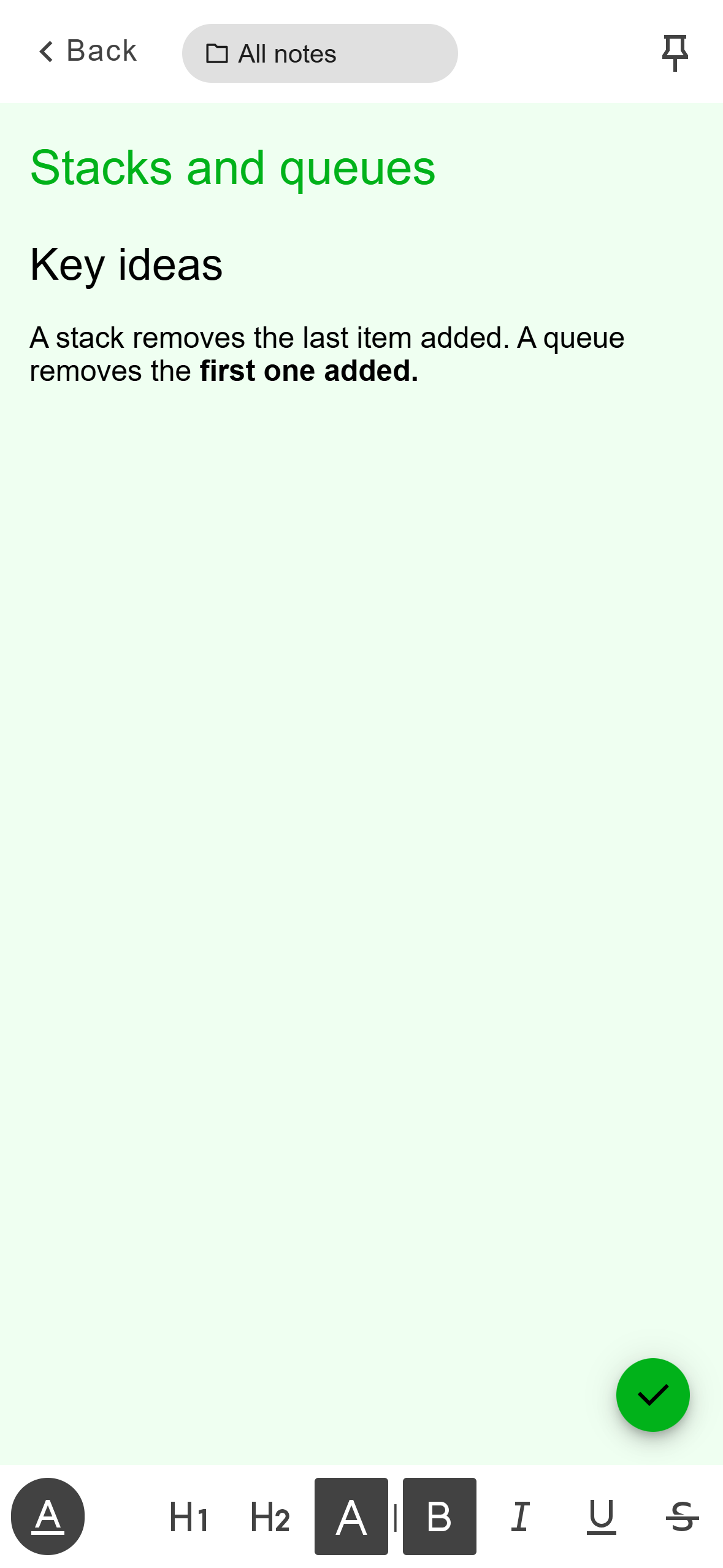
- The A button switches between this row and the main row.
- H1, H2, normal text, bold, italic, underline, strikethrough.
- Text made bold with the B button.
Mobile: The formatting row, with bold switched on. Select some text, or put the cursor where you’re about to type, and tap a button. Tap it again to switch the style off. Tap the A button at the bottom left to bring the main row back.
For a checklist, tap the checklist button at the right of the main row and type your items. Tap a box to tick it.
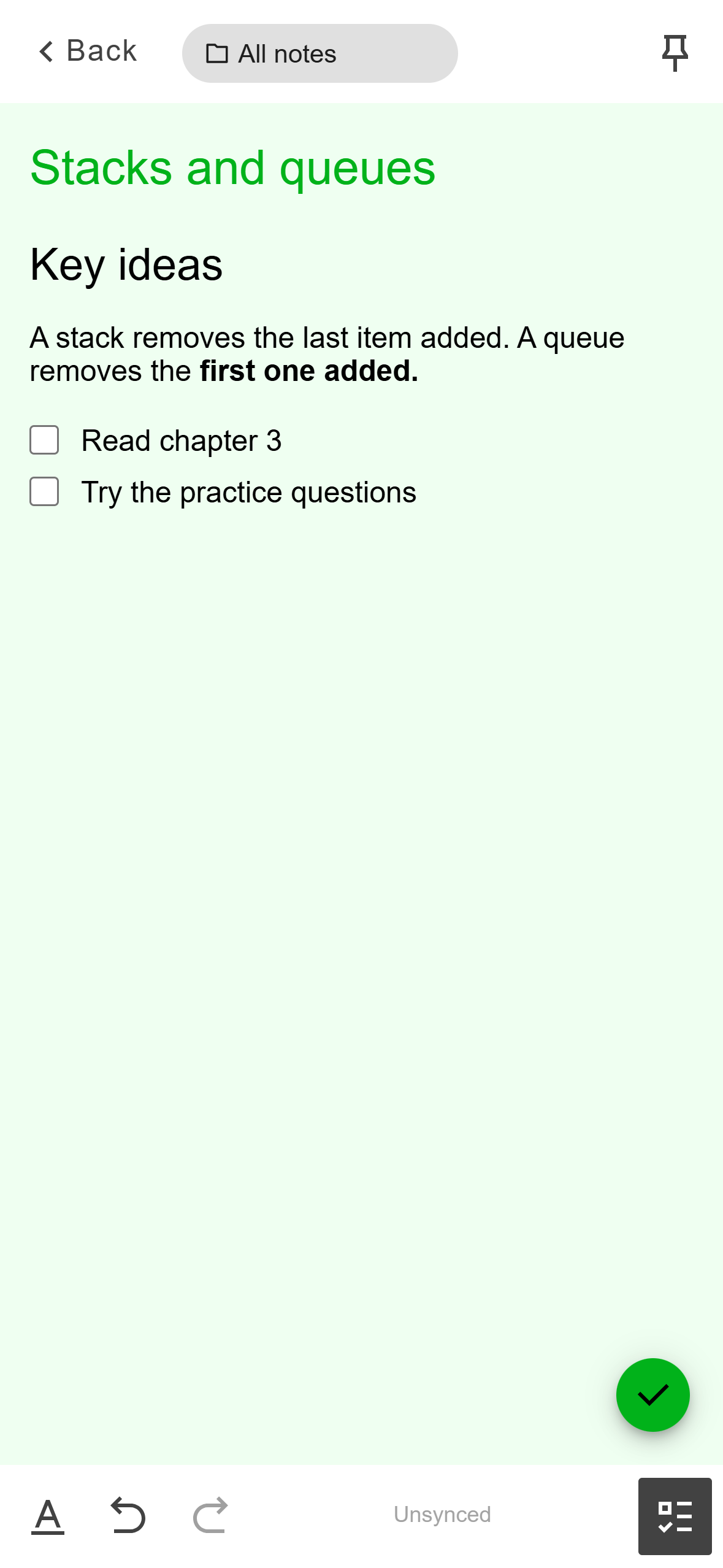
- Tap a box to tick an item.
- The checklist button.
Mobile: A checklist, with the main row back at the bottom.
There’s no bullet-list button. To start a bulleted list, type a hyphen and a space at the start of a line.
The desktop editor has two tools, and both appear only when you need them.
Select some text. A small toolbar floats above it with bold, italic, underline, strikethrough, headings 1 to 3 and quote. Click a button to apply it, and click it again to remove it.
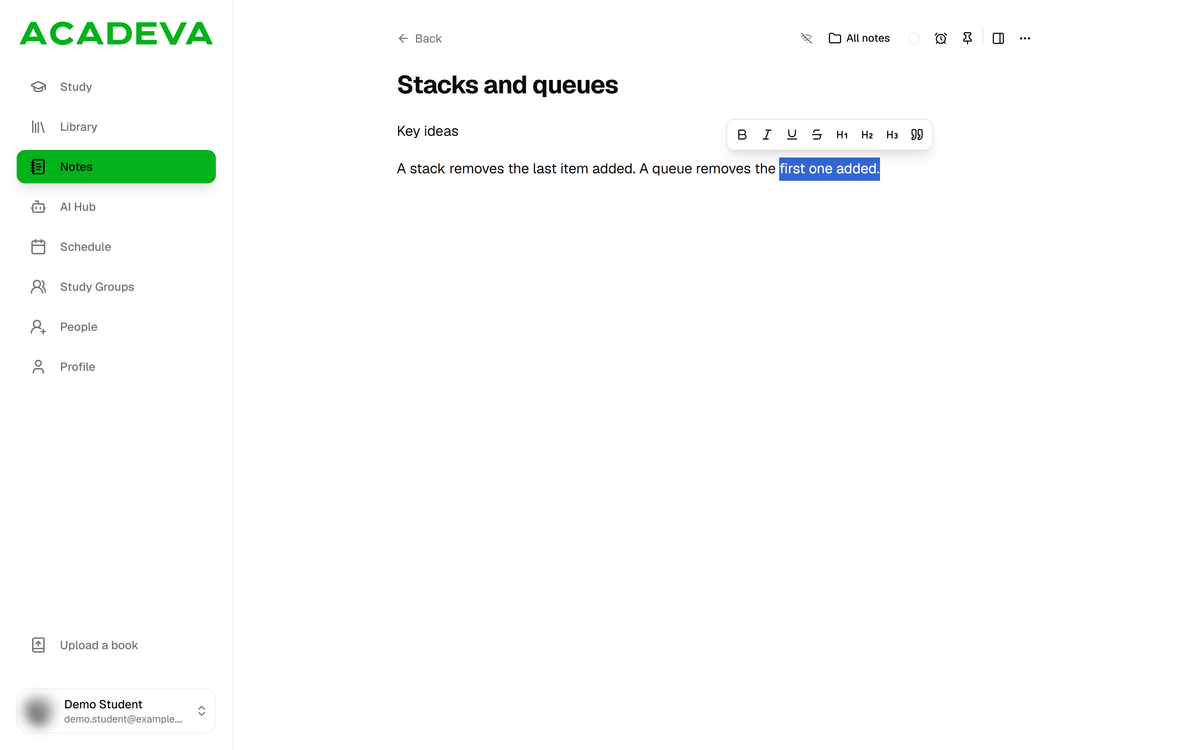
- The selected text.
- Bold, italic, underline, strikethrough, headings 1 to 3 and quote.
Desktop: Select text and the toolbar appears. To start a new block, type / on an empty line. A menu opens with Heading 1, Heading 2, Heading 3, Bullet list, Numbered list, Checklist, Quote and Code block. Keep typing to narrow the list (type div to find Divider), then press Enter or click an item. Press Esc to close the menu.
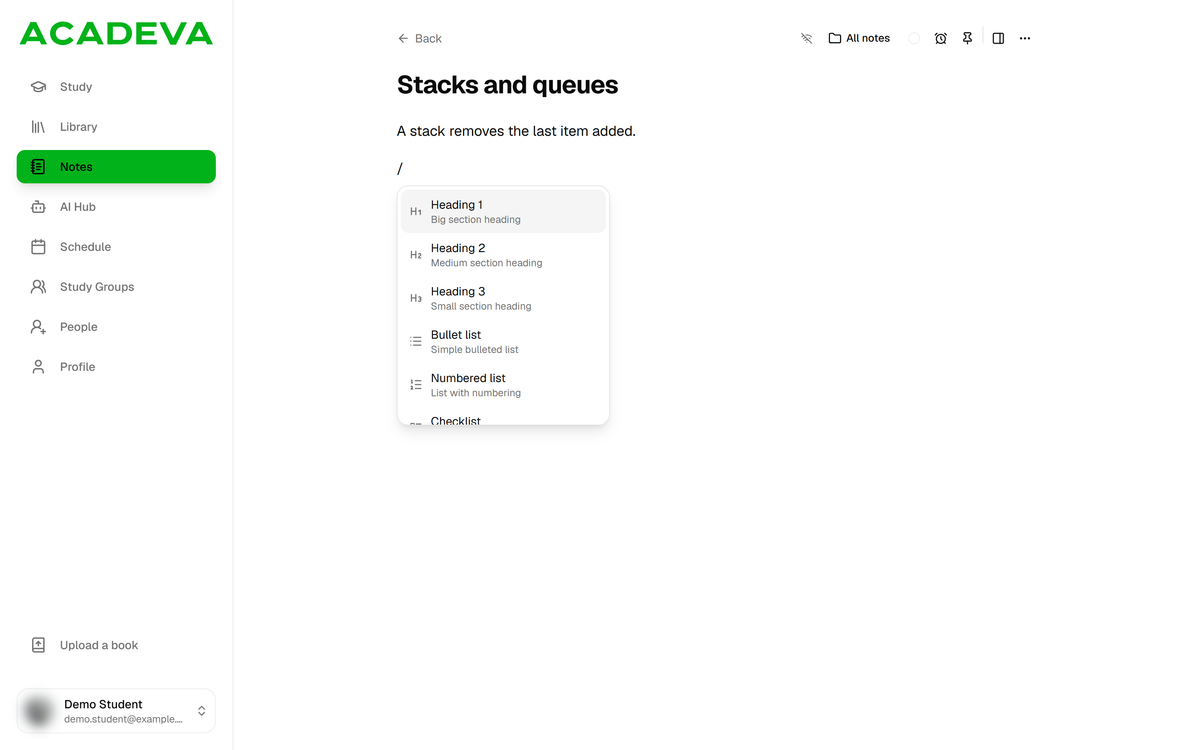
- Type / on an empty line.
- Keep typing to narrow the list, then press Enter.
Desktop: The / menu.
How a note saves
- There’s no Save button. Your note saves on your device as you type: the title straight away, and the text a moment after you stop typing.
- Acadeva then sends it to your account in the background, so it shows up on your other devices. If you’re offline, the note stays on your device and goes when you reconnect.
- The label at the bottom of the editor says Unsynced until the note reaches your account, then Synced. On the Notes list, an Unsynced changes chip shows at the bottom left while any note is waiting.
- A small crossed-out wifi icon at the top right of the note says Not synced yet while a change is waiting. On the Notes page, Syncing…, Not synced yet or Couldn’t sync with a Retry link shows beside the page title.
Don’t log out of the phone app while a note says Unsynced. The app warns that changes that haven’t synced are lost if you log out.
Other buttons in the editor
- The pin at the top right keeps a note at the top of your list, under Pinned.
- On desktop, the top bar also has the folder (All notes), colour, reminder and Pin to dock buttons. Note actions holds Delete note. Take notes while you read explains the dock.
- On desktop, Search notes at the top of the Notes page finds a note by its title or its text.
If it doesn’t work
- You can’t type in a note. It’s in reading mode. Tap the pencil at the bottom right.
- The formatting buttons are missing. Tap the A button at the bottom left to switch between the main row and the formatting row.
- A new note isn’t in your list. A note is only created once you type something. Add a title or a line of text, then go back.
- A note stays on Unsynced. Check that you’re online. The note is safe on your phone and sends once you’re connected. Notes are still syncing at the bottom of the list means the phone is still loading your notes.
- The floating toolbar doesn’t appear. It only shows while text is selected.
- The / menu doesn’t open. Type the / in the body of the note, not in the title.
- Not synced yet stays on. Check your connection. On the Notes page, click Retry next to Couldn’t sync if it shows.
- There’s an empty note called Untitled. Open the card’s Note actions menu on the Notes page and choose Delete.