
The reader opens the PDF of a book you have downloaded. It works with no connection, and it remembers the page and zoom level you stopped at in each book.
What you need
- A book downloaded to this device. If you haven’t downloaded it yet, the steps below show where. For the full story, see Download books to read offline.
Open the reader
Find the book. Open it from Study (pick a course, then Textbooks or another list), or from Library, which keeps your downloads under Downloaded books.
If the book isn’t on your phone yet, tap Download and wait for Downloading... to finish. The button is then replaced by Delete and Read.
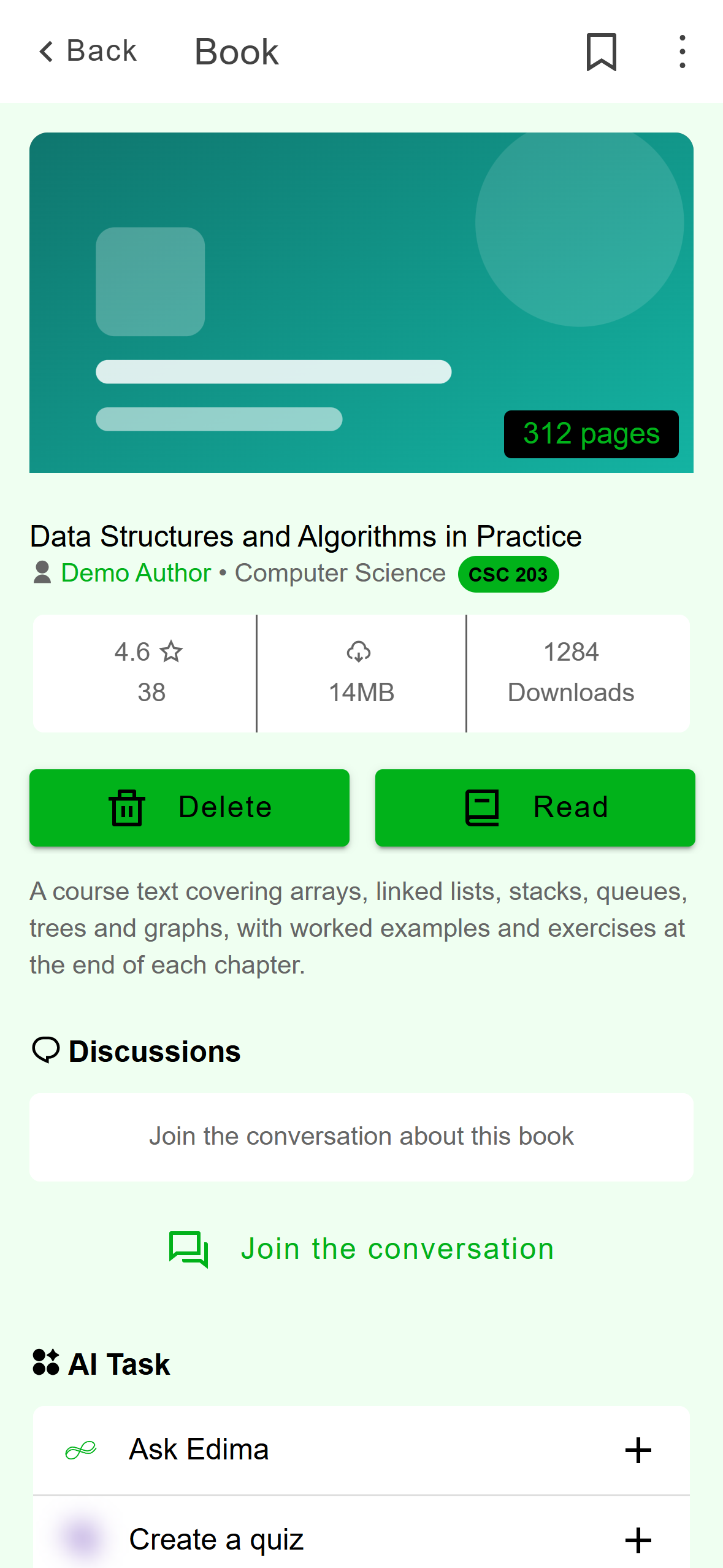
- Tap Read to open the book in the reader.
Mobile: Once a book is downloaded, the book page shows Delete and Read. Tap Read. The reader opens on the page where you left off, or on page 1 if you haven’t opened this book before.
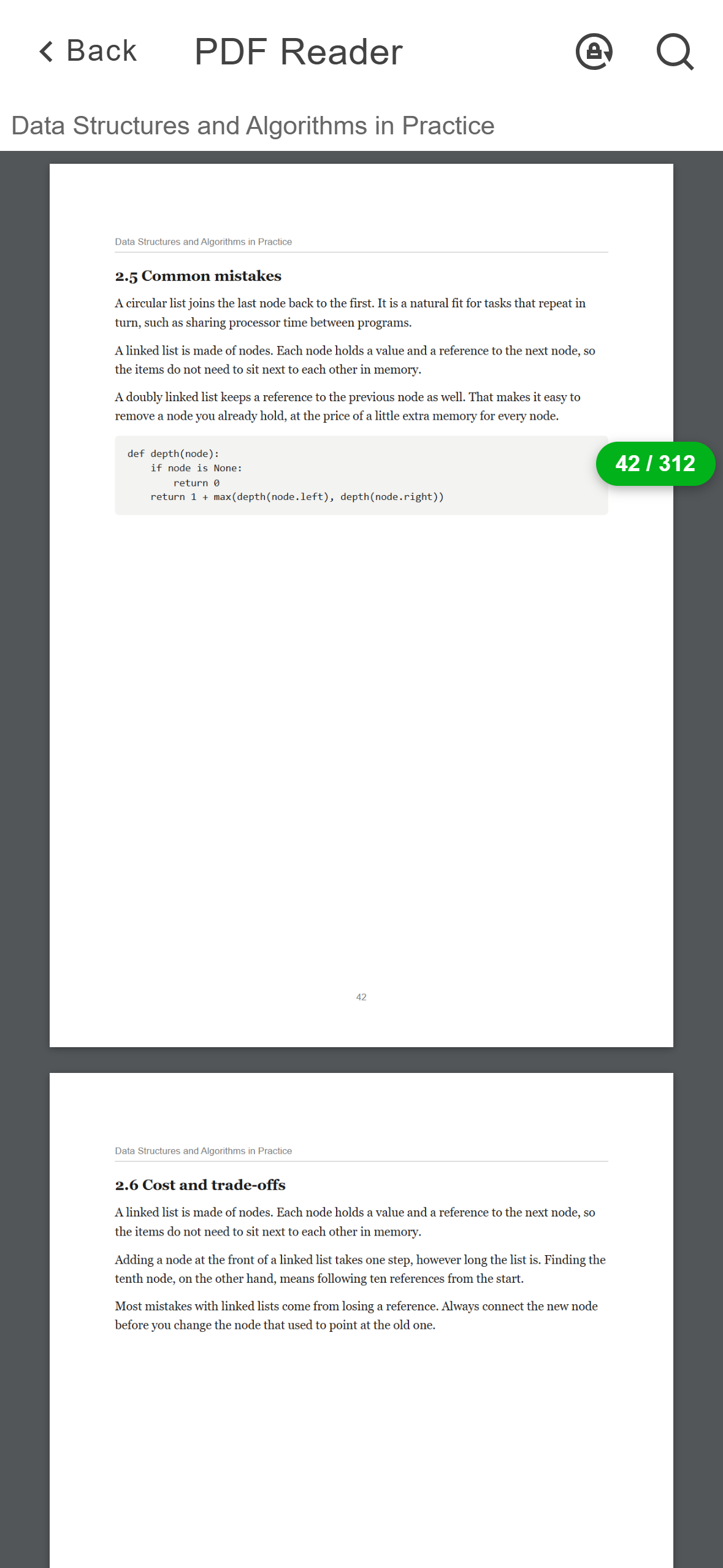
- Rotation lock: freezes the screen in its current orientation.
- Search: look for a word inside the book.
- Page counter: drag along the right edge to jump to another page.
Mobile: The reader on the phone.
Find the book. Open it from Study, or open Library, go to the Downloads tab and click the book to open its page.
If you haven’t downloaded it yet, click Download to read. A progress bar replaces the button. When it finishes you see Delete and Read.
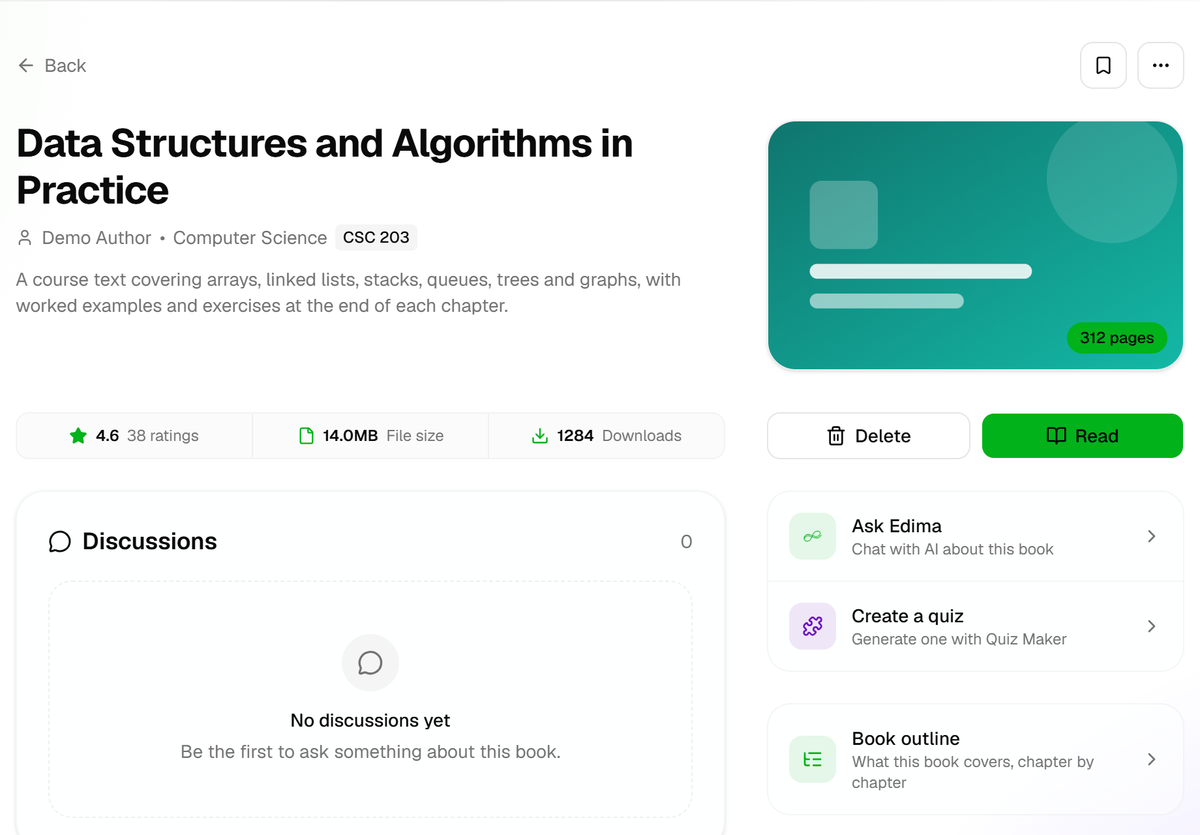
- Click Read to open the book in the reader.
Desktop: Once a book is downloaded, its page shows Delete and Read. Click Read. The reader fills the whole window. If you have been in this book before, a short message says Resuming from where you left off.
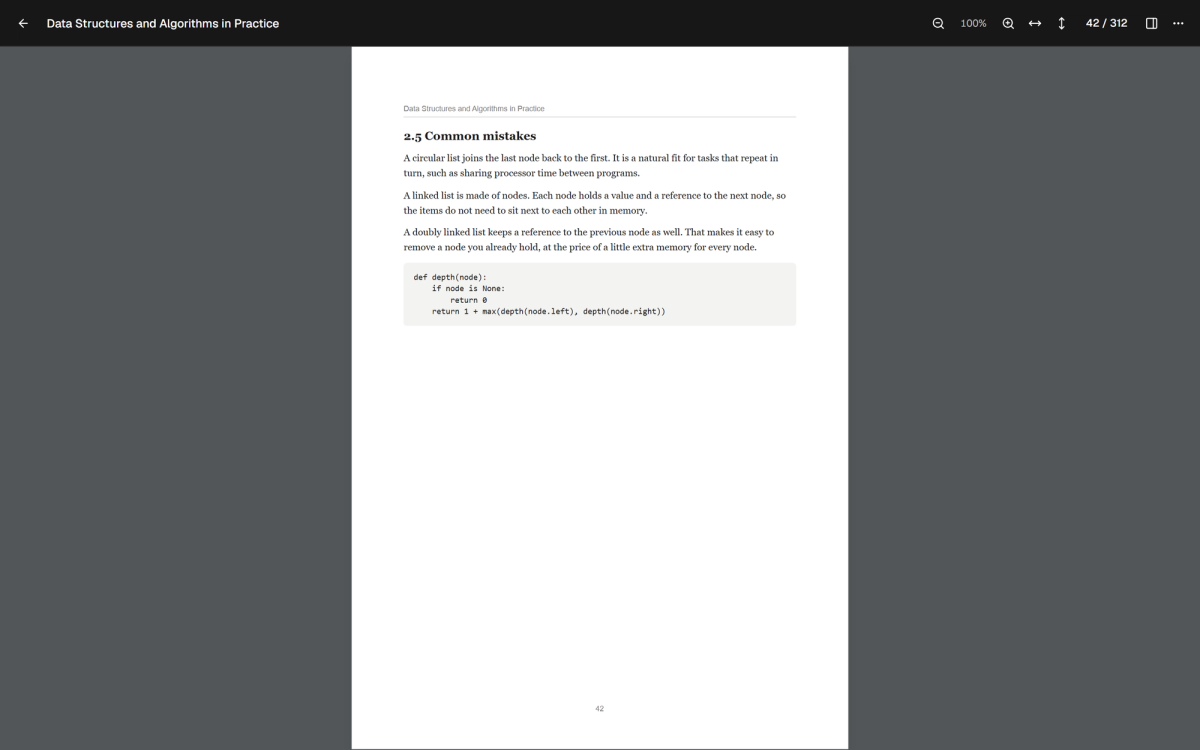
- Back arrow: leaves the reader.
- Zoom out, the zoom level, Zoom in, Fit width and Fit page.
- Page counter: click it to go to a page.
- Pin to dock: keeps the book one click away in the dock.
- More: Print.
Desktop: The reader on desktop.
You can also read a PDF that is only on your computer. Open Library, go to the This PC tab and click Open PDF, or open the file from your file manager with Acadeva. Acadeva reads the file where it is, and time spent in it isn’t added to your study time.
Move through the book
- Pages: scroll up and down. The pages run on in one column. A counter such as 42 / 312 appears on the right edge while you scroll. Drag your finger along that edge to jump to another page. It fades after a couple of seconds and comes back when you scroll or touch the screen.
- Zoom: pinch two fingers apart to zoom in and together to zoom out. The page can shrink to about 60% of the screen width or grow to 300%. When you are zoomed in, drag in any direction to move around the page.
- Rotate: turn the phone sideways to read in landscape. The top bar hides, so tap the page to bring back the back, search and rotation lock buttons at the left. They fade again after a moment. The rotation lock button holds whichever orientation you are in.
- Pages: scroll with the mouse wheel, the trackpad or the scrollbar. Click the counter in the top bar (for example 42 / 312) to open Go to page, type a page number and press Enter or click Go.
- Zoom: use Zoom out, Zoom in, Fit width and Fit page in the top bar. Click the percentage to go back to 100%. Zoom runs from 25% to 400%.
- Keyboard: Ctrl and + (or =) zooms in, Ctrl and - zooms out, and Ctrl and 0 returns to 100%. Ctrl and the mouse wheel also zooms. On a Mac, use Cmd instead of Ctrl. Esc leaves the reader.
- Print: open the More menu (three dots) at the right of the top bar and choose Print.
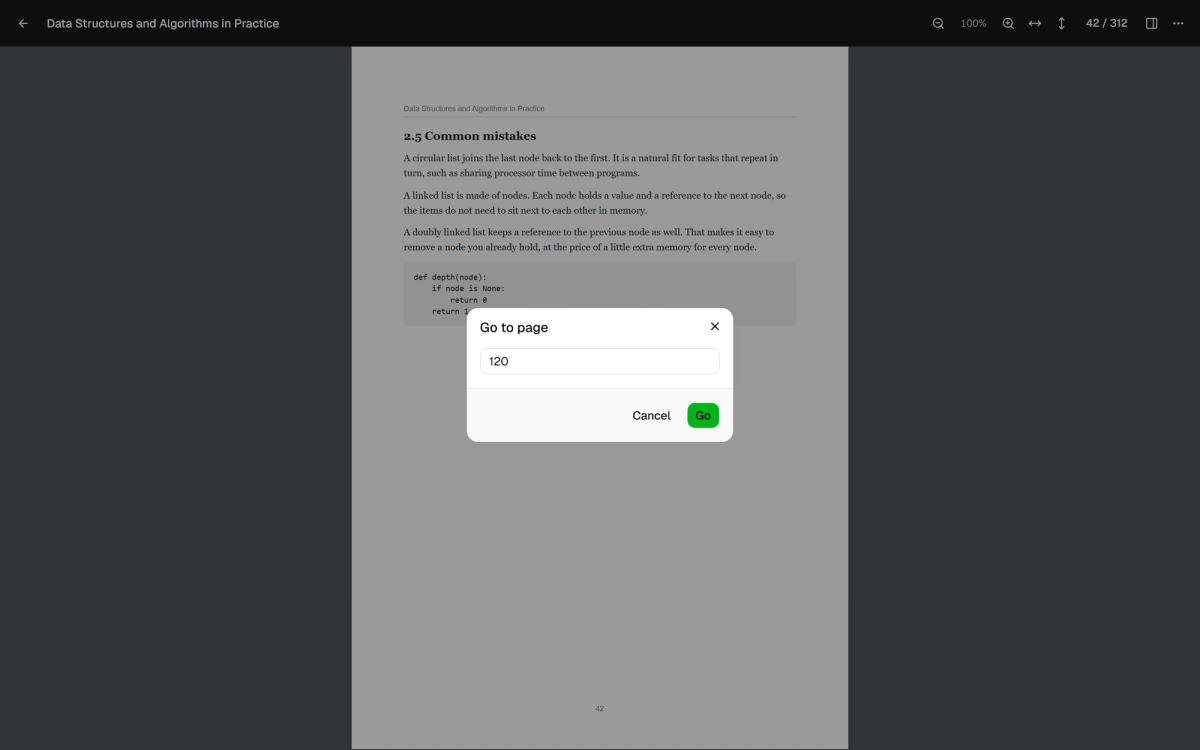
- Type the page number you want.
- Go jumps to that page.
Search inside a book
Tap the magnifier at the top right, type a word and wait a moment. Acadeva reads the text of every page, then tells you how many pages contain the word, for example 1 of 96 pages. The first matching page opens with the word highlighted in yellow. Tap the up and down arrows to move between matching pages, and the X at the left to close the search.
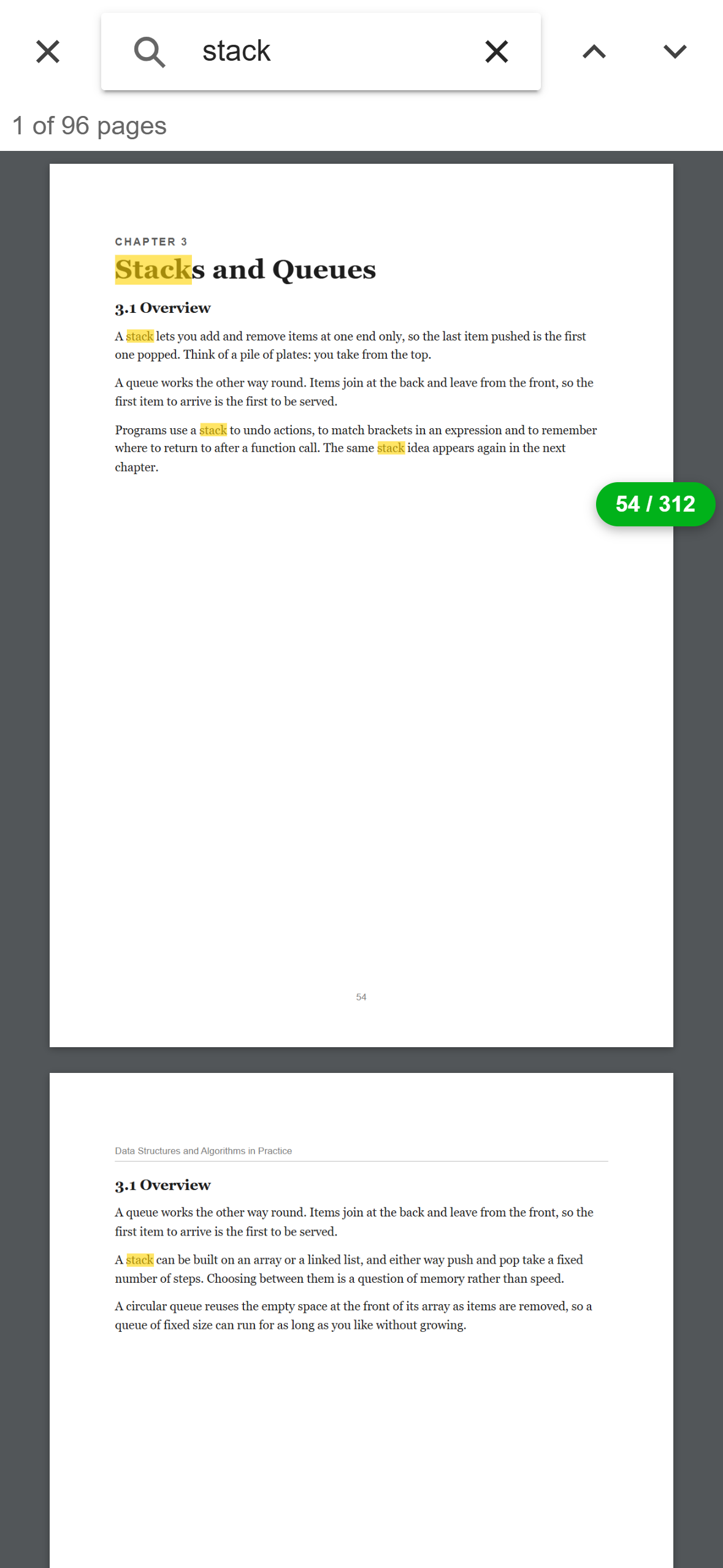
- How many pages contain the word, and which one you are on.
- Previous and next matching page.
- Matches are highlighted in yellow.
The count is of pages, not of every time the word appears. If nothing matches, you see No matches found.
Search reads the text stored in the PDF. A book made only of scanned photos has no text to search.
The desktop reader has no search box. You can select text on a page. To find a book in the catalogue, see Search for books and past questions.
Use the book outline
The reader doesn’t show the PDF’s own table of contents. Some books have a Book outline instead: an AI-written map of what the book covers, chapter by chapter. It lives on the book’s page, not in the reader. If a book has none, the row isn’t shown.
On the book’s page, scroll to Learning resources and tap Book outline. The first tap saves the outline to your phone, which needs a connection and a downloaded book. The download icon shows it isn’t saved yet. Tap the row again to open it. The copy button at the top right copies the text.
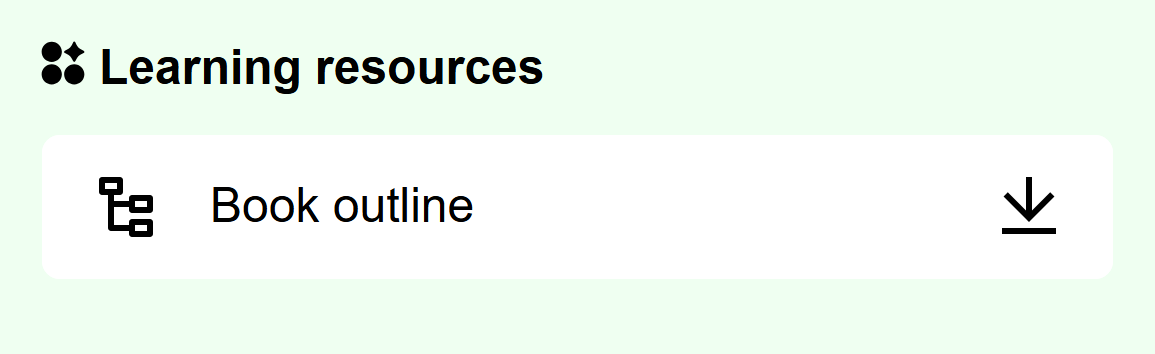
- The download icon means the outline isn’t saved on your phone yet.
On the book’s page, click Book outline. A window opens with the outline and a Copy button.
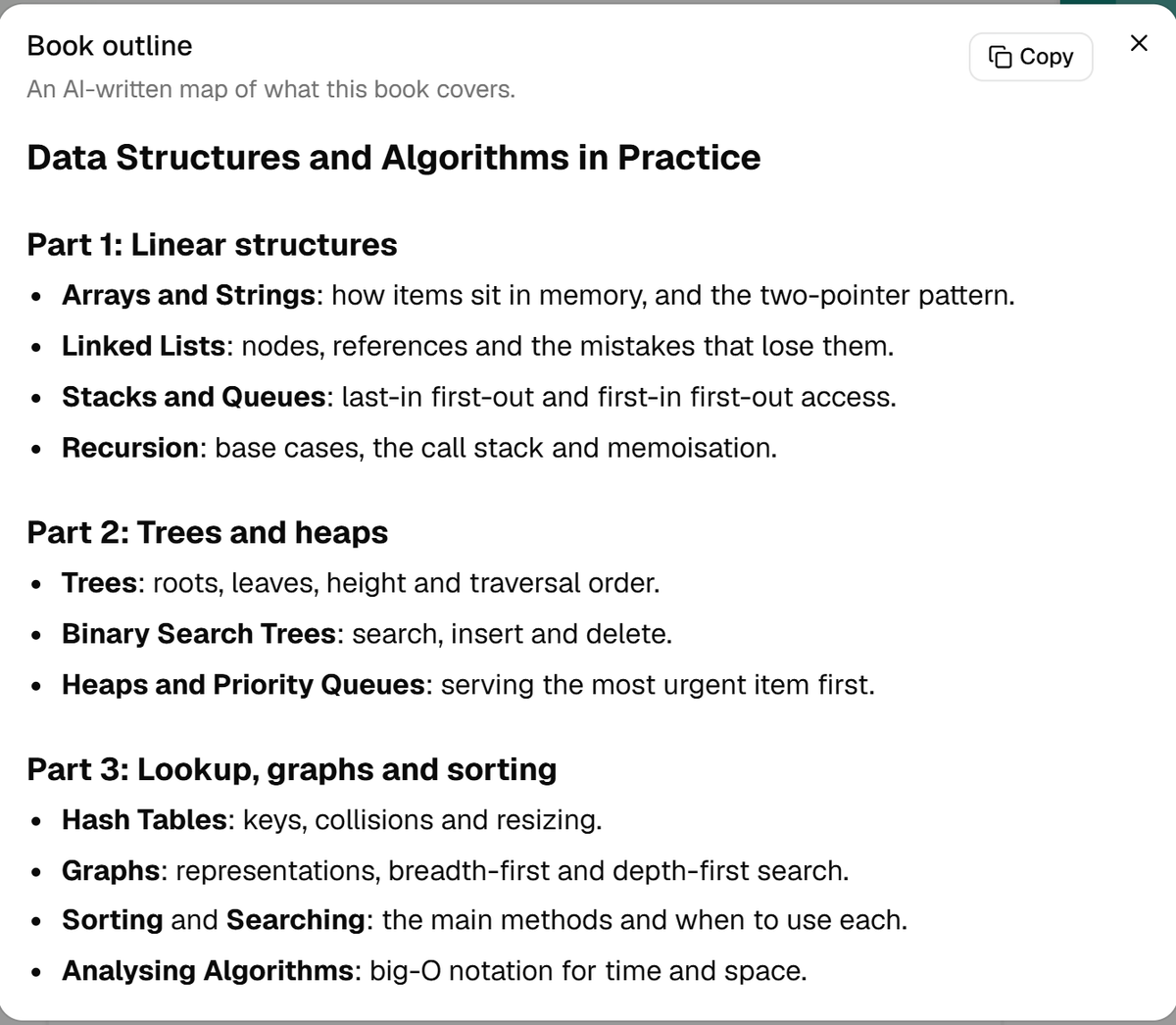
- Copy puts the outline on your clipboard.
Pick up where you left off
Acadeva saves your page and zoom for each book on the device you are using, so the book opens where you stopped. They aren’t shared between your phone and your computer. Time you spend in the reader counts toward your study time.
Leave the reader with Back on the phone, or the back arrow or Esc on a computer.
If it doesn’t work
- There’s no Read button. The book isn’t downloaded yet. Tap Download (Download to read on a computer). On the phone, Download failed comes with a Retry button.
- The reader on your phone shows only a spinner or blank pages. Go back, tap Delete on the book’s page, confirm, then download the book again.
- On a computer, This book isn’t downloaded on this device anymore means the file is gone. Click Go back, then Download to read. For a PDF from your computer, Acadeva can’t find this file means it was moved, renamed or deleted. Open it again from where it is now.
Still stuck? See A download is stuck or won’t open.