
Acadeva doesn’t have a highlight tool, and the reader has no button that saves text into a note. You can still take notes while you read by keeping a note next to the book and switching between the two. Each one keeps its place when you switch: the book stays on your page and the note keeps your text.
Before you start
- A downloaded book. If you haven’t used the reader yet, see Read a book.
- A note to write in. Create and format a note covers the editor.
Take notes next to a book
The phone reader has no text selection or copy button, and no split screen. You leave the reader, write in Notes, and come back to the same page.
In the reader, tap Back, then keep tapping Back until you reach Home.
Tap Notes. To start a new note, tap the + button and choose Create empty note. A new note opens ready to type in.
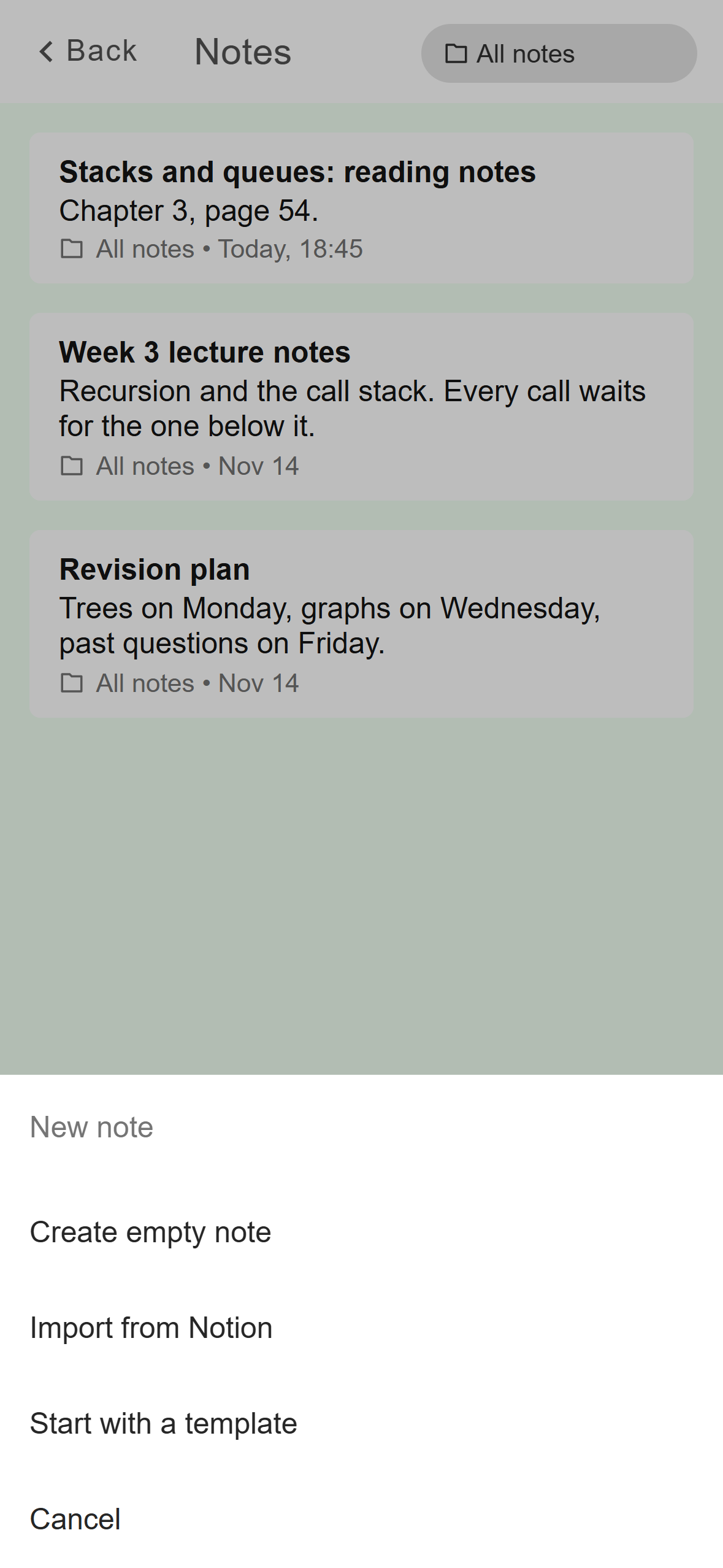
- Create empty note opens a blank note.
- Tap a note in the list to open it instead.
Mobile: The New note sheet on the Notes screen. To add to a note you already have, tap it, then tap the pencil button at the bottom right. Your notes save as you type.
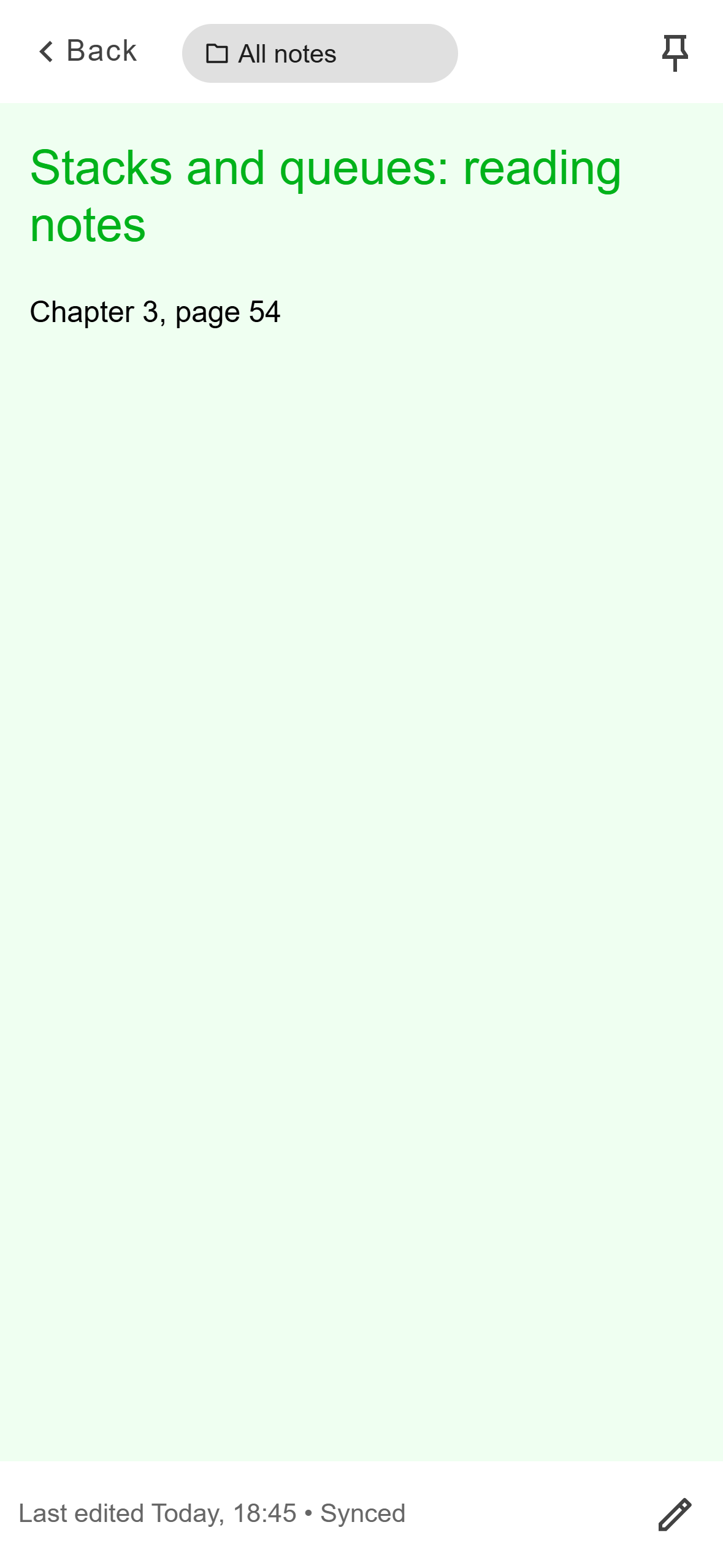
- Tap the pencil to edit the note.
Mobile: An existing note opens for reading. The pencil button lets you edit it. To go back to the book, open it from Library (under Downloaded books) or from Study, then tap Read. The reader opens on the page where you stopped.
The desktop app has a dock: a strip on the right edge of the window that holds the books and notes you pin to it. It appears as soon as you pin something. You copy text from the reader, then switch to your note through the dock.
Open Notes, then open the note you want to use, or click New note and choose Blank note.
In the note’s top bar, click Pin to dock. It is the panel icon just right of the pin. The pin icon itself is a different button: it pins the note inside your Notes list, not in the dock.
Open your book and click Read, then click Pin to dock in the reader’s top bar. The dock now shows the book and the note as two icons.
Drag across the text on the page with the mouse to select it, then press Ctrl and C (Cmd and C on a Mac).
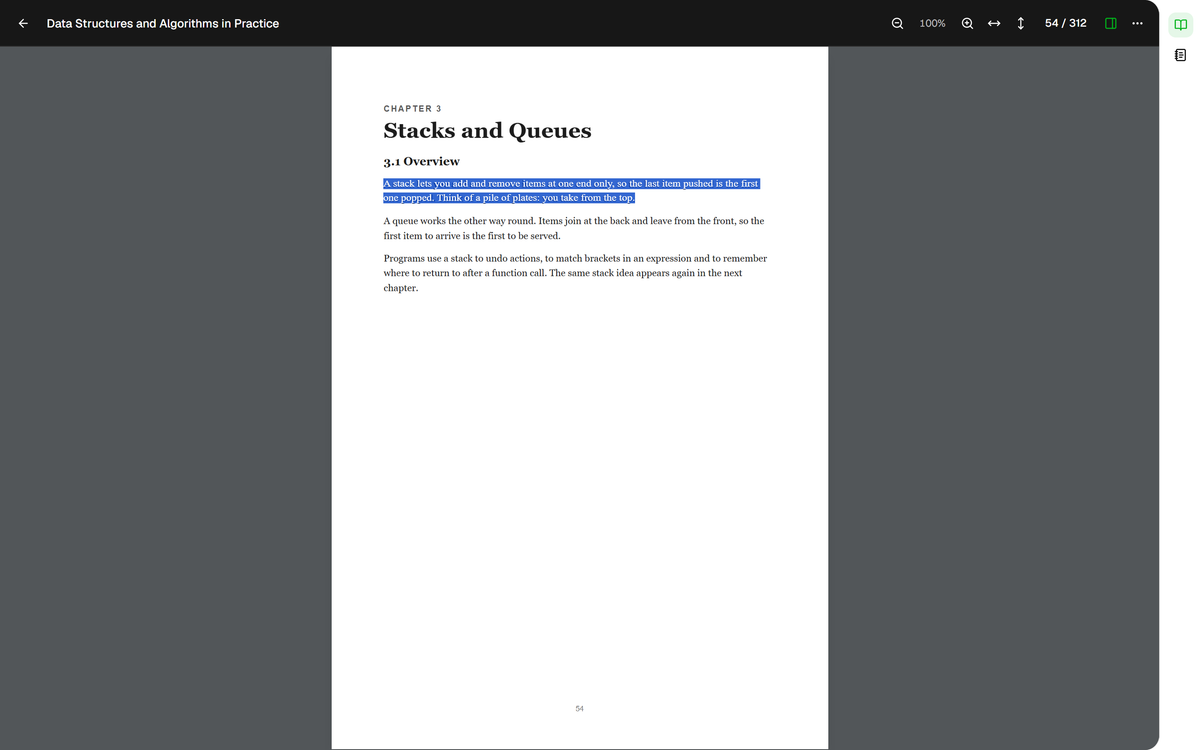
- Drag across the text to select it, then copy it.
- Pin to dock: puts this book in the dock.
Desktop: Select the text you want, then copy it. Move the pointer to the right edge of the window. The dock opens and lists your pinned items under Open items. Click the note.
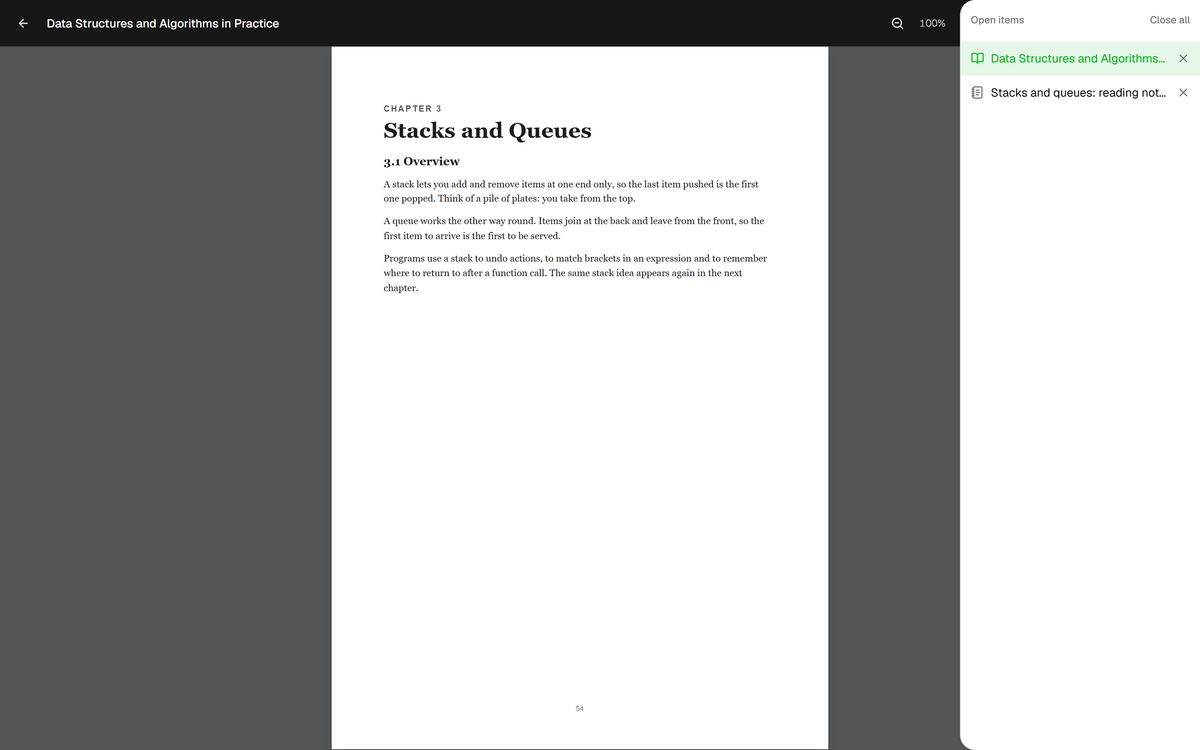
- Click the note to switch to it.
- The book you were reading. Click it to come back.
Desktop: The dock, opened by moving the pointer to the right edge. Click where you want the text in the note and press Ctrl and V (Cmd and V on a Mac). Then write your own words under it. The note saves as you type.
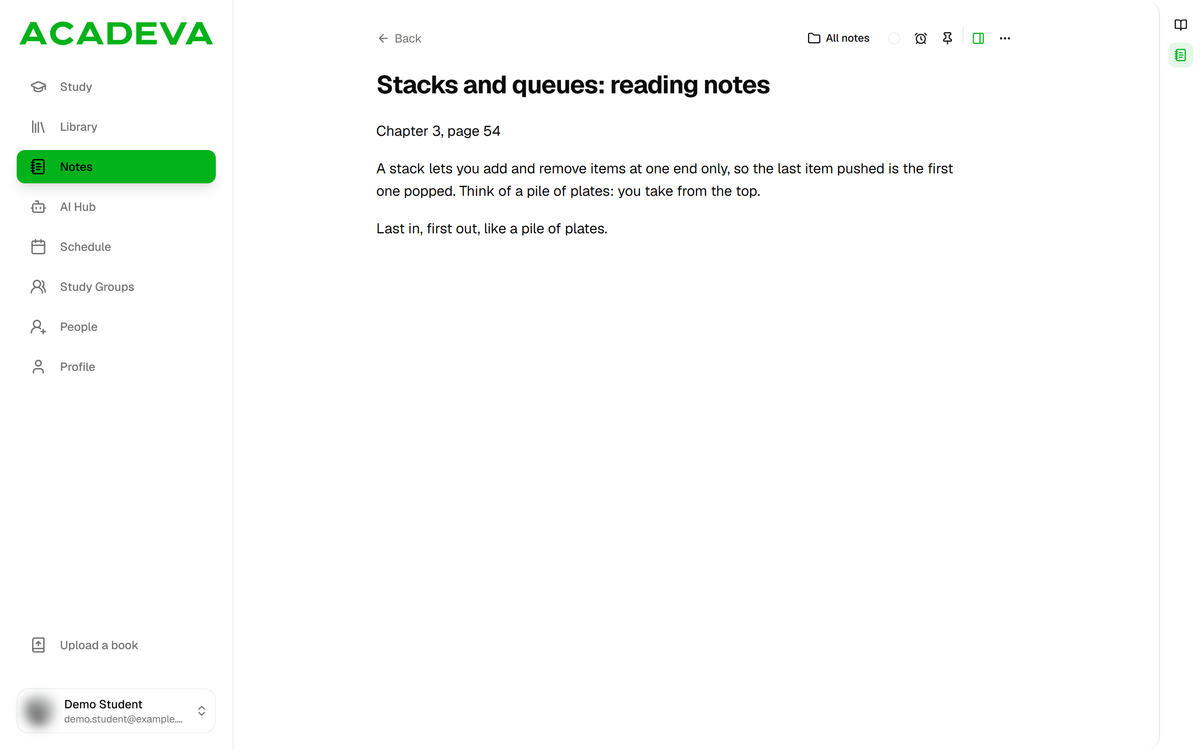
- The copied text, pasted into the note.
- Pin to dock: keeps this note in the dock.
- Click the book icon in the dock to go back to reading.
Desktop: The copied text in the note, with your own words under it. To go back to the book, move the pointer to the right edge and click the book. It opens on the page you were on.
To tidy up, open the dock and click the X beside an item to unpin it, or click Close all. Unpinning doesn’t delete the book or the note. The dock is saved on the computer you are using, so your pins don’t follow you to another device.
Start each passage with the page number from the reader’s counter, for example Chapter 3, page 54. It makes the place easy to find again.
Notes sync through your account, so a note you write on your phone is also on your computer.
If it doesn’t work
- Your note isn’t in the list. Notes can take a moment to arrive. Notes are still syncing shows at the bottom of the list while they do.
- There’s no dock on the right edge. It only appears once something is pinned. Click Pin to dock in the reader or in the note.
- You can’t select text on a page. Give the page a moment to finish loading. A book made only of scanned photos has no text to select, so type the passage yourself.
- The note isn’t in the dock after you clicked the pin in its top bar. That pin works inside your Notes list. The dock button is the panel icon beside it.