
Downloading a book saves a copy on your phone or computer. Once it is there you can open it with no connection: on a bus, in a hall with no signal, or when your data runs out.
The pictures in this article use a made-up book. Yours will show the books you download.
Before you start
- You need a connection while the book downloads. The file size is on the book page, next to the rating.
- Acadeva doesn't cap how many books you download or how big they are. Your free space is the limit.
- A download belongs to one account on one device. If you also use Acadeva on another phone or computer, download the book there too. A second account on the same device keeps its own downloads.
Download a book
The download control is on the book's own page. Open the book first, from Study, from a course or from your search results.
On the Book screen, find the green Download button under the file size and rating.
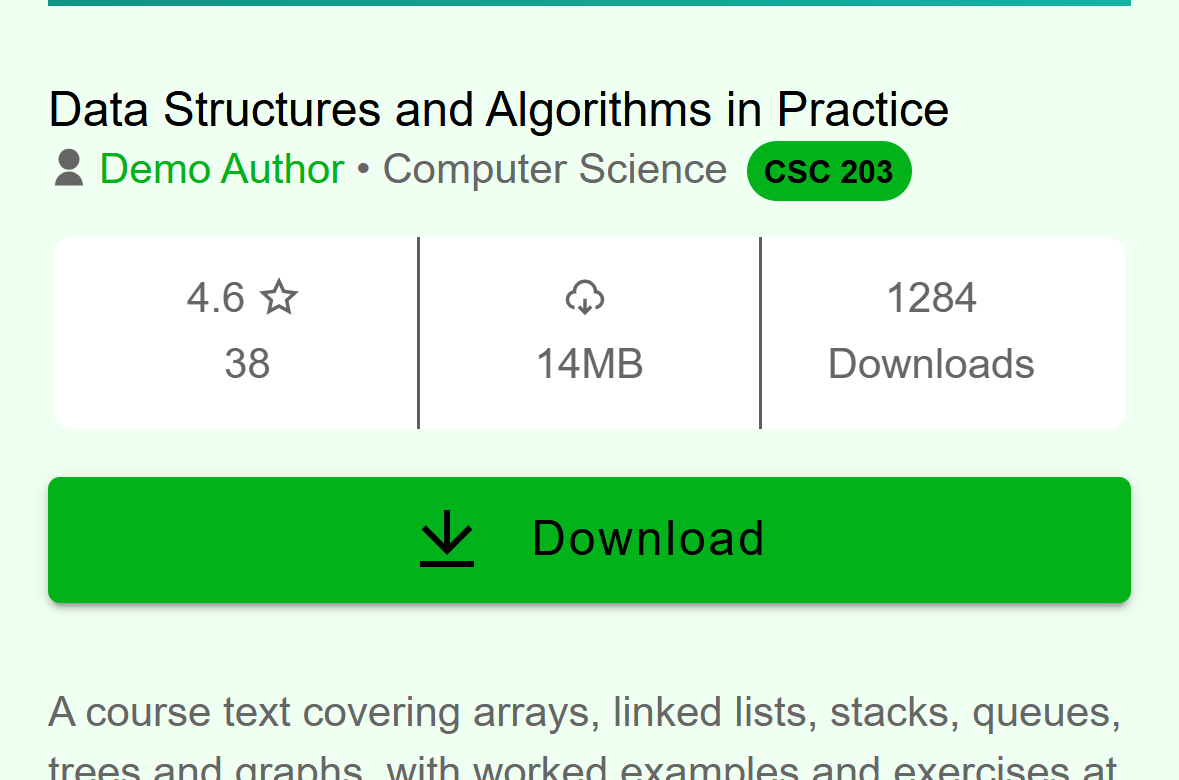
- Tap Download to save the book on this phone.
Mobile: The Download button on a book's page. Tap Download. A message says Starting download. Don't close the app. Keep Acadeva open until the download finishes.
The button is replaced by Downloading... 42% (your number will climb as the file arrives), a progress bar and a Cancel button. If Acadeva can't tell how big the file is, the bar keeps moving and the text reads just Downloading....
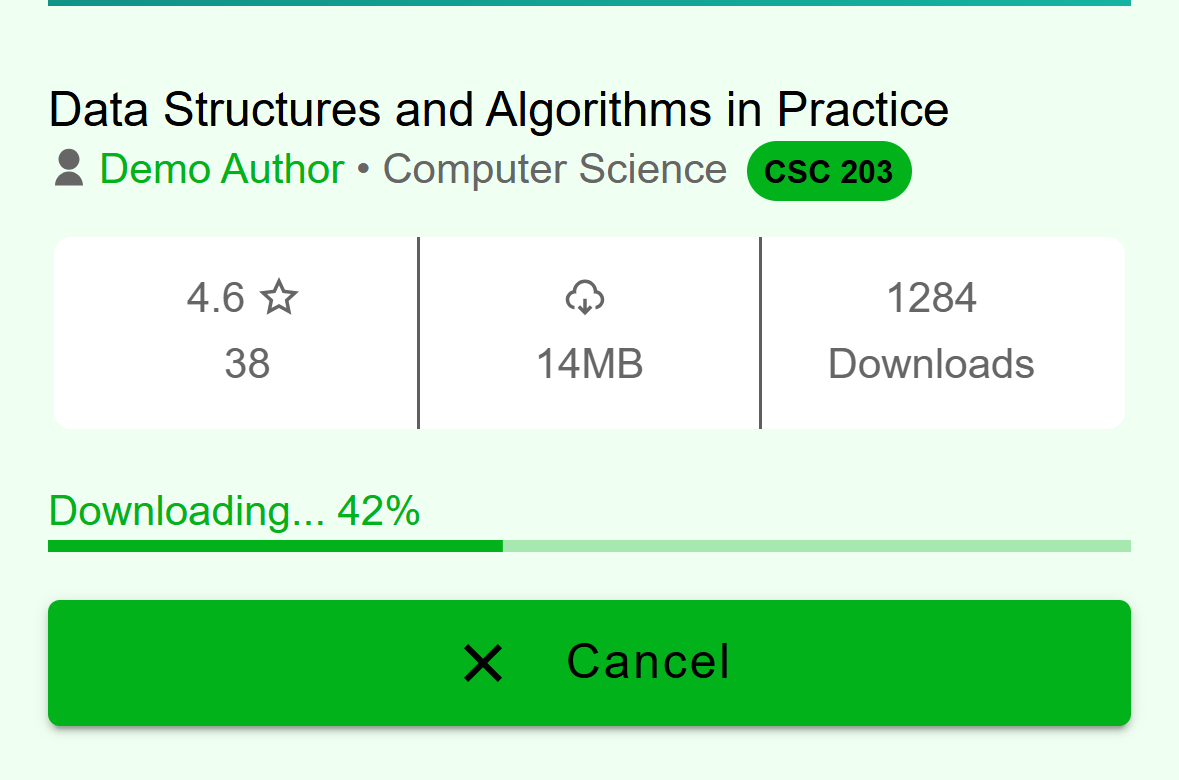
- The percentage and the bar show how much of the file has arrived.
- Cancel stops the download.
Mobile: A download in progress. When the download is done, the buttons change to Delete and Read. If notifications are allowed for Acadeva, a Download completed notification names the book.
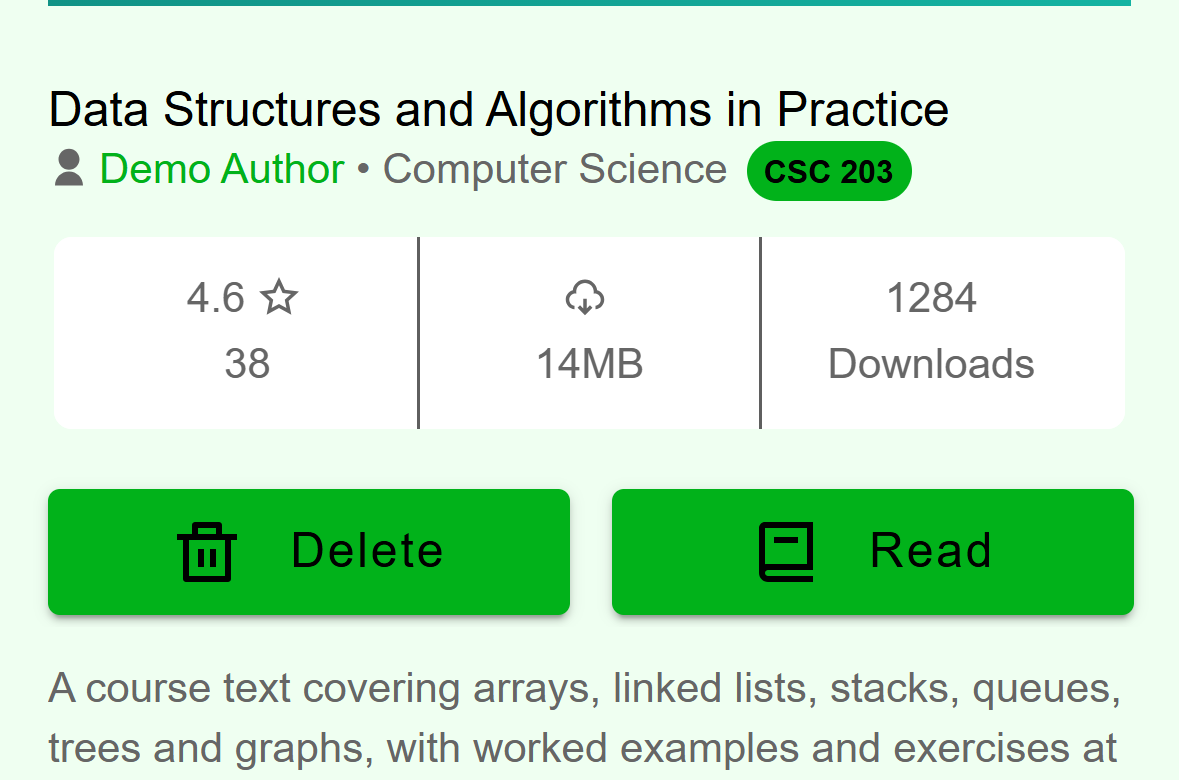
- Delete removes the saved copy from this phone.
- Read opens the saved book.
Mobile: A downloaded book shows Delete and Read.
Acadeva downloads one book at a time. If you start a second book while the first is still going, the second shows a grey placeholder bar instead of a button until its turn comes.
If you close the app while a book is downloading, the download starts again from the beginning the next time you open Acadeva.
Open the book's page and click Download to read, the green button under the cover.
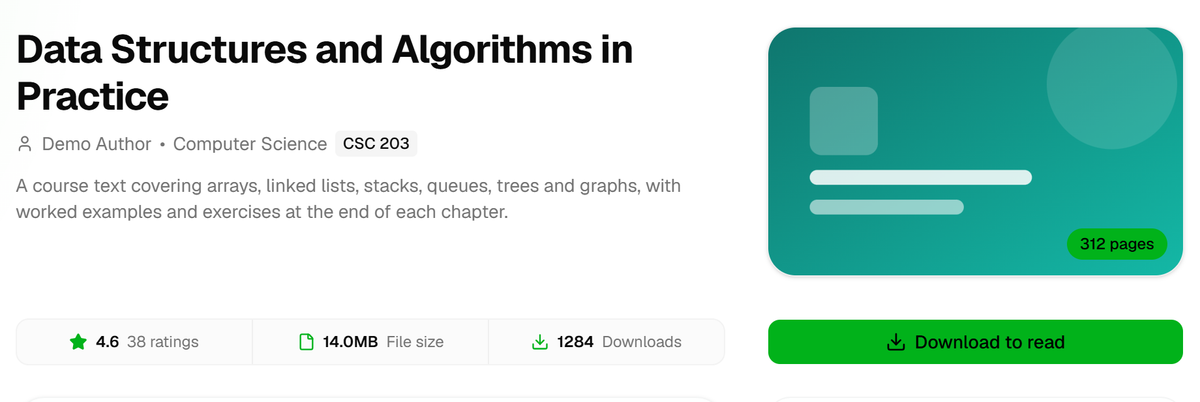
- Click Download to read to save the book on this computer.
Desktop: The Download to read button on a book's page. The button turns into a bar that reads Downloading... 42% (your number will climb as the file arrives). If Acadeva can't tell how big the file is, it reads just Downloading... and the bar keeps moving. Click the X at the right end of the bar, Cancel download, to stop.
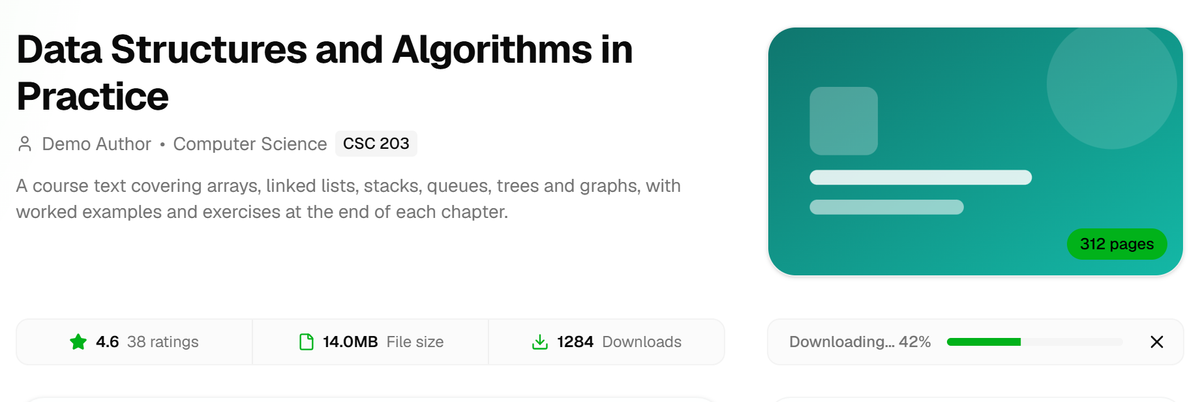
- The percentage and the bar show how much of the file has arrived.
- Cancel download stops it.
Desktop: A download in progress. When it finishes, a note at the bottom of the window says Downloaded and the book's title, with a View link. The buttons change to Delete and Read.
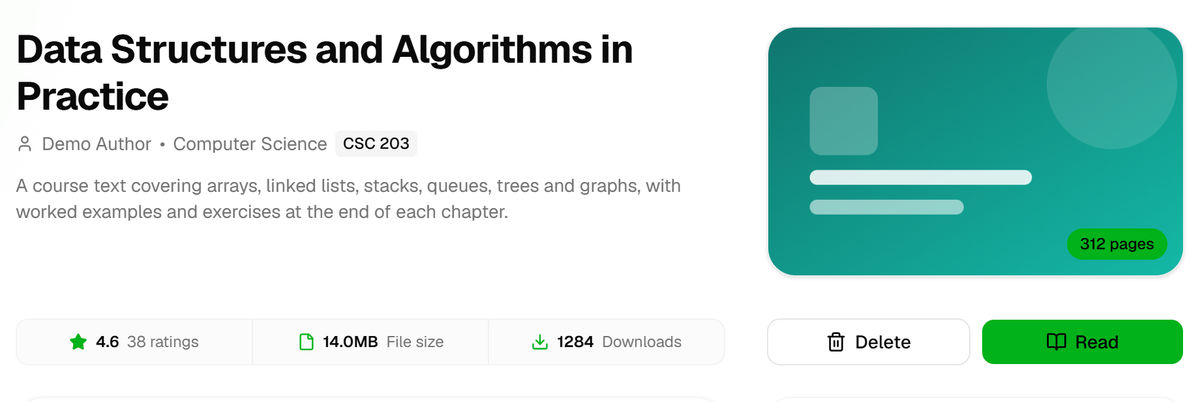
- Delete removes the saved copy from this computer.
- Read opens the saved book.
Desktop: A downloaded book shows Delete and Read.
Your computer can also show a Download completed notification. Turn it on or off in the account menu at the bottom of the left rail: Settings, General, then Download complete.
Closing the desktop app stops a download in progress, and nothing resumes by itself. Open the app again and the button says Download to read.
Read it offline
Every downloaded book is listed in Library.
On the Home tab, tap Library. Its subtitle reads Offline books & lists, and the number on the right is how many books are saved on this phone.
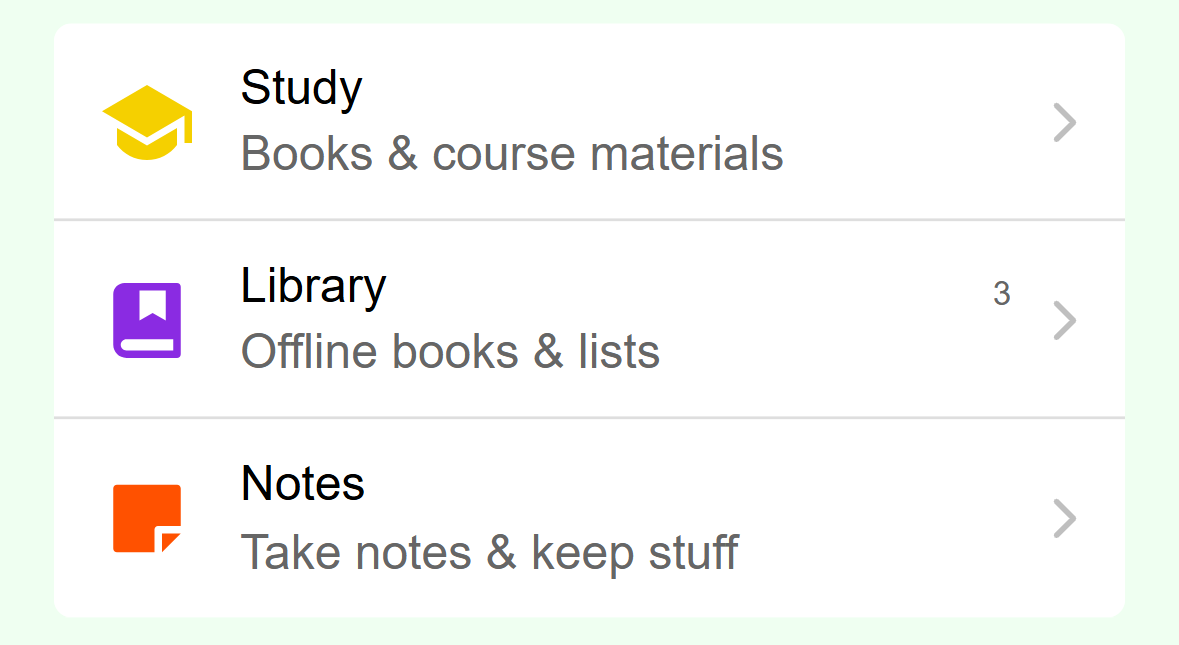
- Tap Library. The number is how many books are saved on this phone.
Mobile: Library is the second row on Home. Tap Downloaded books under Available lists. If you see It's quiet in here instead, nothing has finished downloading yet.
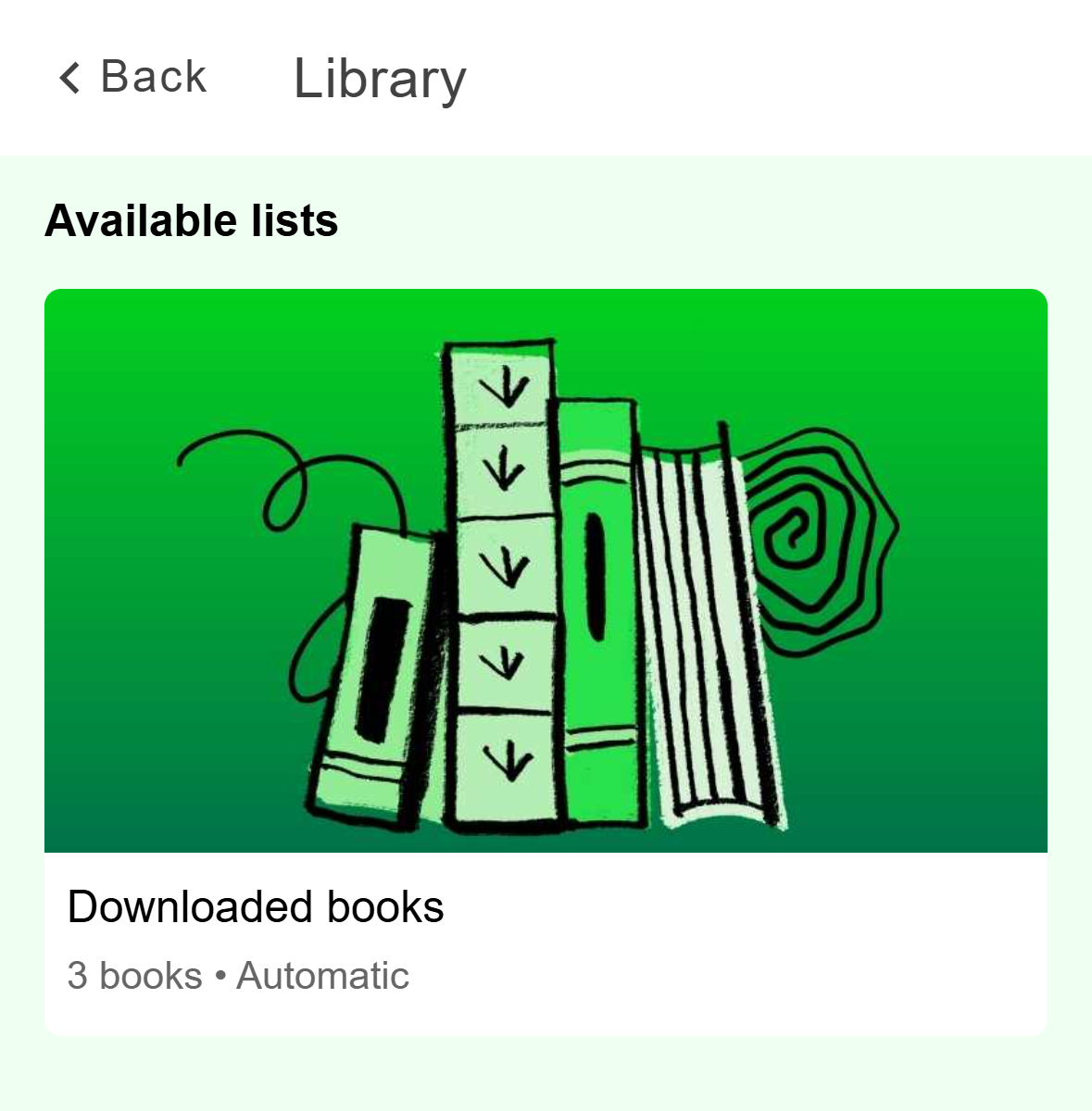
- Everything you have saved on this phone is in this list.
Mobile: Downloaded books is the one list in Library. Tap a book, then tap Read on its Book screen.
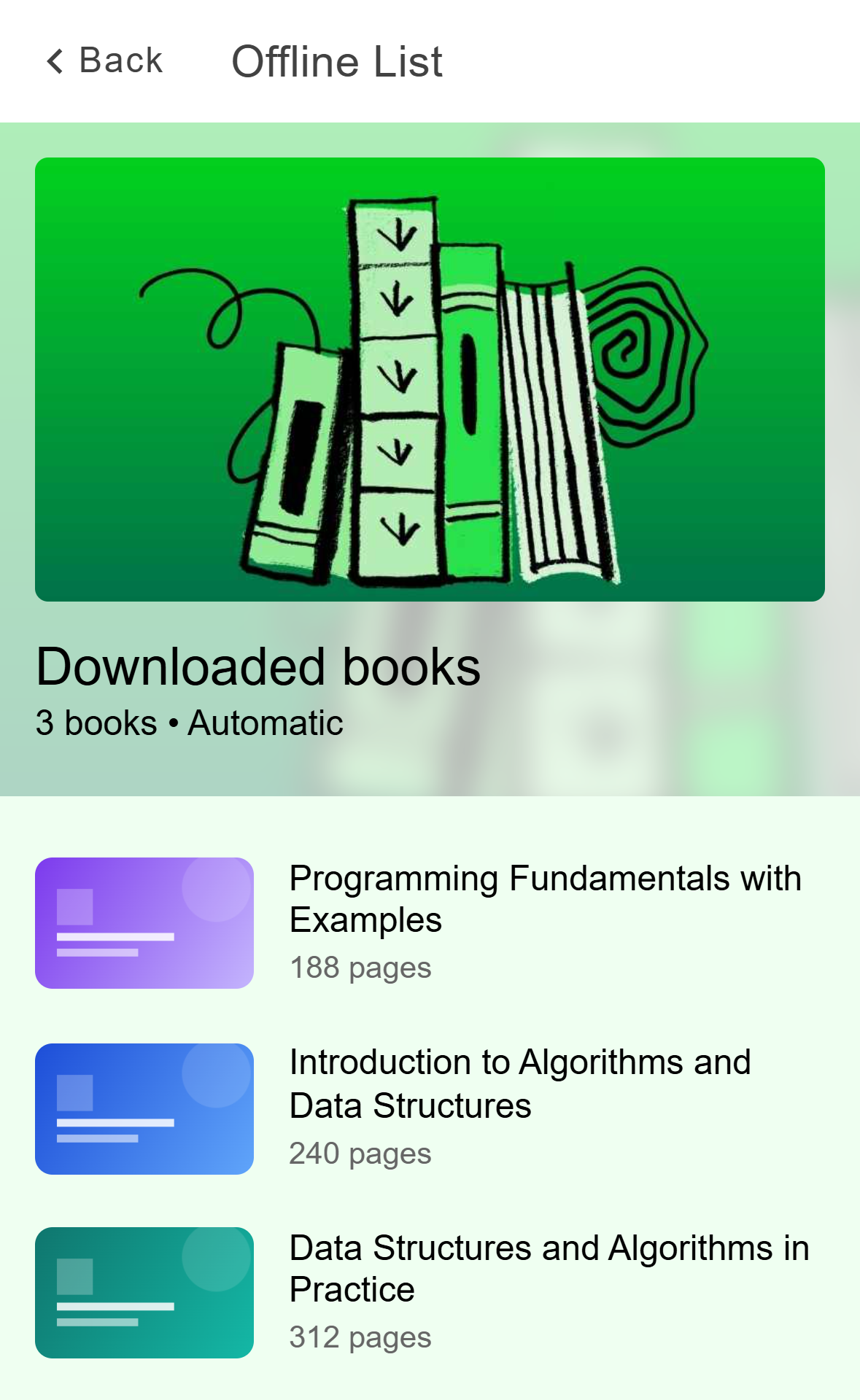
- Tap a book to open it.
Mobile: The offline list. Newest downloads come first.
A book opened from this list always loads from the saved copy, even when you are online. The screen shows a row that says You are now viewing this book offline. Tap View online on that row to load the full page with ratings and reviews. Those need a connection.
If a book has a Book outline under Learning resources, it is saved separately. After the book is downloaded, tap the outline once to save it too. It shows a download icon until you do. Before the book is downloaded, tapping it only asks you to download the book first.
Click Library in the left rail. It opens on the Downloads tab.
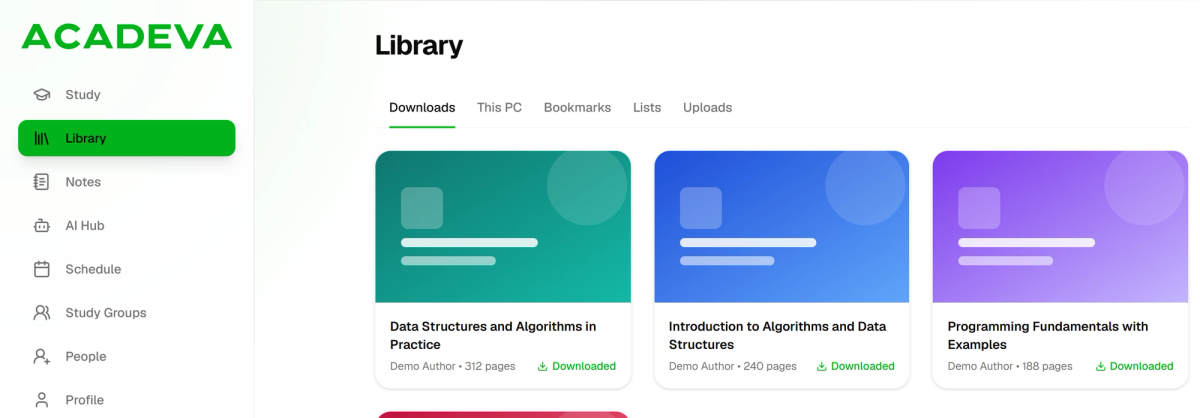
- Click Library in the left rail.
- Downloads is the tab Library opens on.
- Each downloaded book has a Downloaded tag. Click one to open it.
Desktop: Library, Downloads tab. On the book's page, click Read.
With no connection, a downloaded book still opens from your saved copy. The page shows You're viewing this book offline, with a View online button. The bookmark button and the three dots menu are greyed out, and the discussions, reviews and Book outline sections are hidden until you are back online.
Where downloads are kept
Downloads live in Acadeva's own storage on your phone, not in your Files app or your gallery. To see how much space they use, open the You tab, tap Offline & Sync and look at Books & PDFs under Local storage.
The three dots menu on the Book screen also has Download to Phone. That one opens the PDF in your browser so you can save an ordinary file. It does not appear in Library, and Acadeva can't open it offline.
Downloads live in Acadeva's app data folder on your computer, not in your Downloads folder. To see how much space they use, open the account menu at the bottom of the left rail, choose Settings, then Offline & Sync, and look at Books & PDFs under Local storage.
Remove a download
To free space, open the book and tap or click Delete. Acadeva asks you to confirm, and you can download the book again whenever you like.
If a download doesn't finish
Cancel it and start again. If a book stays stuck or won't open after that, see A download is stuck or won't open.