
Acadeva keeps one catalogue of books, and past questions are in it too, as books. You can find any of them by typing a title, a course code or both. This article shows where search is, how the suggestions work and how to find past questions for a course.
Open search
Search lives on the Study screen. Your recent searches are saved to your account, so the list is the same on your phone and your computer.
Open Home, tap Study, then tap Search books at the top right.
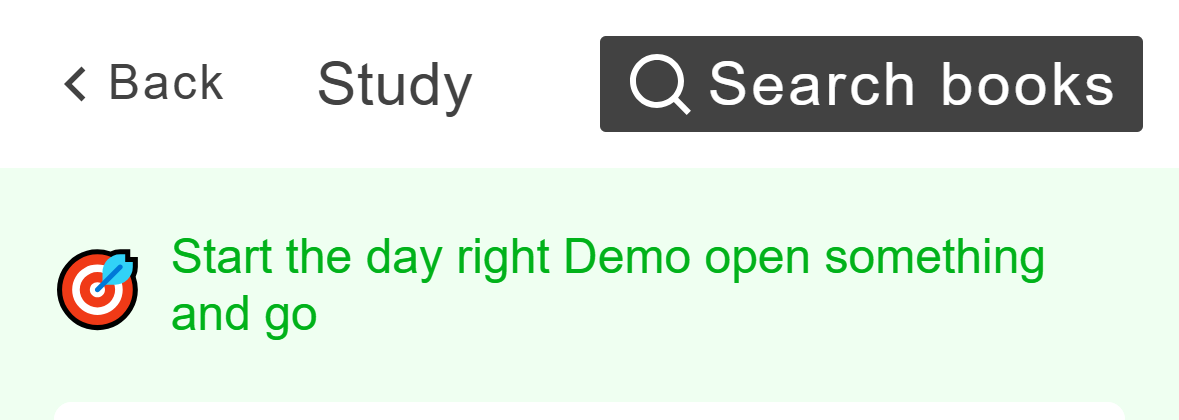
- Tap Search books.
Mobile: Search books is in the header of the Study screen. The field says Search for a book. If you have searched before, Recent searches lists your last ones. Tap one to run it again. The bin icon clears the whole list, and the X on a row removes only that search.
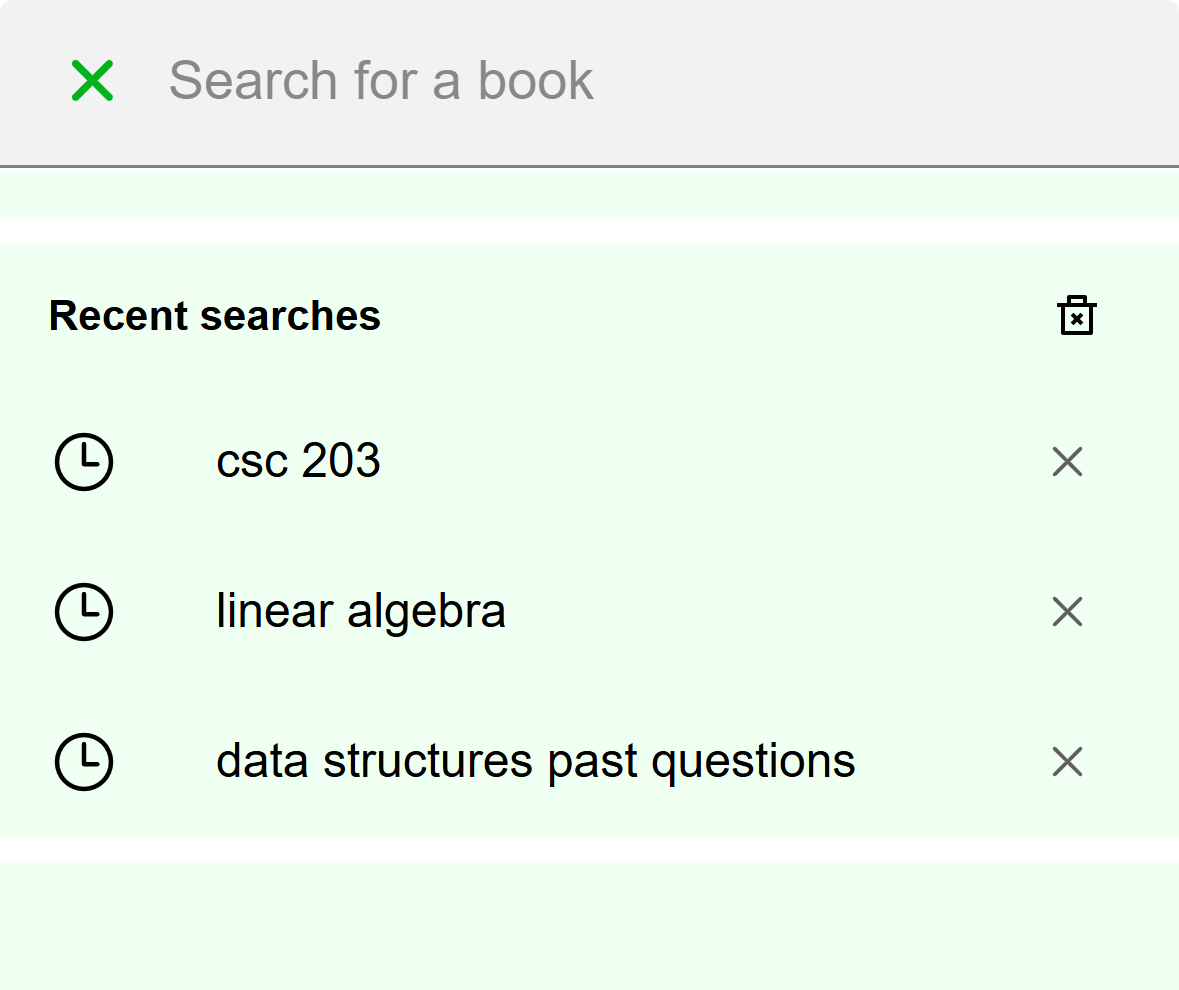
- Tap a recent search to run it again.
- The bin clears all recent searches.
Mobile: The search screen before you type. These searches are examples.
Click Study in the left rail, then click Search books at the top right. A search box opens over the page. Press Esc to close it.
With the box empty, Recent searches lists your last ones. Click one to run it again. Clear removes the whole list, and the X on a row removes only that search. With no searches yet, the box says Search the Acadeva library by title or course code.
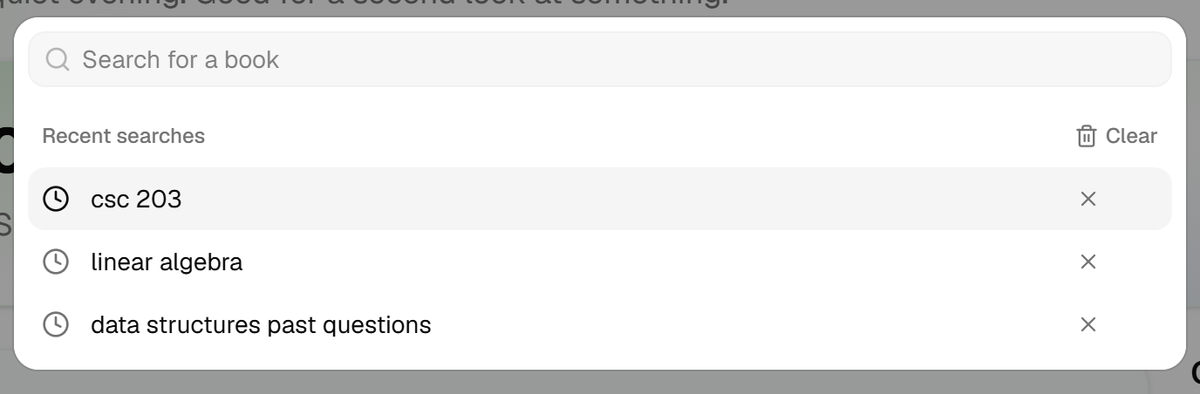
- Click a recent search to run it again.
- Clear removes all recent searches.
Desktop: The search box before you type. These searches are examples.
Type what you know
You don't need the exact title. Any of these work:
- A course code. Both MTH 101 and MTH101 work. Typing only the letters, such as CSC, brings up books for courses with that code. Typos are not corrected in the numbers, so check them: MTH 111 and MTH 112 are different courses.
- Part of a title. The last word can be unfinished, so mathem finds Mathematics.
- A topic. A search such as calculus past questions looks for books about the topic, not only exact title matches.
- A small typo in a longer word is usually forgiven.
Start typing. Under the field you see books whose course code matches, written like CSC 203 and the title, then title suggestions below them. Tap a book to open it, or tap a suggestion to search for it.
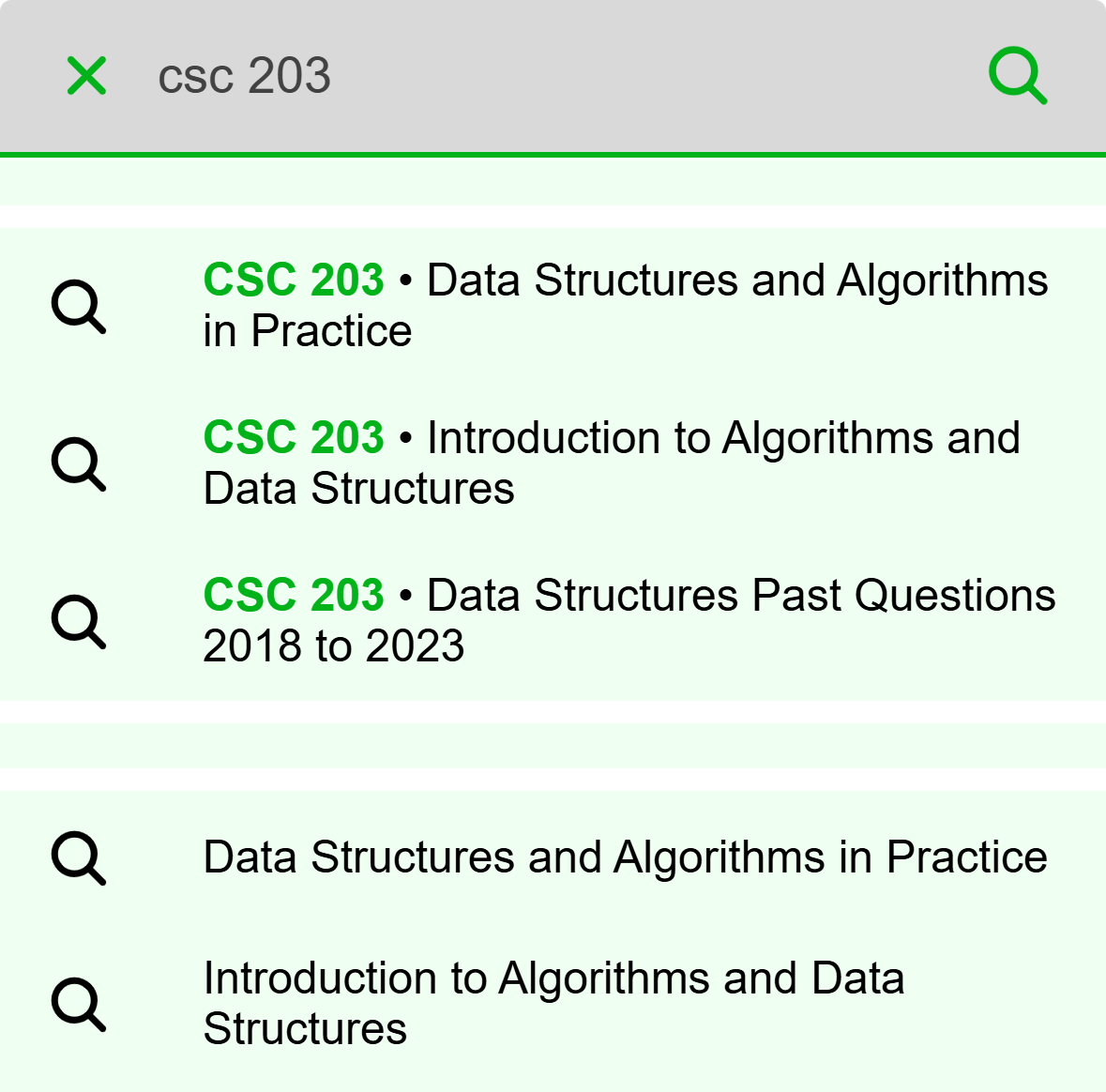
- Books with that course code. Tap one to open it.
- Tap the search icon, or press Enter, to search for exactly what you typed.
Mobile: Matches by course code appear as you type.
Start typing. Search for your words is the first line, so pressing Enter runs the full search. Under Books are books whose course code matches, and Suggestions lists titles. Click a book to open it, or click a suggestion to search for it.
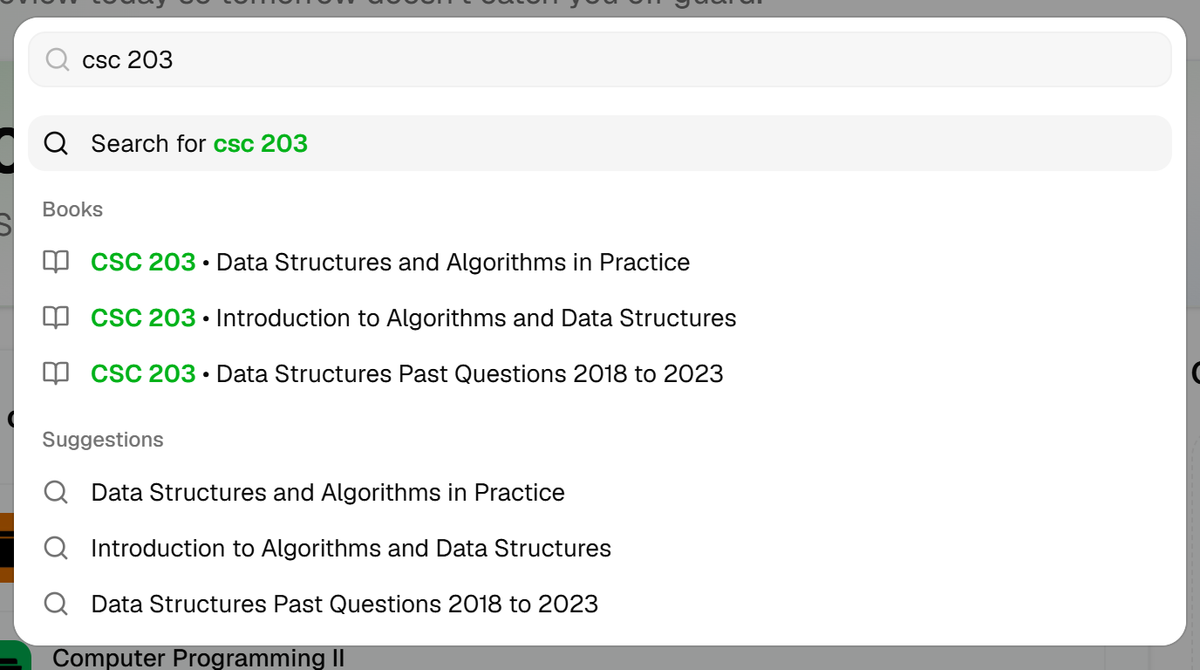
- Press Enter to run the full search.
- Books with that course code. Click one to open it.
Desktop: Matches by course code and title suggestions appear as you type.
If the suggestions don't appear, run the search anyway. They are a shortcut, and the search works without them.
Read the results
Each result shows a cover, the title, the course code when the book has one and its page count. A Downloaded label means the book is already on this device. If your words match the name of a study partner, that person is listed above the books under Study partners.
Press Enter on the keyboard, or tap the search icon. The Book search result screen shows what you searched for, then the matches. Scroll to load more, 30 at a time. Tap a book to open its page.
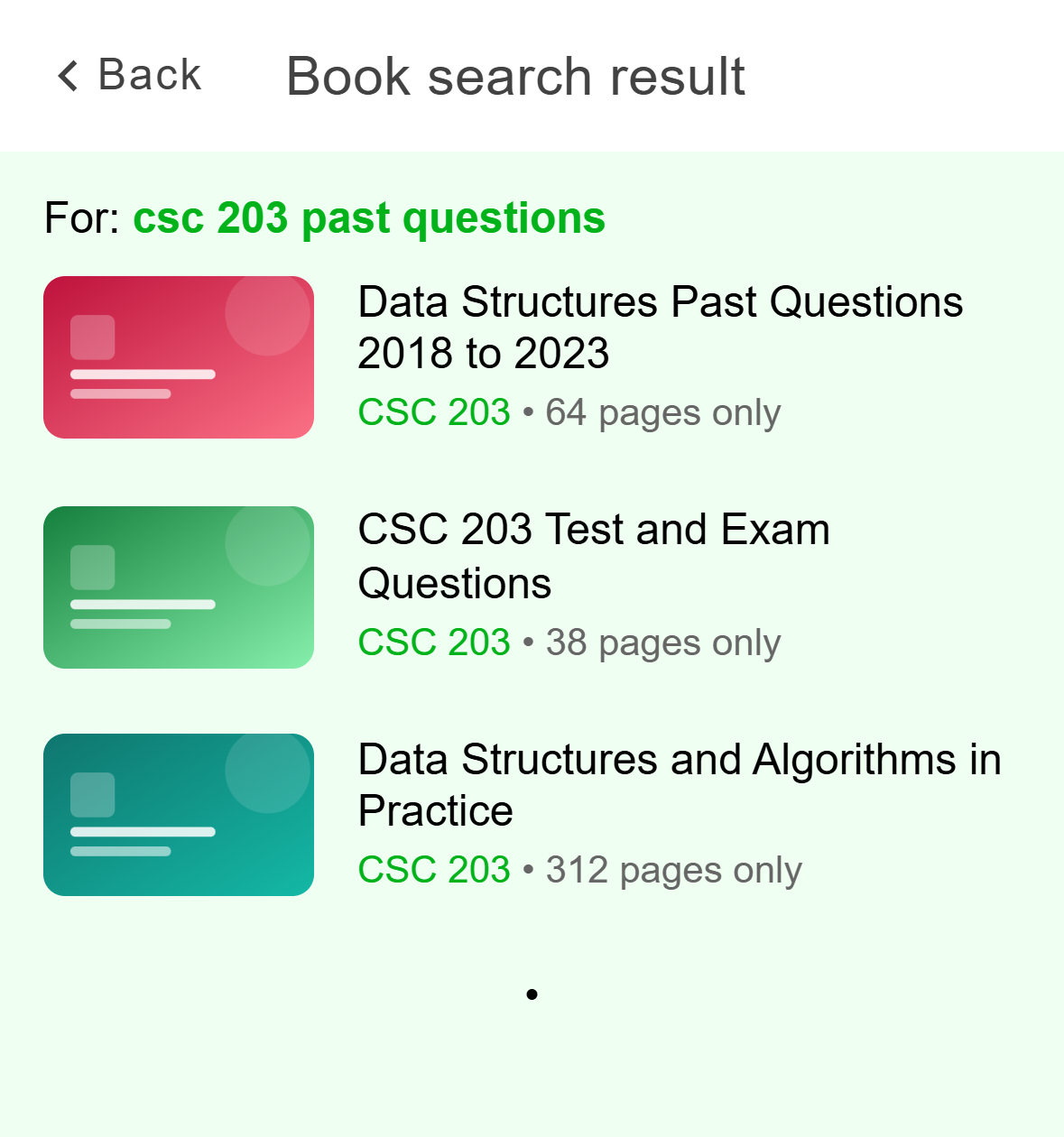
- Tap a book to open its page.
- The course code and the page count.
Mobile: Results for a search. These books are examples.
Press Enter, or click a suggestion. The box switches to Results for your words. It shows the 30 best matches, so if the book you want is missing, add a word or two. Click a book to open its page.
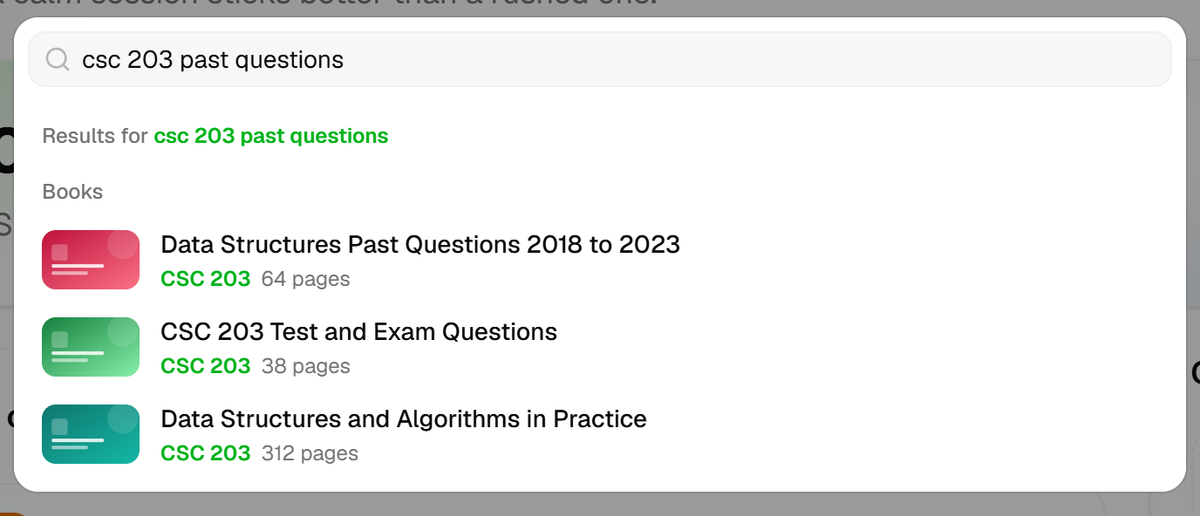
- Click a book to open its page.
Desktop: Results for a search. These books are examples.
Opening a book takes you to its page, where you can download it. Browse and open books in Study covers that page.
Find past questions
Past questions don't have their own section or filter. They are uploaded like any other book, so they come up in the normal results.
Type the course code, then the words past questions, for example CSC 203 past questions.
Open a result and read its title and description to see which sessions it covers.
If you find nothing, search the course code on its own, or the course title with past questions.
A course page lists Past questions with a number. That row only shows a count and doesn't open anything, so search is how you reach them.
If it doesn't work
- You see No book found and Try searching with a different keyword: use fewer words. A course code on its own, or one key word from the title, is the widest search. Check the numbers in a code.
- The phone shows an error screen with Retry, or the desktop says Couldn't run that search with Try again: check your connection and try again. Search needs one.
- Recent searches is empty: it loads from your account, so it stays blank until you are online and have searched at least once.
- The book isn't in Acadeva: you can add it. Upload a book explains how, and Add books and past questions to a course shows how to attach it to a course.