
Most download problems end the same way: you cancel or delete the bad copy and download the book again. Start by finding what your screen shows, then use the fix under it.
The pictures in this article use a made-up book. Yours will show your own books.
See where a download stands
Open the You tab and tap Downloads. Every book you have started is listed with a status:
- Downloading... 42% with a bar: the file is arriving. If Acadeva can't tell the file size, the bar keeps moving and there is no number.
- Pending: waiting for its turn. Acadeva downloads one book at a time. On the book's own screen, a pending book shows a grey bar where the button should be.
- Failed: the download stopped before it finished.
- Complete: saved on this phone.
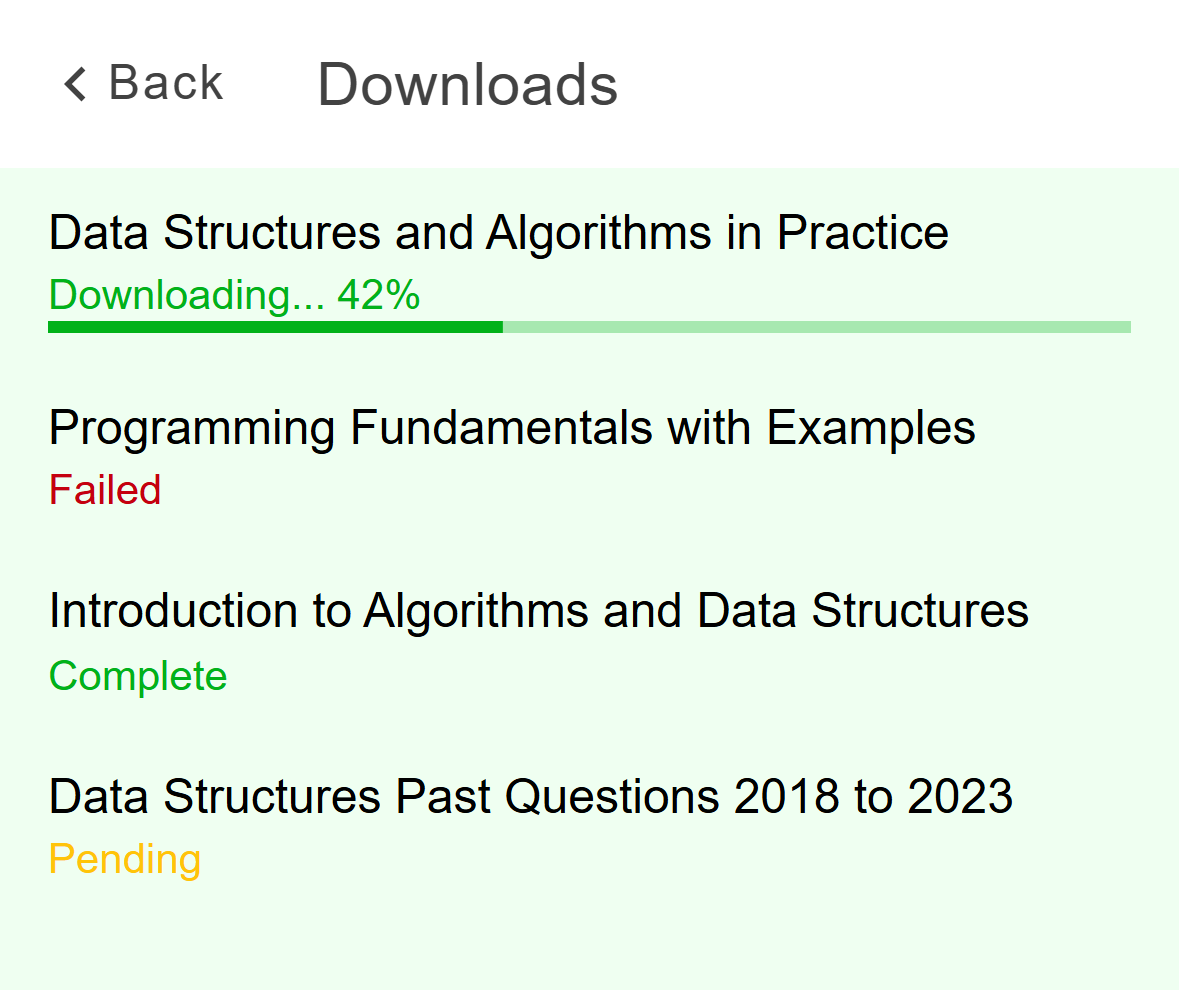
- Downloading: the file is arriving.
- Failed: open the book to retry.
- Pending: waiting for its turn.
Tap a book in the list to open its Book screen, where the buttons for fixing it are. The Downloads row inside Offline & Sync on the You tab sums everything up in one line, such as Downloading 2 books, 1 download failed, or Offline. Downloads will resume later.
The computer has no queue screen. A book's own page shows its state: Download to read, a bar reading Downloading..., or Delete and Read. A download that failed in this session is also listed in the account menu at the bottom of the left rail: Settings, Offline & Sync, then Downloads.
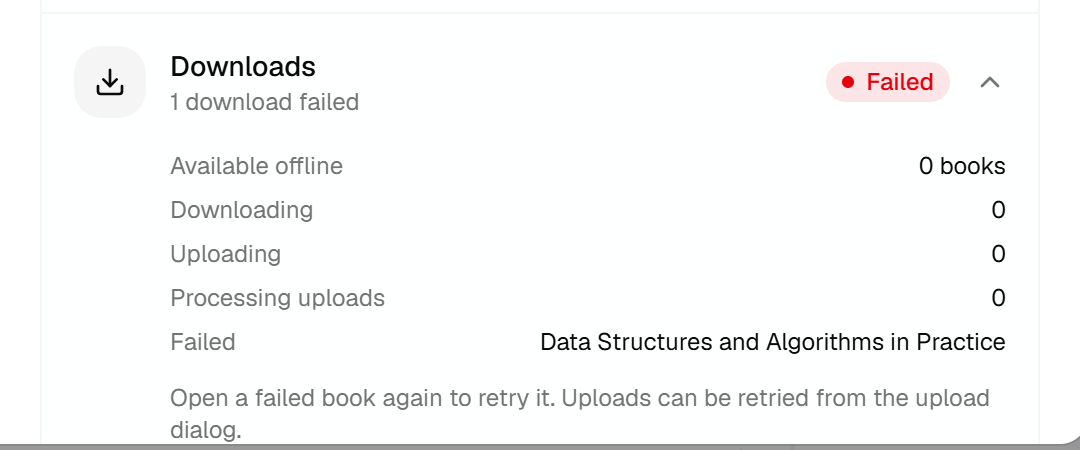
- Failed means a download did not finish.
- The book that failed.
Click the Downloads row to open its details. That list is kept in memory, so it clears when you close the app.
A download is stuck
Pending usually means another book is ahead of it. Let that one finish. If nothing is downloading and the book stays pending, close Acadeva completely and open it again. When it starts, the app picks up every unfinished download and begins it again from the start.
If the percentage stops moving, check your connection first. If nothing changes after a few minutes, open the book, tap Cancel, wait a moment for the Download button to come back, then tap it.
If the percentage stops moving, check your connection first. Then click the X at the right end of the bar, Cancel download, and click Download to read again.
Closing the desktop app stops a download for good. Nothing resumes when you open it again, so the button just says Download to read.
A download failed
The Book screen says Download failed with two buttons. You may also get a Download failed notification that names the book. It happens when something goes wrong once the download has started, for example a dropped connection or no free space.
Tap Retry.
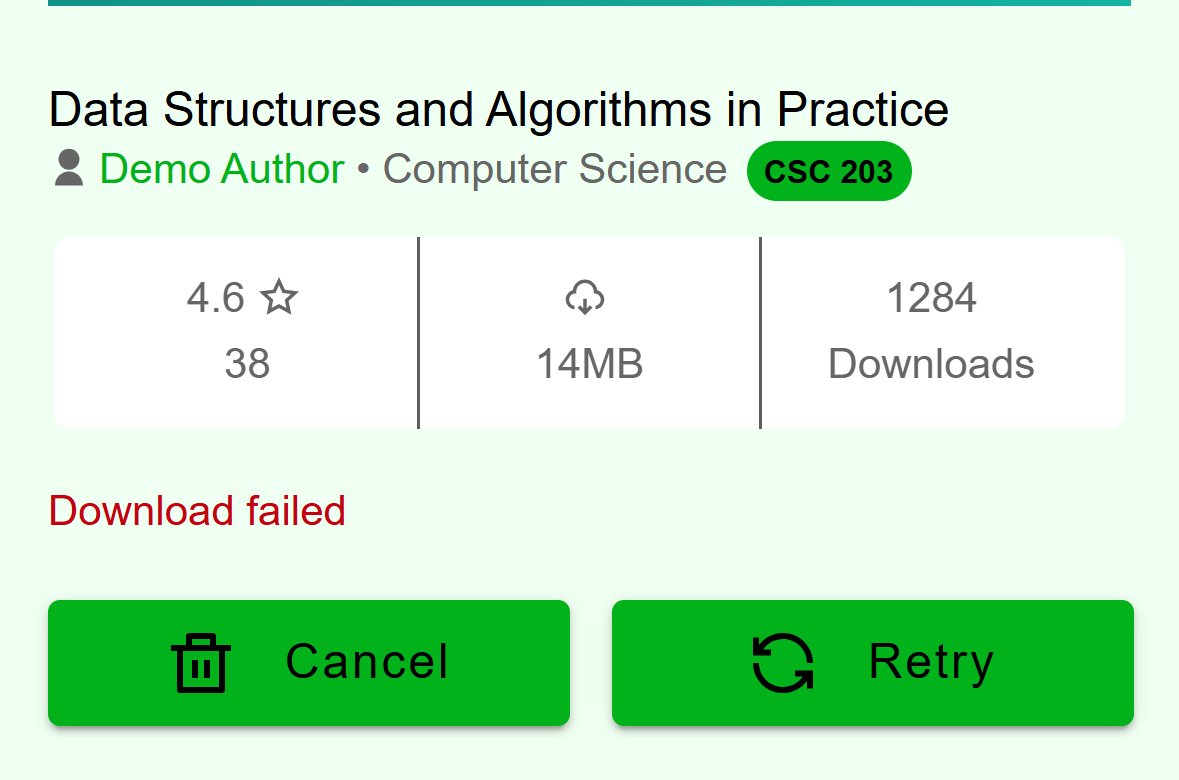
- Cancel clears the failed download.
- Retry starts it again.
Mobile: A failed download on the Book screen. If it fails again, tap Cancel. That clears the failed download and brings back the Download button. Tap it to start fresh.
If the button goes straight back to Download with no message, Acadeva couldn't reach the server to start. Check your connection and tap it again.
A note at the bottom of the window says Couldn't download this book, and the button goes back to Download to read.

Desktop: The note that appears when a download fails. Check your connection and click Download to read again. Offline & Sync tells you the same thing: Open a failed book again to retry it.
A downloaded book won't open
If you tap Read and the page shows only a spinning wheel that never ends, the saved file is missing or damaged. Acadeva shows no message for this. Replace the copy:
Go back to the book's Book screen. If it isn't in Library, find it through Study or search. It still shows Delete and Read.
Tap Delete, then Delete again on the Delete Download? box.
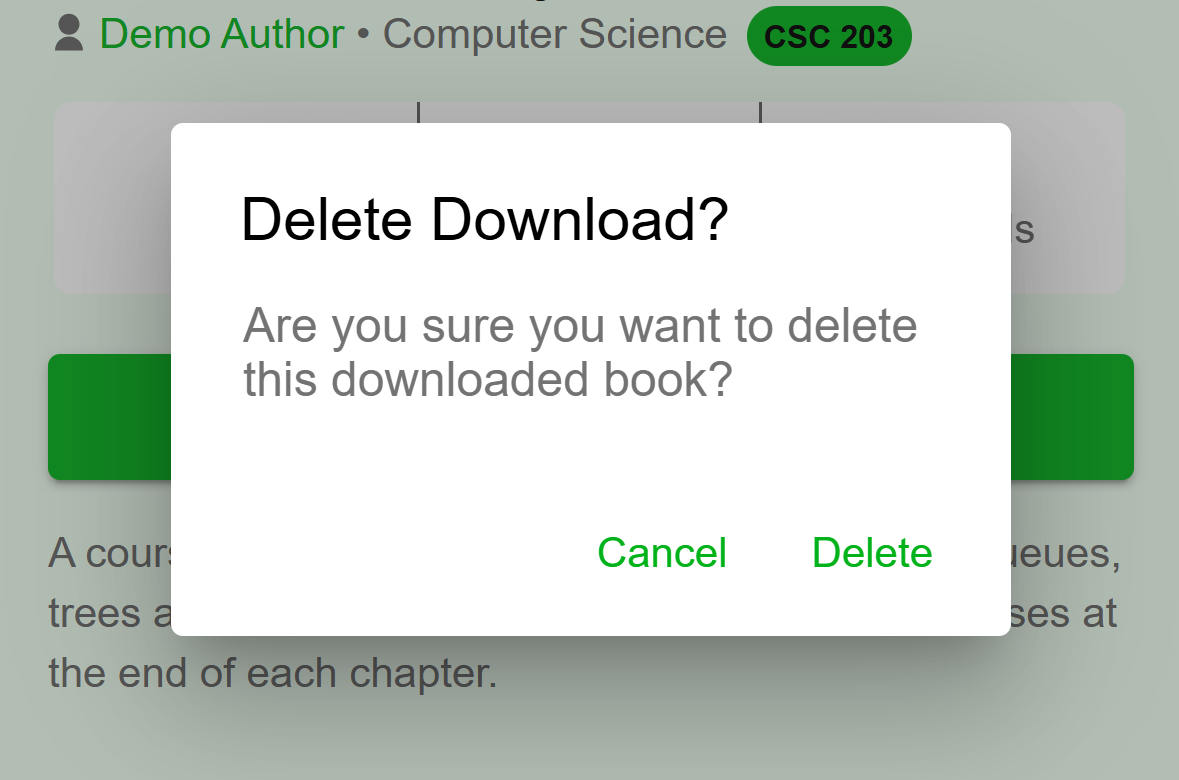
- Cancel keeps the book.
- Delete removes the saved copy.
Mobile: The confirmation box. Cancel keeps the book. Tap Download and let it finish.
In Library, the offline list can show a line such as 2 books could not be loaded. Those saved copies are missing or damaged, and the books don't appear in the list. Find each one through Study or search and use the same steps.
The reader shows This book isn't downloaded on this device anymore. The saved file is missing or can't be read.
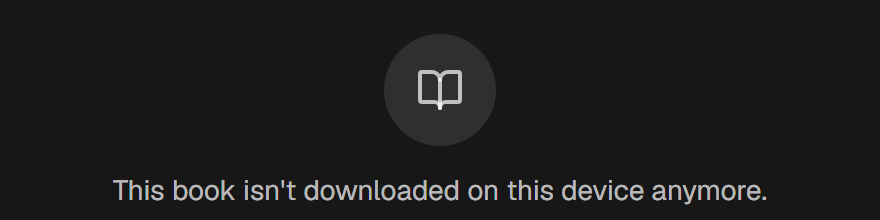
Desktop: The reader's message for a missing file. Use the back arrow at the top left to return to the book's page. It still shows Delete and Read.
Click Delete, then Delete again on the Delete download? box.
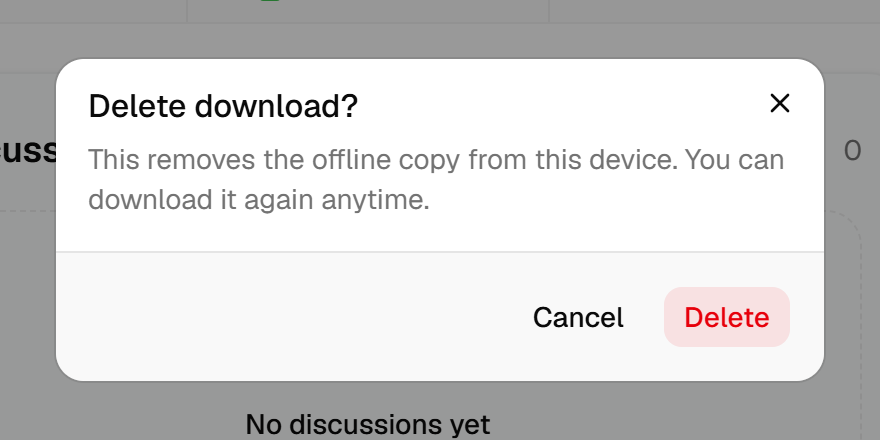
- Cancel keeps the book.
- Delete removes the saved copy.
Desktop: The confirmation box. Cancel keeps the book. Click Download to read and let it finish.
If a delete fails, a note says Couldn't delete this download. Try again.
Last resort: reset the saved data
If a book still won't download, you can reset what Acadeva has saved on that device. On the phone, open the You tab, then Settings, then Reset cache and restart. On the computer, open the account menu, then Settings, General and Reset cache. Both ask you to confirm first.
The confirmation box says Clear cached media and downloaded books. Unsaved changes may be lost. It wipes everything Acadeva saved on that device, including your sign-in and the list of downloaded books. You will sign in again and download your books again. Check that Offline & Sync shows your notes and schedule as synced first. Your account itself isn't touched.
Still stuck?
See Report a problem or contact support. Tell us the book's title, whether you're on the phone or the computer, and what the screen says.