
On your phone, a notification only appears when three things line up: the phone allows notifications from Acadeva, the switch for that kind of notification is on in Acadeva, and your phone is registered with your account. This article checks each one in order. The desktop app works differently, so it has its own steps.
Class reminders are not Acadeva notifications: they come from Google Calendar. If those are missing, see Class and deadline reminders.
Find the cause
Open the You tab, tap Settings, then Notifications. Under On this device, read Notification Permission. If it says Granted, go to step 3. If it says Denied, Acadeva cannot show notifications. It also says Denied if your phone was never asked.
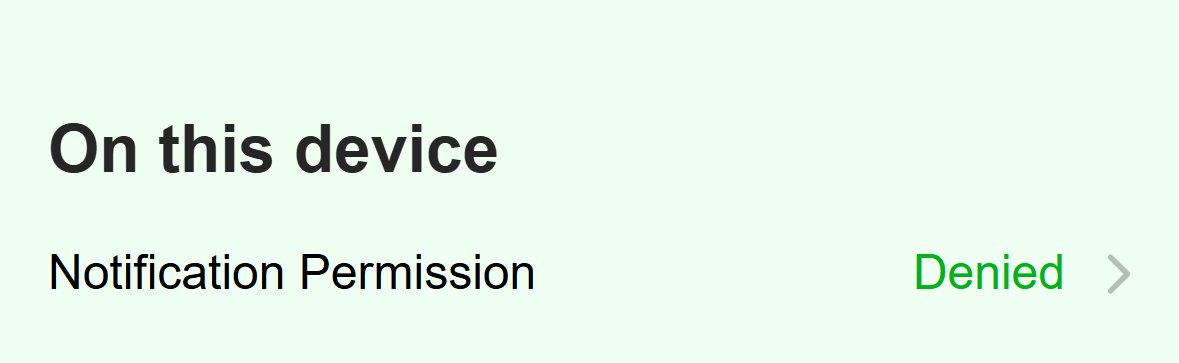
- Denied means Acadeva cannot show notifications on this phone.
Mobile: Notification Permission is Denied. Allow notifications for Acadeva in your phone's own settings, then come back. On an iPhone, open Settings, then Notifications, then Acadeva, and turn on Allow Notifications. On Android, open Settings, then Apps, then Acadeva, then Notifications, and turn them on. Menu names differ a little between phone makers.
Back in Notifications, look at the Acadeva reminders list. Each kind has its own switch: Streak reminders, Friends activity, Nudges from friends, Weekly recap, Your day at a glance, Helpful reminders and Emails. Switch on the one you expect.
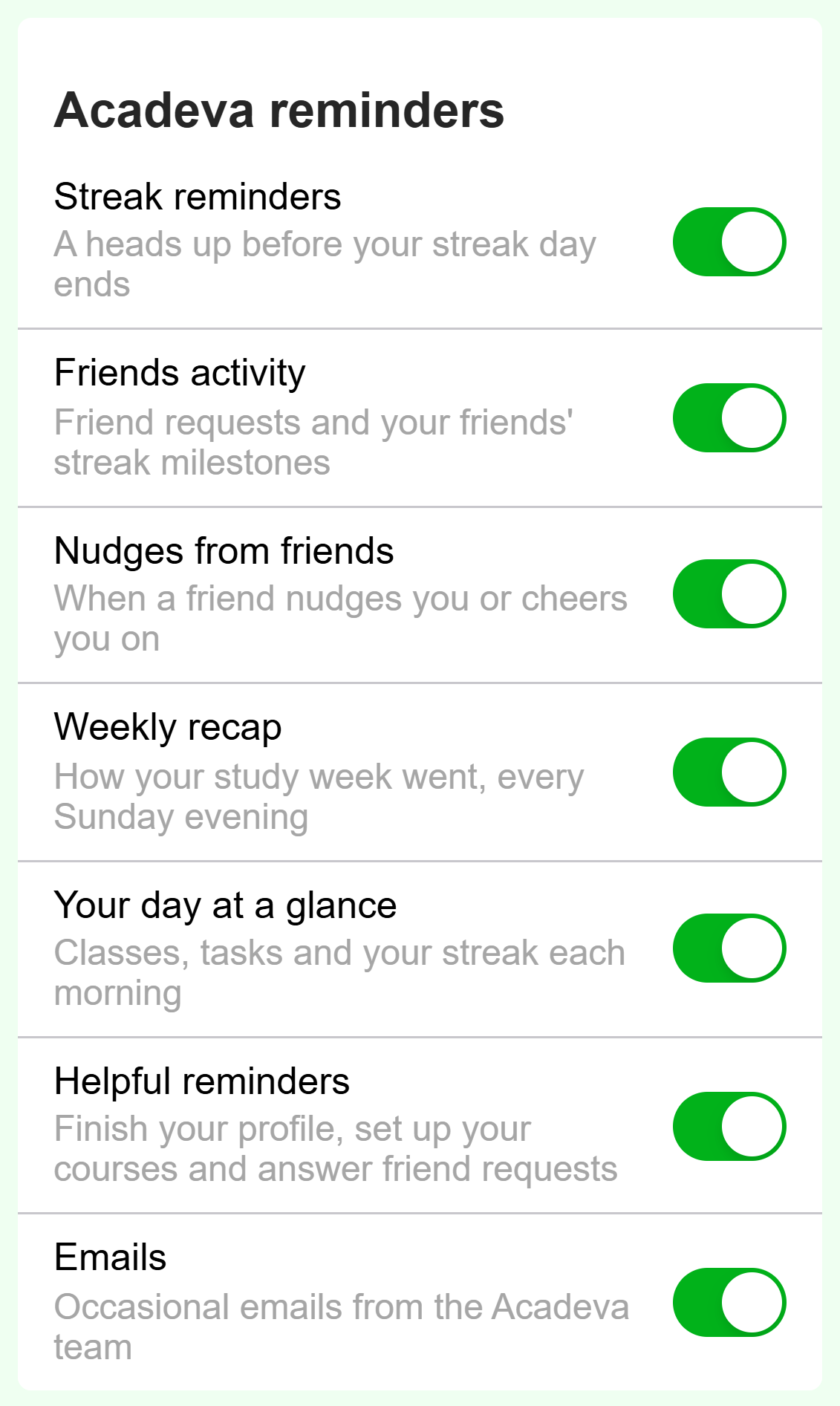
- Each switch controls one kind of notification.
Mobile: One switch for each kind of reminder. Make your phone register again. Acadeva registers your phone every time you open it while you are signed in and online, and there is no button for it. Close Acadeva completely by swiping it away from your recent apps, make sure you are online, and open it again. If you signed out, notifications stay off until you sign in again.
Check the bell at the top of Home. Some notifications are also listed there. If the one you expected is listed, it reached your account, so go over the permission and registering steps again.
iPhone: iOS asks for permission only once. If you chose Don't Allow, the only way back is your phone's Settings. A Focus mode can also silence Acadeva. Old versions of Acadeva on iPhone cannot receive notifications at all, so update the app.
Android: Android 13 and newer asks the first time, and may not ask again after you decline. If a notification arrives late rather than not at all, your phone's battery saver or restricted battery use for Acadeva can be the cause.
The desktop app does not receive notifications from Acadeva's servers. Streak, friends, weekly recap, morning summary and study group notifications go to your phone only. Your computer shows a notification for four things: a book finishing its download, a book you uploaded being ready, a note reminder that comes due while Acadeva is open, and an AI task finishing while you are looking at something else.
Open your account menu at the bottom of the left rail, choose Settings, then General. Under Notifications, check that Download complete is on. It is on by default.
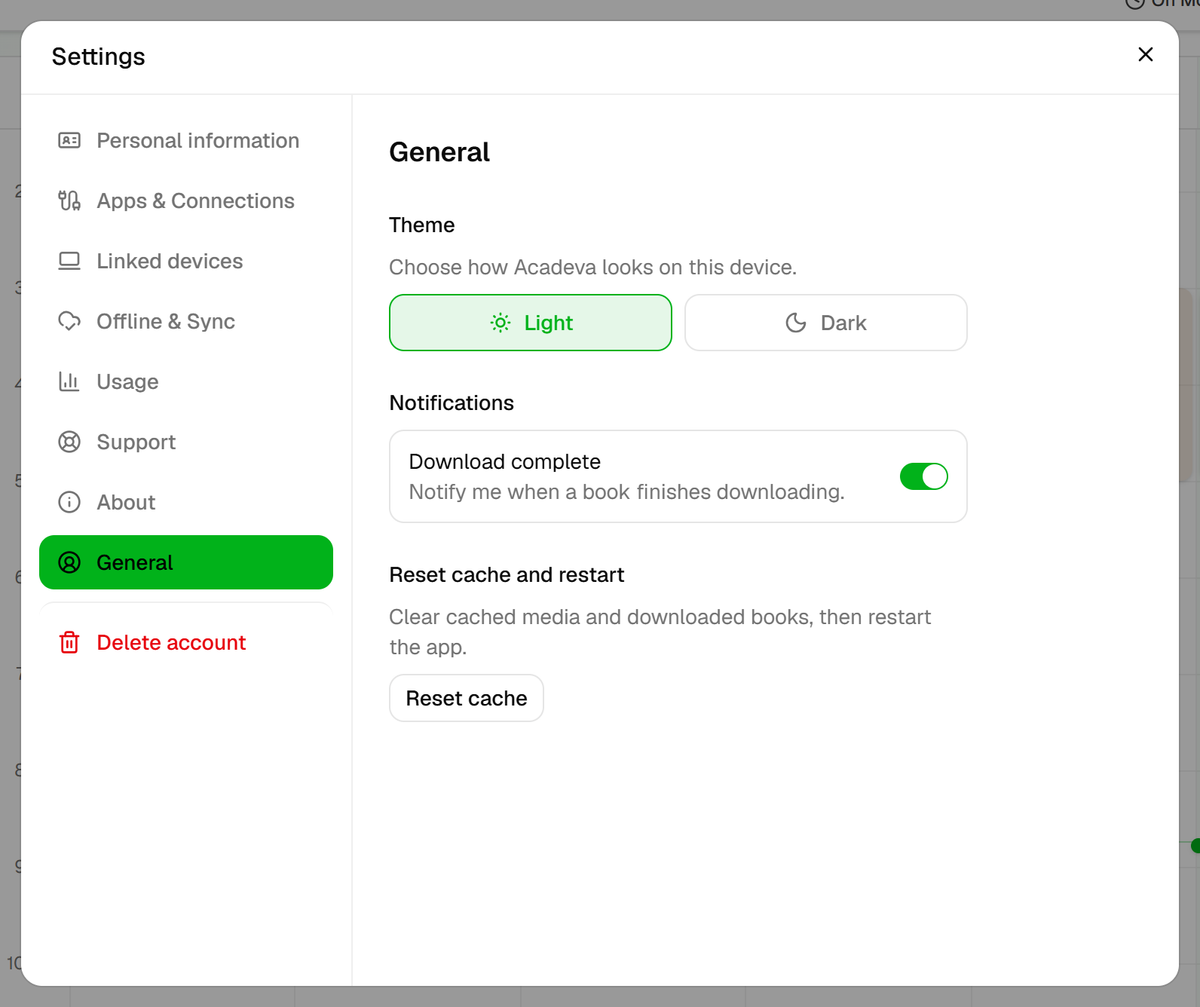
- Turn this on to be told when a book finishes downloading.
Desktop: Download complete is the one notification switch on desktop. Open your computer's own notification settings, find Acadeva, and make sure it is allowed to show notifications. Turn off Do Not Disturb or Focus. The first time Acadeva shows one, your computer may ask for permission.
For note reminders, keep Acadeva open. It checks once a minute, and a reminder that comes due while the app is closed does not become a notification.
To change which reminders your phone gets, open the Streak tile on Study, then Streak settings. Its Notifications section has the same switches, with slightly different names, for what Acadeva sends to your phone and inbox.
A notification you were never going to get
- Study group task deadline reminders go only to members whose task shows Not done or Rejected. Once you submit, they stop.
- The morning summary is sent only on days with a class or a task due. It needs Your day at a glance and Wake up notification on, and it follows the time zone in your Streak settings.
- Acadeva keeps reminder notifications such as streak reminders and the morning summary to three a day, and never sends streak reminders between 10:00 PM and 7:00 AM in your streak time zone.
If it still doesn't work
- Update Acadeva to the newest version: see Update to the latest version.
- Check that your phone has a working internet connection, then reopen Acadeva.
Still nothing? Use Report a problem or contact support and tell us your phone model, its Android or iOS version, and which notification you expected.