
A course you made yourself starts with no books. You fill it by picking books from the Acadeva catalogue, or from the books you have downloaded, uploaded or bookmarked. Past questions are ordinary books, so they go in the same way.
The pictures use a made-up course and made-up books. Yours will show your own course and the books in the catalogue.
This article is about a course you made yourself, because that is where a book is added at once. On a shared course (one from your programme's list) your addition is sent as a suggestion that is reviewed first. Suggest a book for a shared course covers that.
What you need
- A course you made yourself. You make one in setup with Create course (phone) or Create a course (desktop). Set up your courses for the semester shows how. On desktop its page says Your own course.
- A connection. Searching and adding both need you to be online.
Add a book
Open Study and tap your course. With no books yet, the Learn list shows Add Study Materials. Tap it. Once the course has books, open Textbooks and tap the round + button instead.
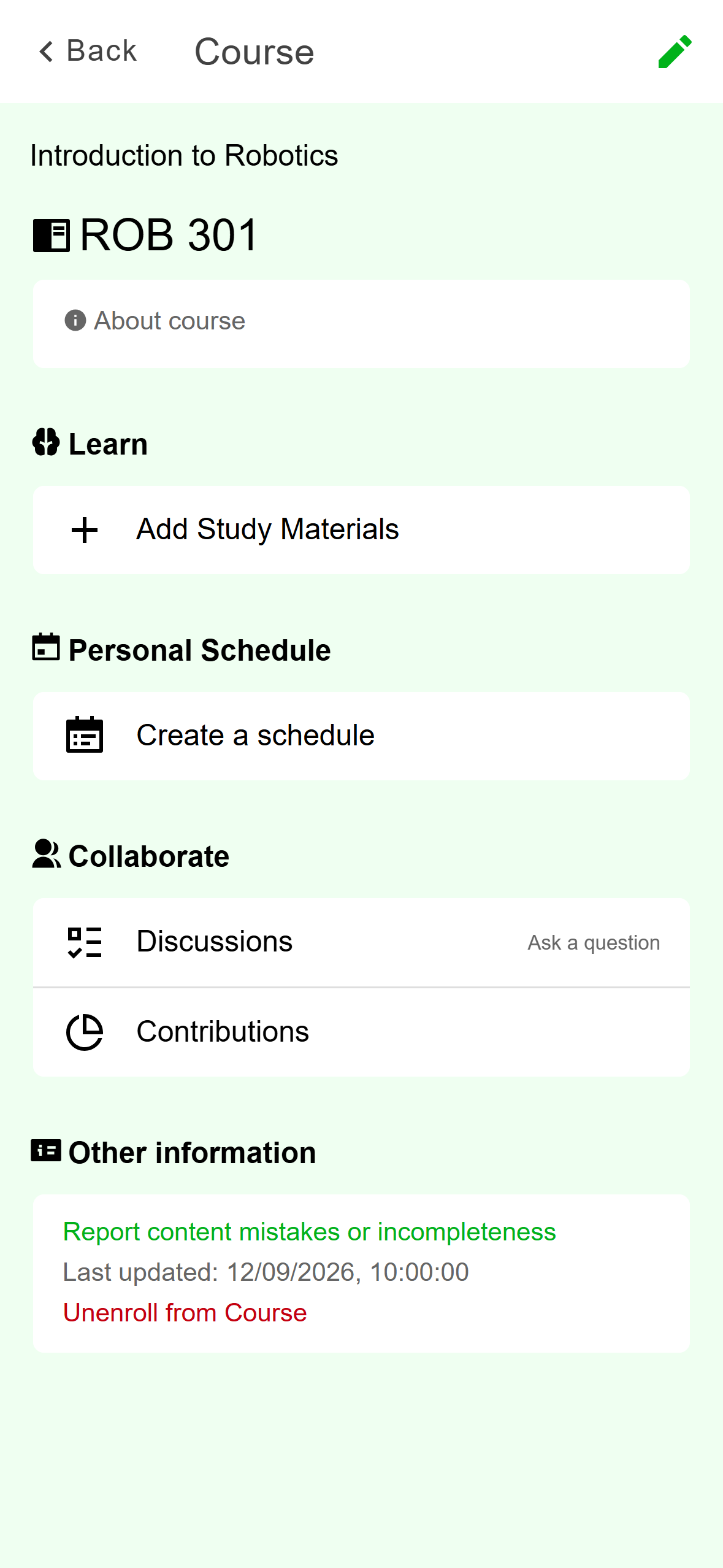
- Tap Add Study Materials.
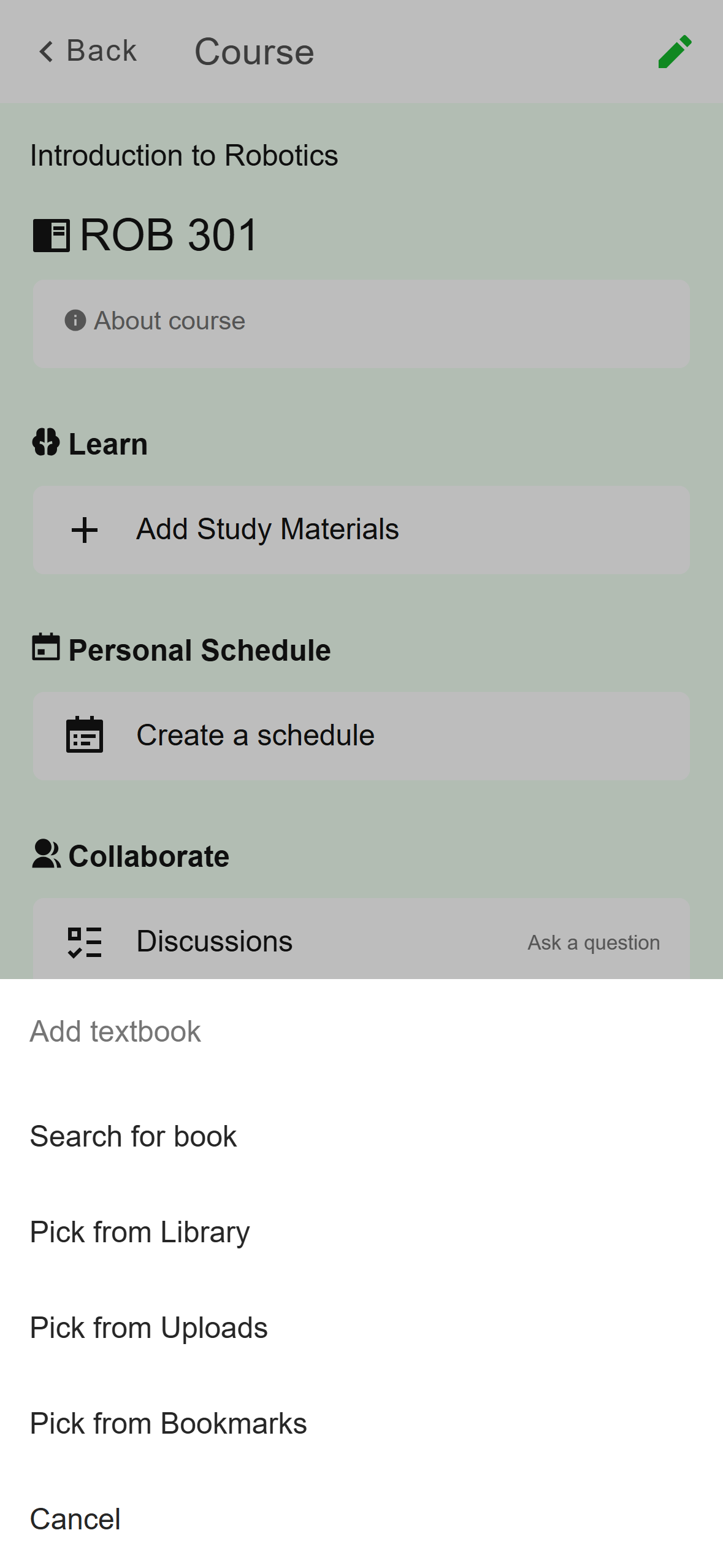
Mobile: A course with no books yet. The Add textbook sheet asks where to pick the book from: Search for book, Pick from Library, Pick from Uploads or Pick from Bookmarks. Choose Search for book for a book you don't have yet.
- Search the whole catalogue.
- Pick a book you already have on this phone.
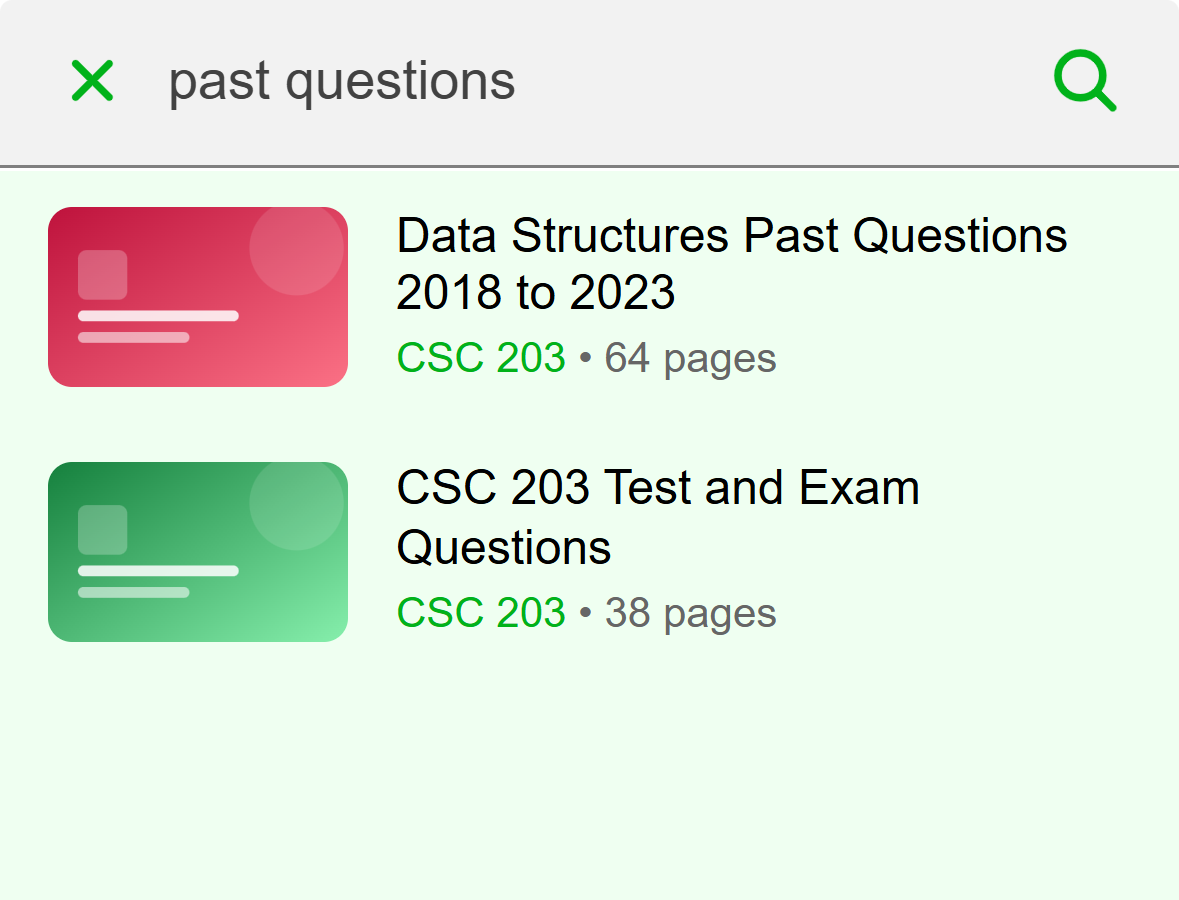
Mobile: Four places to pick a book from. Type a title or a course code and press the search key or tap the magnifier. Tap the book you want in the results. The screen closes by itself.
- Search by title or course code.
- Tap a book to add it to your course.
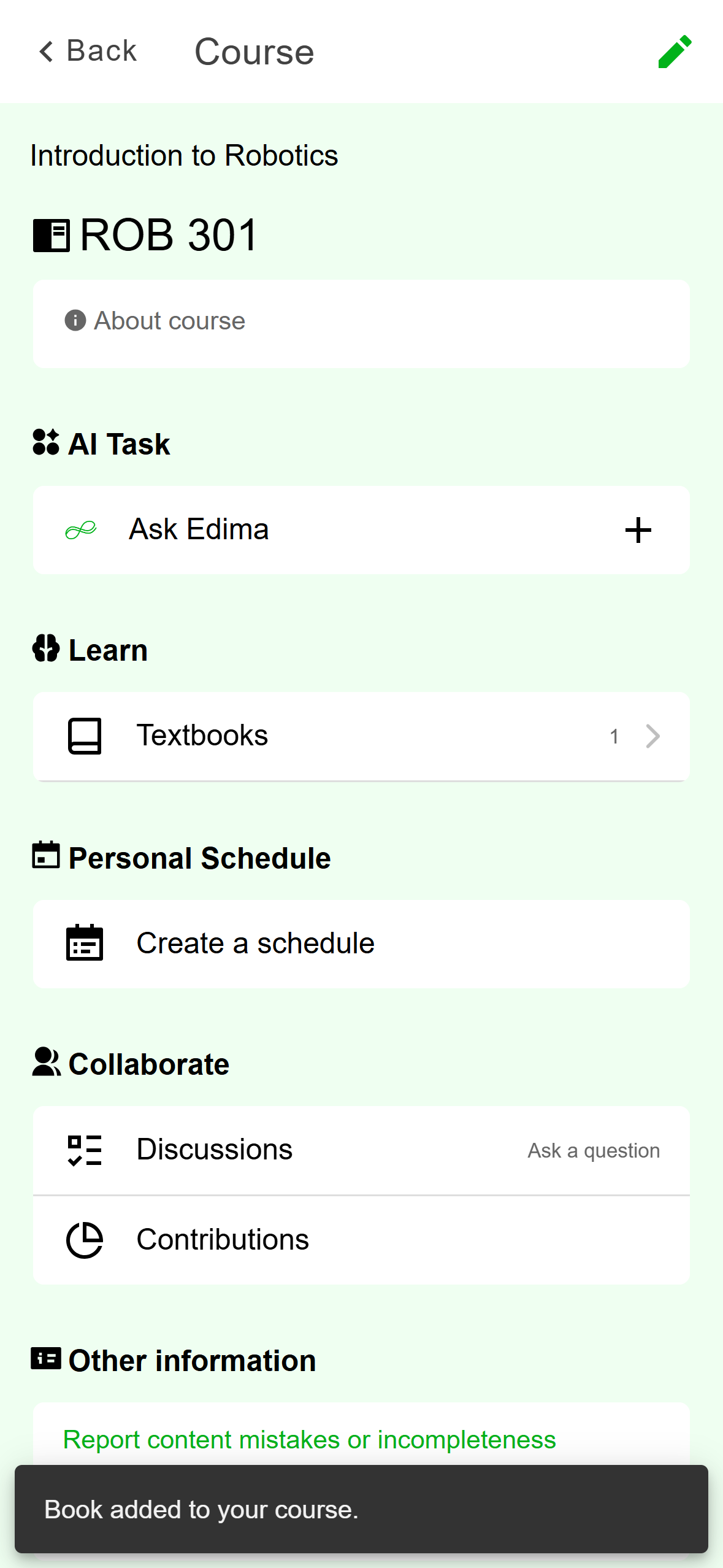
Mobile: Searching for past questions. A message says Book added to your course. and the count beside Textbooks goes up.
- Textbooks now holds your book.
- The confirmation message.
Mobile: The course screen after the add. Open Textbooks to see the list. A book you added is marked Added by you. The round + button adds another.
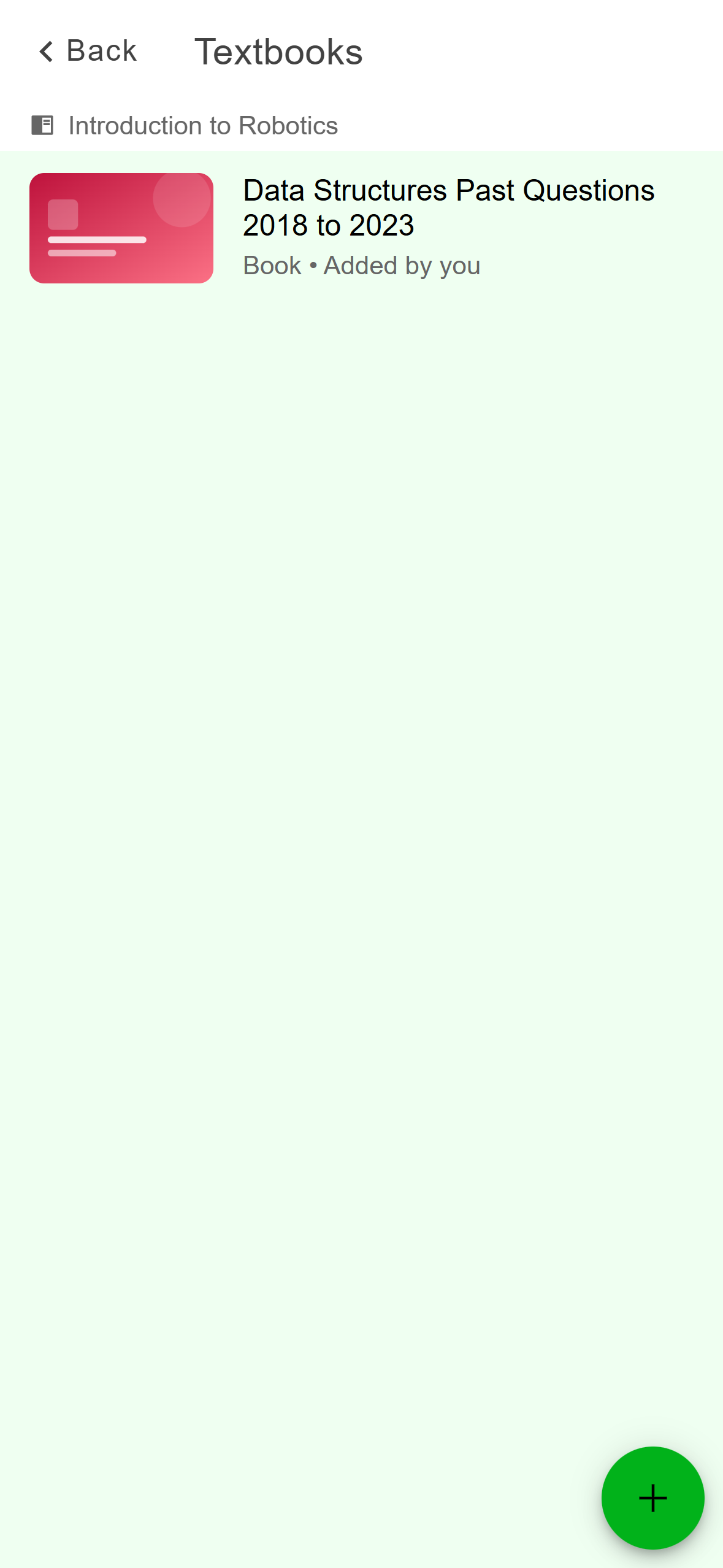
- Books you added say Added by you.
- Add another book.
Mobile: Your own Textbooks list.
Open Study, click your course, then the Textbooks tab. Click Add a book. With no books yet, the same button sits in the middle of the empty list.
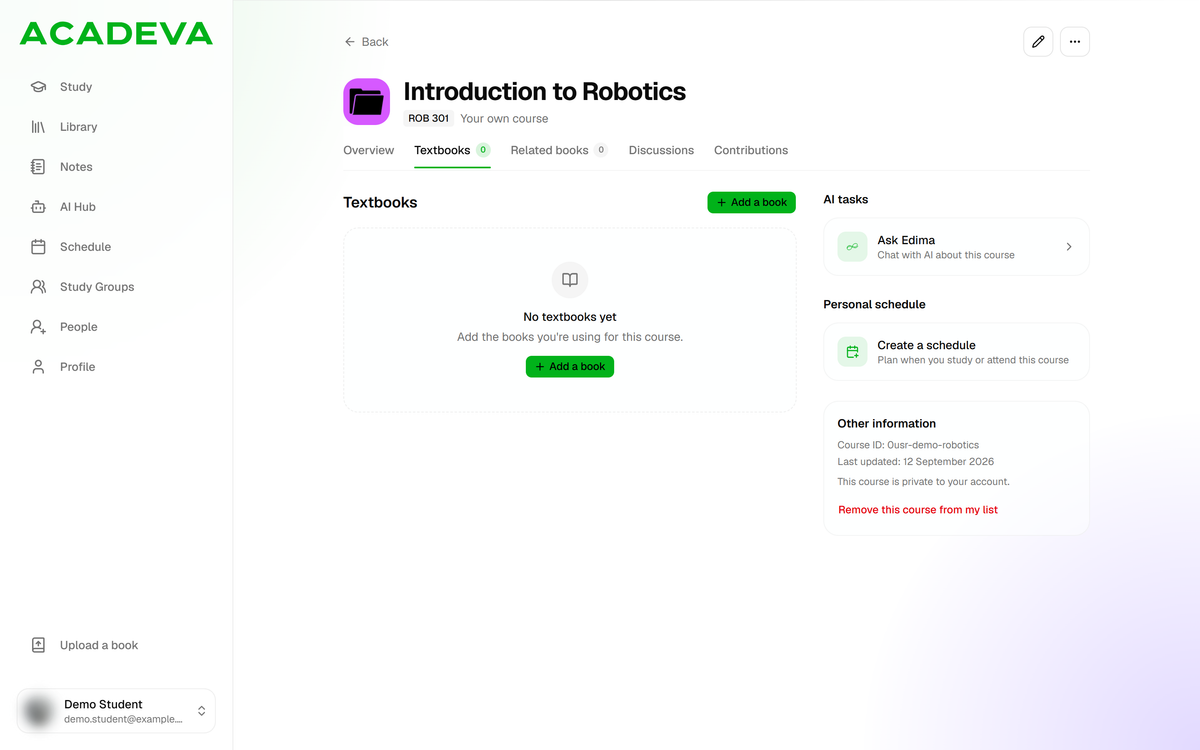
- Click Add a book.
- Your own course marks a course you made.
Desktop: The Textbooks tab of a course you made. In the Add a book dialog, type a title or a course code into Search for a book and press Enter or click Search. Click the book you want. The tabs Bookmarks and Downloads list books you have bookmarked or downloaded, if you'd rather pick from those.
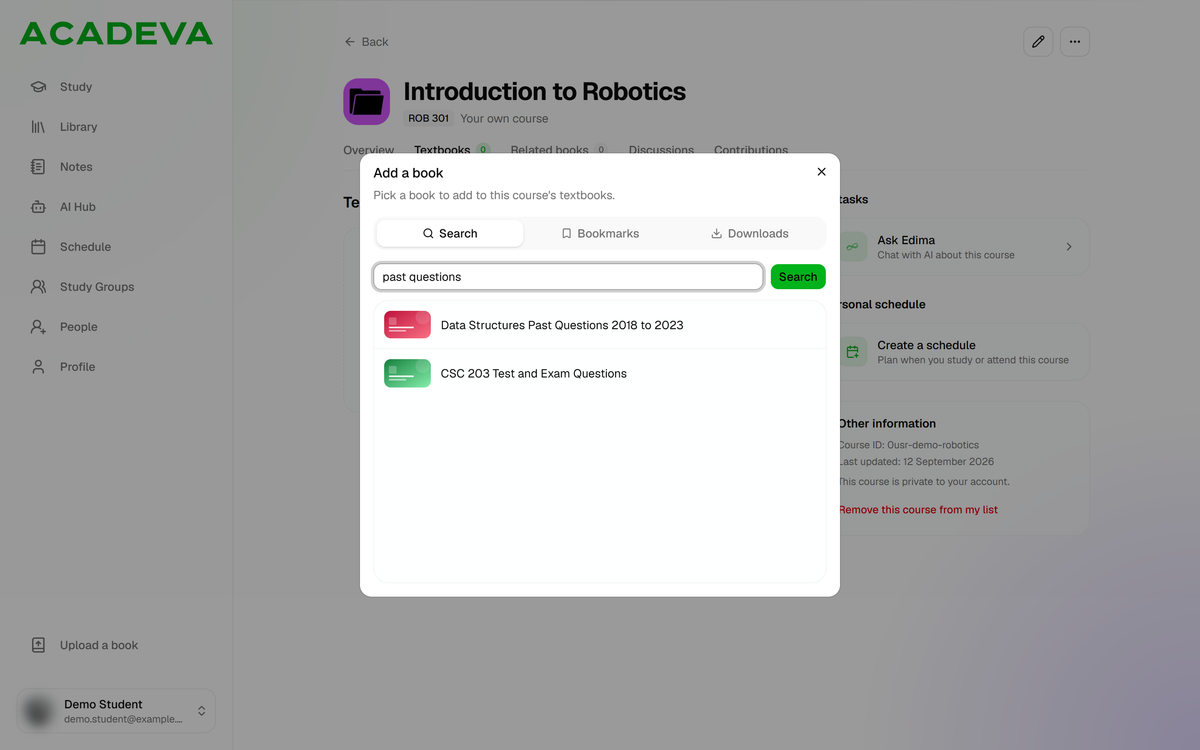
- Three places to pick a book from.
- Search by title or course code.
- Click a book to add it.
Desktop: Searching for past questions in the dialog. The dialog closes and a message says Book added to your course. The book appears in the list marked Added by you, and the number on the tab goes up.
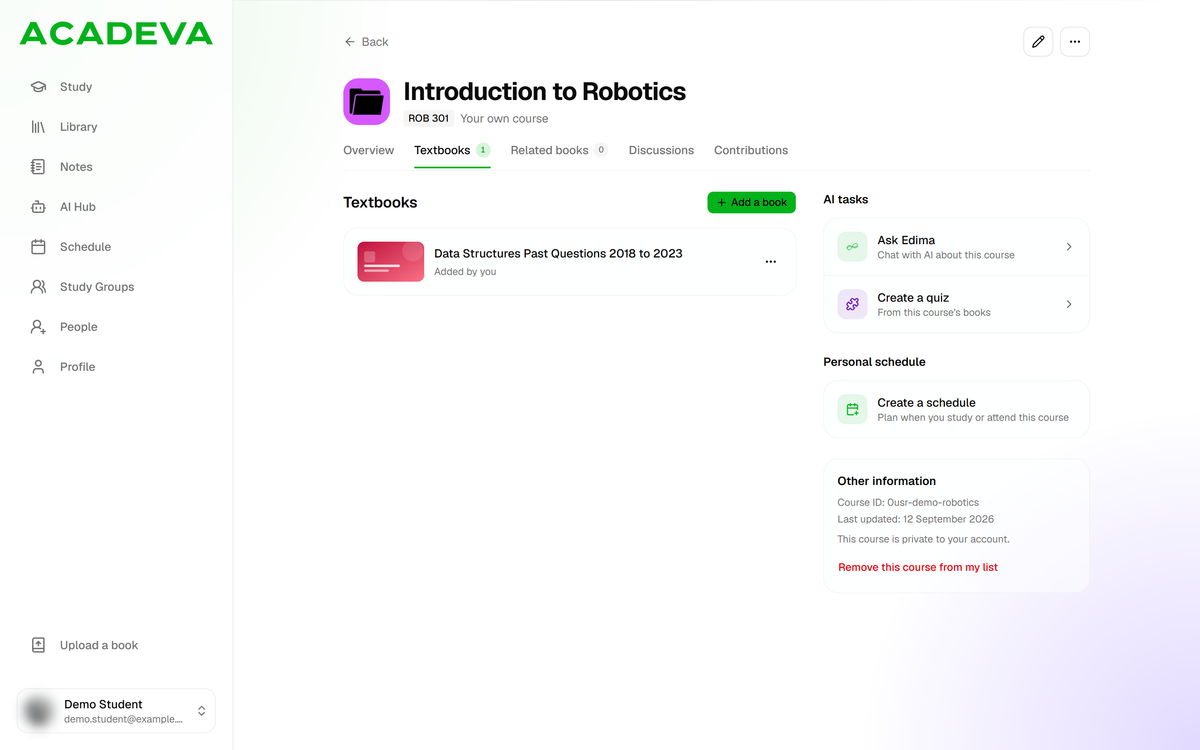
- Books you added say Added by you.
Desktop: The book in your list.
Adding the same book twice doesn't make a second copy. Your own course has one list, Textbooks. On desktop the Related books tab of your own course stays empty and says Related books are curated for shared courses, so put your books under Textbooks.
Pick a book you already have
Pick from Library lists the books you have downloaded to this phone. Pick from Uploads lists the books you uploaded. Pick from Bookmarks lists the books you bookmarked. When one is empty, it says Nothing here yet or No bookmarked books.
Bookmarks lists the books you bookmarked, and Downloads lists the books you downloaded to this computer. The dialog has no Uploads tab, so search for an uploaded book by its title instead.
Past questions
Past questions papers are books like any other, so you find them by searching: try the course code and the words past questions. Search for books and past questions covers the search. Add one the same way as any book, and it shows up under Textbooks on your course. There is no separate list for past questions to add to. The Past questions row you may see on a shared course only shows a count and opens nothing.
Have a paper as a PDF? Upload it first, as in Upload a book. On the phone you can then pick it from Pick from Uploads.
If it doesn't work
- The search finds nothing: the phone says No books found and the desktop says Nothing found. Try a shorter search, the course code, or part of the title.
- The desktop says Search failed: check your connection and search again.
- The desktop says Couldn't add that book, or That book could not be found: search for it again and pick it from the new results. On the phone, if no confirmation message appears, open Textbooks to see whether the book was added, and try again if it wasn't.
- You can't see the add button, or it says Suggest a book: you are on a shared course, where the same button sends a suggestion for review. Suggest a book for a shared course explains it.