
Shared courses are the ones Acadeva lists for everyone in your programme, so you can't change their book lists directly. When you add a book to one, it goes to reviewers as a suggestion. If they approve it, the book joins the course for every student and you earn points.
The pictures in this article use a made-up course, made-up books and made-up suggestions. Yours will show your own courses and books.
What you need
- The course in your study list. If you open a shared course you haven't added, the app says You are not enrolled in this course (phone) or You're not taking this course (desktop). Tap or click Add course. Without it you get no add button and no Contributions screen.
- A book that is already in Acadeva. You can only suggest books that exist, so if the book is your own PDF, upload it first (see Upload a book).
This article is about shared courses. Books you add to a course you created yourself go straight onto your own list with no review. Add books and past questions to a course covers that.
Suggest a book
Open Home, tap Study and tap the course. In the Learn list, open Textbooks or Related books. If the course has no books yet, tap Add Study Materials instead. Then tap the green + button.
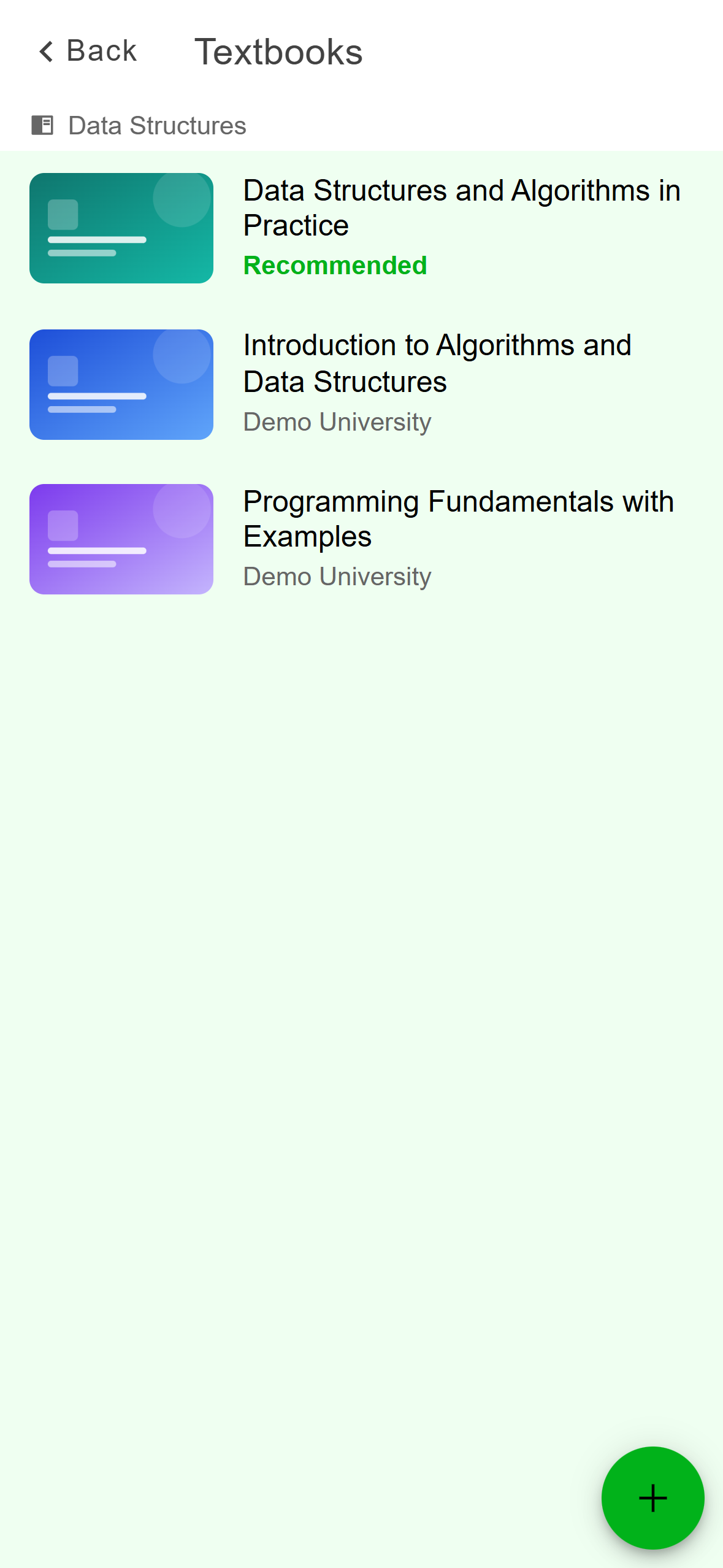
- Tap + to add a book.
Mobile: The + button sits at the bottom right of the list. In the Add textbook sheet, pick where the book comes from: Search for book (the whole catalogue), Pick from Library (books downloaded to this phone), Pick from Uploads (books you uploaded) or Pick from Bookmarks. The sheet says Add textbook even when you came from Related books. The book still goes to the list you opened.
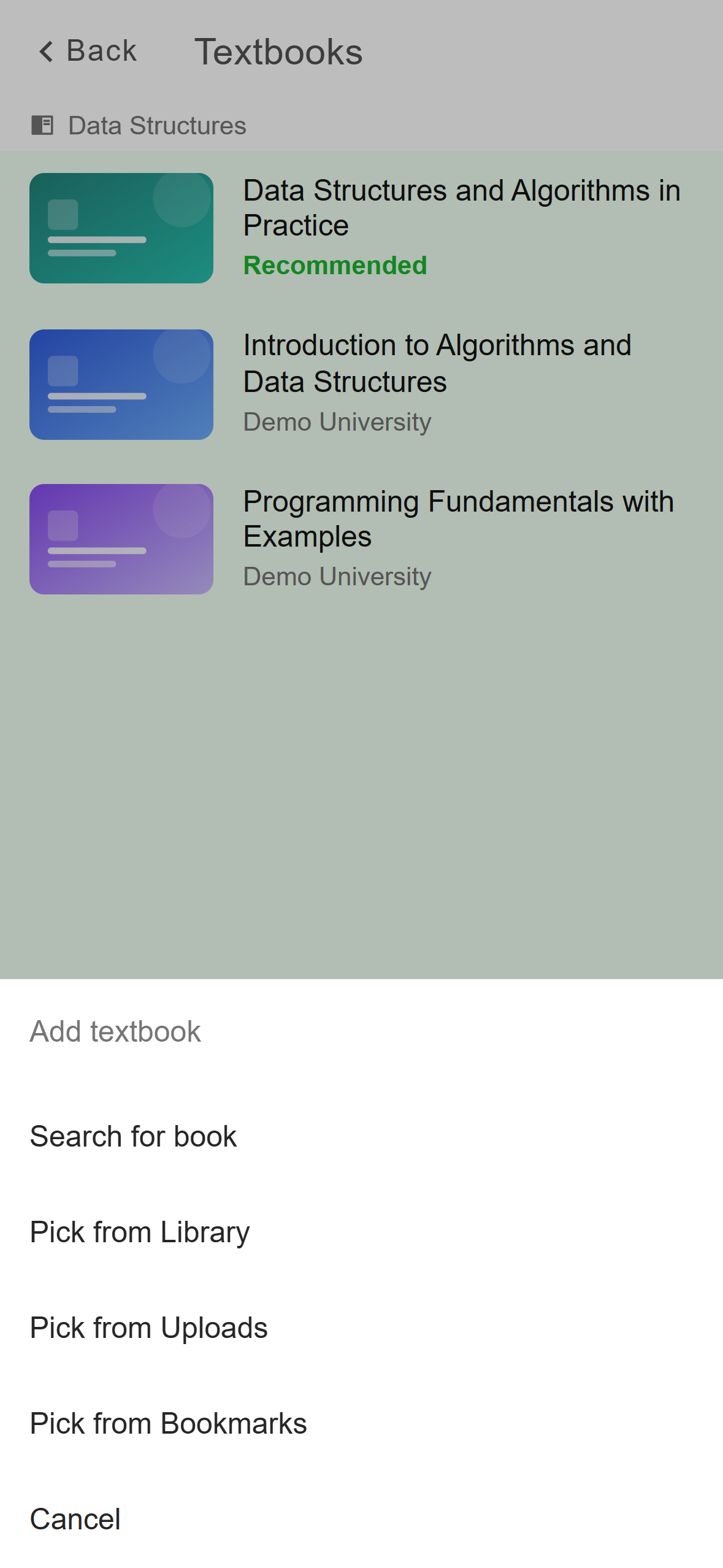
- Search for book looks through the whole catalogue.
- The other three pick from books you already have.
Mobile: Four ways to choose a book. With Search for book, type a title or a course code, then press Enter or tap the search icon. Tap the book you want. The screen closes and the suggestion is sent. There is no confirm step.
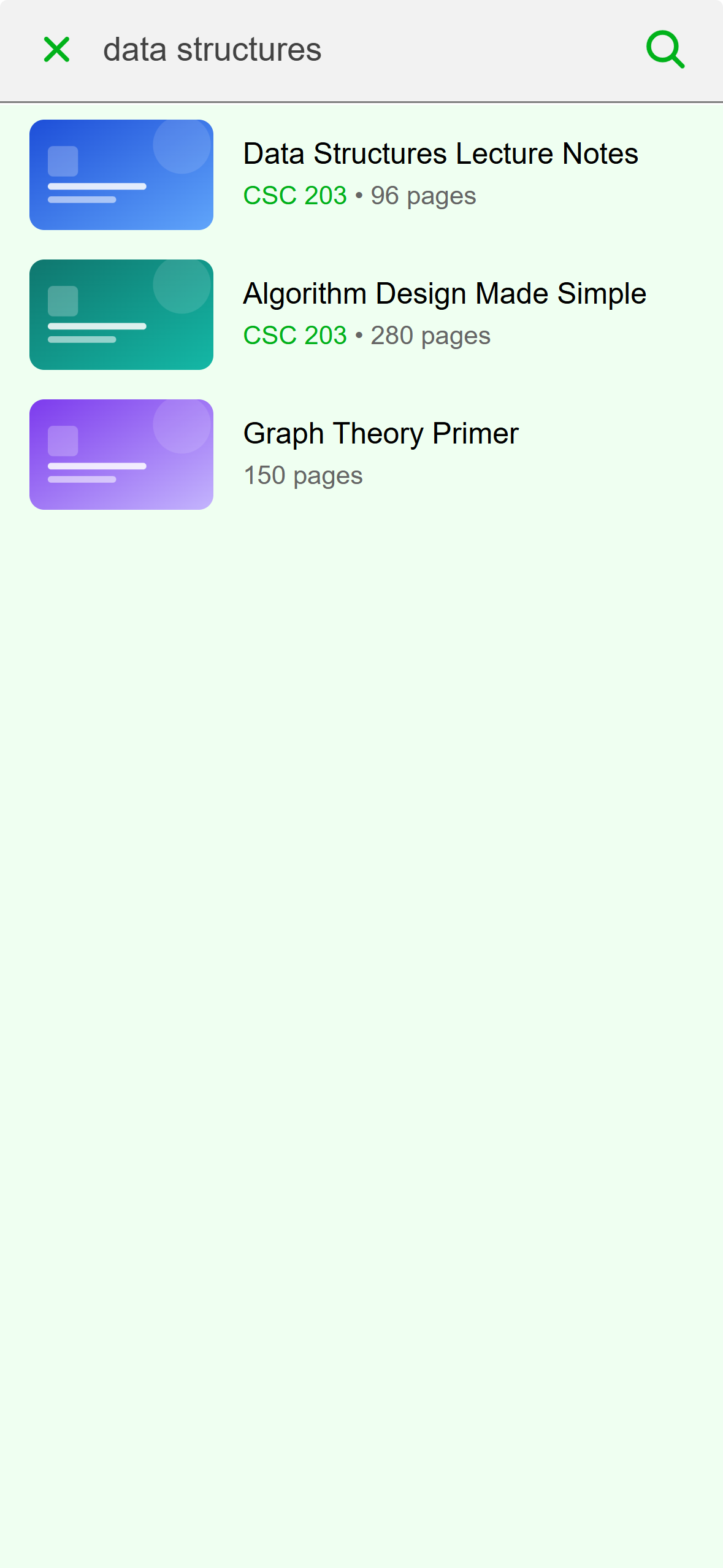
- Tap a book to suggest it.
Mobile: Tapping a result sends it. A message says Book submitted for review. and the book appears at the bottom of the list with a Pending review tag.
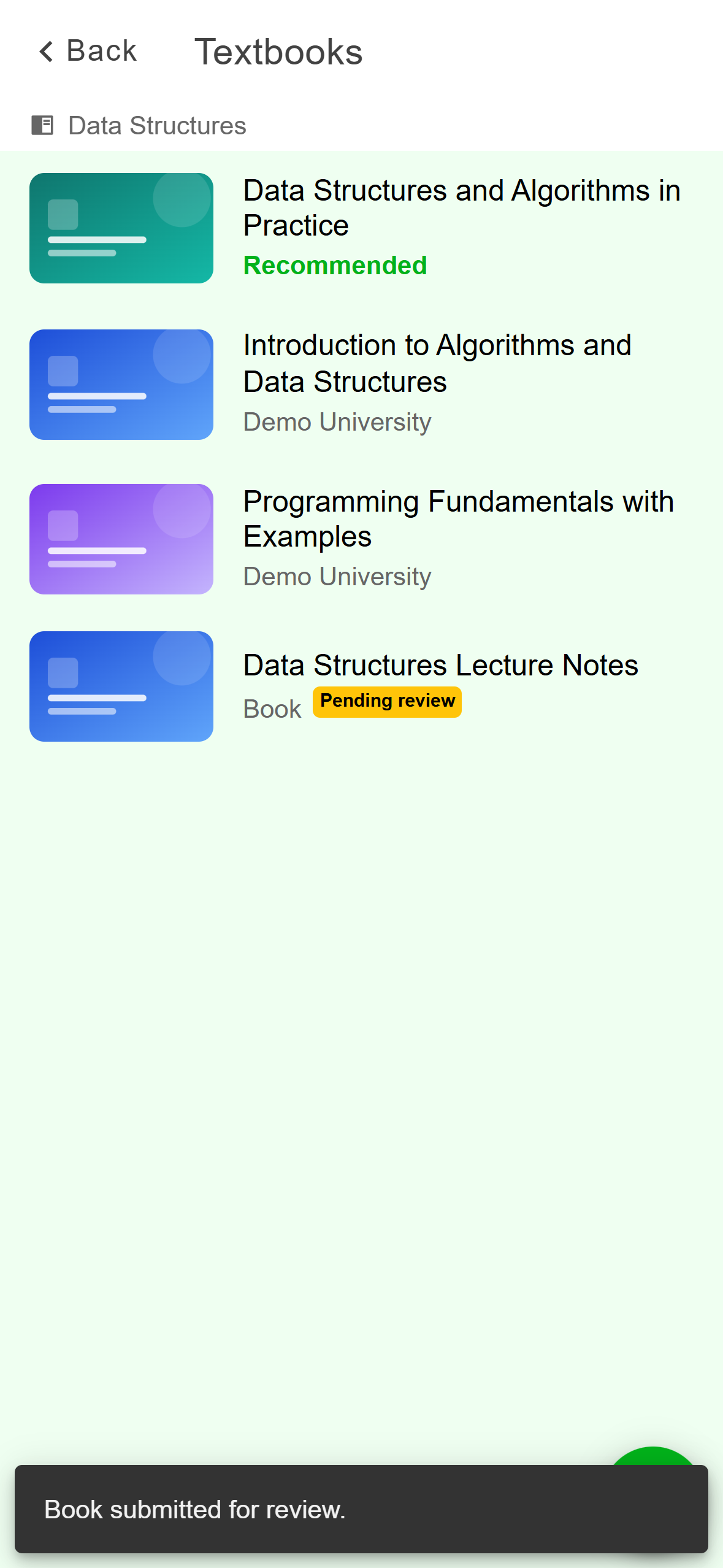
- Pending review: it is not part of the course yet.
- The confirmation message.
Mobile: The new book shows as Pending review.
Click Study in the left rail and open the course. Open the Textbooks or Related books tab and click Suggest a book.
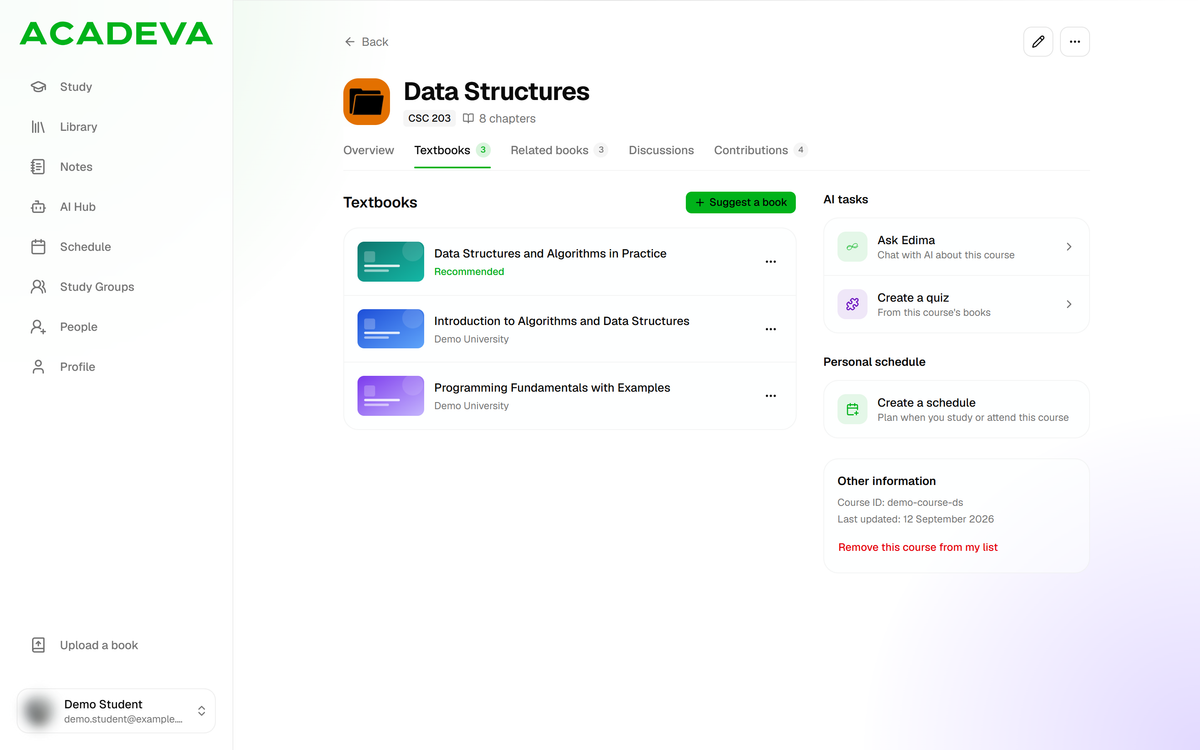
- Click Suggest a book.
Desktop: Suggest a book is at the top right of the list. The Suggest a book dialog has three tabs: Search (the whole catalogue), Bookmarks and Downloads (books downloaded on this computer). In Search, type a title or a course code and press Enter or click Search. There is no Uploads tab on desktop.
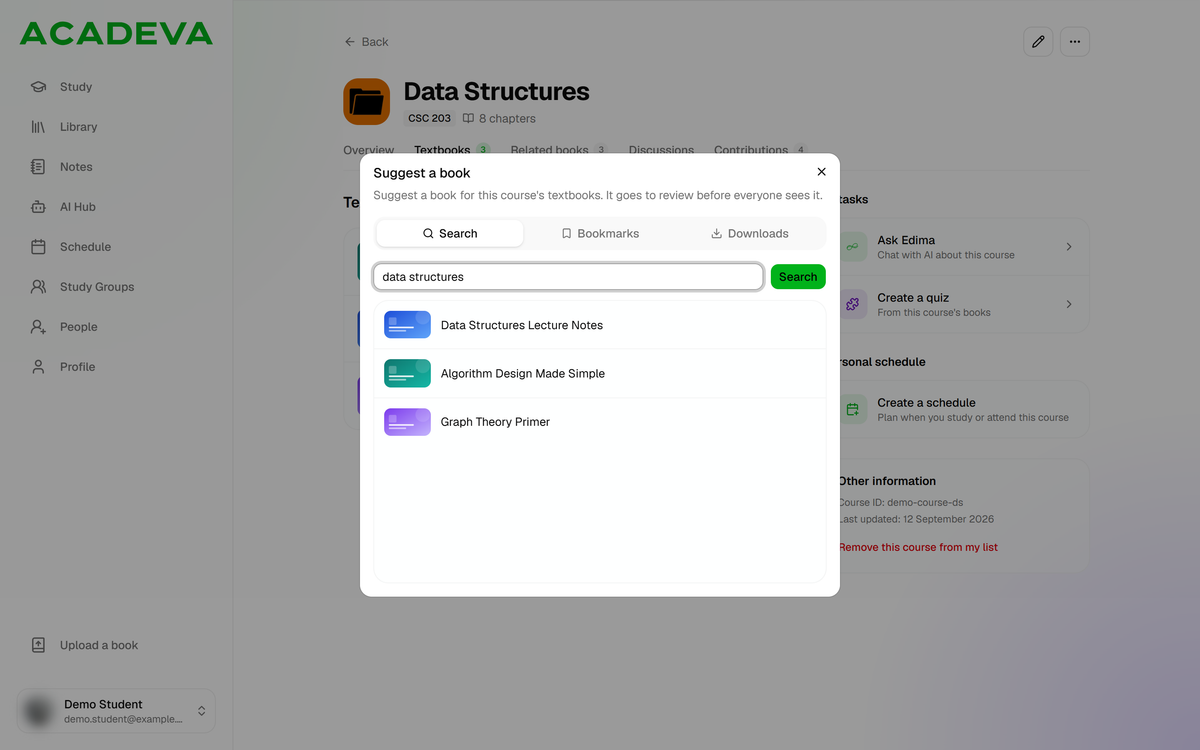
- Choose where the book comes from.
- Click a book to suggest it.
Desktop: Search results in the Suggest a book dialog. Click the book. It is sent at once. A message says Book submitted for review and the book shows in the list with a Pending review tag.
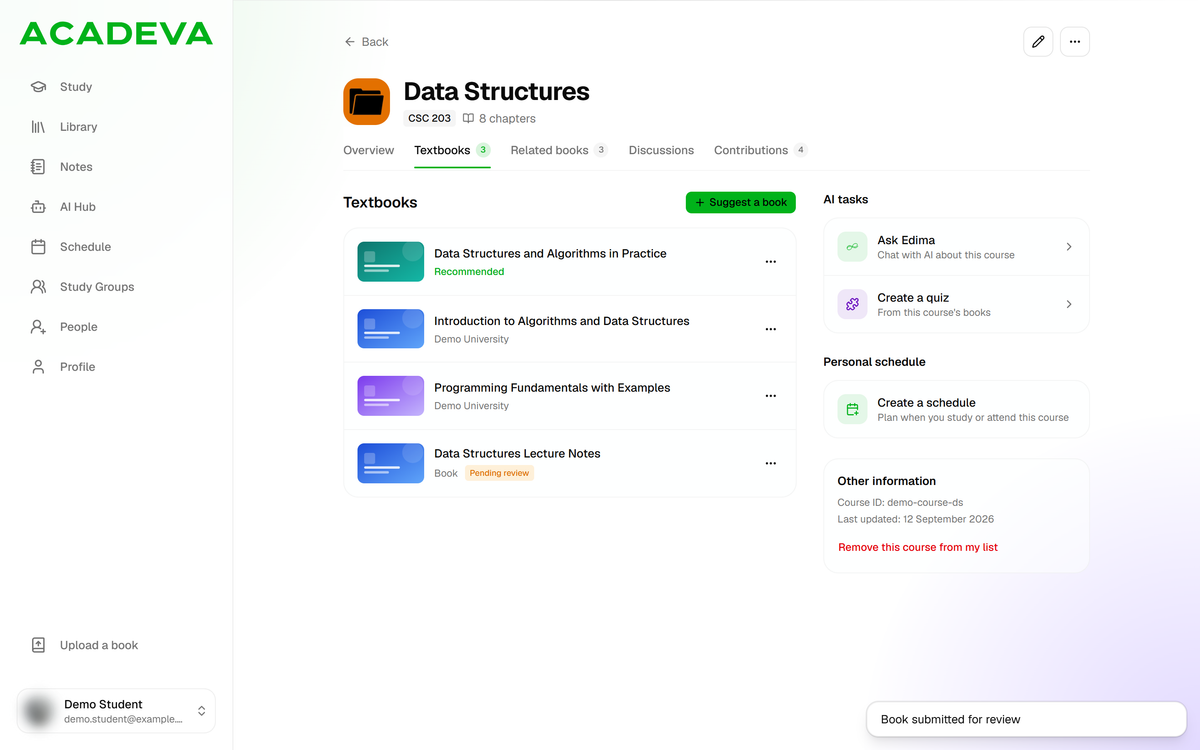
- Pending review: it is not part of the course yet.
- The confirmation message.
Desktop: The new book shows as Pending review.
The new row is only a preview. The book isn't on the course until a reviewer approves it, so it drops out of the list the next time you open it. Your Contributions screen keeps the record.
What the four statuses mean
- Pending review: sent, and no reviewer has looked at it yet. This is the only status you can take back.
- Under review: a reviewer has lined it up for approval. You can't take it back now.
- Approved: the book is now on the course's list for everyone.
- Declined: the reviewers didn't add it. It stays in your list so you can see what happened.
When a suggestion is approved you earn 30 points and get a notification. If other students suggested the same book for the course, they are approved together and each of them earns the points. Reviewers can also place an approved book in the other list, so a book you suggested as a textbook may end up under Related books.
Follow your suggestions
Open the course and scroll to Collaborate, then tap Contributions. The number on the right is how many suggestions you have made for this course.
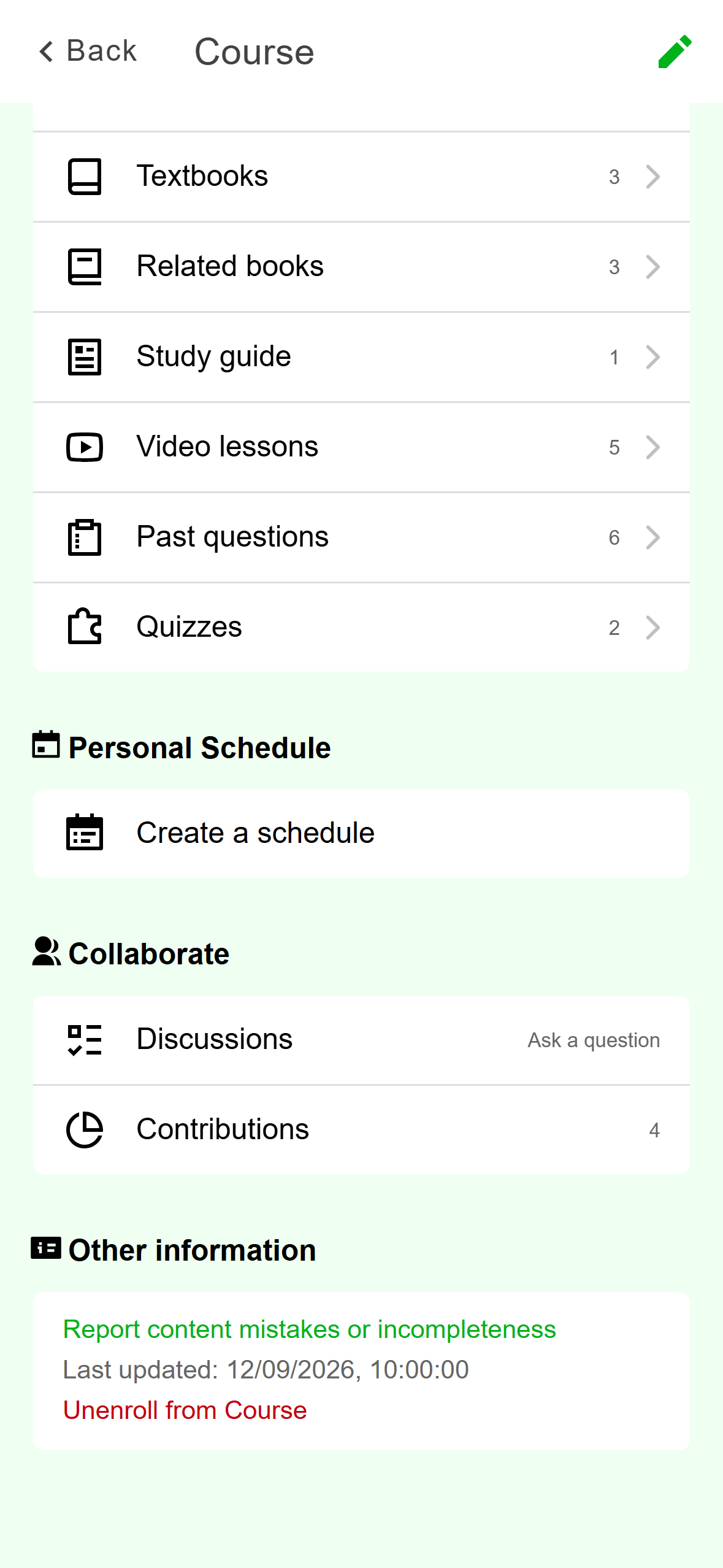
- Contributions. The number is how many suggestions you have made.
Mobile: Contributions is under Collaborate. Each row shows the book, which list it was for, the date and its status tag. The list also shows books that other students had approved for the course. Those carry a By label with a short code instead of a name. Yours have no By label.
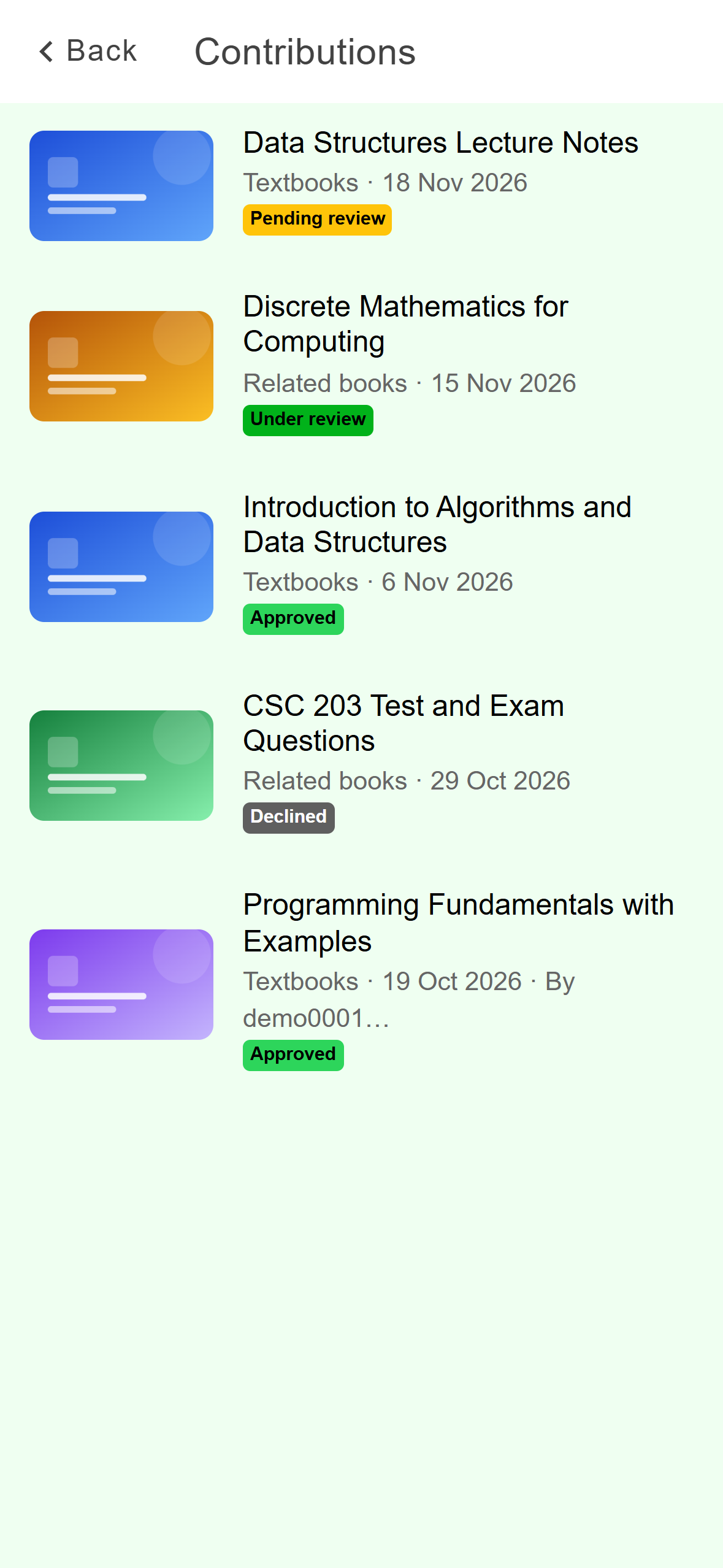
- Pending review: waiting for a reviewer.
- Under review: lined up for approval.
- Approved: now on the course.
- Declined: not added.
Mobile: One suggestion in each state.
Open the course and click the Contributions tab. It only appears for courses in your study list. The number beside it is how many suggestions you have made.
Each row shows the book, which list it was for, how long ago you sent it and its status tag. The list also shows books other students had approved. Yours say By you and theirs say By another student.
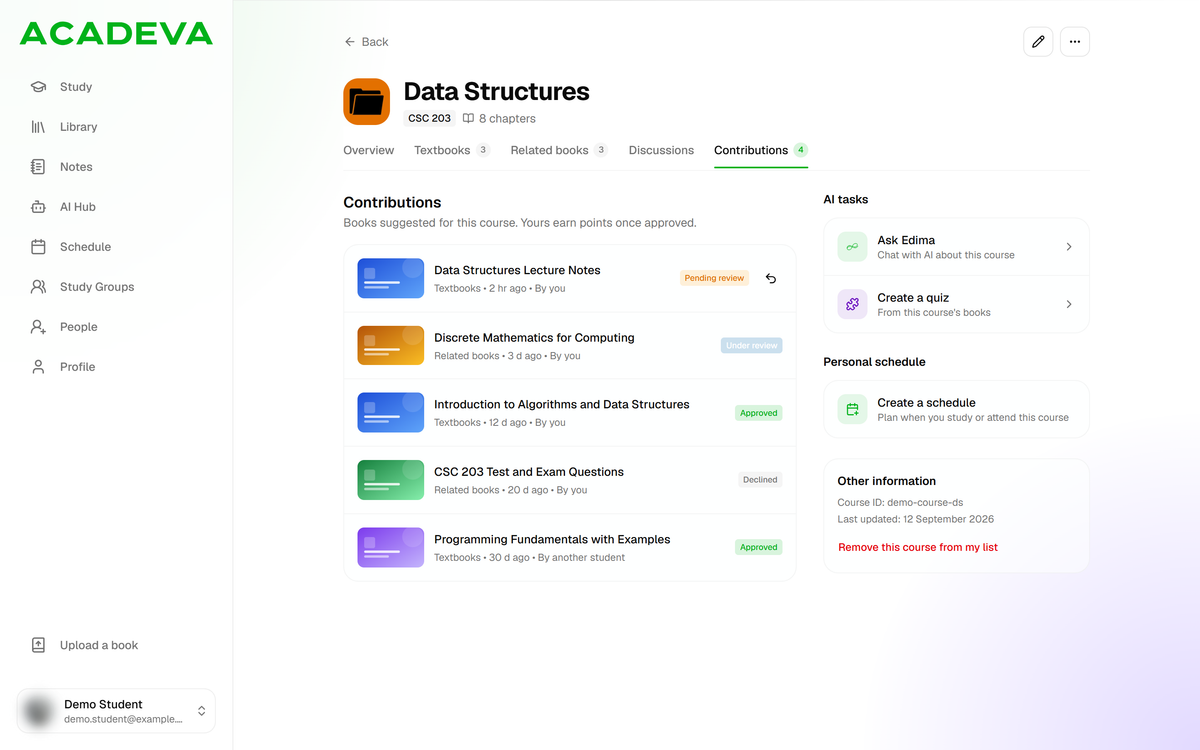
- The status of each suggestion.
- The undo arrow takes back a pending suggestion.
Desktop: One suggestion in each state.
Take back a suggestion
You can take back your own suggestion only while it says Pending review.
On the Contributions screen, tap the row. A sheet opens with the book's title and View book, Retract suggestion and Cancel. Rows that aren't pending only offer View book.
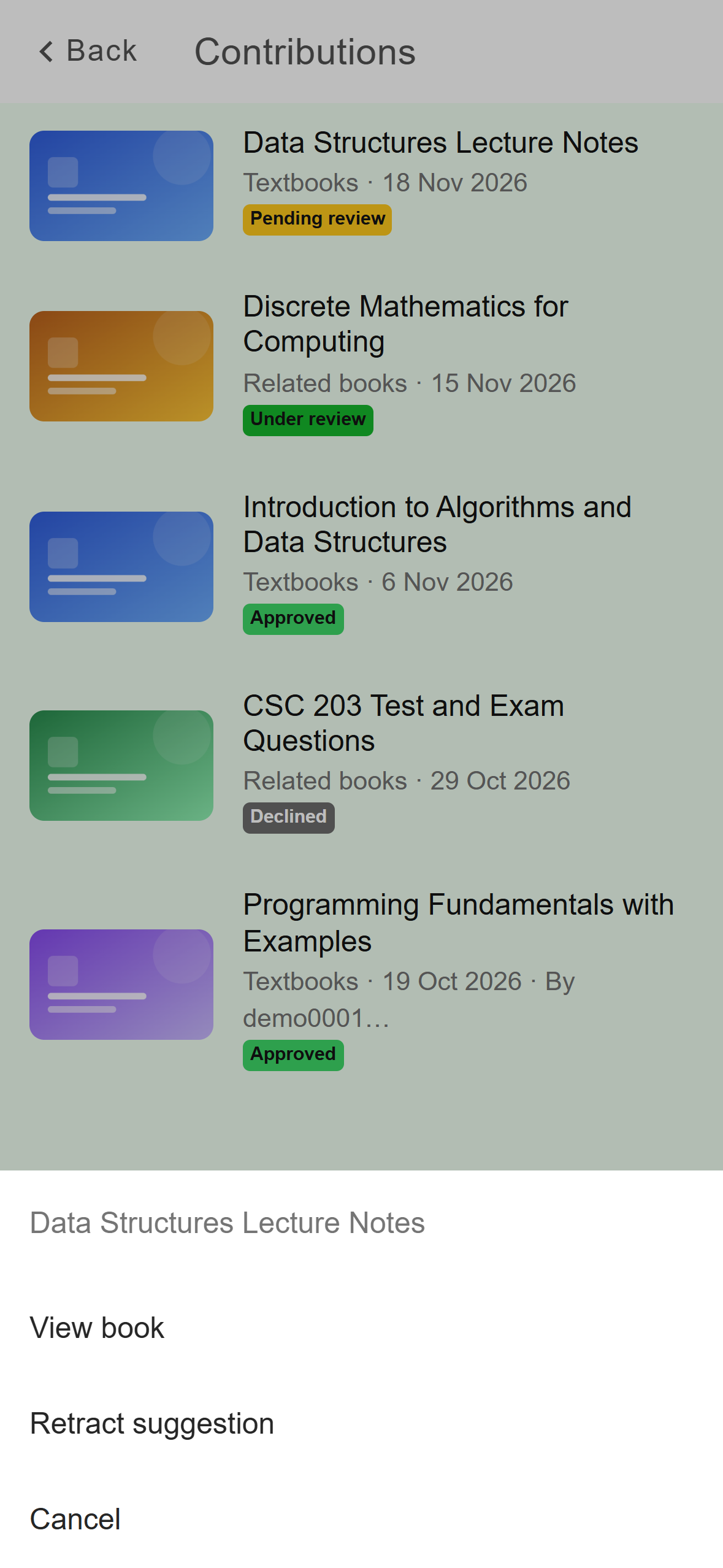
- Tap Retract suggestion.
Mobile: Retract suggestion only appears on a pending row of yours. Tap Retract suggestion, then Remove in the Remove suggestion? prompt. Cancel keeps it. A message says Suggestion removed.
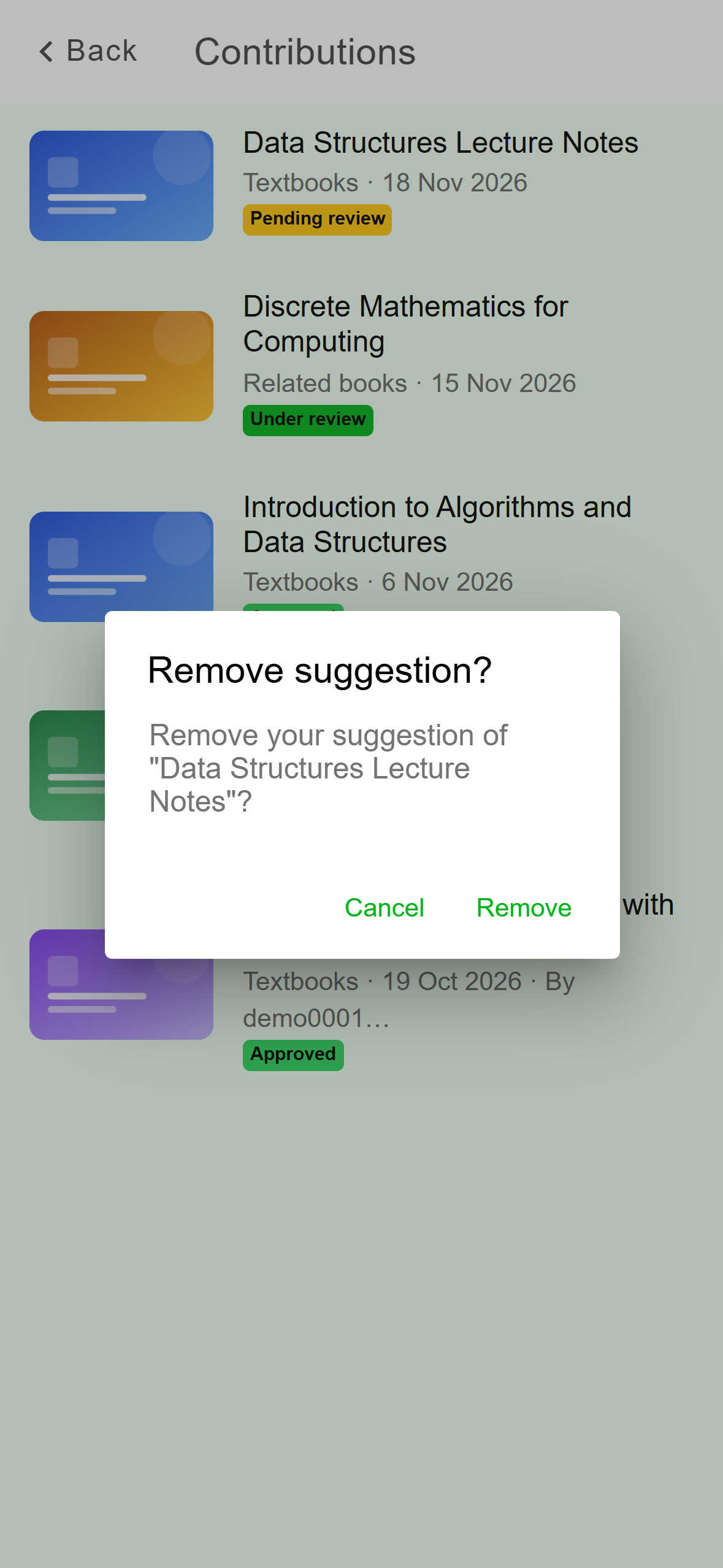
- Remove withdraws the suggestion.
Mobile: Remove takes the suggestion out of review.
On a Pending review row, click the undo arrow (Retract suggestion). In the Remove suggestion? dialog, click Remove, or Cancel to keep it. A message says Suggestion removed.
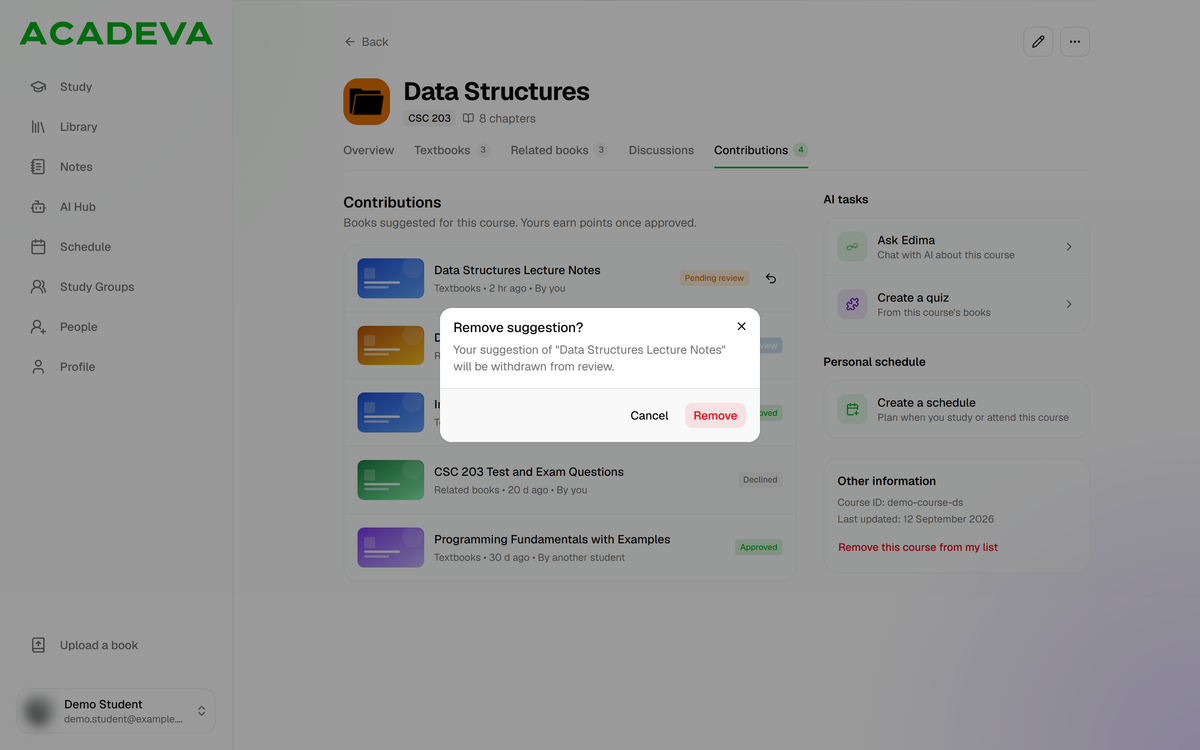
- Remove withdraws the suggestion.
Desktop: Remove takes the suggestion out of review.
A book on the list doesn't belong in the course? On the phone, press and hold it. On desktop, open its ⋯ menu. Choose Doesn't belong in this course to report it to the reviewers.
If it doesn't work
- No add button or no Contributions screen: the course isn't in your study list. Open it and use Add course.
- Book already in Textbooks (phone) or Already in Textbooks (desktop): the book is already on that list, so nothing was sent.
- You've already suggested this book (desktop): you sent it before. Acadeva keeps only your first suggestion. On the phone a repeat looks like a new submission, but it is the same one.
- Couldn't submit that suggestion (desktop): check your connection and try again. On the phone, a failed send can still say Book submitted for review. Open Contributions to check, and suggest the book again if it isn't listed.
- The retract fails with Could not retract. Please try again. (phone) or Couldn't remove that suggestion (desktop): a reviewer may have picked it up already. Reopen Contributions to see its status.